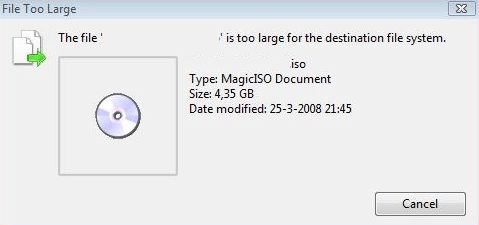
Yesterday, while copying some large files to an external hard drive, I was promptly issued this message by Windows:
The file “myfile” is too large for the destination file system.
So I wondered to myself what could possibly cause this issue. My external hard drive had tons of free space, so why would I not be able to copy this file over?
Well, the reason for this problem is because my file was 4.3 GB in size and my external hard drive was formatted in FAT32 format. The max file size for FAT32 is 4GB. The max file size for FAT16 is only 2GB!
So how do you fix this problem? Well there are two ways you can go about it. You can either split the file into smaller pieces and then copy it to your external hard drive or you can convert the file system to NTFS, where there is no limit on file sizes.
You can read my previous posts on using File Splitter or GSplit to split large files into smaller ones.
If you want to go with the second method, read my post on how to convert a hard drive from FAT to NTFS without losing any data.
Now you should be able to copy your large files by either splitting them or converting the hard drive to NTFS! Enjoy!


gah… when that error came up i had a dim recollection that i'd seen it before, and it had something to do with a limit on the size of an individual file. i think i'm gonna have to split the file i need to move for now… i don't like the idea of my hard drive telling ME what to do, but i have enough things i need to fix on the computer today, dammit!
Thank you! This has been driving me crazy for a couple of weeks! When I reformatted my 16gig flash disk it wanted to be Fat32 & I didn't realize that I was changing it from NTFS…
Thanks! This too had been driving me crazy and I didn't know what the problem was.
oh yeah, that works. Thank you!
Thanks a lot. This helped me.
That really works. Thanks to Aseem for the solution.
Thanks, it worked like a charm. :)
Thank you guys. It helped.
I tried file splitter but it didn't give me an option as to what type of file to save it to.
Thank you so very much.
Thanks. NTFS worked well for me. I am a programmer and this one had me going crazy.
Again, thanks. You saved me a whole lot of time.
Thanks for the tutorial. It really helped me. I was wondering if I'd have to back the whole thing up and then format to copy all files back. But, this is definitely the best way to do it!
Murilo
Thanks, mate. Worked perfectly.
;)
Hi.
Thanks for all of that info. You really helped me! You also saved me soooo much hassle!
Thanks again!
Thanks. You are amazing. :)
Thanks, this is exactly the info i was looking for, but,… if this problem is already known for some years, why the heck do harddrive producers still sell their disks with the FAT file system? Is there any particular reason? Is FAT better than NTFS? I'm asking myself this, because I just bought a brand new USB 3.0 portable drive, latest model, and it still has FAT on it. Is there a reason that they do that? They should know that people nowadays are mainly using harddrives for storage of the larger files such as DVD's, BlueRay movies, homevids and games.
Thanks for the fix!
very helpful …thank you very much
so why the hell does the ps3 only support fat32?! They know full well most bluray files are over 4 gigs. FML
FAT32 is the best though. NTFS will not play files on your Playstation.
Thank you guys – fixed my problem – wished I had have known this when the problem started!
Thanks!!! Saved my life, I had a feeling because of the wording of the error message that it might be something like this. It never occurred to me that my thumb drive was formatted FAT32. I did a quick format and changed it to NTSF and bam, no problem transferring larger files!!