
Are you planning on leaving a job and want to make sure you get a copy of all your emails in case you need to refer to them at a later point? Or maybe you just want to export them for backup purposes in case your Outlook PST file becomes corrupt, which happens quite often.
In any case, backing up your emails is always a good idea. Even if you are using a web service like Outlook.com or Gmail, it’s still not a bad idea to use a desktop client like Outlook to download all your mail so that you have it stored locally. Web services and giants like Microsoft and Google may seem immune to failure, but you never know when something catastrophic can happen.
In this article, I’ll show you how to export your Outlook emails in Outlook 2003, 2007, 2010, 2013 and 2016. I’ll also mention the procedure if you are using Outlook for Mac. It’s worth noting that the actual Import and Export Wizard is pretty much exactly the same across all versions, but the process of getting to the wizard has changed.
Exporting Emails from Outlook
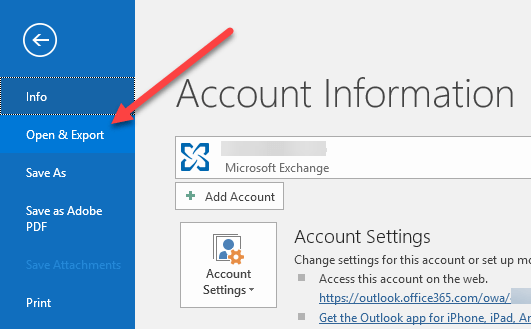
If you are running Outlook 2016, then click on File and Open & Export.
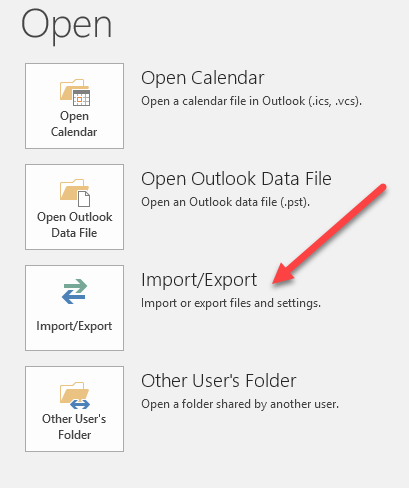
In the right-hand menu, click on the Import/Export button.
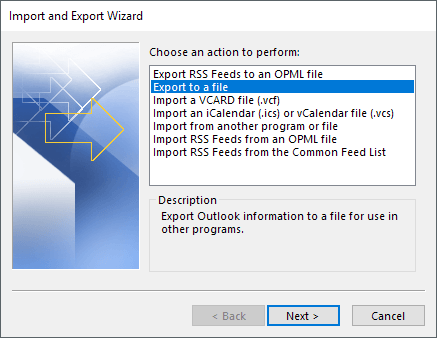
This will now bring up the Import/Export Wizard, which looks the same in all versions of Office. To get started, you want to select Export to a file.
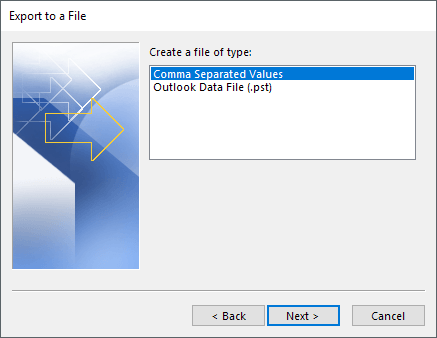
On the next screen, you have to choose the type of file: either a CSV (Comma Separated Values) file or an Outlook Data File (PST). I normally always use PST, so that it’s easier to import back into Outlook, but you can choose CSV if you want to import the emails into another email client or even into a program like Excel or Word.
On the next screen, you have to choose what you want to export. If you want to get all your emails, you normally select Inbox and make sure that Include subfolders is checked. If you only want a small subset of emails, you can click on the Filter button and then put in various criteria to reduce the number of emails to export.
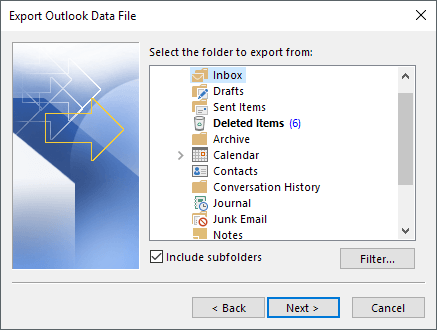
Click Next and you’ll now need to choose a location to save your CSV or PST file. There are several options that you can choose from that deal with how duplicates will be handled.
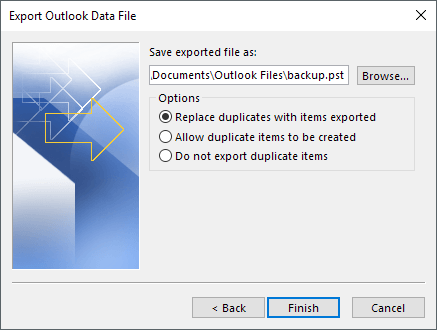
Finally, click Finish and you’ll get a window asking if you want to protect your PST file with an optional password. If you are going to use a password here, note that it should be more than 16 characters. Also, note that it’s not very secure and can easily be hacked using the right software.
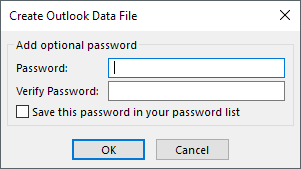
That’s about it. You should now have a CSV or PST file with all your emails stored inside. You can now copy this file to a safe location for backup.
Export Emails from Outlook for Mac
If you are running the Mac version of Office, then the procedure for exporting emails is different. Actually, the file type is also different. On Macs, you only have one option: Outlook for Mac Archive File (.OLM).
Click on File and then Export.
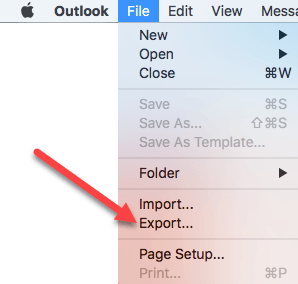
A dialog will popup where you can choose which items you want to export to the archive file. You can choose from Mail, Calendar, Contacts, Tasks and Notes or you can choose from items in a specific category.
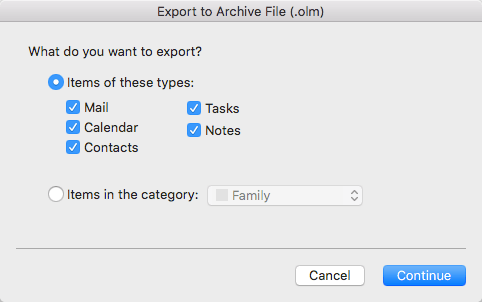
Click Continue and you’ll be asked where you want to save the file. That’s about it. There aren’t any other options when exporting from Outlook on a Mac.

