
Svchost.exe is a process that hosts other Windows services that perform various system functions. There can be multiple instances of svchost.exe running on your computer, with each instance containing a different service. We published a post a while back on what you can do if svchost.exe is using up a high percentage of your CPU.
In this article, I’m going to show you a couple of ways you view the actual process or service that is running inside svchost.exe. On most Windows PCs, you’ll see anywhere from 10 to 20 of these processes running. If there is a problem and one particular svchost.exe process is causing issues, you can probably fix it easily once you know which service is running inside that process.
Task Manager
If you are running Windows 10, then you have to look no further than the task manager. Click on Start and type in task manager or just press and hold CTRL + SHIFT + ESC on the keyboard. This will bring up task manager. If you just see a small box with a list of currently running programs, make sure to click on More details at the bottom.
Then click on the Processes tab and scroll past Apps and Background Processes until you get to Windows Processes. Keep scrolling down until you start seeing Service Host:. There should be quite a few of them listed.

As you can see, each service host will have the name of the service listed after the semicolon. This makes it really easy to see which service is associated with which svchost.exe process. If you need to see the exact process ID, just right-click on the line and choose Go to details.
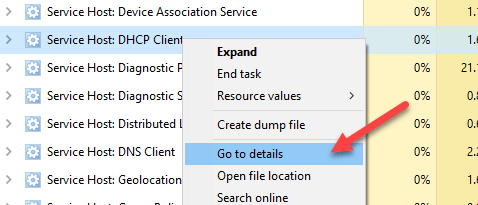
This will automatically bring you to the Details tab and it will automatically select the line that corresponds to that process.

Now we can see that the DHCP Client service is running inside svchost.exe with a process ID of 1504. This is by far the easiest way to accomplish this task, but it requires Windows 10. If you are running Windows 7 or earlier, read on about other methods.
Tasklist Command
On any version of Windows, you can use the command line to generate a list of all the svchost.exe processes along with the service that is running inside each. To do this, simply open a command prompt by clicking on Start and typing in cmd.
At the command prompt, go ahead and copy/paste the following command:
tasklist /svc | find "svchost.exe"
This will generate a list of all running processes, pass that list to the find command and filter to only show the svchost.exe processes. If you want to output this to a text file, use the following command:
tasklist /svc | find "svchost.exe" > c:\tasklist.txt
Note that in order to output to the root of the C drive, you’ll need to open an Administrator command prompt (Start, type cmd, right-click on command prompt and choose Run as Administrator). If it’s easier, you can change the path to something else like C:\Users\username\Documents.

Process Explorer
Finally, you can use a third-party program from Microsoft called Process Explorer. Just download it, unzip it and run the EXE file. There is no need to install anything, which is convenient.
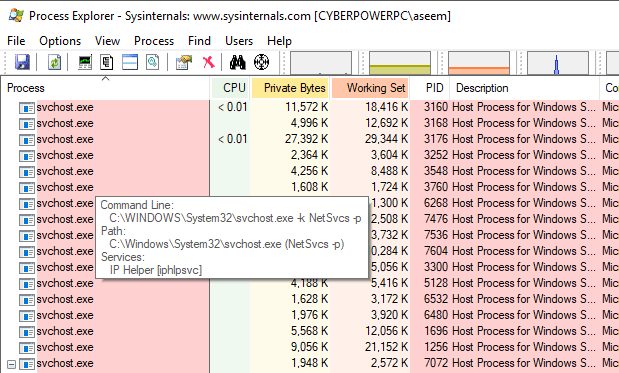
Click on the header for the Process column to sort the list of processes and then scroll down till you see svchost.exe. Go ahead and hover your mouse over any process and it will show you the services that are associated with that process.
So those are a couple of simple and easy ways to learn more about the svchost.exe process and what is running inside each one. Enjoy!
