
Over the last several years working in IT for various companies as a Systems Administrator, a Network Administrator, and a Help Desk professional, I’ve written and learned about many ways to increase the performance of not only my PC, but also of the many PCs on my networks ranging from Windows 98 to Windows 10.
In this article, I hope to compile a huge list of all the different methods and tricks that I’ve used to get the last bit of juice out of a slow PC. Whether you are using an old PC or the latest and greatest in hardware, you can still use some of these tips to make your PC run faster.
Note that since I write two blogs, Help Desk Geek and Online Tech Tips, I have previously written about many performance tips already which I will link back to throughout. If I have not written about it, I’ve throw in a link to a relevant article from some of my other favorite sites. This list is in no particular order, just written in the order that I could think of them.
There are probably a lot of great tweaks and performance hacks that I’ve missed here, so feel free to chime in with comments! Enjoy!
Speed Up Your PC List
1. Defragment your computer hard disk using built-in Windows tools or third-party programs.
2. You should also defragment your Windows pagefile and registry if you’re running Windows XP still.
3. Clean up hard drive disk space being taken up by temporary files, the recycle bin, hibernation files and more. You can also use a tool like TreeSize to determine what is taking up space on your hard drive.
4. Load up Windows faster by using Startup Delayer, a free program that will speed up the boot time of Windows by delaying the startup of programs.
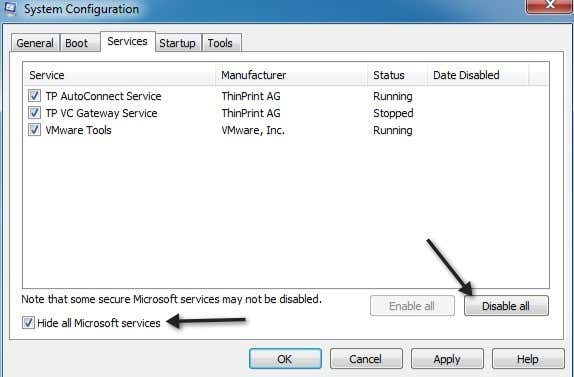
5. Speaking of startup programs, many of them are useless and can be turned off. Use the MSCONFIG utility to disable startup programs.
6. By default, the size of the paging file is controlled by Windows, which can cause fragmentation. Also, the paging file should be on a different hard drive or partition than the boot partition. Read here for the rules on best paging file performance.
7. In Windows, by default, the Windows Search indexing service is turned on for all local hard drives. Turning off indexing is a simple way to increase performance.
8. If you don’t care about all the fancy visual effects in Windows, you can turn them off by going to Performance Options.
9. You can optimize the Windows boot time using a variety of techniques including updating your BIOS or disabling unnecessary hardware.
10. Clean your registry by removing broken shortcuts, missing shared DLLs, invalid paths, invalid installer references and more. Read about the one registry cleaner that I actually recommend.
11. One of the main reasons why PC’s are slow is because of spyware. Here is my list of the best anti-malware and anti-spyware programs out there.
12. If you have a deeper spyware infection like a rootkit that is very hard to remove, you might need to perform an offline virus scan.
13. Remove unwanted pre-installed software (aka junk software) from your new PC using PC Decrapifier.
14. Disable unnecessary non-Microsoft Windows services that slow down your computer.
15. Tweak Windows XP and tweak Windows 7 or Windows 10 settings using free programs.
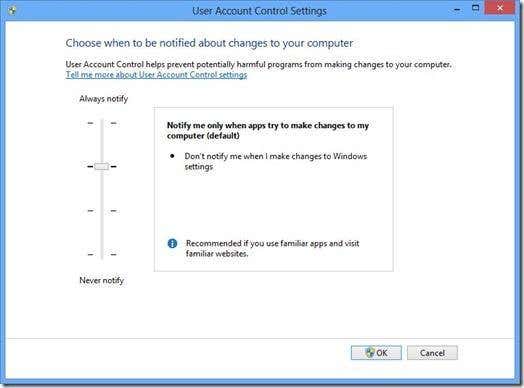
16. Disable UAC (User Account Control) in Windows if you’re an advanced user.
17. Tweak your mouse settings so that you can copy and paste faster, scroll faster, navigate quickly while browsing and more.
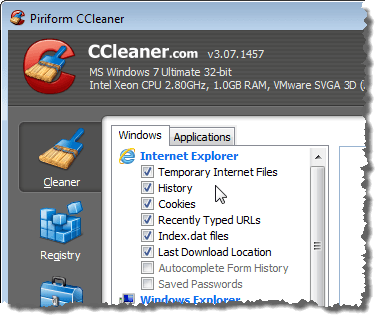
18. Delete temporary and unused files on your computer using a free program like CCleaner. It can also fix issues with your registry.
19. Delete your Internet browsing history, temporary Internet files, and cookies to free up disk space and increase your privacy.
20. Clean out the Windows prefetch folder to improve performance if you’re using Windows XP.
21. If you’re a Firefox user, check out my ultimate guide to making Firefox faster.
22. Reduce the number of fonts that your computer has to load up on startup.
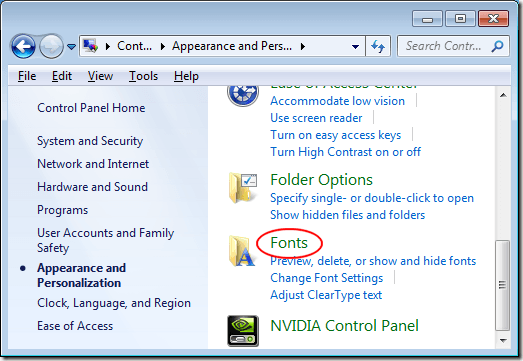
23. Is your computer slow to shutdown or hanging during shutdown? Read the article for fixes.
24. Transfer data across your network faster by forcing Windows to use a wired connection over a wireless connection.
25. Turn off system restore only if you regularly backup your Windows machine using third party software.
26. Move or change the location of your My Documents folder so that it is on a separate partition or hard drive.
27. Troubleshoot a slow appearing right-click context menu in Windows.
28. Speaking of right-click context menus, you can also edit the right-click context menu and remove unnecessary items to increase display speed.
29. Is your Internet running a little slow too? Here are some tips to increase your Internet speed also.
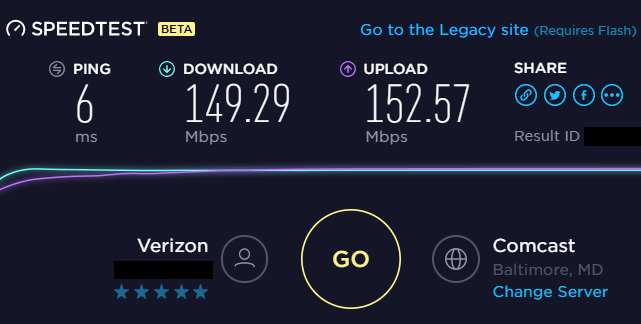
30. In addition, a slow Internet connection could mean someone else is leeching off your WiFi. Make sure no one else is using your WiFi and Internet.
31. Increase LAN transfer speeds by upgrading an old router or modem to the latest version.
32. Have to copy a large number of small files across the network? Windows can be slow, so check out some third-party fast copy programs.
33. Is your supposedly super fast SSD loading slowly? Here’s how to fix slow boot up times if you’re using an SSD.
34. Speed up your Internet browsing by using an external DNS server such as OpenDNS or Google DNS.
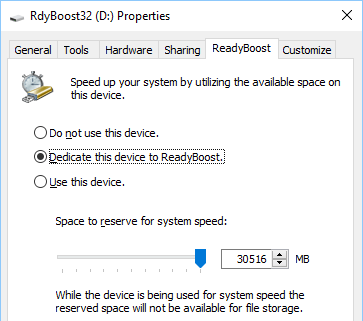
35. Improve Windows performance by using ReadyBoost, a newer feature whereby can use the free space on your USB drive as a caching mechanism.
36. Have a lot of tabs open in your browser window? Use keyboard shortcuts to switch between tabs faster.
37. If you have an overloaded system with tons of programs, etc., it may be a good idea to do a clean install of Windows.
38. Are your HD videos lagging or choppy when playing in Windows. Here are a couple of remedies.
39. If you use Outlook desktop, here are several tips for how to reduce the amount of memory Outlook uses.
40. If you’re an overlocker, you might be interested in some RAM, GPU and CPU tuning utilities.
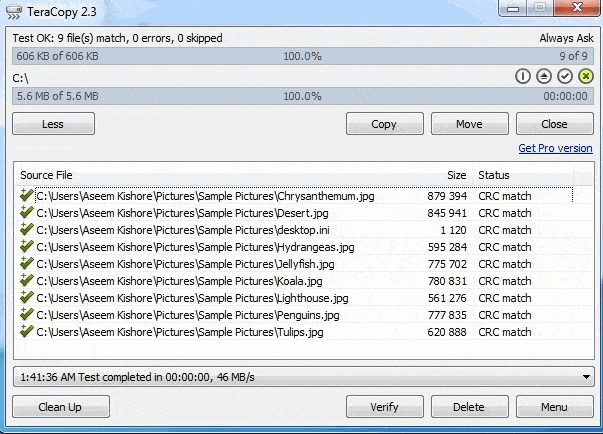
41. Use a program called TeraCopy to speed up file copying in Windows.
42. Though I depend on ads for my livelihood, you’ll definitely be browsing faster if you use an ad-blocker extension in your browser. Just whitelist my site please!
43. Invest in a program like DeepFreeze if your computer is used by other people, especially kids, who install crap onto your system and slow it down.
44. Using a Intel Celeron processor on your PC? Might be worth looking into a Core i3, i5 or i7 processor. i9 is just ridiculous.
45. Install more RAM in your machine if you are running Windows with anything less than 2 GB of RAM.
46. Change your power settings to Maximum Performance instead of Balanced. It’ll use more energy, but make your computer faster.
47. Try out the Performance Troubleshooter in Windows 7 and Windows 10. It actually gives some good advice.
48. If you are reinstalling Windows, make sure that you partition your hard drives correctly to maximize performance.
49. Is your disk usage always close to 100% in task manager? Here are a couple of tips to fix that problem.
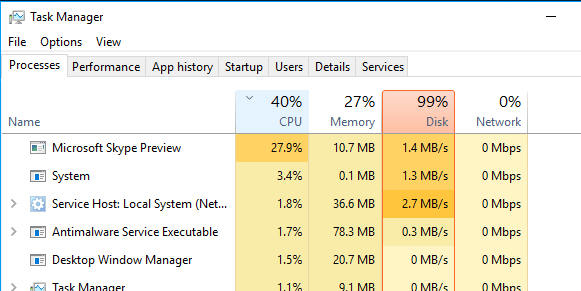
50. Convert your PC into a virtual machine using Hyper-V for free and visit risky sites or install junk program, games, etc. in the virtual machine instead of the host operating system.
51. Do not clear your paging file during shutdown unless it is needed for security purposes. Clearing the paging file slows down shutdown.
52. If your XP or Vista computer is not using NFTS, make sure you convert your FAT disk to the NTFS file system.
53. Update all of your drivers in Windows, including chipset and motherboard drivers to their latest versions.
54. Every once in awhile run the built-in Windows Disk Cleanup utility.
55. Use Task Manager to find resource hungry processes running on your PC.
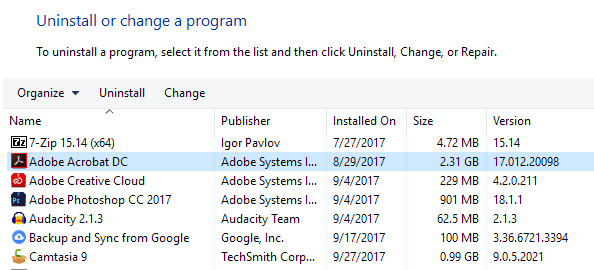
56. Remove unnecessary or old programs from the Add/Remove or Programs and Features dialog in the Control Panel.
57. Use a program click memtest86 or Prime95 to check for bad memory on your PC.
58. Determine your BIOS version and check the manufactures website to see if you need to update your BIOS.
59. Every once in awhile, clean your mouse, keyboard and computer fans of dust and other buildup.
60. Replace a slow 5400 RPM hard drive with a faster 7200 RPM drive, SATA drive, SSD drive or SAS drive. Here’s how you can check the RPM of your hard drive.
61. Changing from Master/Slave to Cable Select on your hard drive configuration can significantly decrease your boot time.
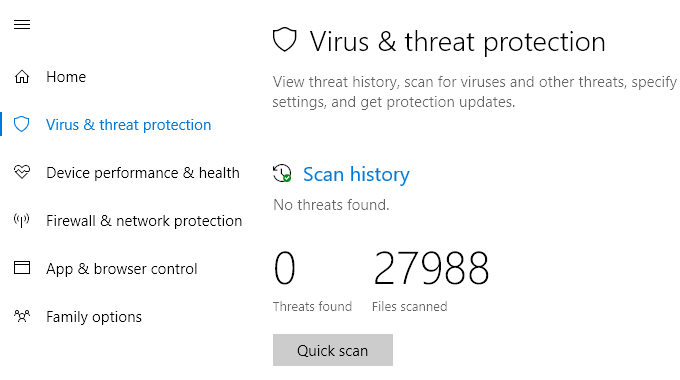
62. Perform a virus scan on your computer regularly. Here’s a list of the most popular anti-virus software and some tips on how to protect yourself from viruses and malware.
63. Remove extra toolbars from your Windows taskbar and from your Internet browser.
64. Disable the Windows Vista and 7 Sidebar if you’re not really using it for anything important. All those gadgets take up memory and processing power.
65. If you have a SATA drive and you’re running Windows Vista or Windows 7, you can speed up your PC by enabling the advanced write caching features.
66. Learn how to use keyboard shortcuts for Windows 8, Windows 10, Microsoft Excel, Outlook, or create your own keyboard shortcuts.
67. Turn off the Aero visual effects in Windows Vista and 7 to increase computer performance.
68. If you are technically savvy and don’t mind taking a few risks, you can try to overclock your processor.
69. Speed up the Send To menu in Explorer by typing “sendto” in the Run dialog box and deleting unnecessary items.
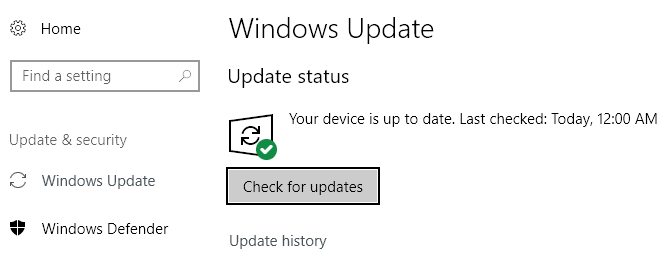
70. Make sure to download all the latest Windows Updates, Service Packs, and hotfixes as they “normally” help your computer work better. You can update Windows without using Windows Update too.
71. Make sure that there are no bad sectors or other errors on your hard drive by using the ScanDisk or chkdsk utility.
72. If you are not using some of the hardware on your computer, i.e. floppy drive, CD-ROM drive, USB ports, IR ports, firewire port, etc., then go into your BIOS and disable them so that they do not use any power and do not have to be loaded during boot up.
73. Though it may seem silly, you can actually install faster software on your system. For example, Google Chrome is much faster than Firefox and IE IMHO. If you are using Adobe Photoshop, you can possibly accomplish the same tasks using Paint.NET. Use LibreOffice instead of Microsoft Office. You get the idea, right?
74. If you have a dual boot setup, you can shorten the length of the boot menu timeout so that your preferred OS loads faster.
75. Though it’s less secure, you can always setup automatic login in Windows so that you boot right to the desktop after a restart.
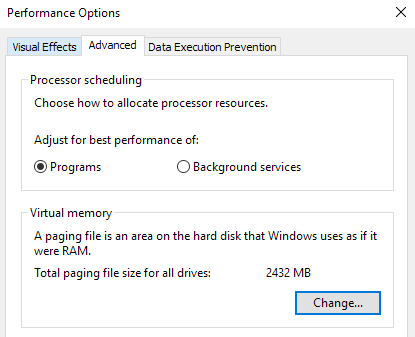
76. I already mentioned reducing visual effects, but the same dialog has an option for processor scheduling also. You can choose from Programs or Background Services.
77. If you have lots of files in a single folder, it can slow down Explorer. It’s best to create multiple folders and spread out the files between the folders.
78. If you have files that are generally large on a specific partition, you might want to consider increasing the cluster size on NTFS to 16K or even 32K instead of 4K. This will help speed up opening of files. Only for advanced users.
79. OneDrive comes bundled with Windows 10 and eats up resources even if you’re not using it. Disable or uninstall OneDrive if you don’t need the cloud syncing.
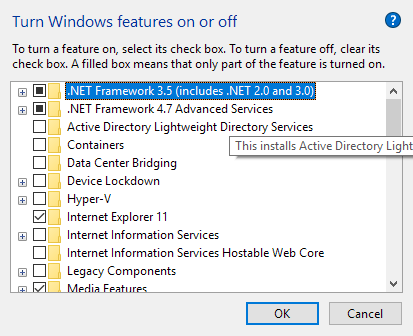
80. Turn off unnecessary features in Windows by going to Control Panel, choosing Uninstall a program, and then clicking on Turn Windows features on and off. You can turn off Remote Differential Compression, Tablet PC components, DFS replication service, Windows Fax & Scan, Windows Meeting Space, Media Features, IE 11 and lots more.
81. If you have enabled the Hibernation feature in Windows 10, then you should also make sure Fast Startup is enabled for quicker boot time.
82. Completely uninstall programs and applications using a program like Revo Uninstaller. It will get rid of remnants left behind by normal uninstalls.
83. If you know what you are doing, you can install several hard drives into your machine and set them up in RAID 0, RAID 5, or other RAID configurations. RAID 0 is the fastest.
84. If you are using USB 1.0 or USB 2.0 ports, upgrade them to USB 3.0 ports. Or just buy a new expansion card and install it into an empty slot.
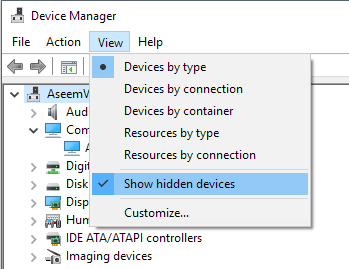
85. Remove the drivers for all old devices that may be hidden in Device Manager that you no longer use.
86. A more extreme option is to choose a faster operating system. If you find Vista or 7 to be slow, go with Windows 10. Switching to Mac OS X or Linux is also an option.
87. If you don’t care about the live tiles in the Windows 10 start menu, then you should disable them to improve performance.
88. It can be complicated to upgrade a CPU, but that’s not the case for GPUs. Upgrading your GPU can increase the performance of your PC even if you have an older CPU.
89. Disconnect any unused USB devices from your computer. They will slow down the boot and login processes in Windows.
90. If you have a desktop background, make sure it’s a small and simple bitmap image rather than a fancy picture off the Internet. The best is to find a really small texture and to tile it.
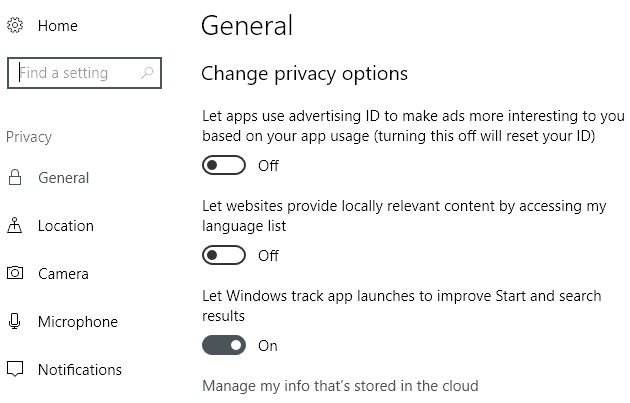
91. Change the privacy settings in Windows 10 so that your PC isn’t always trying to connect to Microsoft’s servers.
92. I’ve already mentioned virus scanning, but it’s worth mentioning that Windows Defender is usually good enough and you should uninstall any third-party anti-virus product as it will slow down your system. I still recommend using an anti-malware program in addition to Windows Defender.
93. If you have a custom built computer or a PC that was previously used, make sure to check the BIOS for optimal settings such as enabled CPU caches, correctly set IDE/SATA data transfer modes, memory timings, updated drivers, etc. You can also enable Fast/Quick boot if you have that option.
94. If you’ve been using one local account for a long time, it might be worth the effort to create a new user account with a clean profile. You can then delete the older user account later.
95. Though sometimes useful, if you want better performance you can disable taskbar thumbnails and disable thumbnail previews in Explorer.
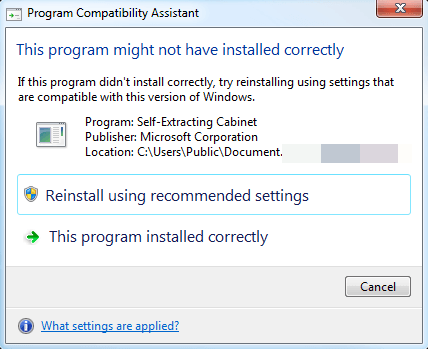
96. For advanced users, you can disable program compatibility assistant, which checks each program at run-time for compatibility issues.
97. If you don’t use the Cortana digital assistant in Windows 10, you can save quite a bit of resources by disabling it altogether.
98. If you are running a 32-bit version of Windows, you need to get to a 64-bit version ASAP, even if it means upgrading your hardware.
99. Buy a new computer!!! ;) Pretty easy eh?
Whew! If you got through that entire list, I’m very impressed! Not all tips will apply to everyone, but there literally wasn’t anything else out on the Internet that I could add to this. If I have missed a good performance tip, make sure to comment. Enjoy!
