 Aseem Kishore · May 11, 2009 · 1 min read
 Yesterday, while setting up a website on IIS 7 and Windows Server 2008, I loaded up the website in the browser and ended up getting the following error message:
Calling LoadLibraryEx on ISAPI filter C:\…isapi.dll failed
The path was to the isapi.dll file in C:\Program Files\etc and I was pretty sure everything was setup properly. After doing a bit of research on the topic, I figured out that since I’m running IIS 7 on a 64-bit version of Windows Server and my web application was 32-bit, I had to change a setting in the IIS configuration.
To fix this problem, all you have to do is open IIS7 and click on Application Pools.
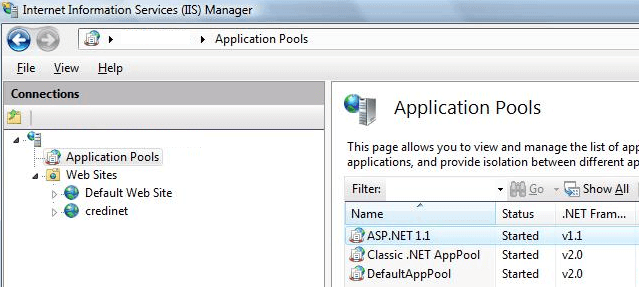
Then right-click on the application pool for your website or the default application pool and go to the Advanced Settings tab. Make sure that Enable 32-bit applications is set to True.
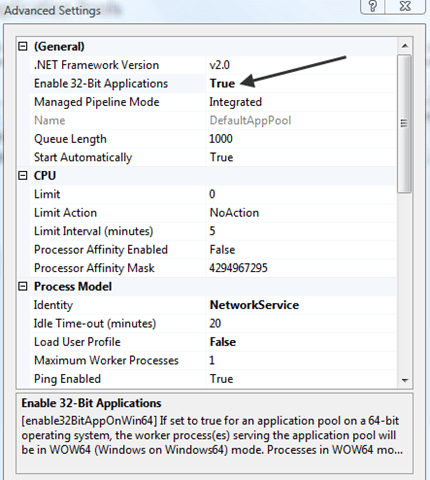
That’s it! Now restart IIS and load up Internet Explorer again and your website should load fine.
Related Posts
- How to Fix App Notifications in Windows?
- Using an Old Device? 5 Account Security Settings You Should Enable
- How to Find Features Moved from Control Panel to Settings in Windows 11?
- How to Back Up Your Android Downloads Automatically?
- Camera Not Working in Zoom or Teams? Quick Fixes for Windows and macOS

Founder of Help Desk Geek and managing editor. He began blogging in 2007 and quit his job in 2010 to blog full-time. He has over 15 years of industry experience in IT and holds several technical certifications. Read Aseem’s Full Bio

