 selma citakovic · October 24, 2025 · 3 min read
Last week, Microsoft announced a new batch of updates with the goal of “making every Windows 11 PC an AI PC.” This includes a renewed focus on Copilot, along with several unique assistant tools. Let’s take a closer look at Microsoft’s new AI features in Windows 11 together.
Interestingly enough, these changes will include voice as a valid input method and other experimental options.
New AI Features in Windows 11
So, what can you expect from the latest wave of updates? According to Microsoft, an exciting switch to Copilot as a natural way of using your computer. The AI virtual assistant will now be a full-time collaborator for your everyday tasks.
You’ll also have access to features such as:
- Copilot Voice – You can now start conversations with voice commands.
- Copilot Vision – The AI can directly see and analyze what’s on your screen.
- Copilot Actions – The assistant can take direct actions on the web and your local files.
- Copilot Connectors – You can integrate various services with the AI app.
Now, let’s go over them one by one:
Copilot Voice
If you’re tired of typing in prompts, you’ll be interested in this update. With Copilot Voice, you can bring up the app just by saying “Hey Copilot.” To enable it, go to your Settings and toggle it on in Voice Mode.

After that, it will listen to you and answer any of your questions, as long as you say the magic words first. You can end the conversation by saying “Goodbye” or tapping X.
Copilot Vision
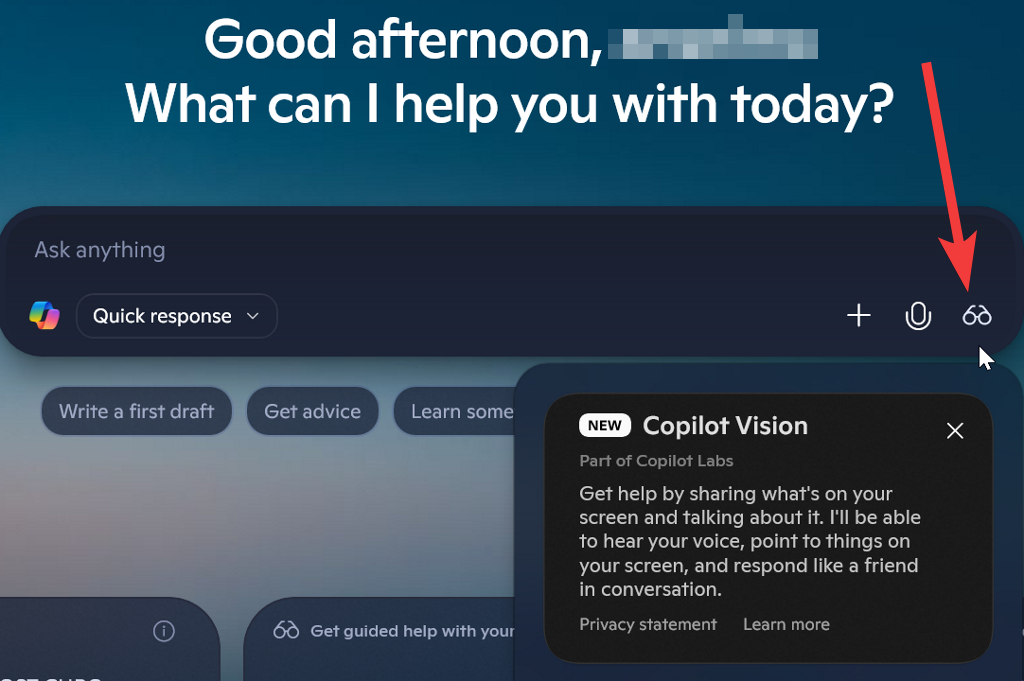
Originally introduced in Labs, Copilot Vision can analyze the contents of your screen. Depending on what it sees, it can then offer you guided help when:
- Playing a new game
- Editing photos
- Improving your resume
- Reviewing your to-do or packing lists, and more.
Additionally, you can enable this feature right under Voice Mode in your Settings. To use it and share your screen, select the glasses icon on the main bar.
Copilot Actions
Previously, Copilot could act as your agent on the web and complete tasks for you. It could reserve tickets, send gifts, and more. But this update extended its capabilities to your local files.
Actions can now access your files and applications to organize photos or go through documents. Simply toggle on File search and File read in your Permission Settings.

Of course, you can always recall your approval and take over the tasks.
Copilot Connectors
With this update, Copilot can connect to services like:
- OneDrive
- Google Drive
- Outlook
- Gmail
- Google Calendar
- Google Contacts.
It will gain access to all your linked personal information across multiple devices.
You can then ask the AI for somebody’s email address and receive it instantly. Or you could ask about an appointment on your calendar and get all the info you need.
Conclusion
Microsoft’s new AI features in Windows 11 mark a decisive shift to AI-assisted PC usage. Copilot is designed to have a more central role, with voice commands, Copilot Vision, Actions, and Connectors.
You can try them out now, once you enable them in the Settings. Of course, you’re free to disable them if you don’t like them. Good luck!
Related Posts
- What is Canary Channel Insiders? Latest Update Overview
- PlayStation Portal OLED vs. LCD: 5 Reasons to Wait for the 2026 Refresh
- Roundup of Gemini AI Desktop Rollout, Chrome 143 Notification Fixes, ChromeOS LTS 138, and AI Mode search With Enablement Steps
- Chrome’s AI Mode Now Rolls Out Globally—Try Multimodal Search on Your Phone
- Microsoft Launches Its First In-House AI Image Generator, MAI-Image-1, Now Available in Bing and Copilot for Creative Users and Developers

Selma is a tech fan and writer at Help Desk Geek with a focus on cybersecurity, gaming, and all things Windows. She’s certified by IBM in hardware and operating systems, and cybersecurity essentials. She also has keen troubleshooting instincts – if you have a problem, she’ll help you solve it. Read selma’s Full Bio

