 selma citakovic · October 27, 2025 · 4 min read
The new Windows 11 version 25H2 update has introduced a batch of features, mostly focused on security. However, it also caused many issues, ranging from mildly annoying to serious ones. We’ll cover the most common problems reported after the October Windows updates.
In most cases, you can simply revert them or install the latest patch to resolve the trouble. Still, some may require specific fixes, which you can find below.
7 Common Problems Reported After the October Windows Updates
Let’s have a look at some of the most important issues:
Mouse and Keyboard Stopped Working in WinRE (Windows Recovery Environment)
The KB5066835 security update on October 14 has caused USB mice and keyboards to stop working in WinRE. This means you’ll be stuck in the recovery process if you’ve experienced a blue screen, since you can’t navigate.
Luckily, the KB5070773 out-of-band update, released on October 20, has fixed the issue. Alternatively, temporary workarounds include:
- Using a PS/2 keyboard and mouse, if you have the ports
- Navigating via touchscreen
- Booting your computer from a previously created USB recovery drive.
Smart Card Authentication and Certificate Errors
The same update has also led to smart card authentication errors. You may encounter problems in apps that use certificate-based authentication or be unable to sign documents.
You can resolve this by modifying the registry key. However, you should back up your registry before making any changes.
Here are the steps:
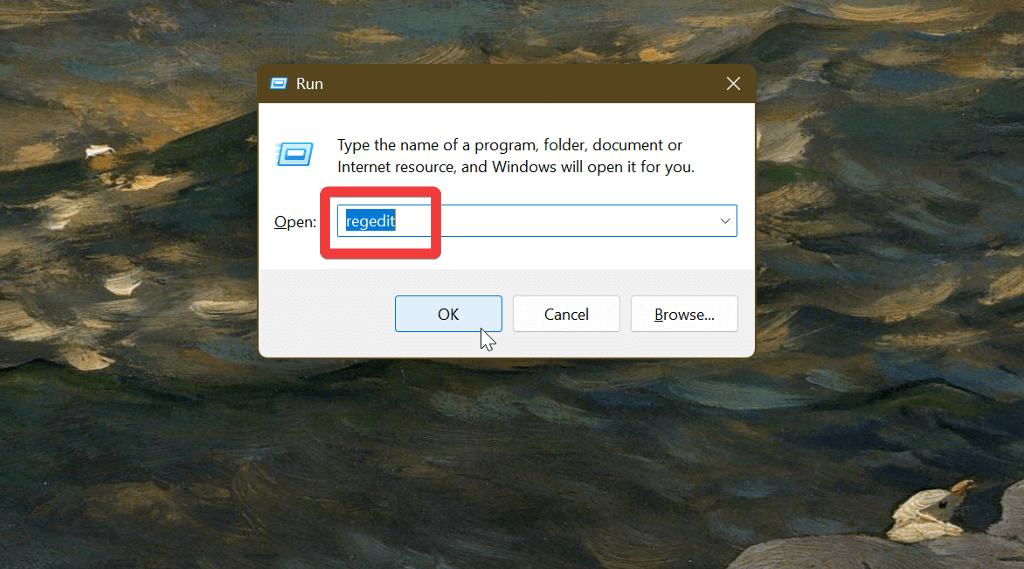
- Press the Windows key + R and type regedit in the Run window. Press Enter.
- Find HKEY_LOCAL_MACHINE\SOFTWARE\Microsoft\Cryptography\Calais.
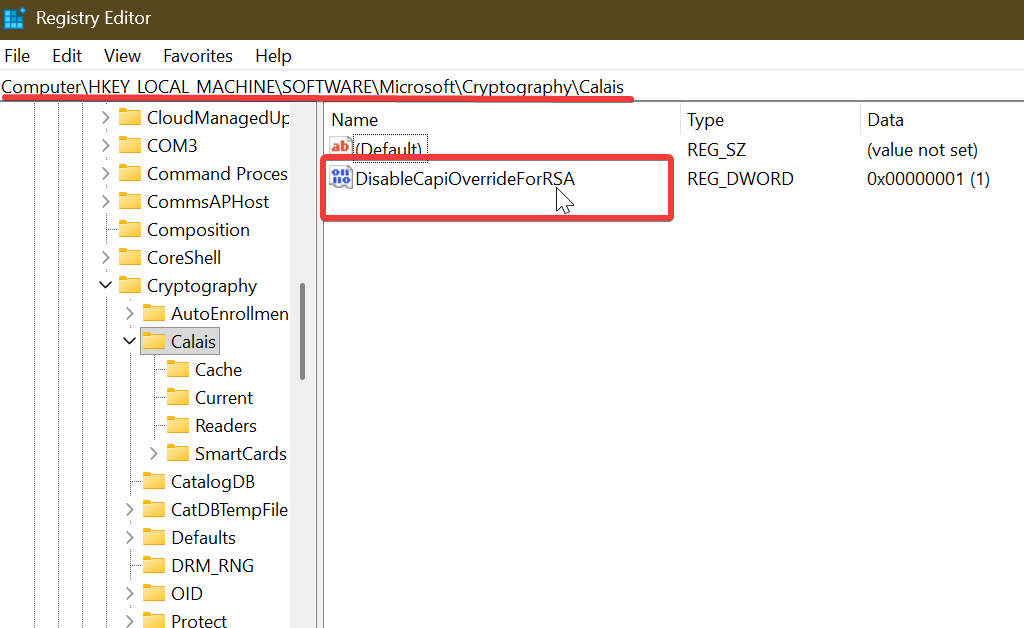
- In the Calais folder, look for DisableCapiOverrideForRSA.
- Double-click it and enter 0 in the Value date.
- Close the registry editor and restart your computer.
IIS (Internet Information Services) Websites Can’t Load
Users have reported issues with localhost websites and IIS connections. You may see an error message saying “Connection reset – error (ERR_CONNECTION_RESET).”
Interestingly enough, it doesn’t target everyone who installs the update. According to Microsoft, the current only way to fix it is to update your PC.
To do so:
- Open Windows Settings and select Windows Update.
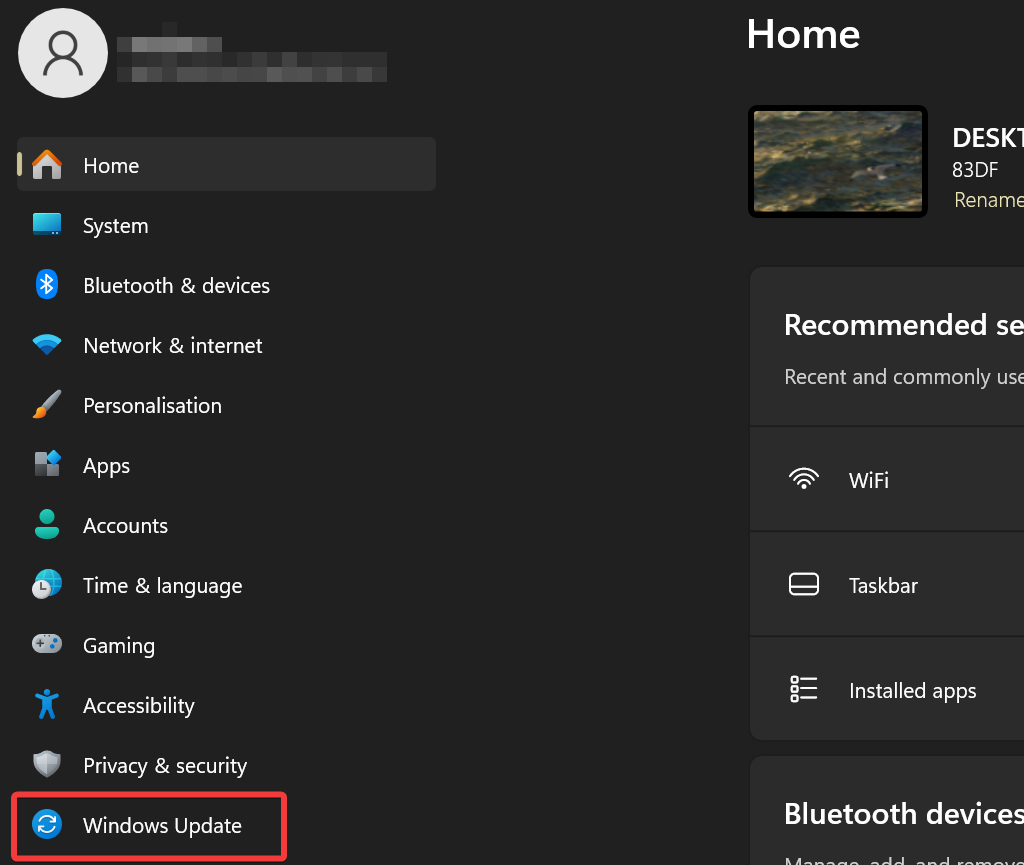
- Select Check for updates. Download and install them.
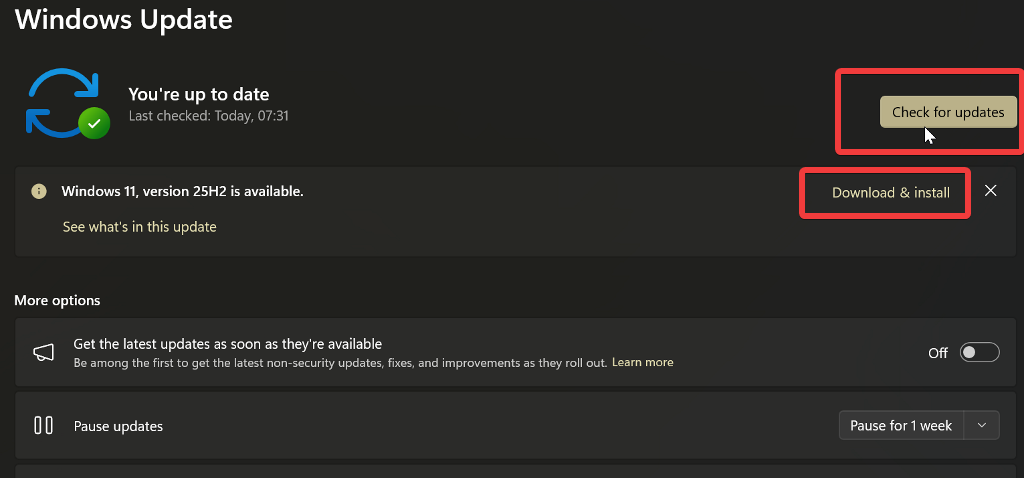
- Restart your PC.
Theme Keeps Auto-switching Between Dark and Light Mode
The latest updates have automatically enabled some PowerToys features, including the Light Switch. Because of this, users have complained about Windows theme colors forcibly changing without their control.
If you’re also experiencing this error, all you have to do is disable the Light Switch. Here’s how:
- Open PowerToys.
- Select Light Switch under System tools on the left side.
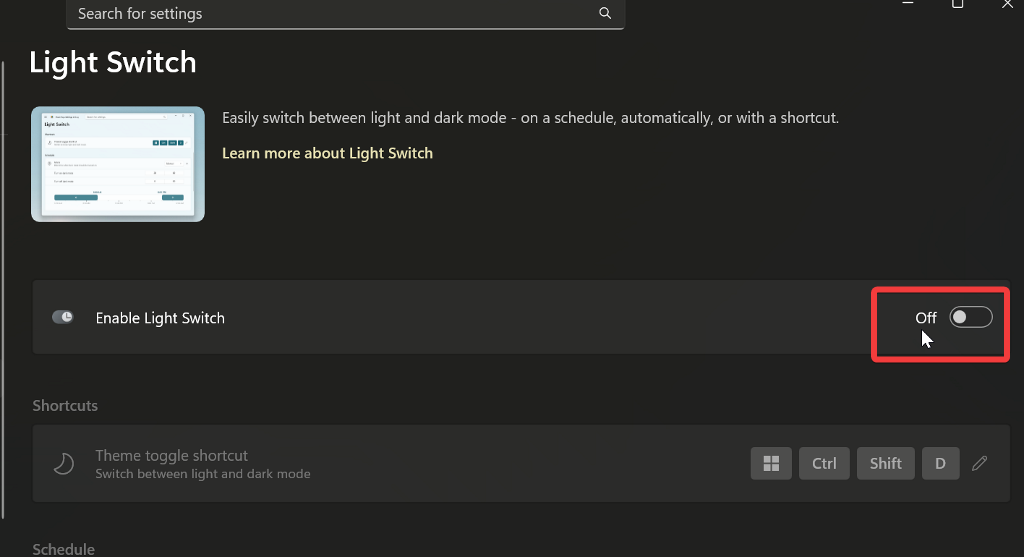
- Toggle it off.
File Explorer’s Preview Pane Doesn’t Work
Some Windows users have noticed that they can’t preview files anymore. The preview pane shows this message instead: “The file you are attempting to preview could harm your computer. If you trust the file and the source you received it from, open it to view its contents.”
Until a dedicated fix arrives, you can do this:
- Right-click the affected file and select Properties.
- At the bottom of the General tab, select Unblock, then OK.
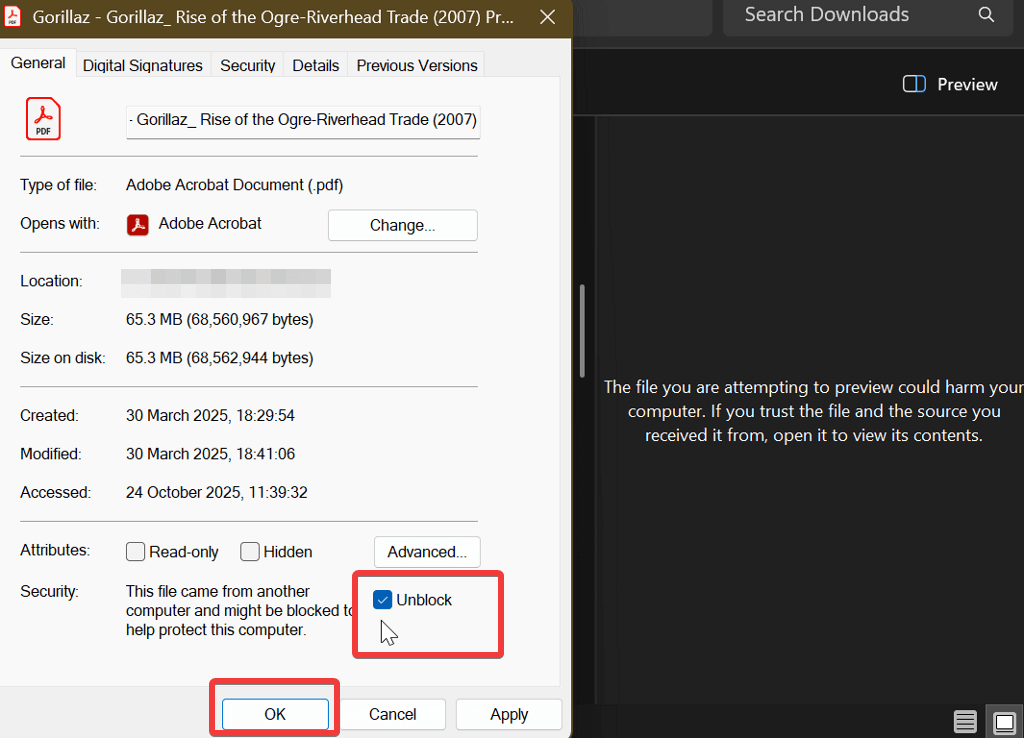
This will notify Windows that the file is trusted and safe to preview.
Problems with Logitech Peripherals
Logitech mouse and keyboard owners might encounter specific issues. Some special shortcuts in Logitech Options and Options+ won’t function anymore. Until either Logitech or Microsoft address this problem, you’ll have to roll back the Windows update.
Follow these steps:
- Open Windows Settings and go to Windows Update.
- Select Update history.
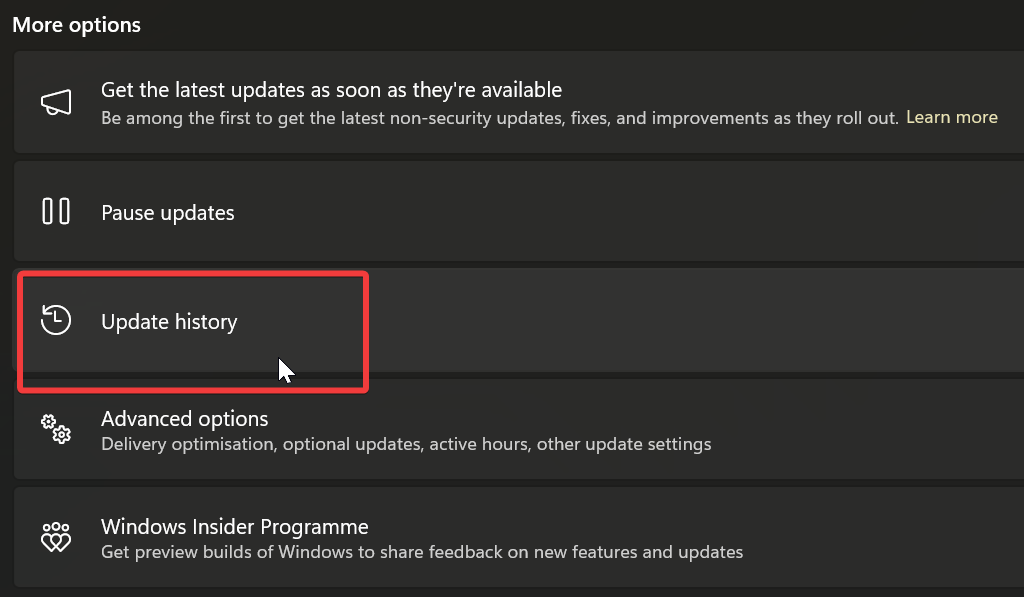
- Scroll down and select Uninstall updates.
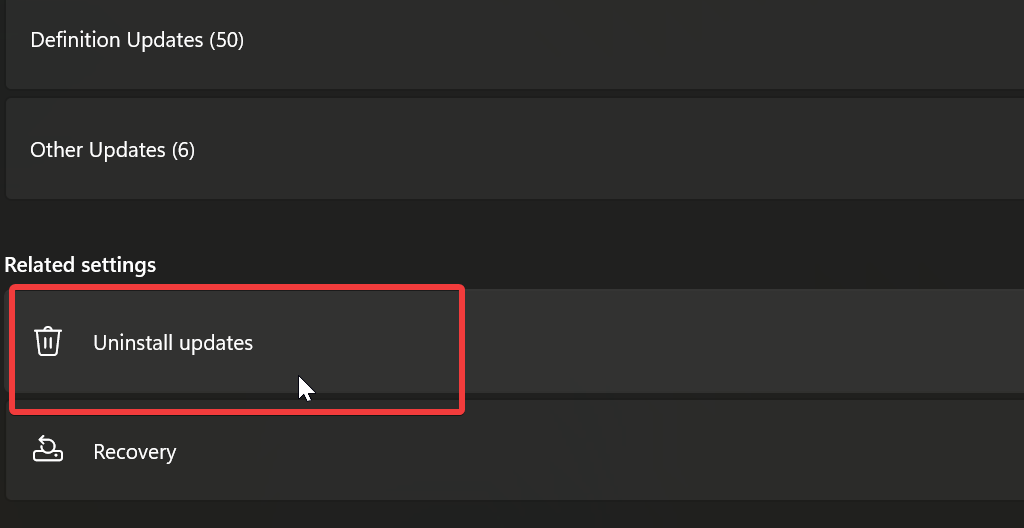
- Find the problematic update and uninstall it.
The Updates Won’t Install
This is a classic Windows problem. As soon as there’s a new update out, sometimes it won’t install properly. It might be stuck at a certain progress percentage and just won’t work.
Unfortunately, you can’t do much but wait for the next patch or keep restarting your PC and trying to install it.
Conclusion
You can rest easy now that we’ve cleared up some of the most common problems reported after the October Windows updates. The WinRE peripheral issue might be the most serious one. Fortunately, Microsoft rolled out a patch that resolved it.
In any case, we’ve covered all the solutions and workarounds you can follow until the next updates come out. Hopefully, they won’t break anything too important. Good luck with your troubleshooting!
Related Posts
- What is Canary Channel Insiders? Latest Update Overview
- PlayStation Portal OLED vs. LCD: 5 Reasons to Wait for the 2026 Refresh
- Roundup of Gemini AI Desktop Rollout, Chrome 143 Notification Fixes, ChromeOS LTS 138, and AI Mode search With Enablement Steps
- Chrome’s AI Mode Now Rolls Out Globally—Try Multimodal Search on Your Phone
- Microsoft Launches Its First In-House AI Image Generator, MAI-Image-1, Now Available in Bing and Copilot for Creative Users and Developers

Selma is a tech fan and writer at Help Desk Geek with a focus on cybersecurity, gaming, and all things Windows. She’s certified by IBM in hardware and operating systems, and cybersecurity essentials. She also has keen troubleshooting instincts – if you have a problem, she’ll help you solve it. Read selma’s Full Bio

