 selma citakovic · October 29, 2025 · 4 min read
Want to know how to recover lost Chrome tabs after a crash? If you’re one of those people who are addicted to keeping a lot of tabs open, you know how frustrating this can be.
Unexpected shutdowns, restarts, and crashes can seriously disrupt your browsing session. This guide covers all you need to know in case of an accident, so read on.
How to Recover Lost Chrome Tabs After a Crash
If your browser crashed or your PC unexpectedly rebooted, keyboard shortcuts for immediate retrieval and similar methods won’t work. You’ll have to either restore your browsing session or check your History for Recent tabs.
Restore Your Previous Browsing Session
Google Chrome has a built-in utility for retrieving your lost tabs. Immediately after the crash, restart your browser and look for the Restore prompt at the top.
However, users have reported that this method doesn’t always work. If you try restoring your session and it fails once, try this alternative from Google Chrome Help:
- Turn off Chrome, and open File Explorer. Go to \Users\%username%\AppData\Local\Google\Chrome\UserData\Default\Sessions
- In the Sessions folder, you’ll find two Session and two Tabs files. Make a backup just in case, and move them all to a safe folder.

- Keep in mind that the files from your old session (the one you’re trying to recover) have a larger file size. Rename the older files by copying the names from the newer files. Once you do that, delete them so that only the older files remain in the Sessions folder.
- Start up Chrome, and it should prompt you to restore your old session.
Use the Recent Tabs Option
If you don’t get prompted to recover your lost Chrome tabs after the crash and upon restart, follow these steps instead:
- Open Chrome and go to the three-dot menu in the upper-right corner.
- Select History.
- Select Recent tabs and then Restore window to bring back your lost tabs.

How to Immediately Recover Closed Tabs
If you accidentally closed your browser window, you can easily regain your tabs with these steps.
Keyboard Shortcuts
Press the following key combinations:
- Ctrl + Shift + T – on Windows
- Cmd + Shift + T – on Mac.
You can repeat them to recover multiple tabs.
Use the Reopen Closed Tab Option
Alternatively, you can try this method if you don’t feel like remembering key combinations:
- While in Chrome, right-click on the browser bar.
- Select Reopen closed tab from the menu.

How to Prevent Losing Your Chrome Session and Tabs
If you feel like this is happening far too often for your liking, we have some top tips for you:
Configure Automatic Session Recovery
Google Chrome has a built-in setting to remember your tab groups and bring them up on restart. To activate it:
- Select the three-dot menu and then Settings.
- Select On startup > Continue where you left off.

Bookmark Your Important Tabs
This might sound obvious, but if you’re scared of losing important data, bookmark your tabs. Unfortunately, as convenient as keeping them all always open is, it’s not a viable option in the long run.
It takes up a lot of RAM and CPU, and crashes will happen eventually, especially on older and lower-spec computers.
Get Session Buddy
You can also get a session management extension for your browser. Session Buddy is a tab manager that saves all your open tabs as collections to keep them organized. It can also automatically retrieve them in case of a crash.
To set it up:
- Find Session Buddy on the Chrome Web Store.
- Select the Add to Chrome button.

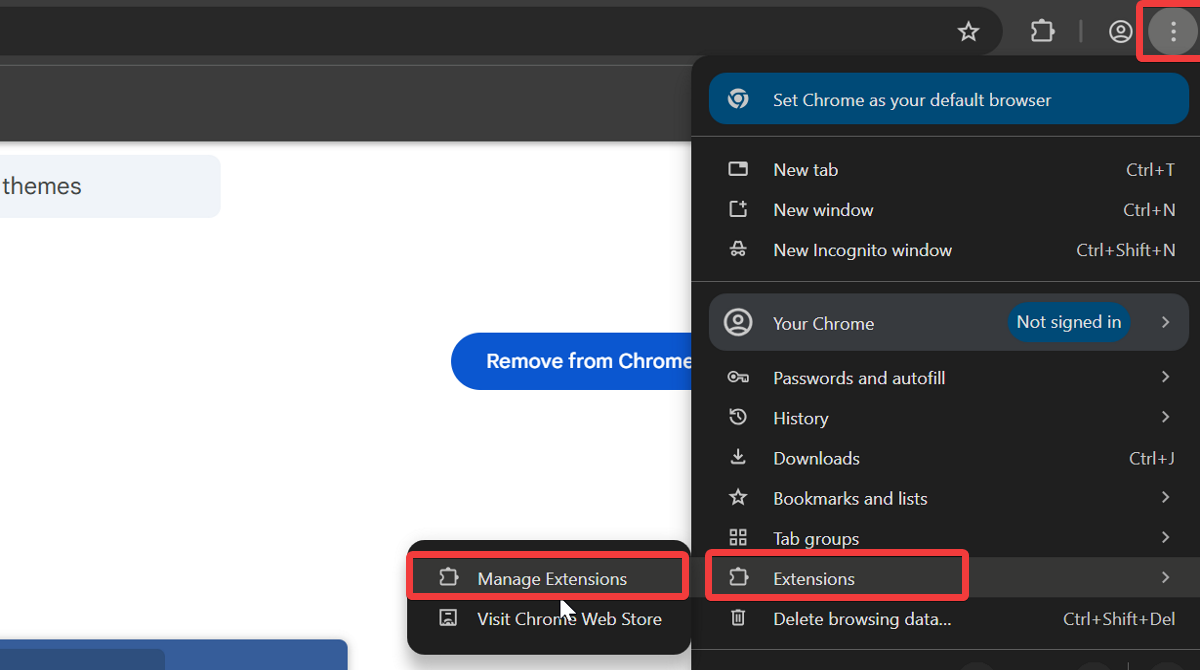
- Go to the three-dot menu > Extensions > Manage extensions.
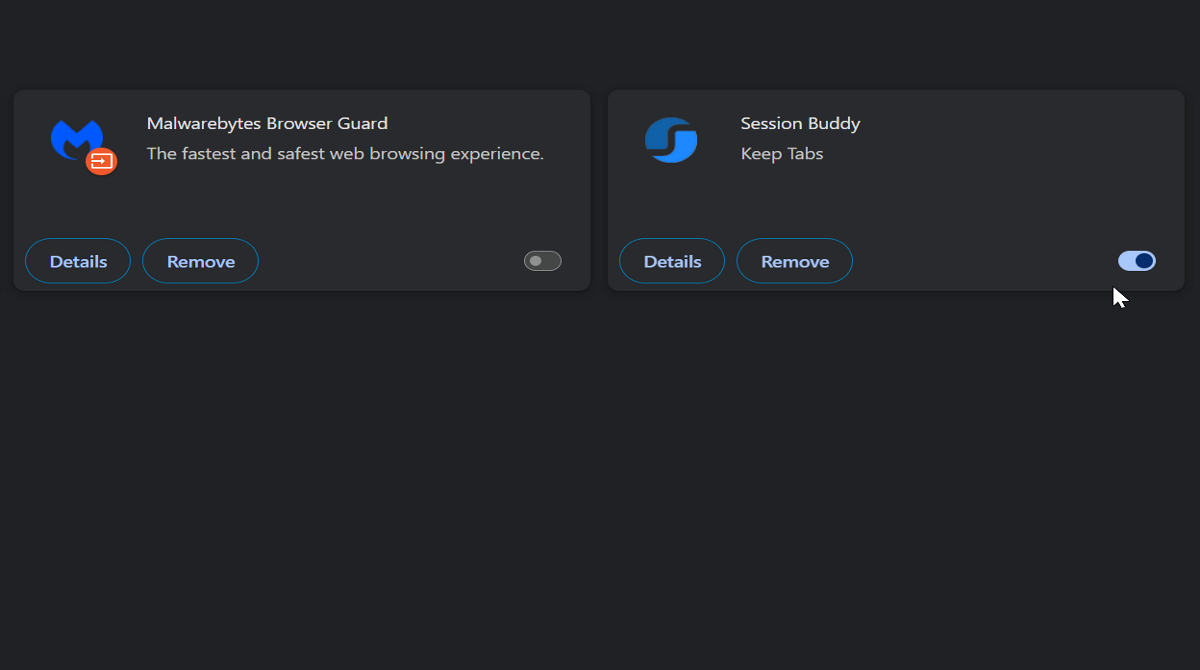
- You can enable or remove the add-on here.
Conclusion
So, now you know how to recover lost Chrome tabs after a crash. It’s a more complicated process than simply reopening them after accidentally closing your window.
You can either rely on the automatic prompt to restore your session or use the Recent tabs option. In any case, we recommend setting up some preventative measures so it doesn’t happen again. Good luck!
Related Posts
- How to Fix App Notifications in Windows?
- Using an Old Device? 5 Account Security Settings You Should Enable
- How to Find Features Moved from Control Panel to Settings in Windows 11?
- How to Back Up Your Android Downloads Automatically?
- Camera Not Working in Zoom or Teams? Quick Fixes for Windows and macOS

Selma is a tech fan and writer at Help Desk Geek with a focus on cybersecurity, gaming, and all things Windows. She’s certified by IBM in hardware and operating systems, and cybersecurity essentials. She also has keen troubleshooting instincts – if you have a problem, she’ll help you solve it. Read selma’s Full Bio

