 Ananya Dixit · February 9, 2026 · 3 min read
Have you ever experienced slow boot times when you were all set to work with a coffee mug in your hand? Of course, when you find Windows 11 still loading, it ruins your productivity before you even begin working. Though the Windows 11 version was designed to fast-track the boot time as compared to other versions, many people encounter this issue due to misconfigured settings.
However, the good news is that you do not have to reinstall Windows in your system or buy a new computer right away. Here is a breakdown of the steps that users can take to significantly speed up Windows 11.
Step 1: Turn Off Unnecessary Startup Applications
Startup applications are one of the most important reasons why users experience slow boot times.
What Steps To Follow?
- Click on Ctrl + Shift + Esc to open the Task Manager
- Then, search for the Startup apps tab
- Look for the Startup Impact column
- After all this is done, press the right-click button for unnecessary apps and click on Disable.
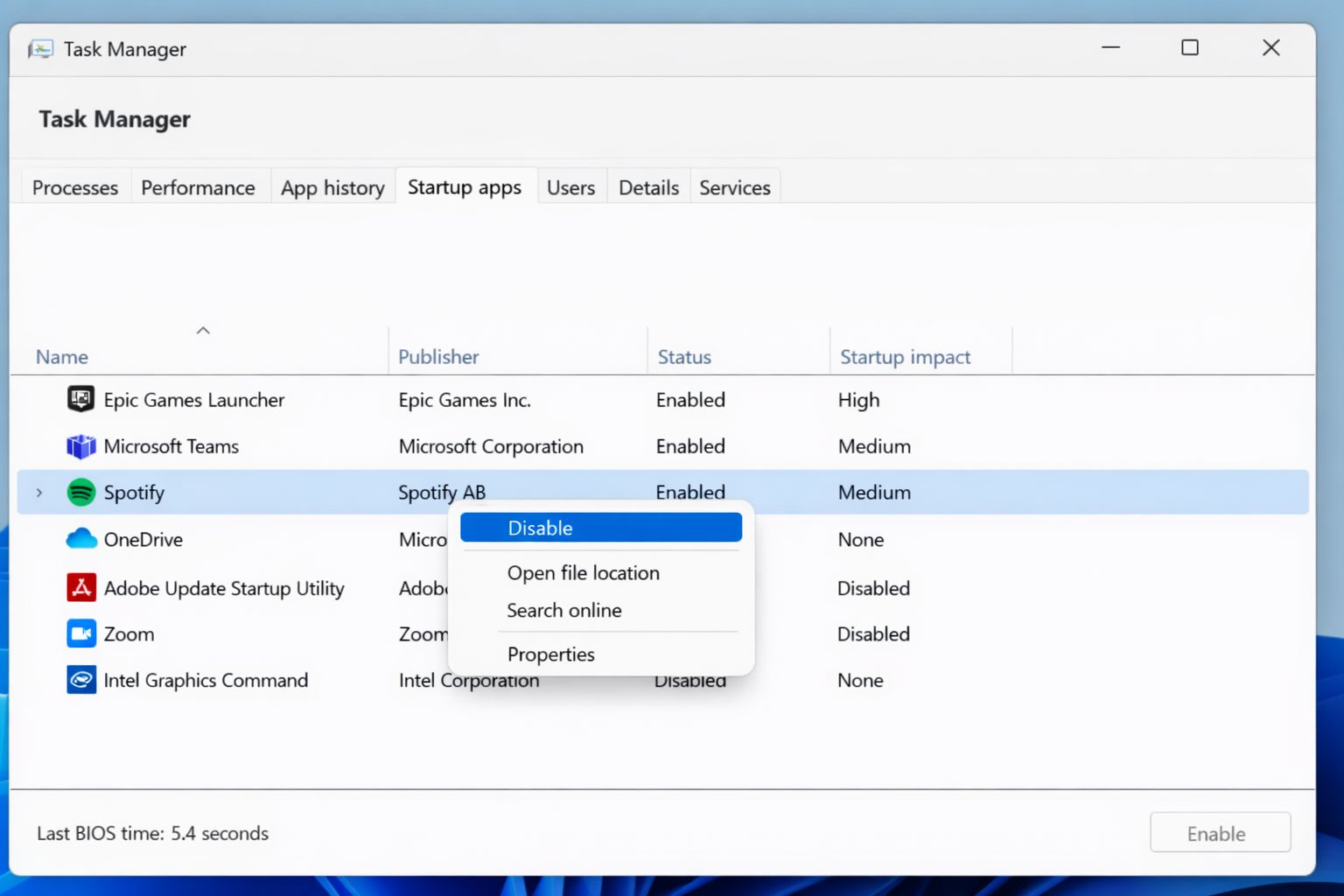
You must make sure to turn off applications such as auto-updaters, game launchers, and unnecessary messaging apps. Also, ensure not to disable essential drivers or security software.
Step 2: Turn On Fast Startup in Windows 11
Enabling fast startup is essential and one of the easiest steps, as it uses a hybrid shutdown method, which reduces boot time.
What Steps To Follow?
- Click on Windows + R, then type control and press Enter
- Navigate to Power Options
- Now select Choose what the power buttons do
- Select the option Change settings that are currently unavailable
- Select and turn on the fast startup option
- Click on Save changes
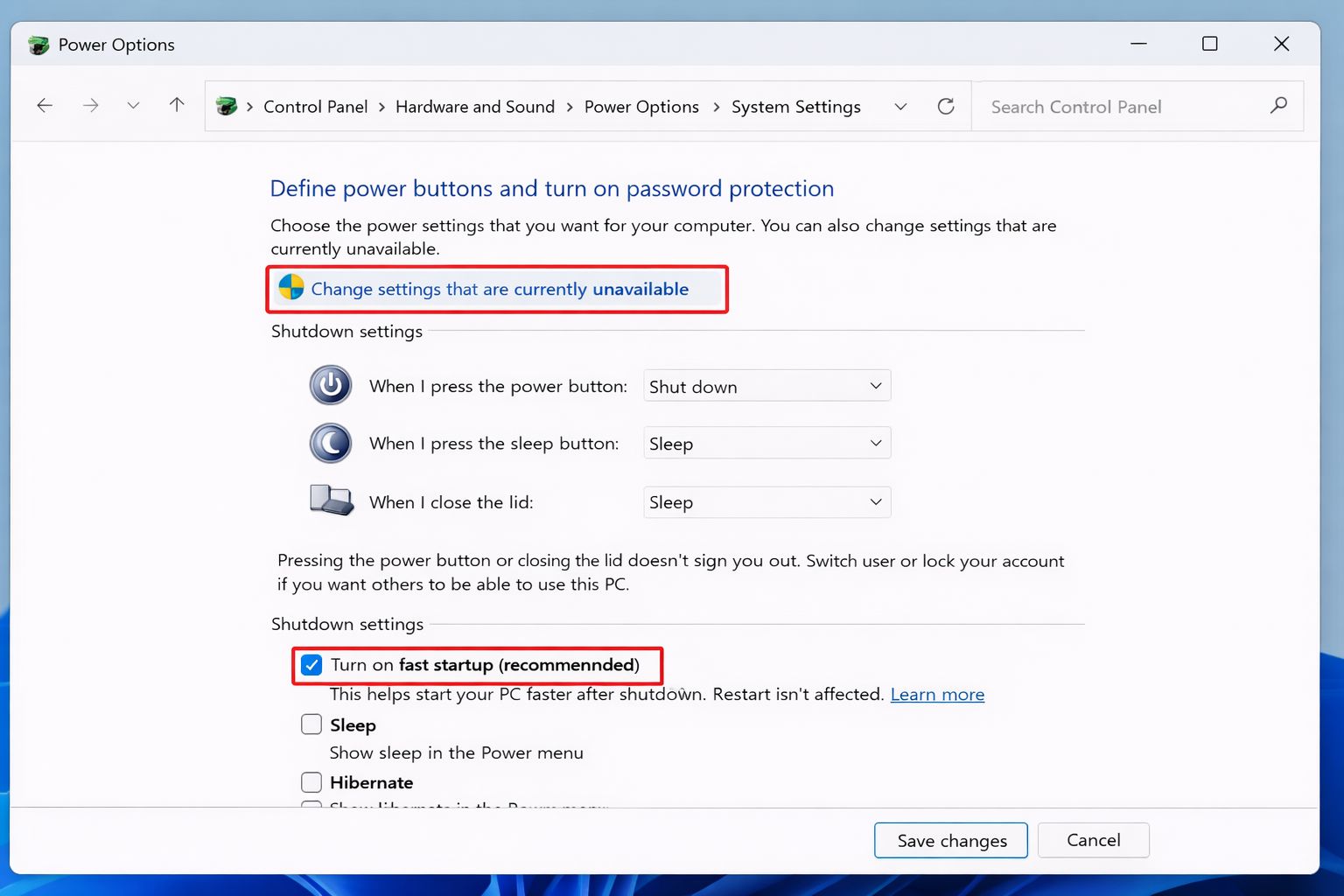
By following the above steps, you can reduce the boot time by 30% to 50% on many systems.
Step 3: Switch From HDD to SSD
In case your system still uses a traditional hard drive (HDD), no other software change can match the speed of SSD.
Benefits of Using SSD
- If a user switches from HDD to SSD, the boot or loading time can be reduced from minutes to seconds
- Also, it enhances application loading time
- It improves overall performance and system responsiveness
Thus, if you are someone who is still stuck with a traditional hard drive (HDD), even a budget SATA SSD can make Windows 11 feel new with faster load times.
Step 4: Check for Any Disk Errors
File system corruption or errors can slow down startup. So, run the disk checks by opening Command Prompt as Administrator in Windows 11.
Then type the code, chkdsk /f, and press Enter. You can restart the system when it’s done.
Additionally, you can also type the code, sfc /scannow, which can repair any corrupt system files affecting the boot time.
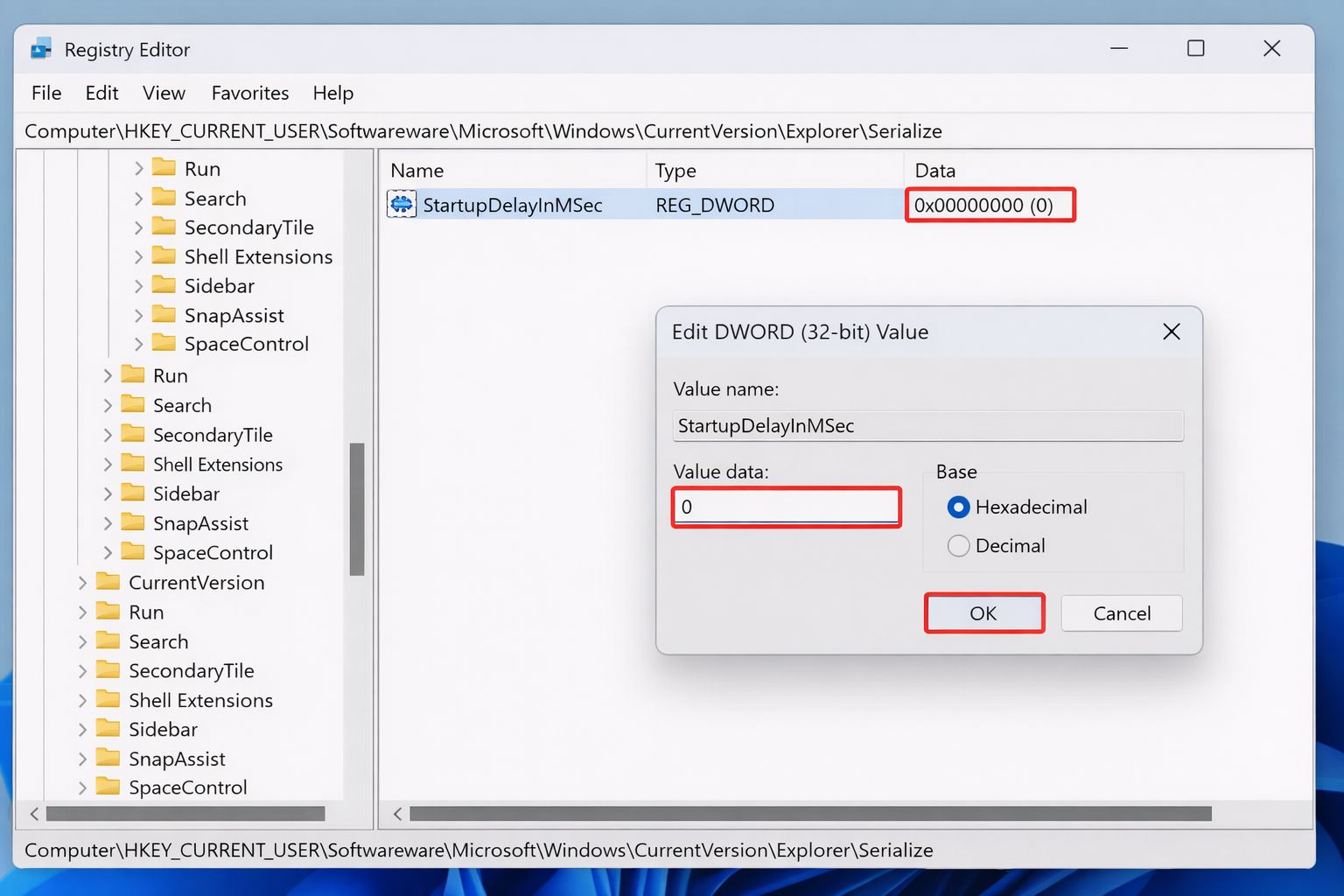
Step 5: Disable Startup Delay
One of the interesting points to note is that Microsoft Windows intentionally delays some of the startup applications. Consequently, eliminating this delay can help. Ensure that you back up the registry before making any changes.
What are the Registry Tweaks?
- Click on Windows + R, type regedit, and press Enter
- Go to the: HKEY_CURRENT_USER\Software\Microsoft\Windows\CurrentVersion\Explorer\Serialize
- Now, make a DWORD referred to as StartupDelayInMSec
- After that, set the value to 0
- Then restart the computer
Slow loading or boot times can be frustrating, but they can be fixed by following the steps mentioned above. Moreover, a well-optimized Windows 11 system can boot in just under 15 seconds.
Related Posts

Ananya Dixit is a seasoned content writer and editor with over seven years of experience in tech, finance, and media. She has written extensively about Microsoft technologies, covering multiple versions of Windows—from Windows 7 and 10 to the latest Windows 11 releases. Her work includes in-depth troubleshooting guides, feature breakdowns, how-to tutorials, optimization tips, and coverage of new system updates.Ananya is also passionate about trending topics in the tech world, including AI tools as her personal favorite, digital privacy, productivity apps, and the newest features rolling out across Android and iOS. Read Ananya’s Full Bio

