 Ananya Dixit · February 10, 2026 · 4 min read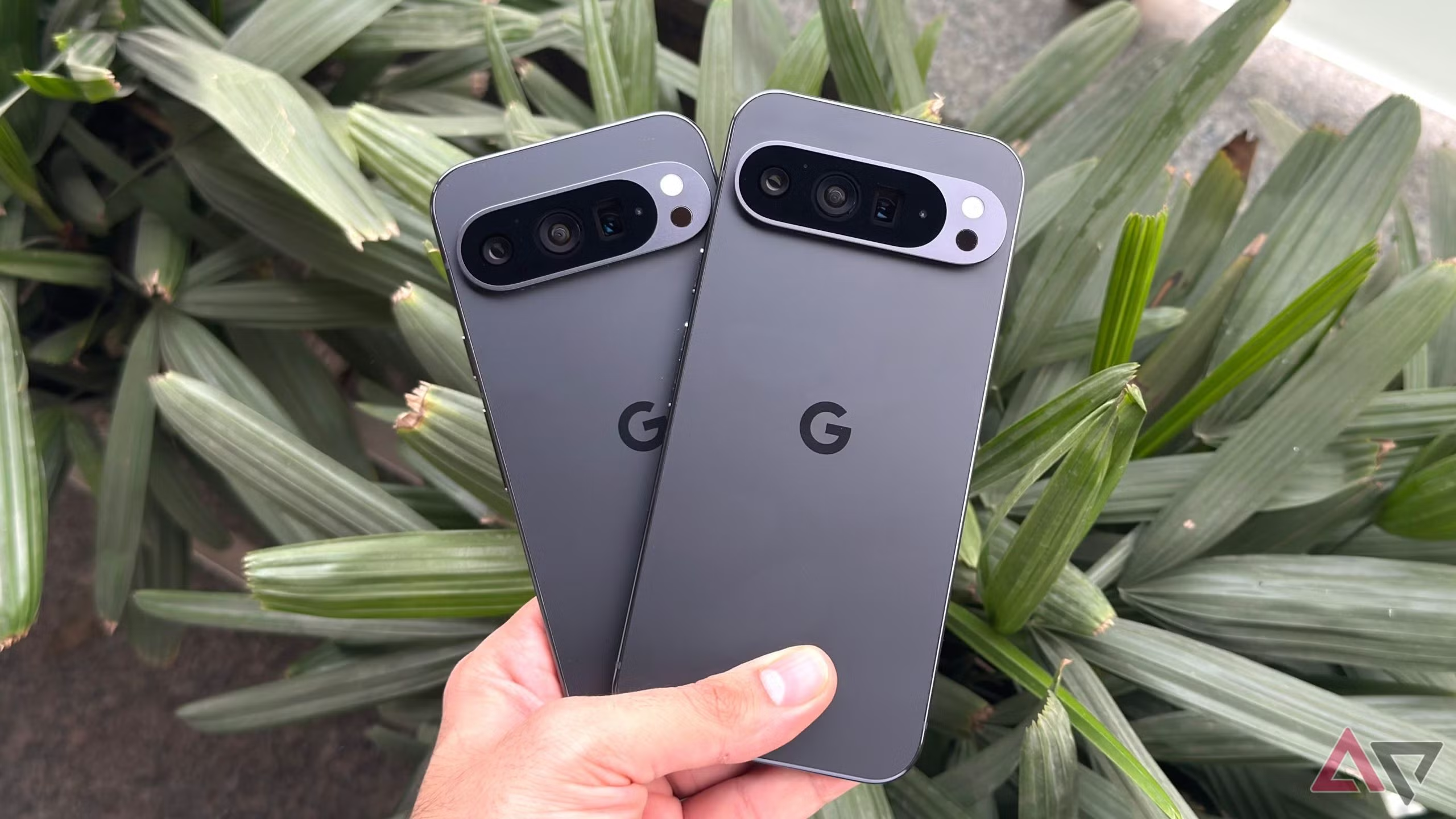
If you are encountering the issue of your Google Pixel’s battery eroding faster than a sunset, you are not alone. Though software updates bring new features, they can affect and drain battery life. Of course, you want your phone’s battery to last through the day without the need to charge every few hours.
So, in case you are thinking of switching batteries or chargers, just try the following 5 different hacks that have helped Pixel users reclaim battery life.
Hack 1: Restart Your Pixel Phone
Indeed, this hack is one of the most classic first fixes, and it seems too simple, but it does work most of the time. Restarting your device resets the background processes that get stuck after any new update.
This method works because when Google Pixel updates, many applications and other services reload themselves. Consequently, at times they get stuck or do not shut down correctly, and that is why a quick restart can nudge everything back to normal.
How To Do It?
- Press and hold the power button
- Select Restart
- Wait for 30 to 90 seconds until your phone reboots itself
Hack 2: Check Battery and Kill Power Hogs
You must check the battery usage, as your Google Pixel reliably tells you which application is consuming the most battery. To check usage, navigate to Settings, click Battery, then go to Battery Usage.
In the Battery Usage section, you will see which applications have been consuming your battery since your last full charge. Thus, applications that you barely use might be the ones misbehaving after the update. You can fix the issue by force-stopping those apps, uninstalling or reinstalling them, and restricting background activity.
Hack 3: Update the Applications Again
Most of the time, a software update transforms how applications behave, and many applications require updates to adapt. Subsequently, if you have updated your Google Pixel but not the applications, some of them might run inefficiently in the background, further draining the battery.
How to Update?
- Open Google Play Store
- Click on the Profile icon
- Then tap on Manage apps & device
- Click on Update all
This is one of the simplest steps that smooths out the device’s performance and battery issues.
Hack 4: Adjust Display and Connectivity
This is the most important step because it can make a huge difference in the battery life without even losing convenience.
Low Screen Brightness
The display is the biggest consumer of battery life on your Pixel phone. So, swipe down from the top to the bottom and then drag down the brightness slider. Moreover, enable Adaptive brightness so your Google Pixel adjusts the settings based on the lighting.
Turn off unused networking features, like keeping Bluetooth off when not in use. Set your location services to ‘While in use,’ instead of ‘Always.’ Also, turn off the Wi-Fi scanning feature.
In case you have not turned on the Dark Theme, navigate to Settings, then go to Display, and switch on the Dark Theme option. Hence, screens consume less power when dark pixels are in use.
Hack 5: Reset System Settings
If all the above-mentioned steps do not work, resetting system settings can often fix the lingering problems after a software update, without deleting your personal data.
Additionally, reset the system settings such as Wi-Fi, app preferences, Bluetooth, and network settings to the default state. Navigate to Settings, click on System, and then go to the Reset option. Tap on Reset Wi-Fi, mobile & Bluetooth, and confirm.
Bonus Tips
Here are some extra tweaks to help your battery last longer than expected.
- Use the battery saver mode in your Pixel by navigating to Settings, clicking on Battery, and then turning on Battery Saver.
- For applications you rarely use, limit the background app activity by going to Settings. After that, click on Apps, choose an app, then Battery, and select Restrict background activity.
- Though the Always On Display feature looks cool, it consumes a lot of battery. Go to Settings, click Display, then Lock Screen, and turn off Always show time and info.
Related Posts
- How to Fix App Notifications in Windows?
- Using an Old Device? 5 Account Security Settings You Should Enable
- How to Find Features Moved from Control Panel to Settings in Windows 11?
- How to Back Up Your Android Downloads Automatically?
- Camera Not Working in Zoom or Teams? Quick Fixes for Windows and macOS

Ananya Dixit is a seasoned content writer and editor with over seven years of experience in tech, finance, and media. She has written extensively about Microsoft technologies, covering multiple versions of Windows—from Windows 7 and 10 to the latest Windows 11 releases. Her work includes in-depth troubleshooting guides, feature breakdowns, how-to tutorials, optimization tips, and coverage of new system updates.Ananya is also passionate about trending topics in the tech world, including AI tools as her personal favorite, digital privacy, productivity apps, and the newest features rolling out across Android and iOS. Read Ananya’s Full Bio

