 Ananya Dixit · February 12, 2026 · 4 min read
Windows Update is one of the most significant features in Windows 11. Regular updates keep your computer optimized and up to date with the latest drivers and bug fixes. Nevertheless, updates sometimes do not run smoothly, as they may fail, get stuck, or repeatedly show errors. So, the most efficient troubleshooting fix is clearing the cache.
In this guide, we will walk you through why you need to clear the Windows Update cache and the steps to safely clear it.
What is Windows Update Cache?
The Windows Update cache is like a temporary location for storage where Windows stores update files before actually installing them on the system. Though these files can speed up the process of updating, they can get corrupted over time.
That is when Windows Update fails or freezes, even when your internet connection is perfectly fine. Consequently, by clearing the cache, Windows is forced to install fresh update files directly from Microsoft servers.
Step-by-Step Fixes to Clear Windows Update Cache
Below are some of the important steps that you can take to clear the Windows Update cache. Ensure that you follow them in order, as many users find that one of the previous methods resolves the problem without the need to go further.
Step 1: Open Command Prompt
In this process, you have to open the Command Prompt as an administrator. Thus, to do that, you have to press Windows + S. After pressing this key, type Command Prompt, then right-click and select Run as administrator.
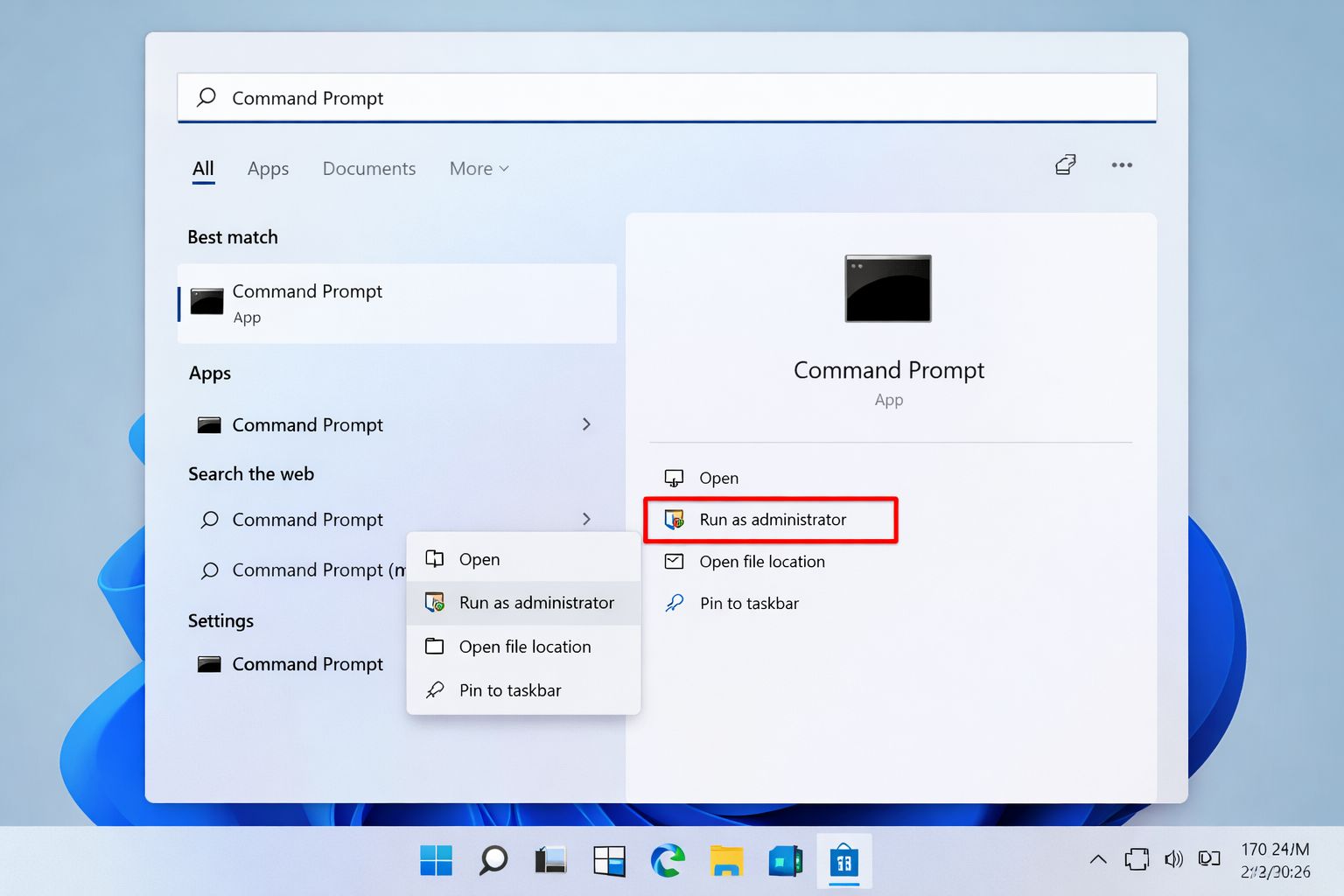
Ensure that you are running these commands with admin rights. Only then does Windows allow users to stop crucial system services.
Step 2: Stop Windows Update
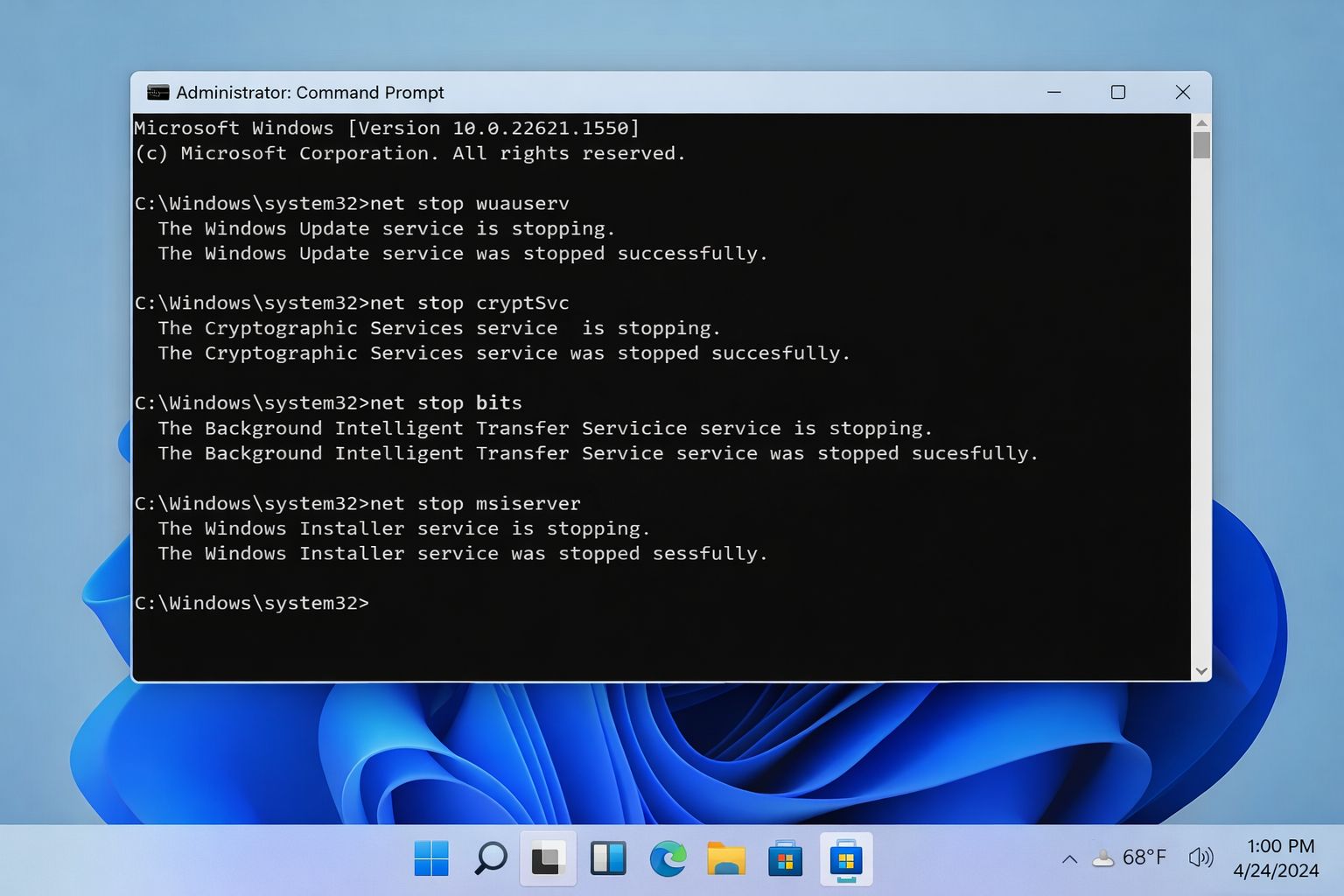
After you open the Command Prompt, you have to enter a few commands one by one, pressing Enter after each command.
Enter command:
- net stop wuauserv
- net stop cryptSvc
- net stop bits
- net stop msiserver
What Do These Commands Do?
- wuauserv- It is a Windows Update service
- cryptSvc- Cryptographic services
- bits- It means, Background Intelligent Transfer Service
- msiserver- Windows Installer
Moreover, if you stop these services, it prevents Windows from gaining access to the update cache in case you clear it. You will also notice messages like “The Windows Update service is stopping….”
Step 3: Clear the Catroot2 Folder
The Catroot2 folder consists of update files that support Windows in verifying update signatures. Subsequently, clearing the folder resolves additional issues.
What Steps to Follow?
- Click on Windows + R
- Type text: %windir%\System32\catroot2
- Press Enter
- Now, delete everything that is inside the Catroot2 folder
Moreover, there is a catch: unlike SoftwareDistribution, you will not be able to rename the Catroot2 folder; instead, you can just delete its contents.
Step 4: Restart the Services You Stopped Earlier
You stopped the services in the Command Prompt earlier. Now, you have to restart the services. To do that, navigate to Command Prompt and type:
- net start wuauserv
- net start cryptSvc
- net start bits
- net start msiserver
After you are done typing, press Enter. In this step, the update services are restarted so Windows can check for updates again.
Alternative Method
In case you do not want to use the Command Prompt, you can clear the Windows Update cache by using Windows Settings.
What Steps to Follow?
- Click on Settings
- Navigate to Windows Update
- Choose Advanced options
- Scroll down to the option Delivery Optimization
- Select Advanced options
- Toggle off and on “Allow Downloads from other PCs”
- Now go back and check for updates
Through this method, you can manually force Windows to reinstall the updates.
Related Posts

Ananya Dixit is a seasoned content writer and editor with over seven years of experience in tech, finance, and media. She has written extensively about Microsoft technologies, covering multiple versions of Windows—from Windows 7 and 10 to the latest Windows 11 releases. Her work includes in-depth troubleshooting guides, feature breakdowns, how-to tutorials, optimization tips, and coverage of new system updates.Ananya is also passionate about trending topics in the tech world, including AI tools as her personal favorite, digital privacy, productivity apps, and the newest features rolling out across Android and iOS. Read Ananya’s Full Bio

