 Ananya Dixit · February 16, 2026 · 3 min read
Windows 11 is indeed a feature-rich version of Microsoft Windows, but to be honest, it comes with unnecessary background services, applications, and software. These extra applications, often referred to as bloatware, can slow the performance of your PC and clutter the Start menu.
Nevertheless, you can easily debloat your Windows 11 without compromising safety or breaking system stability. In this guide, we will walk you through the steps to debloat your system and optimize it.
What is Windows 11 Bloatware?
Bloatware simply refers to the pre-installed background elements and applications that you do not require. These applications consume storage, run automatically, and use RAM and CPU resources. For example, games, promotional or trial apps, and other Microsoft apps that users may never even open.
But not everything that looks unnecessary should be removed. Some applications are crucial for stability and security. That is the reason why carefully debloating the system is significant.
Methods to Debloat Windows 11
Here is a breakdown of all the methods and steps that are reversible and secure.
Method 1: Uninstall Applications in the Normal Way
This is one of the most secure and recommended methods.
What Steps to Follow?
- Click on Windows + I to open Settings
- Navigate to Apps and then select Installed Apps
- Scroll down through the list
- Select the three dots next to any application
- Click on Uninstall
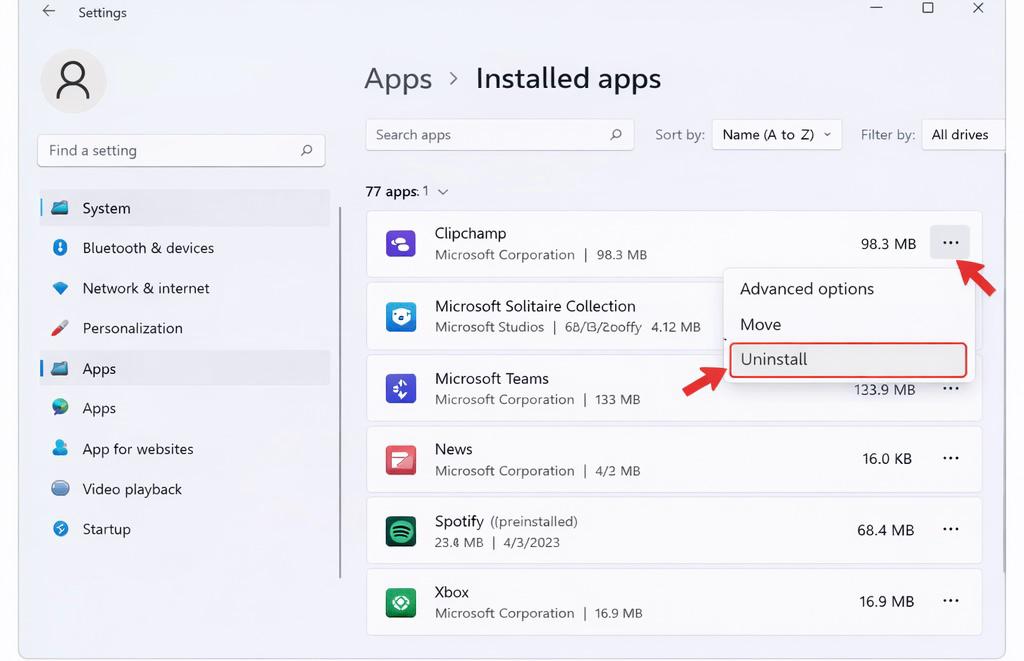
Here is a list of apps that can be safely removed if they are not in use: Xbox, Clipchamp, Microsoft Teams, News, Trial Software, Weather, and Solitaire Collection. Moreover, do not remove Microsoft Store, Windows Security, runtime components, and Microsoft Edge. This is one of the methods that carries zero risk.
Method 2: Turn Off Startup Programs
One of the most crucial reasons why your PC’s performance slows down is that the applications launch at startup.
What Steps to Follow?
- Click on Ctrl + Shift + Esc to open the Task Manager
- Navigate to the Startup tab
- Press right-click on unnecessary apps
- Now, choose Disable
Some of the common applications that you can turn off are Spotify, Microsoft Teams, Third-party updaters, and OneDrive. By following this method, the apps will not get uninstalled, and they will not run automatically.
Method 3: Disable Background Applications
Windows 11 allows a few applications to run in the background even when you close them.
What Steps to Follow?
- Navigate to Settings, go to Apps, and then click on Installed Apps
- Select the three dots shown beside an application
- Now, select Advanced Options
- Under Background app permissions, choose Never
Consequently, this method decreases the RAM usage and enhances the battery life without deleting anything at all.
Method 4: Use Trusted Tools For Debloating
In case you are a tech-savvy person who loves automation, rely on only well-known and open-source tools. Also, avoid random scripts from any unknown websites. Search for tools that can build new restore points, enable reversible changes, and do not eliminate core system components.
Ensure that you create a restore point and back up important data before using the tool. Never use the scripts blindly without even understanding what they are going to remove from your system.
Debloating Windows 11 does not mean stripping the operating system. Rather, it means disabling or removing applications and startup programs you do not use. It also limits the background activity by keeping the security elements intact. Moreover, a stable system is way more valuable than any minimal one.
Related Posts

Ananya Dixit is a seasoned content writer and editor with over seven years of experience in tech, finance, and media. She has written extensively about Microsoft technologies, covering multiple versions of Windows—from Windows 7 and 10 to the latest Windows 11 releases. Her work includes in-depth troubleshooting guides, feature breakdowns, how-to tutorials, optimization tips, and coverage of new system updates.Ananya is also passionate about trending topics in the tech world, including AI tools as her personal favorite, digital privacy, productivity apps, and the newest features rolling out across Android and iOS. Read Ananya’s Full Bio

