 Ananya Dixit · February 17, 2026 · 3 min read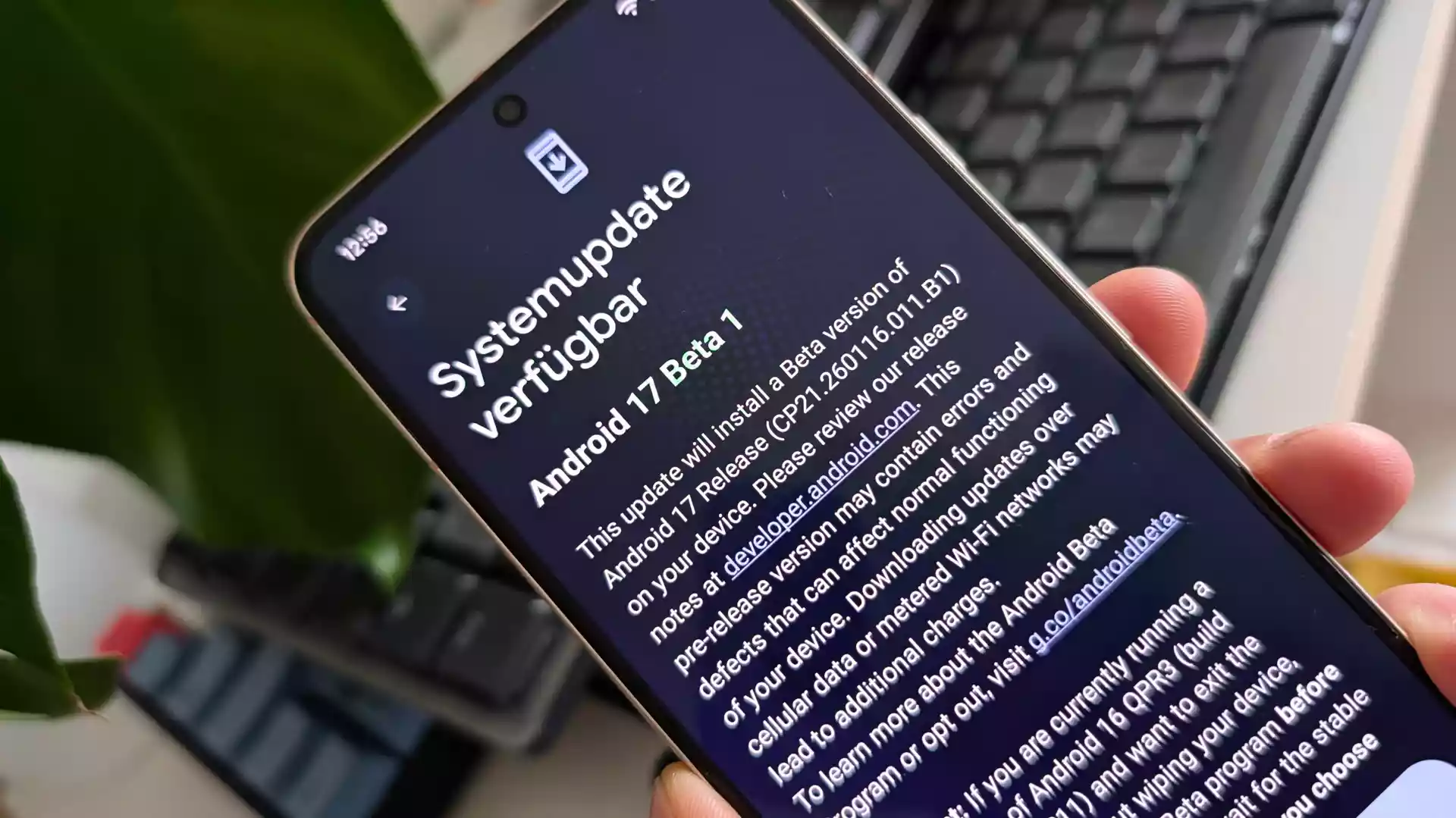
Google has begun rolling out the next major update cycle for the world’s most popular and widely used smartphone operating system, the first beta of Android 17. If you are a developer and a tech-savvy individual, this beta release gives you a preview of what is going to come in Android 17.
In this blog, we will walk you through what Android 17 and the new beta mean for users, and how you can install the Android 17 Beta on your device smoothly.
What is Android 17 Beta?
Android 17 Beta is the pre-release version of the upcoming Android 17 operating system. This release highlights significant improvements in camera and media capabilities, along with expanded profiles for other companion devices. Moreover, with this beta version, Google showed a fundamental shift from the classic Developer Preview model to Canary programs for Android.
The transition in the developer community, with the introduction of the continuous Canary channel and the always-on model, offers various benefits. From lightning-fast API access for developers to battle-tested stability in Canary builds that evolve into a refined Beta experience, plus seamless OTA updates, Android 17 Beta 1 delivers innovation with polish right out of the gate
However, this is not the final product, but it is usable enough in case you want to test app compatibility or check on early improvements.
What is New in Android 17 Beta 1?
Here is a list of a few notable enhancements in the first Beta of Android 17:
- Applications must be correctly resized according to large screens and adapt the same layout across foldables and tablets.
- The new release also offers camera and media enhancements, which include switching smoothly between modules for developers and the camera.
- To decrease the memory usage, Google has restricted the size of custom notification views. Consequently, it eliminates a loophole that permits applications to bypass limits by using URIs.
- Additionally, Android has also launched new system triggers added to the Profiling Manager, which help users to collect data for the purpose of debugging performance issues.
- Also, in some builds, UI tweaks might appear, which include Home screen elements and Quick Settings icons.
How to Install the Android 17 Beta 1?
There are two main ways to install Android 17 Beta with the help of the official Beta program. Let’s have a look at the two methods.
Method 1: Install Through Android Beta Program
This is the official method, and it does not require any command-line or technical skills.
What Steps to Follow?
- Open a browser and search for the Android Beta Program page on Google.
- Then, sign in with your Google account linked to the Pixel device.
- Choose your device and click on Enroll.
- Now, open Settings on your phone, go to System, and click on Software update.
- You will be able to see the Android 17 Beta update. Just download and install it.
- Your device will automatically reboot once installation is done.
Thus, this method installs the beta as a regular over-the-air OTA update, which is exactly like any normal system update.
Once Beta 1 is installed you will get future beta updates via Software update option when Google releases Beta 2 or Beta 3. This new release is the most exciting milestone for developers and Android fans. Hence, it gives a glimpse at the future of Android development.
Related Posts

Ananya Dixit is a seasoned content writer and editor with over seven years of experience in tech, finance, and media. She has written extensively about Microsoft technologies, covering multiple versions of Windows—from Windows 7 and 10 to the latest Windows 11 releases. Her work includes in-depth troubleshooting guides, feature breakdowns, how-to tutorials, optimization tips, and coverage of new system updates.Ananya is also passionate about trending topics in the tech world, including AI tools as her personal favorite, digital privacy, productivity apps, and the newest features rolling out across Android and iOS. Read Ananya’s Full Bio

