 Ananya Dixit · February 18, 2026 · 3 min read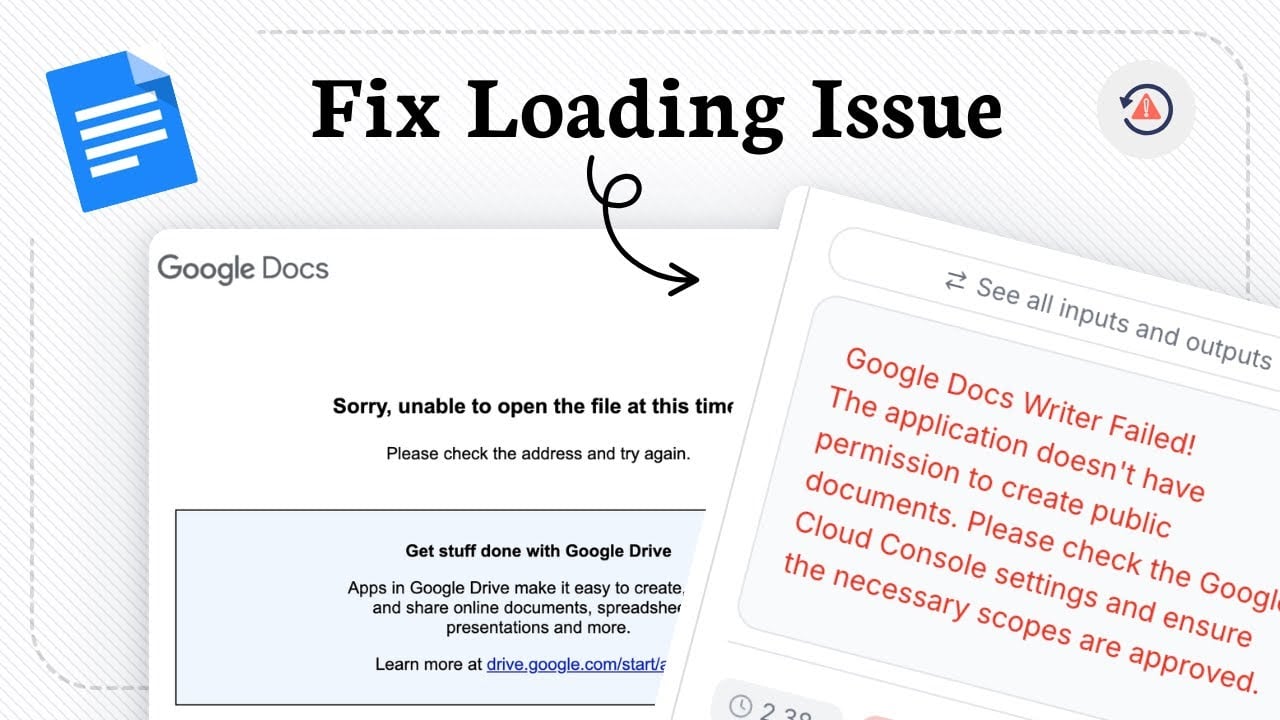
If you are unable to access docs.google.com on your Windows 11 PC and are encountering errors like blank pages or extended loading time, you are not alone. Of course, we all know the significance of Google Docs in our day-to-day work life, especially for the purpose of drafting, collaboration, and storing files. Consequently, if this basic tool is not loading correctly, it disrupts users’ workflow.
Nevertheless, these issues can be fixed by using simple tweaks. In this guide, we will walk you through the practical solutions that can get Google Docs running again.
Fixes That Will Work
Here is a breakdown of quick fixes and troubleshooting ways.
Step 1: Check Your Wi-Fi
Undoubtedly, it might sound like an obvious fix, but unstable internet access is the most common cause behind loading performance.
What Steps to Follow?
- Restart your router, or you can switch to a wired connection like Ethernet.
- Try to open other sites to ensure they are working properly.
- Also, you can do a speed test to check the speed of your network.
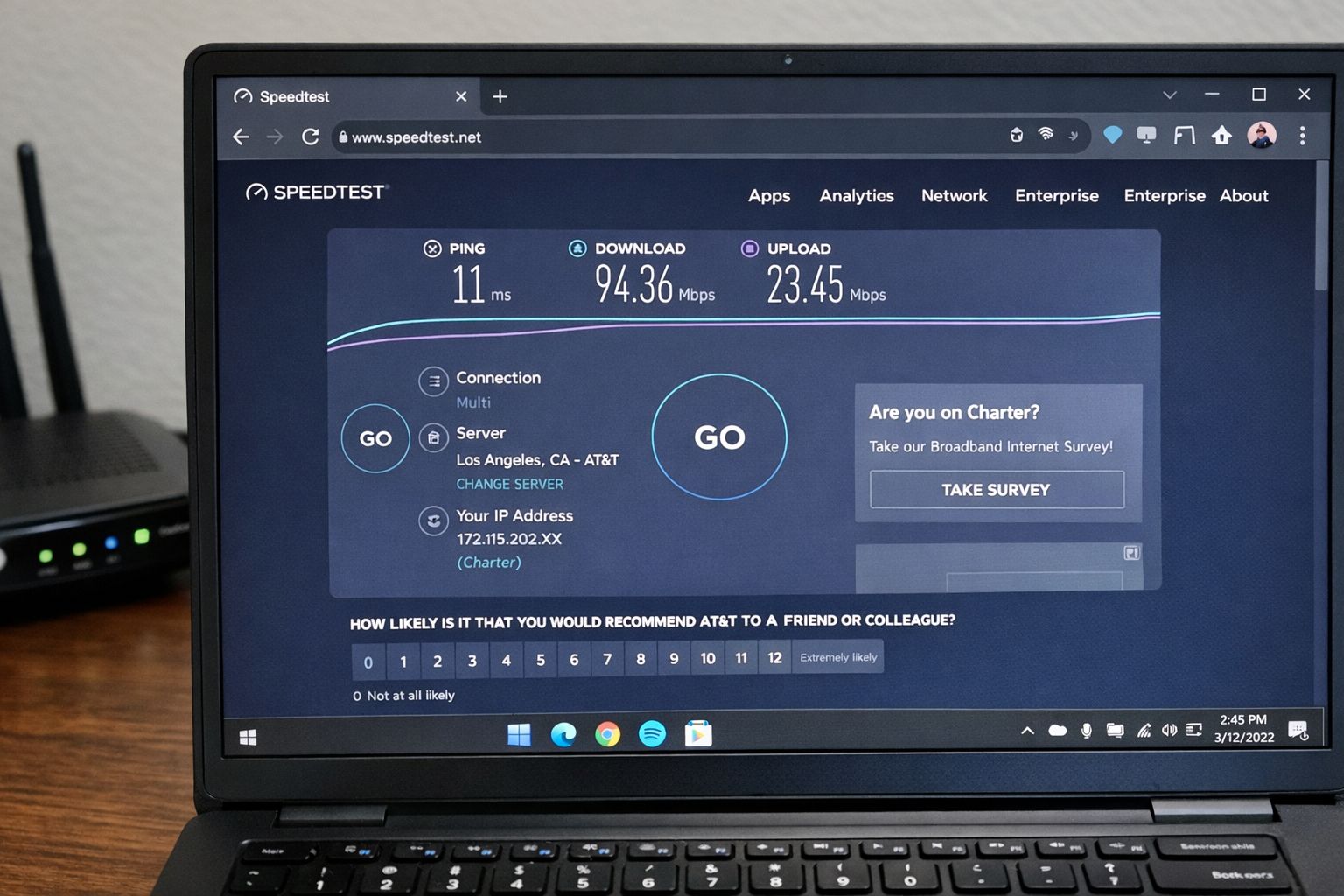
Thus, in case your Wi-Fi connection is weak or drops frequently, that is the culprit.
Step 2: Clear Browser Cache and Cookies
Over a period of time, your browser is likely to store some temporary files. So, if these files get corrupted, they can affect how pages might load.
How to Clear the Cache in Chrome and Edge
- Click on Settings and then go to Privacy and Security.
- Tap on Clear browsing data.
- Choose Cached images and files, and Cookies and other site data.
- Select Clear data.
- Then, restart your PC and open docs.google.com.
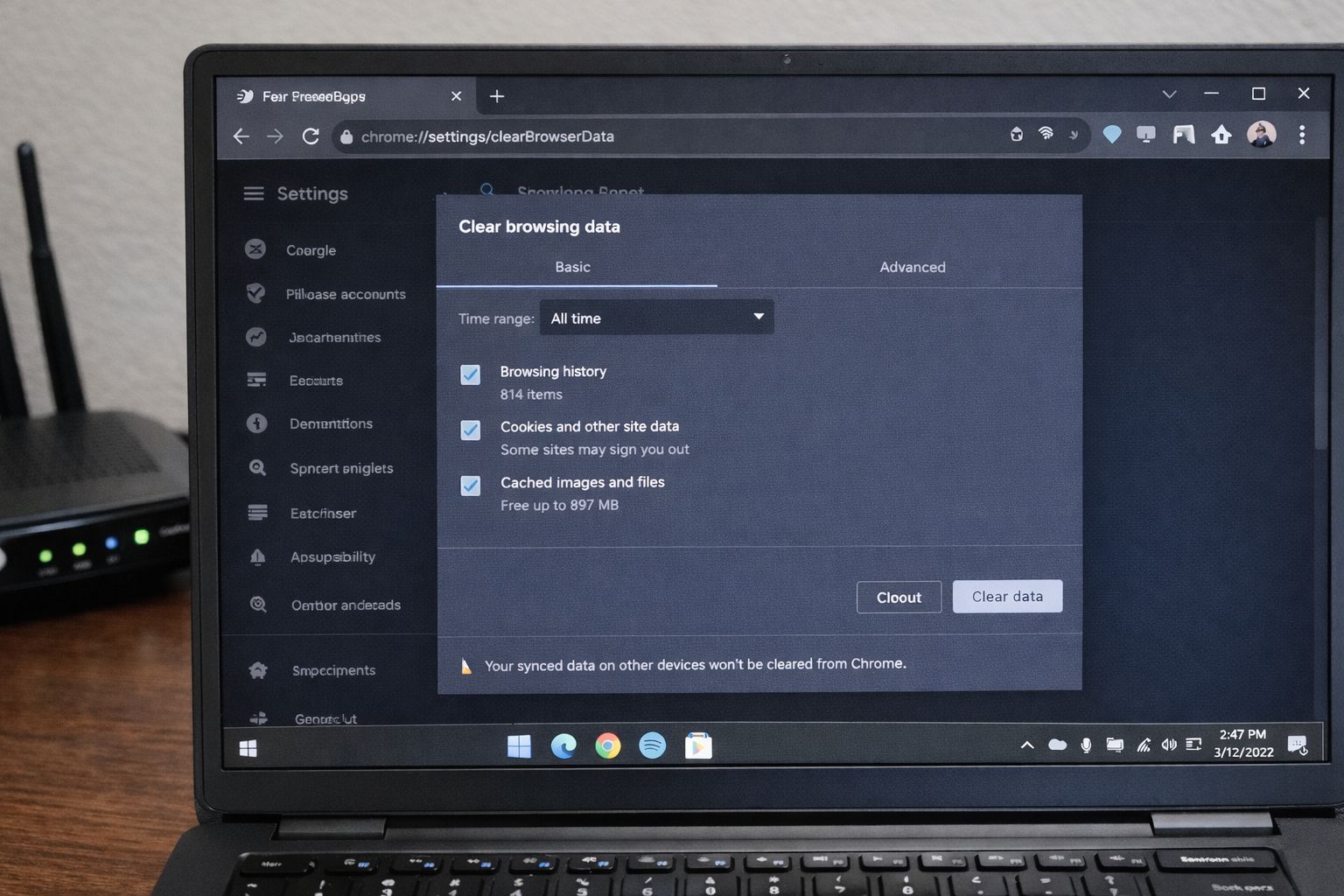
This method often resolves the loading issues instantly.
Step 3: Turn Off Extensions
Some of the browser extensions, like ad blockers or HTTPS enforcers, are likely to interfere with Google Docs.
How to Disable the Extensions?
- In Chrome or Edge, go to the Menu and then Extensions.
- Now, toggle off all extensions from there.
- After doing that, restart your browser.
Subsequently, try opening Google Docs again, and if it is working, then turn on the extensions one by one to identify the problematic extension.
Step 4: Update Your Browser
Some outdated browsers can face compatibility issues. So, it is necessary to update your browser regularly.
What Steps to Follow?
- Navigate to the Settings and then About in your browser.
- It will automatically check if there is a pending update.
- Update your browser and restart.
Moreover, using the latest version of Chrome or Edge ensures better compatibility and security so that modern applications like Google Docs can function properly.
Step 5: Flush DNS and Reset Network Settings
If your DNS cache is corrupted or the network is not configured properly, it can prevent modern websites from loading correctly. To flush DNS, follow the steps below:
- Click on Windows + R.
- Type: cmd and click on Enter.
- Now, in the command prompt, enter: ipconfig /flushdns.
- After typing the command, press Enter.
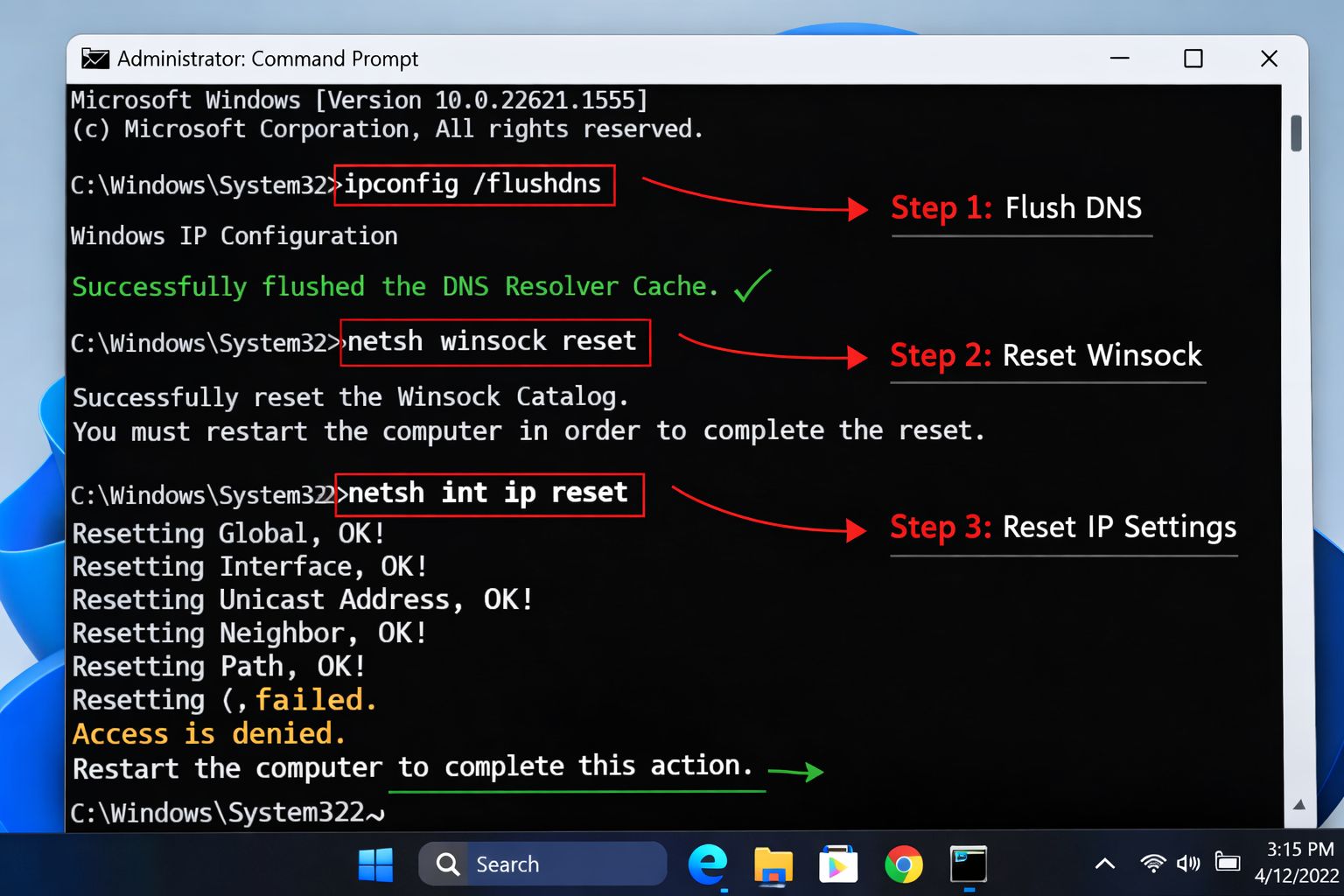
Also, you can reset the network settings by typing: netsh winsock reset, netsh int ip reset. Now, restart your computer and try opening Google Docs.
In case the above-mentioned steps do not work, and you still cannot access docs.google.com, try opening Google Docs via Google Drive. Search Google Drive and open any document you want to access from there.
Additionally, use mobile applications or any other device for that period of time, so that you can continue your work even while troubleshooting.
Related Posts

Ananya Dixit is a seasoned content writer and editor with over seven years of experience in tech, finance, and media. She has written extensively about Microsoft technologies, covering multiple versions of Windows—from Windows 7 and 10 to the latest Windows 11 releases. Her work includes in-depth troubleshooting guides, feature breakdowns, how-to tutorials, optimization tips, and coverage of new system updates.Ananya is also passionate about trending topics in the tech world, including AI tools as her personal favorite, digital privacy, productivity apps, and the newest features rolling out across Android and iOS. Read Ananya’s Full Bio

