 Ananya Dixit · February 26, 2026 · 2 min read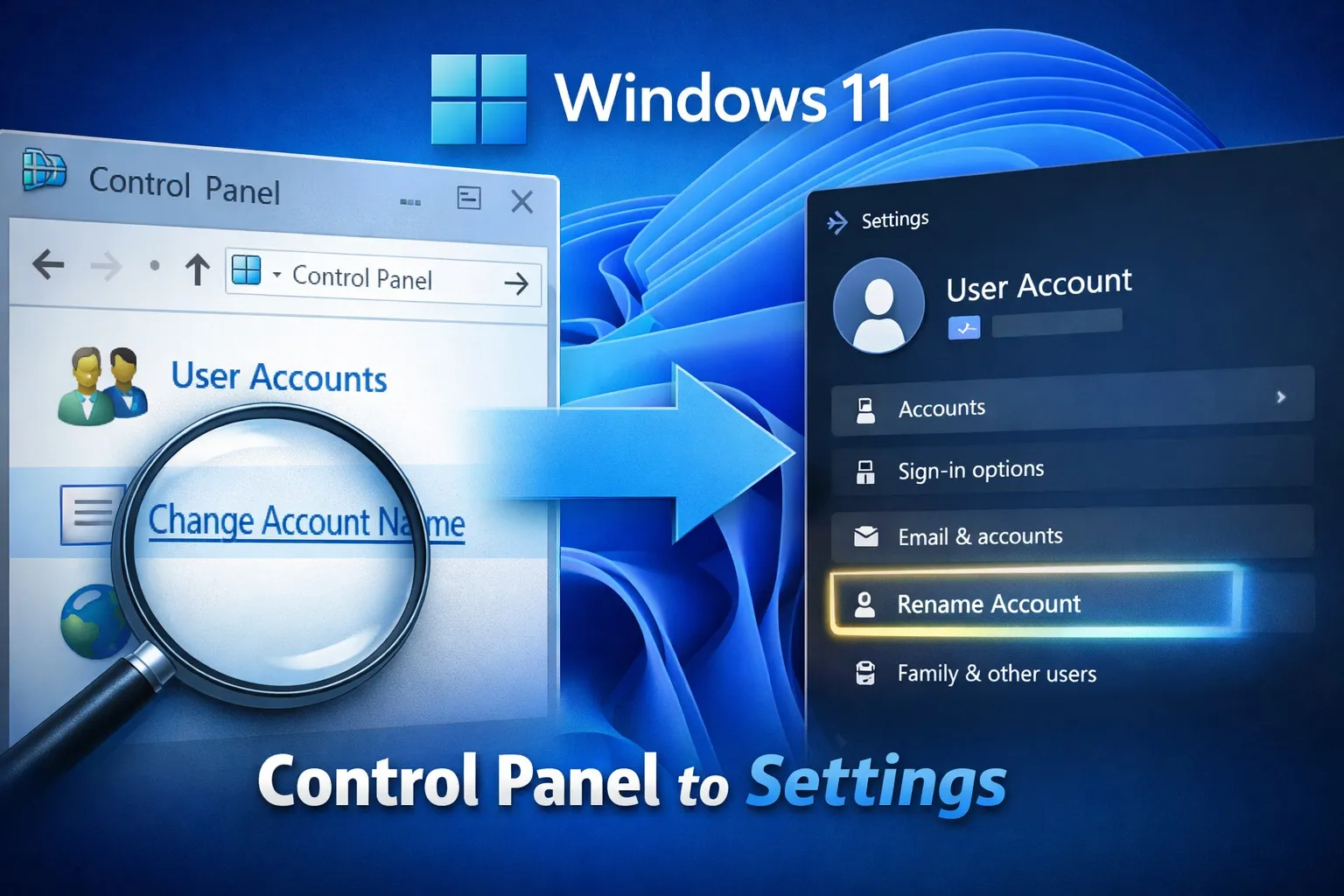
At times when you open the Control Panel in your Windows 11 and search for settings like Programs and Features, Network settings, or others, and suddenly find out it’s not where you remember. This is the new transition that Microsoft has brought with Windows 11 by moving the classic Control Panel features to the Settings app.
In case you are someone who is struggling while searching for essential features, this guide breaks it down clearly and highlights practical ways to trace relocated features.
Methods to Find Moved Features Quickly
Rather than manually browsing menus, make use of some smart methods.
Method 1: Use Windows Search
Click on Windows + S, and then look for Power Options, Programs & Features, and Network Adapter. Moreover, Windows will automatically redirect you to the new location, whether in Settings or Control Panel.
Method 2: Use Run Commands
Press Windows + R, then enter legacy commands such as appwiz.cpl. This command opens Programs & Features directly. Also, you can use commands like control, which opens the Control Panel, and ncpa.cpl, which opens Network Connections. Thus, even when features are shifted, some of the CPL shortcuts still function.
Method 3: Check Settings Categories First
In Windows 11, the shifted features are now listed under sections like System, Network & Internet, Bluetooth & Devices, Accounts, Applications, Privacy & Security, and Windows Update. Consequently, if something was supposed to be listed in the Control Panel, there is a high chance that it is under one of these.
Method 4: Use the Redirect Trick of the Control Panel
When you click and open Control Panel sections in Windows 11, you will be automatically redirected to Settings. For instance, if you open Windows Update in Control Panel, it will redirect you to Settings along with some network sections.
Method 5: Use Advanced System Settings
Moreover, some of the legacy options still come under Settings. You might have to go to System, select About, and then navigate to Advanced system settings. This process opens the System Properties window, which includes Startup and Recovery, Environment Variables, and Performance.
Pro Tips To Adapt Faster
If you want to adapt to this feature quickly, stop browsing; instead, use the search option. Also, bookmark the pages that you use frequently and learn common Run commands. Over time, Microsoft will most likely remove the Control Panel, so you must future-proof yourself.
Related Posts

Ananya Dixit is a seasoned content writer and editor with over seven years of experience in tech, finance, and media. She has written extensively about Microsoft technologies, covering multiple versions of Windows—from Windows 7 and 10 to the latest Windows 11 releases. Her work includes in-depth troubleshooting guides, feature breakdowns, how-to tutorials, optimization tips, and coverage of new system updates.Ananya is also passionate about trending topics in the tech world, including AI tools as her personal favorite, digital privacy, productivity apps, and the newest features rolling out across Android and iOS. Read Ananya’s Full Bio

