 Ananya Dixit · February 27, 2026 · 3 min read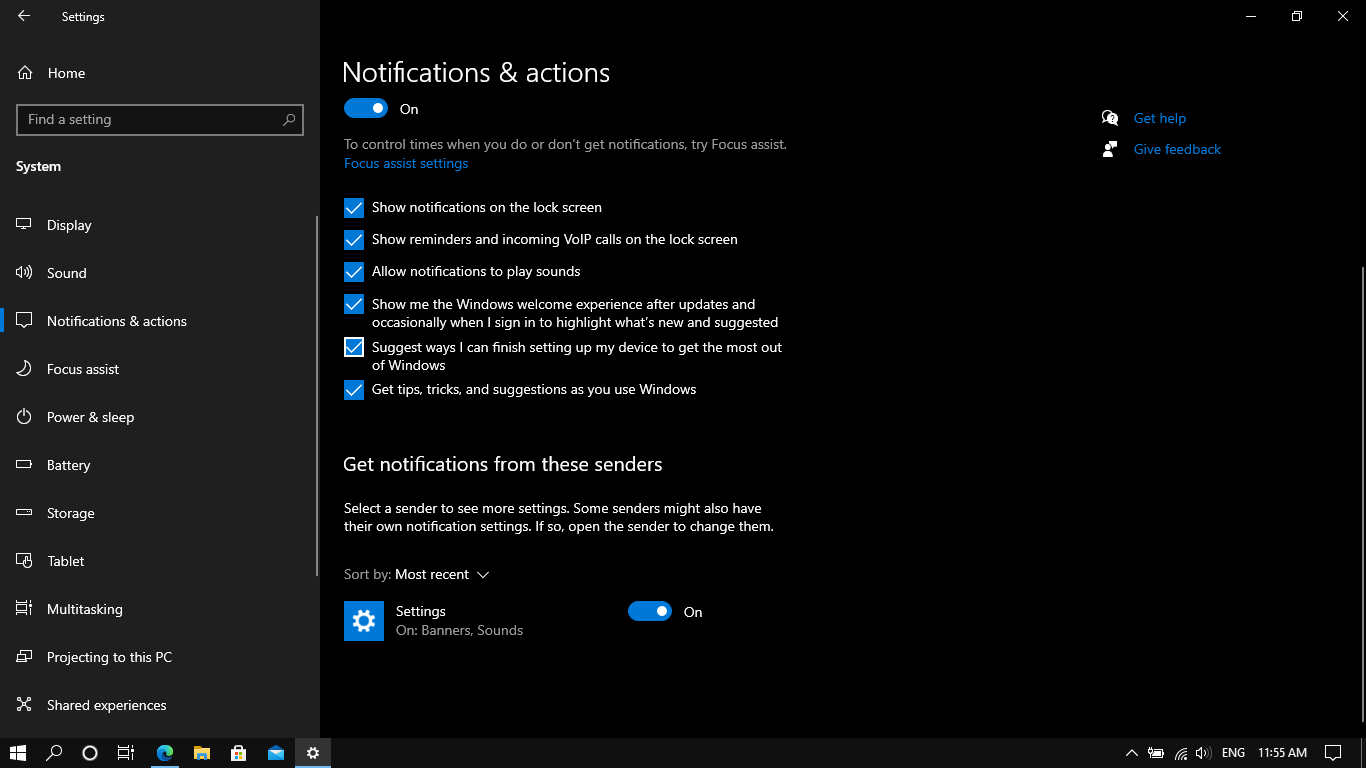
Are you not getting email notifications, missing WhatsApp pop-ups, or Calendar not showing up? Guess what? You are not alone. Many users encounter this issue in Windows, where notifications appear late or show without sound. However, the good news is that in most cases these are simple setting issues, instead of a system failure.
This guide will walk you through the fixes for app notifications on Windows 10 and 11.
Turn On Notifications In Windows Settings
At times, notifications are simply disabled system-wide. Moreover, in the case of Windows 11, you must navigate to Settings, go to System, select Notifications, and disable Notifications. Ensure that show notifications on the lock screen is turned on and ‘Allow notifications to play sounds’ is selected.
Also, if you are using Windows 10, then navigate to Settings, open System, after that click on Notifications & actions, and enable Get notifications from apps and other senders. Consequently, if this setting is off, switching it on will immediately solve the notification issue.
Check App-Specific Notification Settings
Sometimes, even when system notifications are turned on, individual applications might get blocked.
- Navigate to Settings, System, and Notifications
- Then, scroll down to Get notifications from these apps
- Select the application that is not sending notifications
- Make sure notifications are enabled, sound is on, priority is set properly, and banners are turned on
For instance, if Zoom or WhatsApp Desktop is not showing notifications, you should follow the above-mentioned steps.
Turn Off Focus Assist or Do Not Disturb
Windows includes a feature that can block notifications for a particular period. In case of Windows 11, follow:
- Go to Settings, System, and Notifications
- Disable Do Not Disturb
If you want to disable the feature in Windows 10, follow:
- Navigate to Settings, System, Focus Assist
- Now, click on Turn Off
Moreover, do a double-check to see if automatic rules like “During these hours” or “When duplicating display” are enabled.
Allow Apps to Run In The Background
Some applications require background permissions to send alerts or notifications. Thus, follow the steps below for Windows 11:
- Navigate to Settings, Apps, and Installed apps
- Now, select the three dots
- Click on Advanced options
- Under Background app permissions, select Always
Additionally, for Windows 10, follow:
- Navigate to Settings and go to Privacy
- Select Background apps
- Ensure the selected application is allowed
In cases where background access is blocked, notifications will not arrive on time.
Disable Battery Saver Mode
Battery Saver can limit your background activity to save your PC battery and silence the notifications. So, navigate to Settings, System, and Power & battery. After doing that, disable Battery Saver mode. If you are a Windows 10 user, go to Settings, System, and Battery. Then, turn off Battery Saver.
Windows notifications are crucial to enhance your work productivity. Hence, by following the step-by-step fixes mentioned above, you will be able to restore notifications quickly.
Related Posts
- Preparing for Windows 10 End of Support: Upgrading to Windows 11
- How to Fix a “This file does not have an app associated with it” Error on Windows
- How to Fix an Update Error 0x800705b4 on Windows
- How to Resolve “A JavaScript error occured in the main process” Error on Windows
- How to Fix the Network Discovery Is Turned Off Error on Windows

Ananya Dixit is a seasoned content writer and editor with over seven years of experience in tech, finance, and media. She has written extensively about Microsoft technologies, covering multiple versions of Windows—from Windows 7 and 10 to the latest Windows 11 releases. Her work includes in-depth troubleshooting guides, feature breakdowns, how-to tutorials, optimization tips, and coverage of new system updates.Ananya is also passionate about trending topics in the tech world, including AI tools as her personal favorite, digital privacy, productivity apps, and the newest features rolling out across Android and iOS. Read Ananya’s Full Bio

