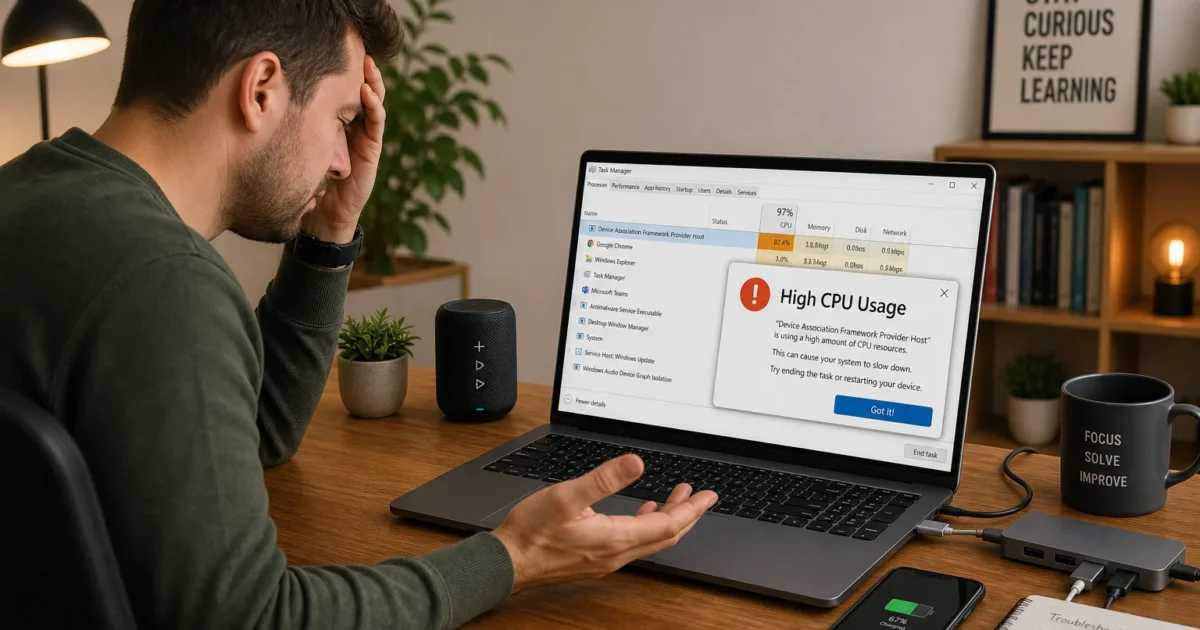
“Device Association Framework Provider Host” (dasHost.exe) is pegging your CPU at 20–99% in Windows 10 or 11. The cause is commonly a driver that’s outdated, incompatible, or fighting with a Bluetooth, USB-C, Thunderbolt, or docking station device. Updating your drivers fixes it for most people.
What Is Device Association Framework Provider Host?
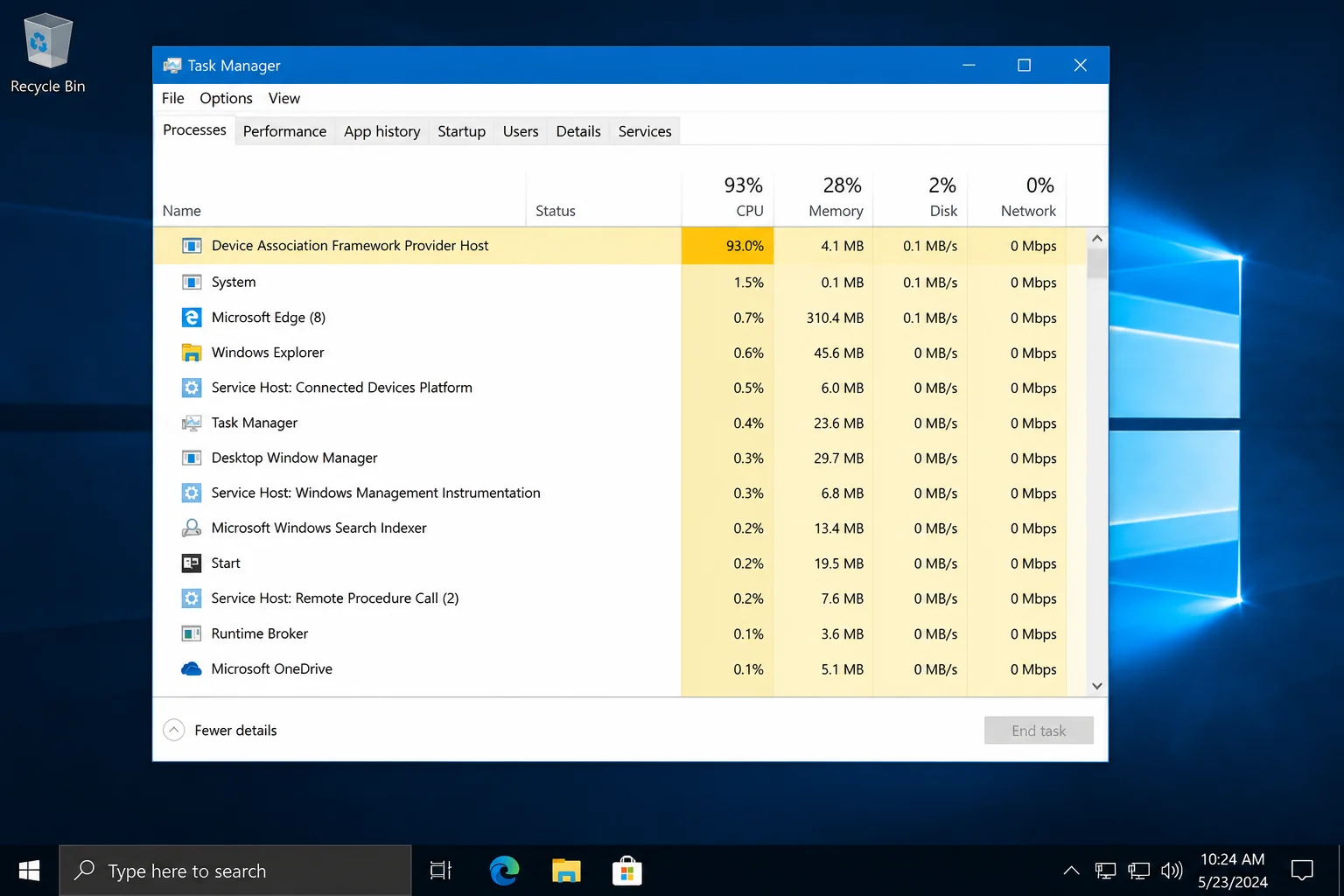
Device Association Framework Provider Host (dasHost.exe) is a core Windows service responsible for pairing and managing connected devices, including USB peripherals, Bluetooth accessories, Thunderbolt docks, and phone-link apps. Under normal conditions it runs at 0% CPU and consumes only a few megabytes of RAM. When it spikes, Windows is stuck in a loop trying to pair or enumerate a device it can’t handle.
In Task Manager you may see it listed as Device Association Framework Provider Host or Service Host: Device Association Service. Both names point to the same underlying process.
Fix #1: Update Windows and your OEM drivers
Outdated or missing drivers, especially for Bluetooth, Thunderbolt, USB-C controllers, and docking stations, are the most common cause of dasHost.exe high CPU. Windows updates also carry security patches for the Device Association Service itself, so keeping Windows fully patched matters for both stability and security.
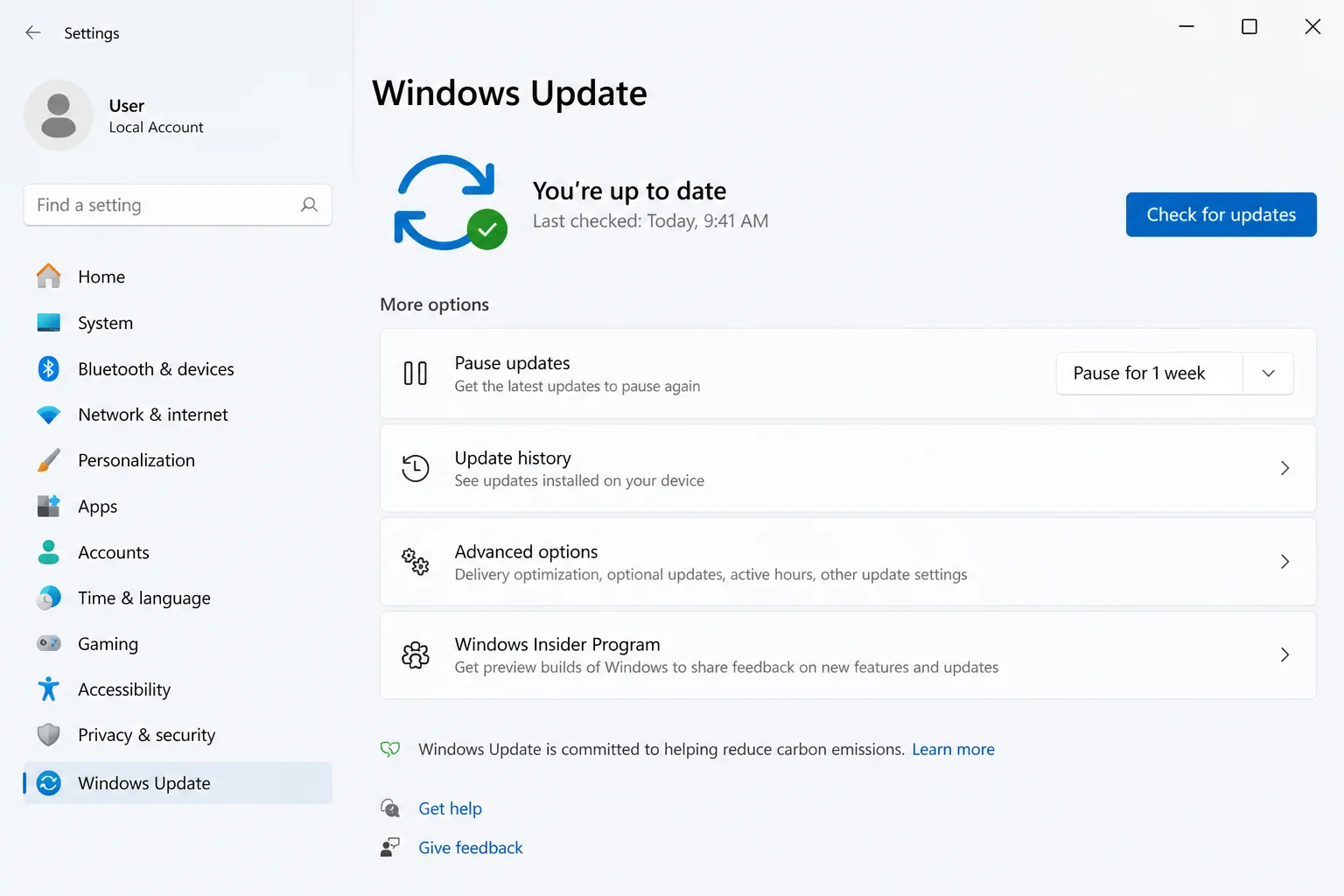
Run Windows Update
- Press
Windows + Ito open Settings. On Windows 11, select Windows Update. On Windows 10, select Update & Security > Windows Update.
- Click Check for updates and install everything available, including optional driver updates.
- Restart your PC when prompted, then reopen Task Manager to see if
dasHost.exeCPU usage has dropped.
Download OEM drivers directly from your manufacturer
Windows Update doesn’t always grab the latest vendor-specific drivers. Go to your PC or motherboard manufacturer’s support site and download the newest versions of these drivers:
- Chipset drivers
- Bluetooth drivers
- Wi-Fi and network drivers
- Thunderbolt / USB-C and docking station drivers
Most major OEMs have a dedicated app that handles this automatically: Lenovo Vantage, Dell Update, HP Support Assistant, or ASUS MyASUS. Install the updates, restart, and check Task Manager again.
Fix #2: Check Device Manager for flagged devices
If drivers are current but the CPU spike persists, a specific device is still failing to enumerate correctly. Device Manager will tell you which one.
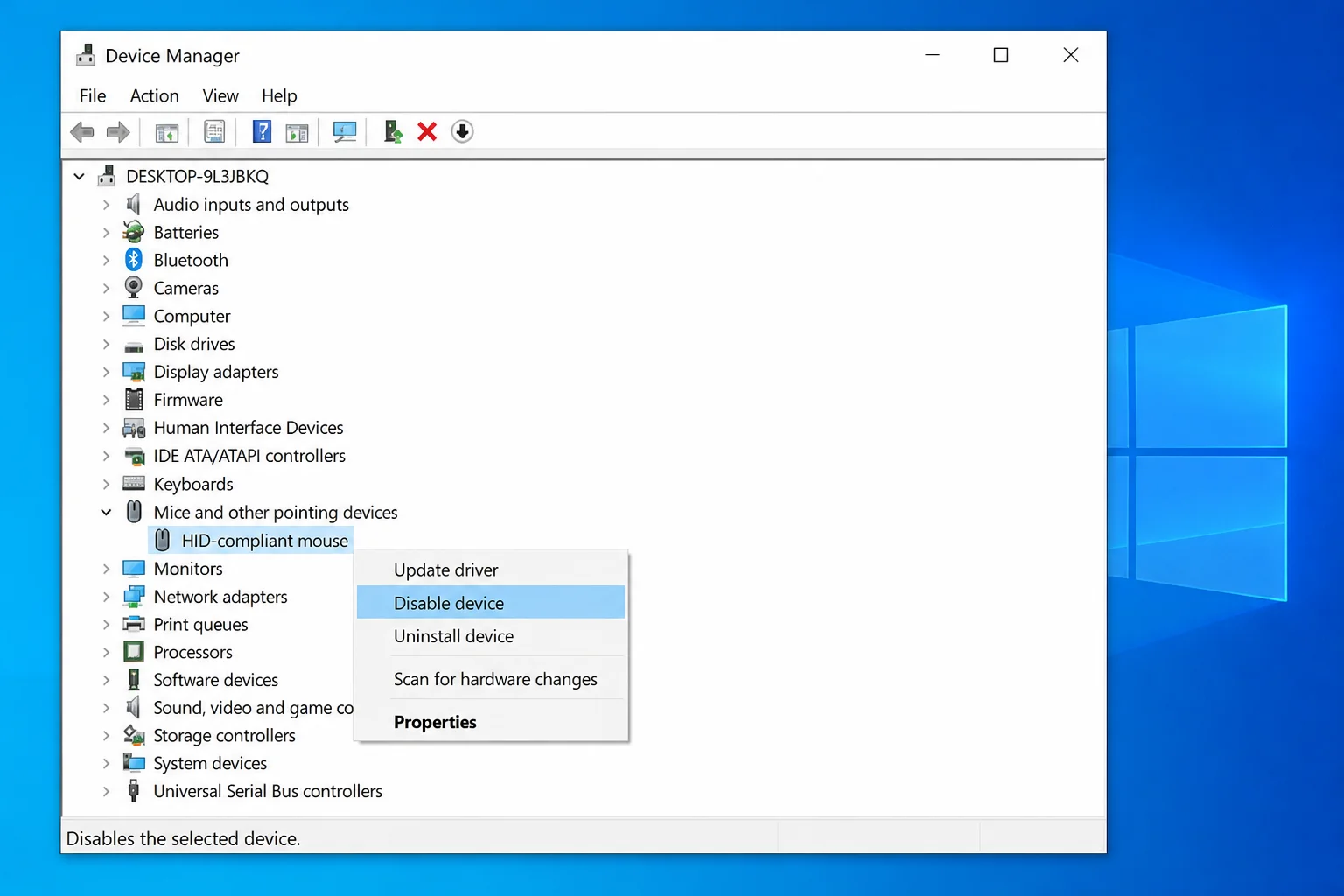
- Right-click Start and choose Device Manager.
- Scan the device list for any yellow warning triangle icons. Pay close attention to Bluetooth, Universal Serial Bus controllers, Network adapters, and System devices (Thunderbolt controllers and docking stations).
- Right-click any flagged device and select Update driver.
- Choose Search automatically for drivers. If Windows can’t find one, select Browse my computer for drivers and point it to the OEM driver you downloaded in Fix #1.
- Restart your PC and recheck CPU usage in Task Manager.
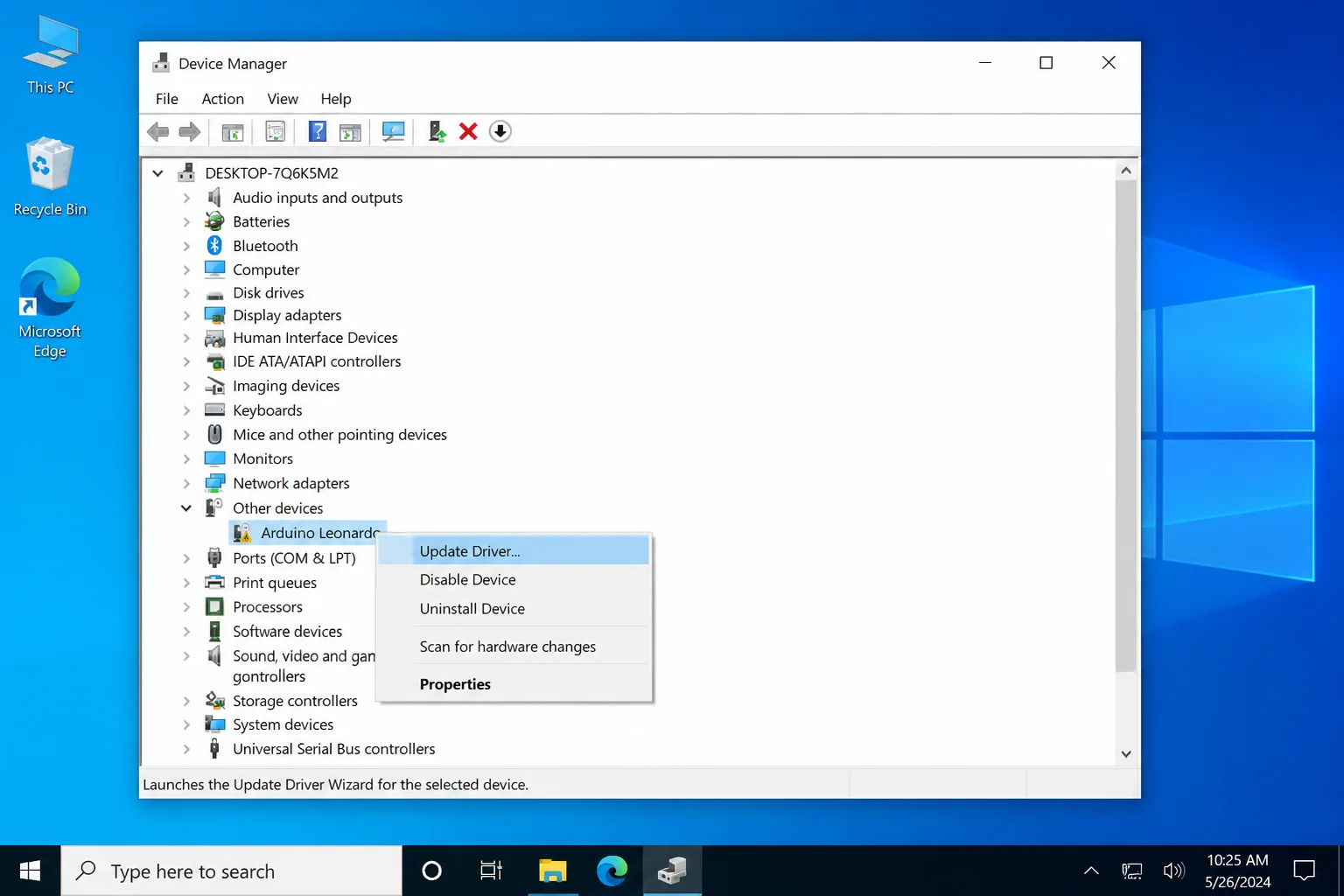
If no compatible driver is available and the spike is crippling your machine, you can temporarily disable the problem device: right-click it and choose Disable device. The device stops working entirely, but this confirms whether it’s the cause, and gives you breathing room while you track down the right driver.
Fix #3: Disable Bluetooth or quit companion apps
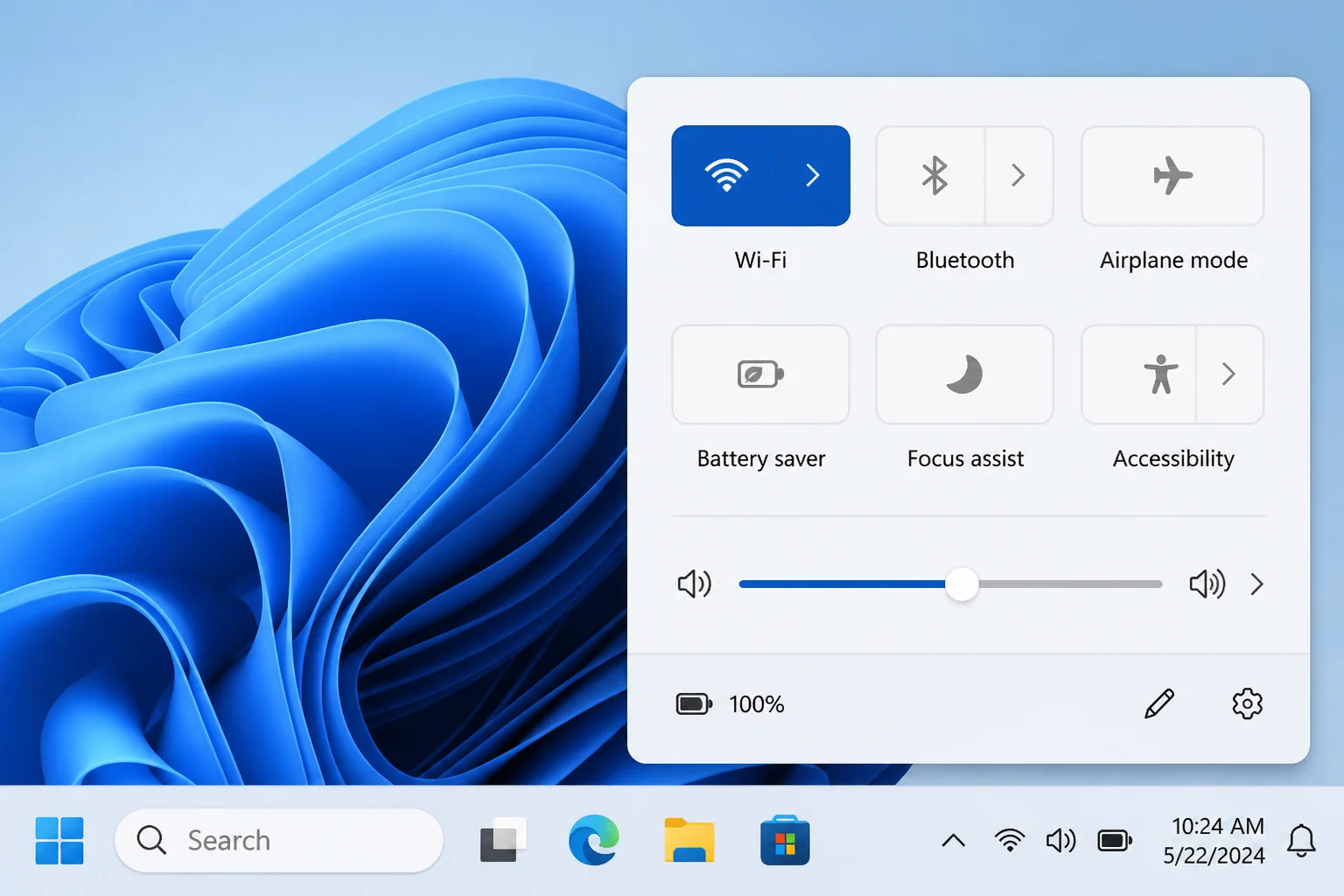
If the spike started after installing a new app or pairing a new Bluetooth device, a companion app may be the trigger. Apps like Dell Mobile Connect, HASS.Agent, and other phone-link or smart-home utilities constantly poll for nearby Bluetooth devices, which keeps dasHost.exe spinning indefinitely.
- Click the Quick Settings area in the system tray (bottom-right corner of the taskbar) and toggle Bluetooth off.
- Watch Task Manager for 30–60 seconds. If CPU usage drops noticeably, a Bluetooth device or app is the culprit.
- Check your system tray for any phone-link, smart-home, or vendor utility apps running in the background. Right-click the icon and choose Quit or Exit, then watch CPU usage again.
- If closing a specific app brings CPU back down, that app is the source. Check whether it has a setting to limit Bluetooth scanning, or uninstall it and look for an updated version that doesn’t cause the conflict.
Fix #4: End the Device Association task (temporary relief)
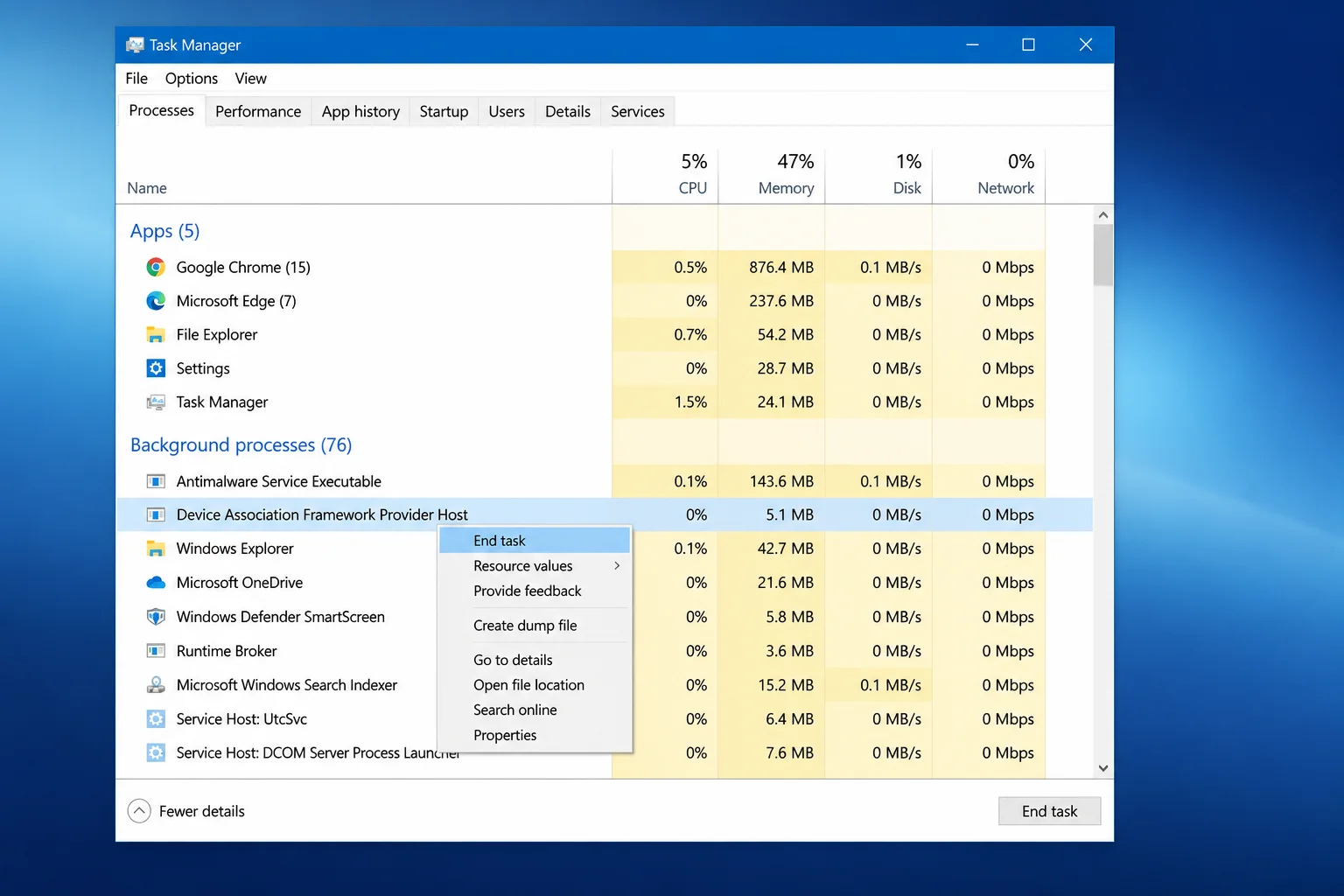
If your PC is unusable right now and you need your CPU back immediately, you can force-stop the runaway dasHost.exe instance. This doesn’t fix the root cause, as the service restarts on reboot, but it buys you time to work through Fixes #1 and #2.
- Press
Ctrl + Shift + Escto open Task Manager.
- On the Processes tab, find Device Association Framework Provider Host (or Service Host: Device Association Service).
- Right-click it and choose End task. CPU usage should drop within a few seconds.
- Restart your PC when ready, this lets the service come back up cleanly and prevents device connection issues from the forced stop.
Do not permanently disable the Device Association Service. Windows needs it for virtually all device connections, including USB peripherals, Bluetooth devices, docks, and more. End the task only as a short-term workaround, never as a permanent fix.
Fix #5: Verify dasHost.exe and run a malware scan
High CPU from dasHost.exe is rarely caused by malware and is usually a driver or device issue, but it is still worth ruling out, but ruling it out takes under a minute. You can also check Microsoft’s official documentation on Device Association Services for more information.
- In Task Manager, right-click Device Association Framework Provider Host and select Open file location.
- File Explorer should open to
C:\Windows\System32withdasHost.exehighlighted. If it opens to any other folder, that’s a red flag for malware masquerading as the process.
- Press
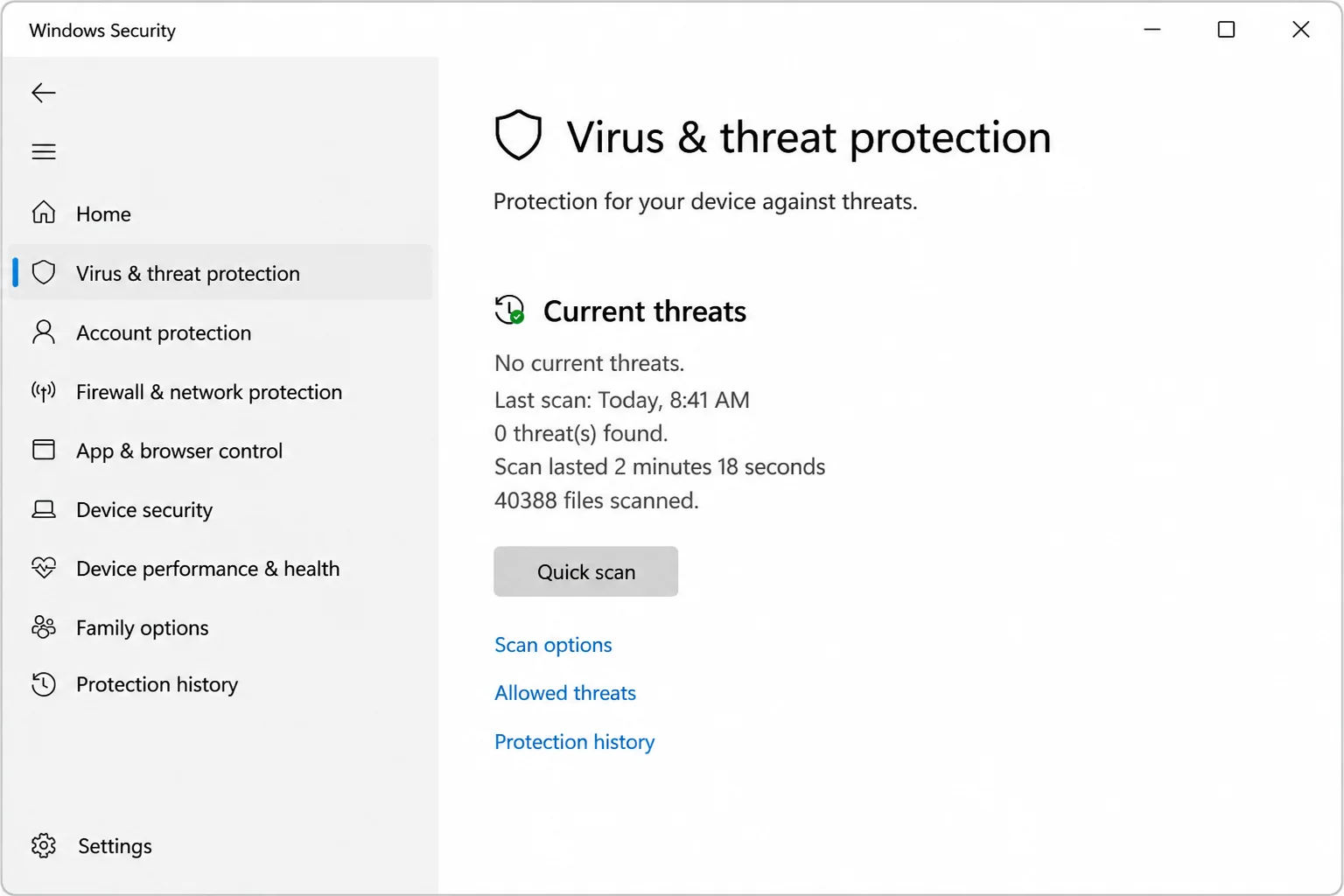
Windows + S, search for Windows Security, and open it.
- Go to Virus & threat protection > Scan options, select Full scan, and click Scan now.
When the Fixes Don’t Work
If all five fixes have failed, the most likely explanation is a device with no compatible Windows 10 or 11 driver, such as a very new Thunderbolt dock, a non-standard USB hub, or a peripheral the manufacturer hasn’t updated yet. Contact your device manufacturer’s support directly and ask specifically about high CPU from Device Association Framework on Windows 10 or 11. Until a driver ships, disabling the specific problem device in Device Manager (Fix #2) is the most reliable long-term workaround.
Conclusion
Fix #1, running Windows Update and pulling the latest drivers directly from your OEM, is the best place to start. If the spike only appears when plugged into a dock or charger, go straight to updating your Thunderbolt and USB-C drivers from your manufacturer’s site. If it started after installing a new app, Fix #3 will identify the Bluetooth culprit in under a minute. Once the right drivers are in place, dasHost.exe should go back to sitting quietly at 0% CPU where it belongs. For more information on Device Association Framework Provider Host, you can visit How-To Geek.