

Windows keeps snapping your windows to the edge of the screen when you’re just trying to move them. Whether you’re on Windows 7’s original Aero Snap or Windows 11’s full Snap Layouts system, the fix is straightforward, and the Settings app method takes about ten seconds.
Fix #1: Turn Off Snap Windows in Settings (Windows 10 and 11)
This is the fastest method for anyone on Windows 10 or 11. Changes apply instantly, with no reboot needed.
- Press
Windows + Ito open Settings. - Go to System > Multitasking.
- Find the Snap windows toggle and switch it Off.

If you’d rather keep basic snapping but kill the suggestions that pop up when you snap a window, leave the main toggle on and uncheck the sub-options individually:
- Show what I can snap next to it: disables Snap Assist (the window picker)
- Automatically resize newly snapped windows: stops adjacent windows from auto-filling
- Resize adjacent snapped windows simultaneously: makes snapped windows resize independently
Fix #2: Use Ease of Access Center (Windows 7, 8, and Legacy Method for 10/11)
This is the original method that works all the way back to Windows 7. On Windows 10 and 11, it has a known bug where it may not fully disable snapping, so use Fix #1 instead if you’re on a modern version.
- Press
Windows + R, typecontrol, and press Enter to open Control Panel. - Click Ease of Access > Ease of Access Center.
- Click Make the mouse easier to use.
- Scroll down to the Make it easier to manage windows section.
- Check the box next to Prevent windows from being automatically arranged when moved to the edge of the screen.
- Click Apply, then OK.
This also disables Aero Shake (the minimize-everything-else gesture) as a side effect.
Fix #3: Disable Aero Shake Only, Keep Snap Active (All Windows Versions)
If snapping itself is fine but you hate accidentally shaking a window and minimizing everything else, you can kill Shake independently via a registry tweak.
- Press
Windows + R, typeregedit, and press Enter. - Navigate to:
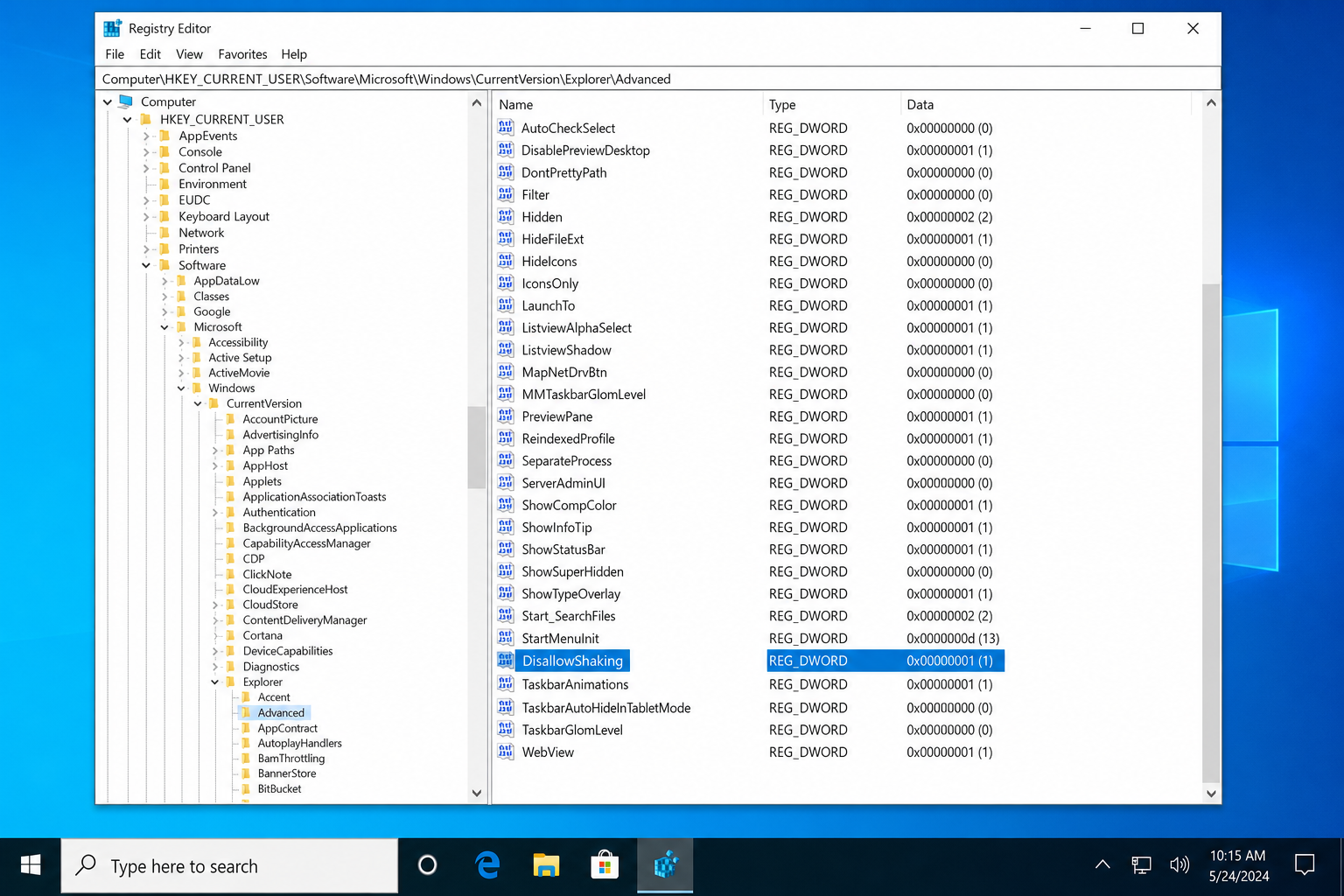
HKEY_CURRENT_USER\Software\Microsoft\Windows\CurrentVersion\Explorer\Advanced - Right-click an empty area in the right pane, select New > DWORD (32-bit) Value.
- Name it DisallowShaking and press Enter.
- Double-click the new value and set it to 1. Click OK.
- Open Task Manager (
Ctrl + Shift + Esc), find Windows Explorer in the list, right-click it, and select Restart.
Aero Shake is now disabled. Snapping still works normally.
Fix #4: Use Winaero Tweaker (Quickest Option for Power Users)
If you’d rather skip the registry entirely, Winaero Tweaker is a free portable tool from a trusted Windows customization site. It handles both Snap and Shake with a single checkbox, no reboot required.
- Download Winaero Tweaker from winaero.com and run it (no installation needed).
- In the left panel, expand Behavior and click Disable Aero Snap.
- Check Disable Aero Snap in the right pane.
- Click Restart Explorer when prompted.
Troubleshooting: When the Setting Doesn’t Stick
If snapping keeps re-enabling itself or the toggle seems to have no effect, here’s what to check:
- Display scaling isn’t at 100%: Go to Settings > System > Display and set scale to 100%, then reboot and try again.
- Group Policy is overriding your setting: Press
Windows + R, typegpedit.msc, and navigate to User Configuration > Administrative Templates > Desktop. Check whether Turn off Aero Snap is configured. - Windows 11 Snap Layouts still appear: Make sure you’ve disabled all sub-options under the Snap windows toggle in Settings, not just the main toggle.
- Edge flashes when snapping: This is a known GPU/driver bug. Update your graphics drivers and Edge browser separately.
Which Method Should You Use?
For anyone on Windows 10 or 11, Fix #1 (Settings > System > Multitasking) is the right call. It’s instant, reversible, and granular enough that you can disable just Snap Assist without killing the whole feature. Fix #2 via Ease of Access still works on Windows 7 and 8, but it’s a longer route to the same result on modern Windows and has a known reliability issue. If the registry doesn’t scare you and you only want to kill Aero Shake, Fix #3 is clean and precise.