

“Word cannot start the converter mswrd632.wpc” (or its cousin, “Word cannot start the converter SSPDFCG_x64.cnv”) appears when Word tries to open a document using an outdated third-party text converter that no longer works correctly. The fixes below cover both errors, starting with the simplest.
Fix #1: Rename the SSPDFCG_x64.CNV file (Nuance software users)
If you have Nuance software installed, PDF Converter, Power PDF, Dragon, or anything in that family, this is almost certainly your culprit. A 64-bit Nuance converter conflicts with 32-bit Word installations, triggering the SSPDFCG_x64.cnv error on every document open.
Note: Renaming files under
C:\Program Filesrequires administrator rights. If you’re on a managed corporate PC and can’t rename the file, contact your IT department to perform this step.
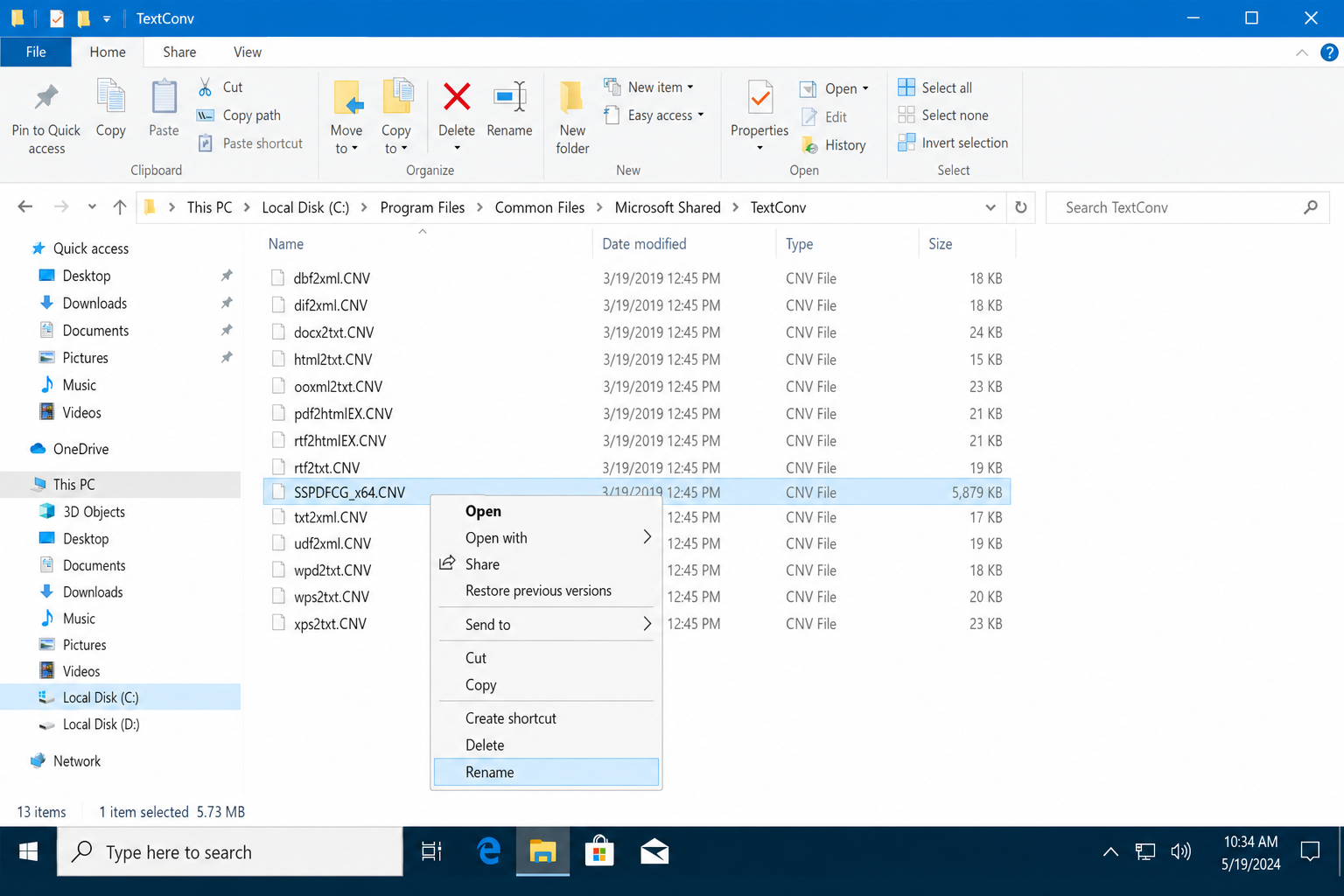
- Open File Explorer and navigate to:
C:\Program Files\Common Files\Microsoft Shared\TextConv - Find the file named SSPDFCG_x64.CNV.
- Right-click it and select Rename.
- Change the name to SSPDFCG_x64.old and press Enter.
- Restart your PC and try opening the document again.
If the error is gone, you’re done. If Nuance is critical to your workflow, check the Nuance support site for a patch compatible with your current Office architecture. Newer versions of Power PDF (version 11 and later) and Dragon (15.2 and later) include updates that may resolve architecture mismatches, but availability depends on your specific build. Check the Nuance support site for patches or updated builds confirmed compatible with your Office version.
Fix #2: Delete the MSWord6.wpc registry key
This is the standard fix for the mswrd632.wpc error. Word 6.0 and Word 97 documents no longer need the legacy MSWord6.wpc converter, as modern Word handles them natively. Removing the registry key tells Word to stop trying to use the old converter.
Note: Editing
HKEY_LOCAL_MACHINEregistry keys requires administrator rights. If you’re on a managed or locked-down corporate PC and receive an access denied error, contact your IT department to perform this step.
- Press the Windows key, type regedit, and select Registry Editor from the results.
- Click Yes at the UAC prompt.
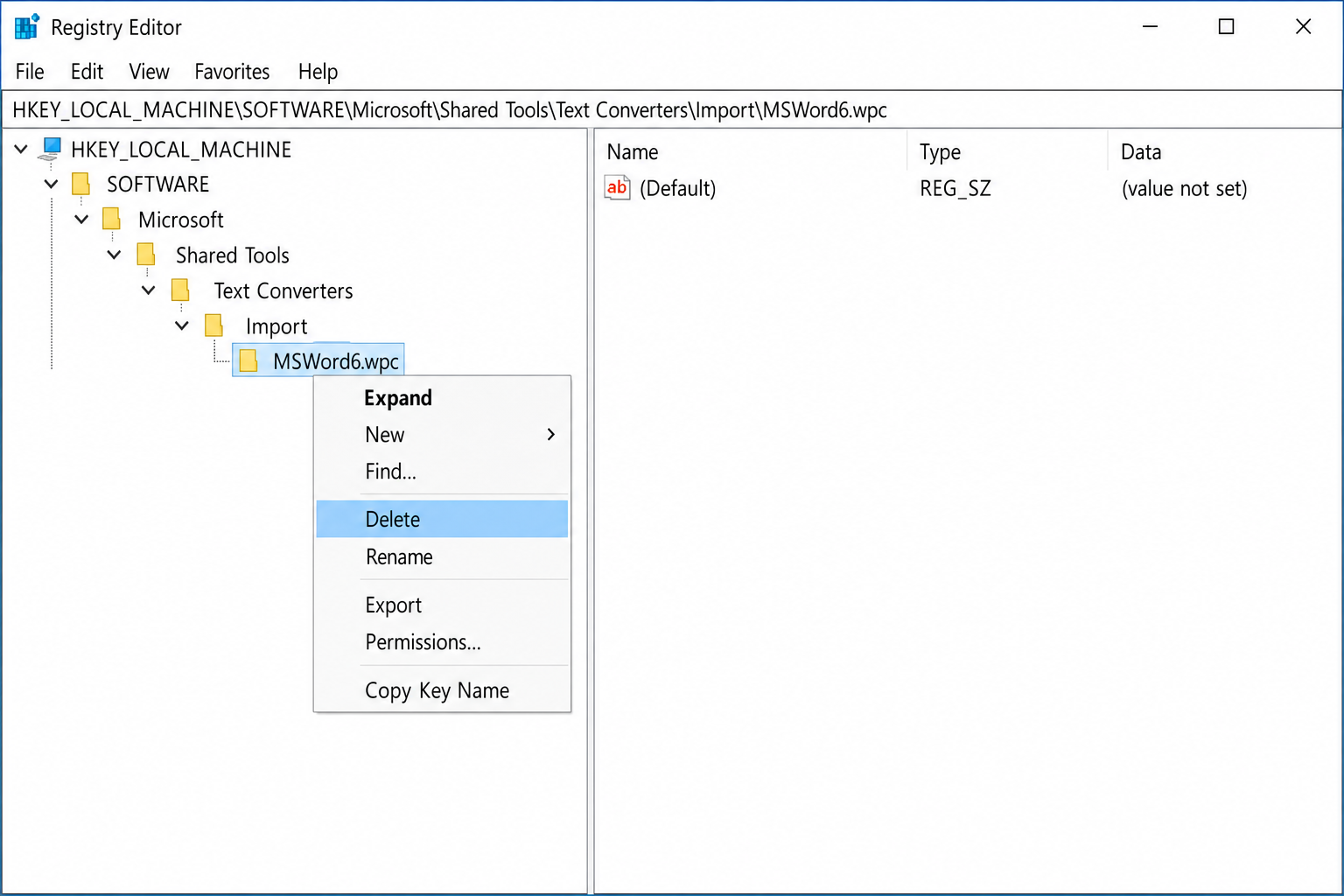
- In the address bar at the top of Registry Editor, paste the following path and press Enter:
HKEY_LOCAL_MACHINE\SOFTWARE\Microsoft\Shared Tools\Text Converters\Import\MSWord6.wpc - Right-click the MSWord6.wpc key in the left pane and select Delete.
- Click Yes to confirm.
If you’re on a 64-bit system, also check this path and delete the key there too if it exists:
HKEY_LOCAL_MACHINE\SOFTWARE\Wow6432Node\Microsoft\Shared Tools\Text Converters\Import\MSWord6.wpc
Restart Word and try opening the document. It should open cleanly using Word’s built-in converters.
Note: Before making registry changes, it’s a good idea to back up the registry first. After this fix, WordPad will no longer open Word 6.0/95 files. You’ll see a “Cannot load Word for Windows 6.0 files” message, which is expected. Word itself will still open those files without any problem.
Fix #3: Run a Quick Repair on Microsoft Office
If neither registry fix resolved it, a corrupted Office installation may be registering bad converter entries automatically. Quick Repair resets those without touching your documents or settings.
- Press Windows + I to open Settings.
- Go to Apps > Installed apps.
- Find Microsoft 365 or Microsoft Office in the list, click the three-dot menu next to it, and select Modify.
- Select Quick Repair and click Repair.
- Wait for the process to finish, then restart Word and test.

If Quick Repair doesn’t fix it, repeat the steps above and choose Online Repair instead. Online Repair downloads a fresh copy of Office components and takes longer, but it’s more thorough.
Fix #4: Open Word in Safe Mode to rule out add-in conflicts
Many persistent converter errors are caused by a COM add-in interfering with Word’s file-handling pipeline. Safe Mode loads Word without any add-ins, so if the document opens cleanly there, an add-in is the culprit.
- Press Windows + R to open the Run dialog.
- Type
winword /safeand press Enter. - Try opening the problem document in Safe Mode.
If it opens without the error, an add-in is causing the problem. To find and disable it:
- Open Word normally and go to File > Options > Add-ins.
- At the bottom of the page, set the Manage dropdown to COM Add-ins and click Go.
- Uncheck all add-ins and click OK.
- Restart Word and test. If the error is gone, re-enable add-ins one at a time to find the specific offender.
Fix #5: Open the document via Word Online or LibreOffice
If the document itself is what you need right now and the local Word installation is still misbehaving, bypass the converter problem entirely by opening the file in a tool that doesn’t use these legacy converters at all.
- Word Online (OneDrive): Upload the file to OneDrive and open it in the browser. Word Online handles legacy Word formats natively without relying on local text converters.
- LibreOffice: LibreOffice 24.x or later opens Word 97 and Word 6.0 documents reliably and is free. It’s a solid fallback if you’re dealing with a batch of old files.
When none of these fixes work
If the error persists after all five fixes, check Windows Event Viewer for “TextConv” fault entries. Those point to a specific converter file that’s corrupt and can be deleted manually from %ProgramFiles%\Common Files\Microsoft Shared\TextConv. In enterprise environments, a Group Policy or third-party application (SIMS, print-merge tools) may be reinstalling the broken converter after every reboot; your IT admin will need to isolate that at the policy level.
Conclusion
Fix #2 (deleting the MSWord6.wpc registry key) resolves the mswrd632.wpc error for most people, and Fix #1 (renaming SSPDFCG_x64.CNV) handles virtually every Nuance-related case. If the error keeps coming back after a Windows or Office update, a third-party tool on your system is likely reinstalling the broken converter.
Uninstalling Nuance or checking for an updated version that matches your Office architecture (32-bit vs. 64-bit) is the permanent fix. If you continue to experience issues with Microsoft Word not responding or behaving unexpectedly, see our dedicated troubleshooting guide for further steps.