 selma citakovic · November 6, 2025 · 4 min read
Need help with fixing VR headset compatibility problems on Windows 11? Version 24H2 has introduced several issues for VR users. Notably, this update has stopped support for Windows Mixed Reality (WMR) headsets.
Luckily, this guide covers simple solutions for both WMR and non-WMR devices. We’ll also explain why this trouble happens in the first place, so stay tuned.
Why Are There VR Compatibility Issues With Windows 11?
In most cases, you may experience compatibility problems due to:
- Using a WMR headset—Unfortunately, version 24H2 and beyond have removed support for devices such as HP Reverb, HP Reverb G2, and Samsung Odyssey+.
- Outdated drivers—Your headset, graphics, or USB drivers may need an update.
- A faulty USB connection—If you see an error message saying “USB device is not recognized,” check your ports and connections.
How to Fix VR Headset Compatibility Problems on Windows 11
The first two steps will target WMR devices, while the rest cover general solutions that should work for all users.
Install the Oasis Driver (WMR Headset)
You can completely bypass the compatibility issues with this SteamVR driver. It works with the latest Windows 11 versions, including 24H2 and 25H2.
However, it won’t work with Intel or AMD graphics cards. It requires an NVIDIA GPU.
Here’s how to get it:
- Visit the Steam page for the Oasis driver and select the Free button.

- Select Install on the pop-up window that appears.

- Wait for it to download and install.
- Go to Library > Downloads, find the Oasis driver, and select Launch.

- Select Launch Oasis Driver for Windows Mixed Reality, then Play.

Revert to Windows 11 23H2 (WMR Headset)
Alternatively, you can perform a clean install of an earlier version of Windows. However, this is only a temporary fix. WMR devices on Windows 11 23H2 will stop receiving support after November 2026.
Additionally, make sure to back up your files first, as this method will wipe everything from your system.
Here are the steps:
- Get an ISO file for the 23H2 version from OS.click. Unfortunately, the official Windows download site only allows you to download the latest edition (25H2). Generally, you should avoid third-party sources for ISO downloads unless you’re sure they’re safe.
- Scroll down and choose the correct OS version for download.

- Download the ISO file.

- In your Downloads, right-click the file and select Mount.

- In your DVD Drive, double-click the setup app and follow the prompts to install Windows.

Update Your Graphics Drivers
This process may vary depending on your GPU, but the general gist is the same. We will demonstrate it on the NVIDIA app:
- Open the NVIDIA app and select Drivers on the left side.
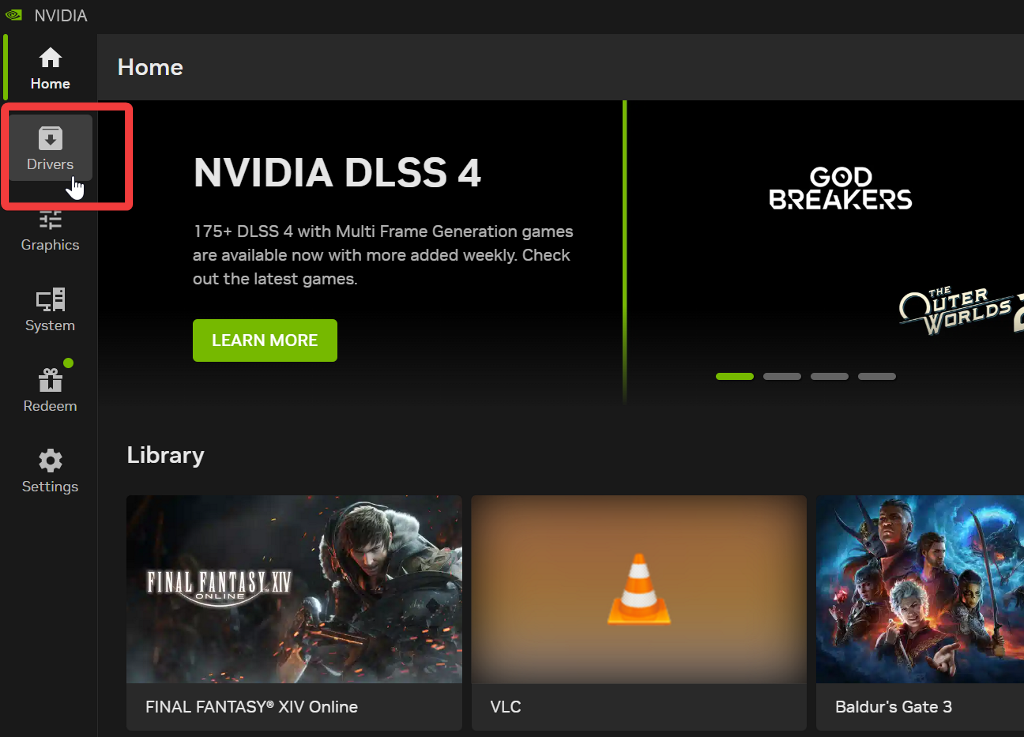
- Select the arrow icon in the top-right corner to check for updates.
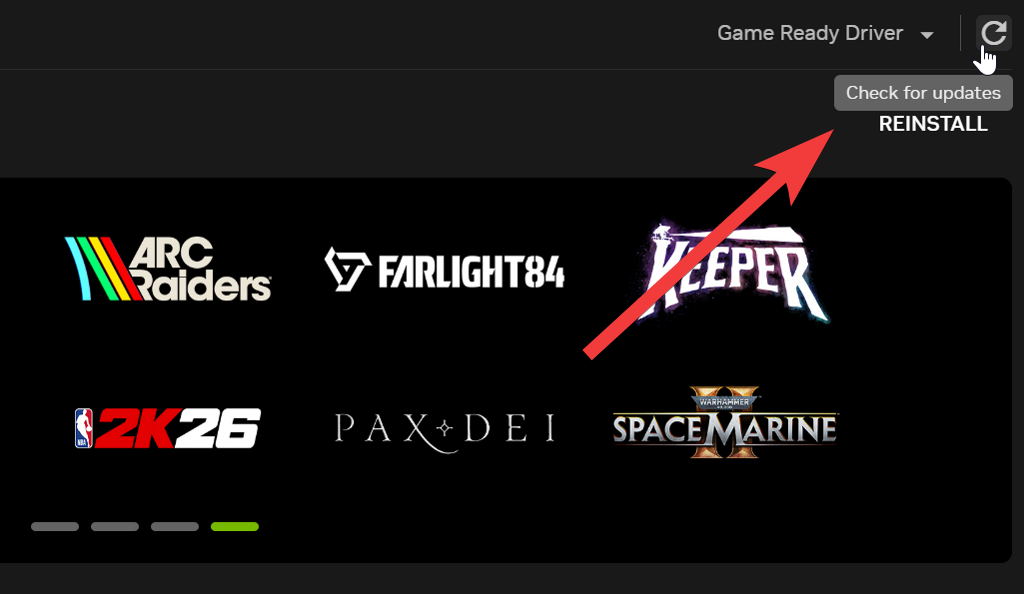
- If your drivers are up to date, like in the previous screenshot, you’ll see the Reinstall option. Otherwise, select the Install button and wait for the update to complete.
Update Your USB Drivers
You can find all your USB controllers and devices in Device Manager on Windows 11. Here’s how to update them:
- Type Device Manager in Windows Search. Select Open.
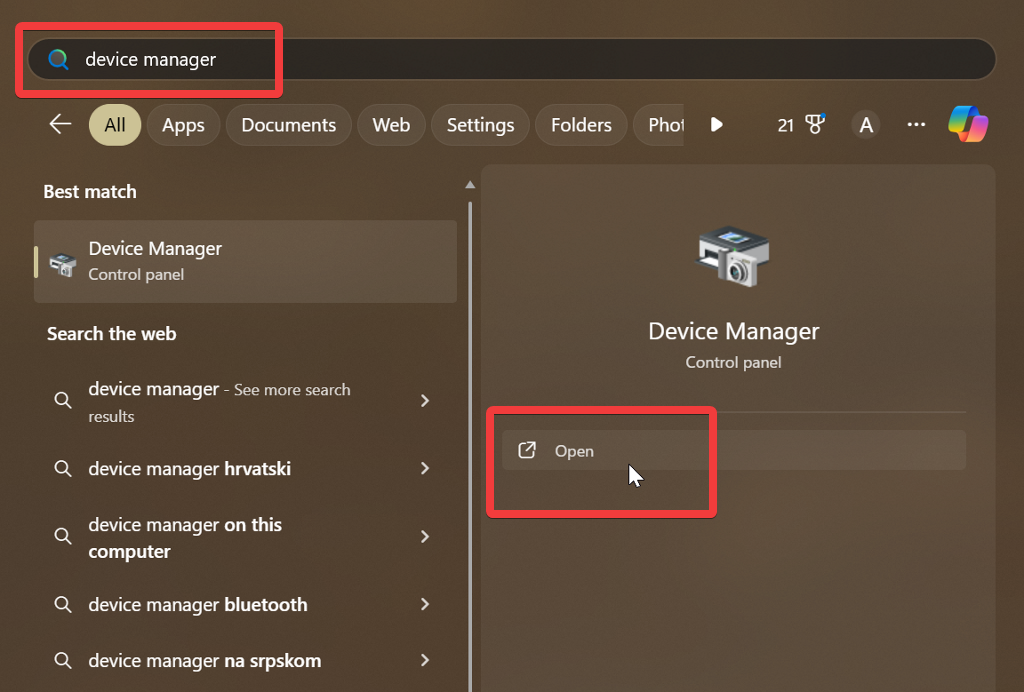
- Scroll down until you find the Universal Serial Bus controllers section and select it.
- Right-click the first one and choose Update driver.
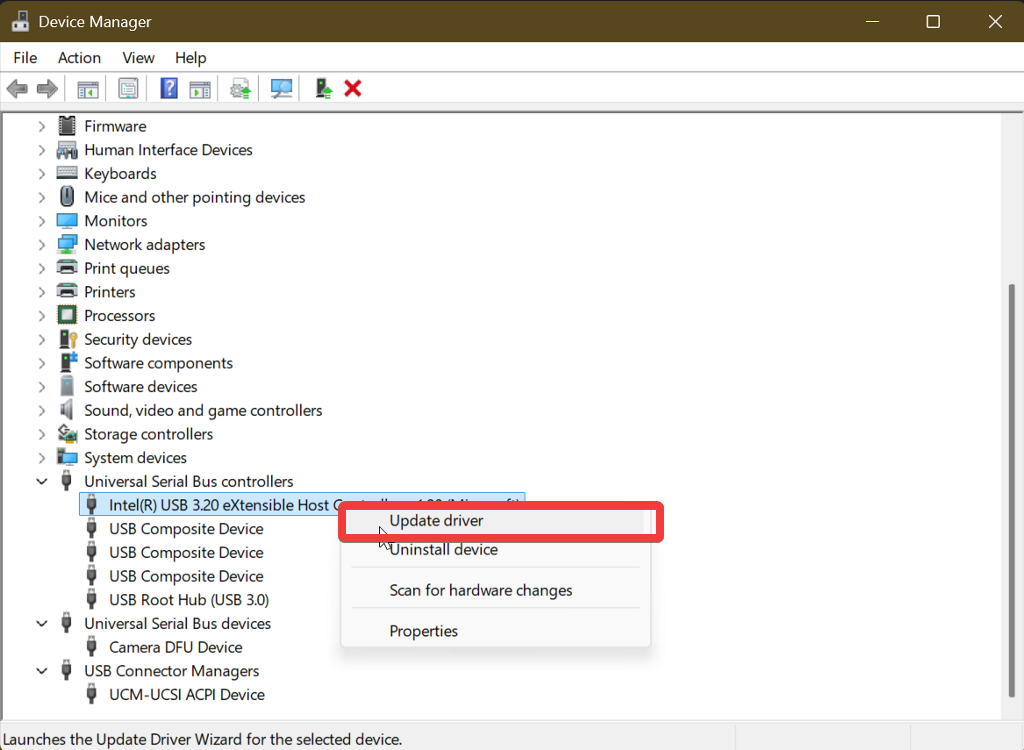
- Select Search automatically for drivers and wait for the process to finish.
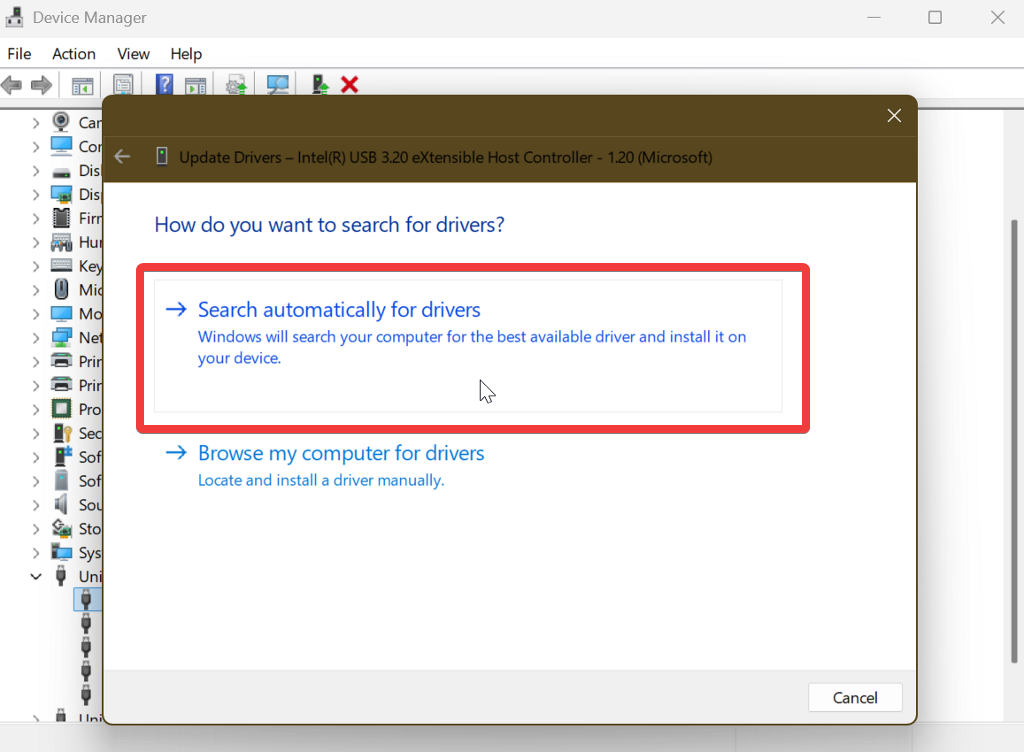
- Repeat it for all the controllers.
Update Your Headset Drivers
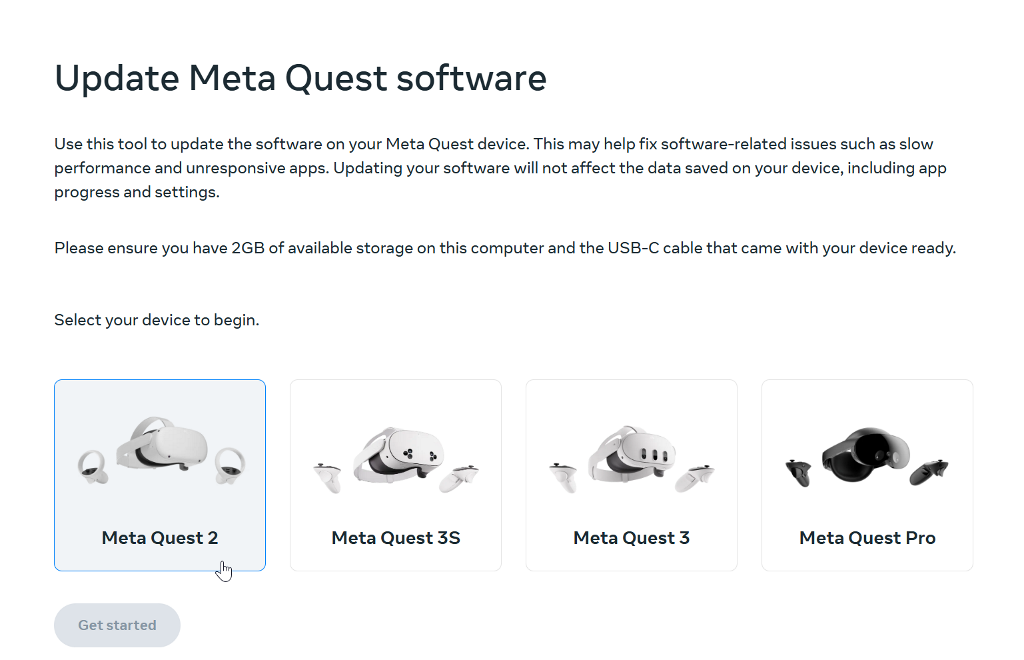
You can find official updates for your device on the manufacturer’s website.
You can usually find them in the Software & Drivers section or the Help center. Select your headset model (for example, Meta Quest 2) and install the latest updates.
Check Your USB Connection
Finally, you should make sure you’re using a USB 3.0 port (for optimal latency) to connect your headset. Check for any looseness and try different ports.
Conclusion
Overall, most VR users reported compatibility issues after the 24H2 update. WMR headset owners had it the worst, since this update rendered their devices unusable. Fortunately, the Oasis driver is a simple solution to this.
Additionally, fixing VR headset compatibility problems on Windows 11 is usually a matter of updating your drivers. This guide covers all you need to know, so you can go back to playing your favorite VR games in no time.
Related Posts
- How to Fix App Notifications in Windows?
- Using an Old Device? 5 Account Security Settings You Should Enable
- How to Find Features Moved from Control Panel to Settings in Windows 11?
- How to Back Up Your Android Downloads Automatically?
- Camera Not Working in Zoom or Teams? Quick Fixes for Windows and macOS

Selma is a tech fan and writer at Help Desk Geek with a focus on cybersecurity, gaming, and all things Windows. She’s certified by IBM in hardware and operating systems, and cybersecurity essentials. She also has keen troubleshooting instincts – if you have a problem, she’ll help you solve it. Read selma’s Full Bio

