

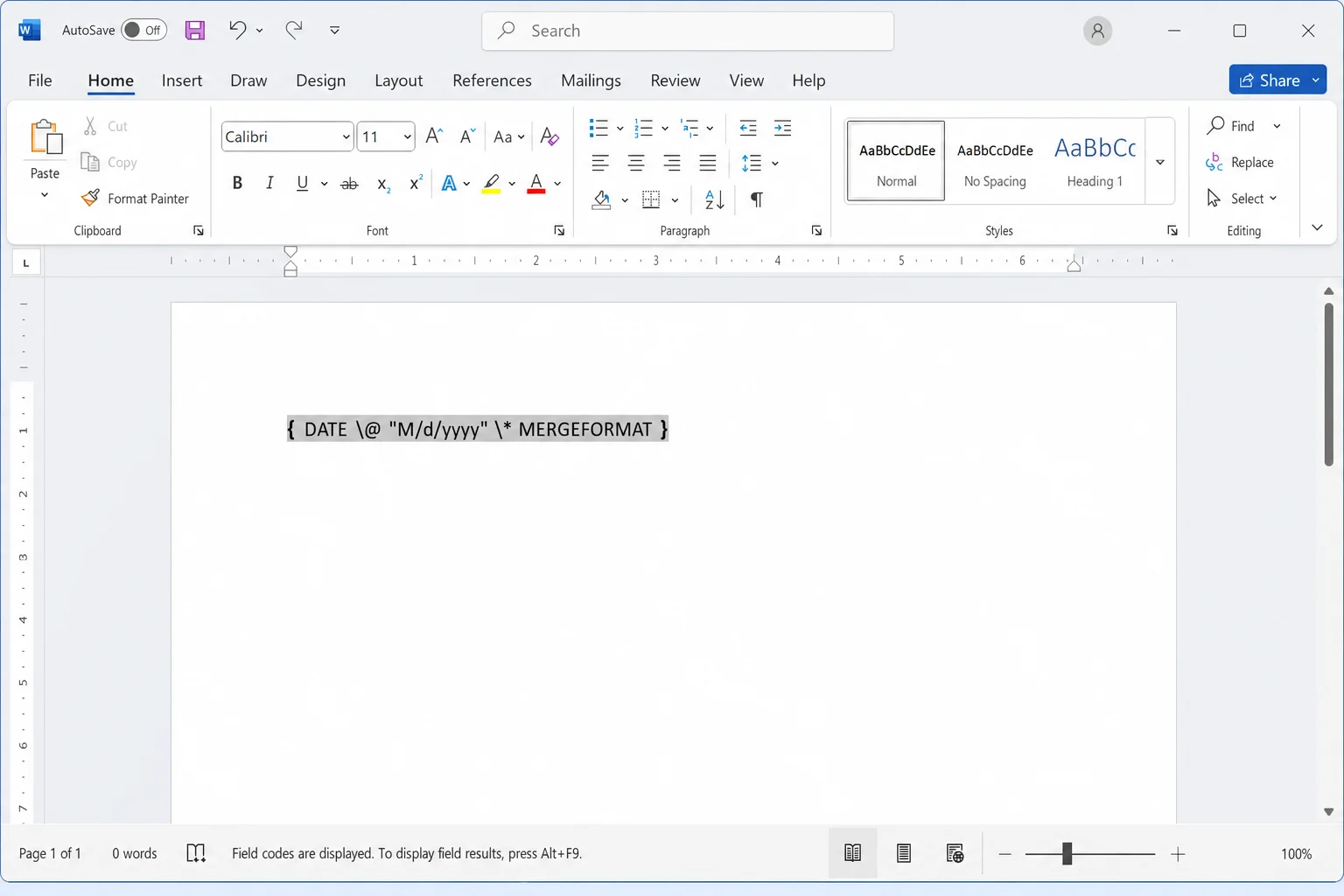
Your Word document is showing raw code like { DATE \@ "M/d/yyyy" \* MERGEFORMAT } instead of the actual date or value. That’s a field code displaying instead of its result. Press Alt+F9 to toggle all field codes off instantly, or keep reading to control field display permanently and convert fields to plain text.
How to Toggle Field Codes On or Off
Fix #1: Use the keyboard shortcut (fastest method)
This is the quickest way to flip between seeing field codes and seeing field results in any open document.
- Click anywhere inside your Word document.
- Press Alt+F9 to toggle all field codes on or off at once.
- To toggle only a single field, click inside that field and press Shift+F9.

On Mac, use Option+F9. If nothing happens, try Fn+Option+F9, as some MacBook keyboards require the Fn key to pass function keys through to Word.
Note: If you still see code-like text after pressing Alt+F9, the content may be a TC or XE field tied to hidden text. Go to Home and toggle Show/Hide ¶ (Ctrl+Shift+8) to reveal hidden formatting marks, then check whether those entries disappear.
Fix #2: Change the default field display in Word Options
If field codes keep reappearing every time you open Word, the global setting is turned on. Here’s how to change it permanently.
- Open Word and click File.
- Click Options at the bottom of the left sidebar.
- In the Word Options dialog, click Advanced in the left panel.
- Scroll down to the Show document content section.
- Find the checkbox labeled Show field codes instead of their values.
- Clear the checkbox to show field results (normal view). Check it to always show raw field codes.
- Click OK.
Your document will immediately switch to showing field results. This setting applies to all documents going forward.
Fix #3: Control field shading so fields are easy to spot
Field shading puts a grey highlight behind every field in your document, making them easy to identify at a glance without switching to code view.
- Click File > Options > Advanced.
- Scroll to Show document content.
- Open the Field shading dropdown and choose your preference:
| Option | What it does |
|---|---|
| Never | No shading; fields look like regular text |
| When selected | Grey highlight appears only when your cursor is inside the field (default) |
| Always | Grey highlight shows on every field all the time, cursor or not |
- Click OK.
Choosing Always is the most useful setting when you’re hunting for fields to update or convert. Every field in the document gets a visible highlight so nothing slips past you.
How to Update Fields Before Converting
Before you convert a field to plain text, update it first so the frozen value is current. Once converted, it won’t update again.
- To update a single field: click inside the field and press F9. Word will also show an Update button above some field types (like tables of contents), clicking that works too.
- To update every field in the document at once: press Ctrl+A to select everything, then press F9.
How to Convert Fields to Plain Text
Converting (unlinking) a field replaces the dynamic code with static text frozen at its current value. Do this when you’re finalizing a document for sharing and don’t want fields to change.
Convert a single field
- Click inside the field you want to convert.
- Press Ctrl+Shift+F9. The field is immediately replaced with plain text.
The grey field shading disappears and the text no longer updates. That’s how you know it worked.
Convert all fields in the document
- Press Ctrl+A to select the entire document.
- Press Ctrl+Shift+F9. Every field is converted to plain text at once.
Warning: This is permanent. Converted fields cannot be updated; they’re just text. If you change your mind immediately after, press Ctrl+Z to undo. Once you save and close the document, the undo history is gone.
Troubleshooting: When Alt+F9 Does Nothing
A few things can cause Alt+F9 to have no effect:
- Laptop function key layer: Try Fn+Alt+F9. Many laptops treat F-keys as media controls by default.
- Focus isn’t in the document: Click inside the document body first, then try the shortcut again.
- TC/XE fields and hidden text: Index and table-of-contents entry fields (XE, TC) are controlled by hidden text settings, not the standard field-code toggle. Turn on Show/Hide ¶ (Ctrl+Shift+8) to see them.
- Word for the web: The browser version of Word has limited field support. The Alt+F9 shortcut and Ctrl+Shift+F9 conversion only work in the desktop app (Microsoft 365 or standalone Word for Windows/Mac).
Quick Reference: Field Code Shortcuts
| Action | Windows shortcut | Mac shortcut |
|---|---|---|
| Toggle all field codes on/off | Alt+F9 | Option+F9 |
| Toggle selected field only | Shift+F9 | Shift+Option+F9 |
| Update selected field | F9 | F9 |
| Update all fields | Ctrl+A, then F9 | Cmd+A, then F9 |
| Convert field to plain text | Ctrl+Shift+F9 | No direct equivalent; use right-click menu |
Conclusion
For most people, Alt+F9 is the fix. It instantly clears up the raw-code display without changing anything permanently. If field codes keep reappearing every time you open Word, the checkbox in File > Options > Advanced is the setting to change. Only use Ctrl+Shift+F9 when you’re truly done with a field and want to lock its value as plain text. There’s no going back after you save.