 Ananya Dixit · February 8, 2026 · 3 min read
Backing up your iPhone is crucial to protect your personal data, like messages, photos, and contacts. Though Apple has always promoted iCloud to its users for backing up their essential data, most people do not want to use it.
Moreover, there are several reasons people prefer not to use iCloud, including limited storage, slow upload speeds, lack of internet access, and privacy concerns.
For people who are looking for alternatives to backup their data without using iCloud, this guide will walk you through the best ways to backup your iPhone using a computer or any external storage device.
Method 1: Backup Your iPhone Using a PC
This is one of the most reliable ways through which you can backup your iPhone without iCloud. By using this method, the data will be stored locally on your system.
You can easily do the backup on Windows or macOS Mojave and earlier.
What Steps To Follow?
- You must install the latest version of iTunes on your desktop
- Then you need to connect your iPhone through a USB cable
- Unlock your iPhone and tap on Trust This Computer
- Click on iTunes
- Select the iPhone icon at the top
- You will see an option of Backup, under that select This Computer
- Turn on Encrypt local backup
- Select Backup Now
Additionally, encrypted backups contain passwords, Wi-Fi credentials, and Health data.
Backup iPhone on macOS Catalina or Newer
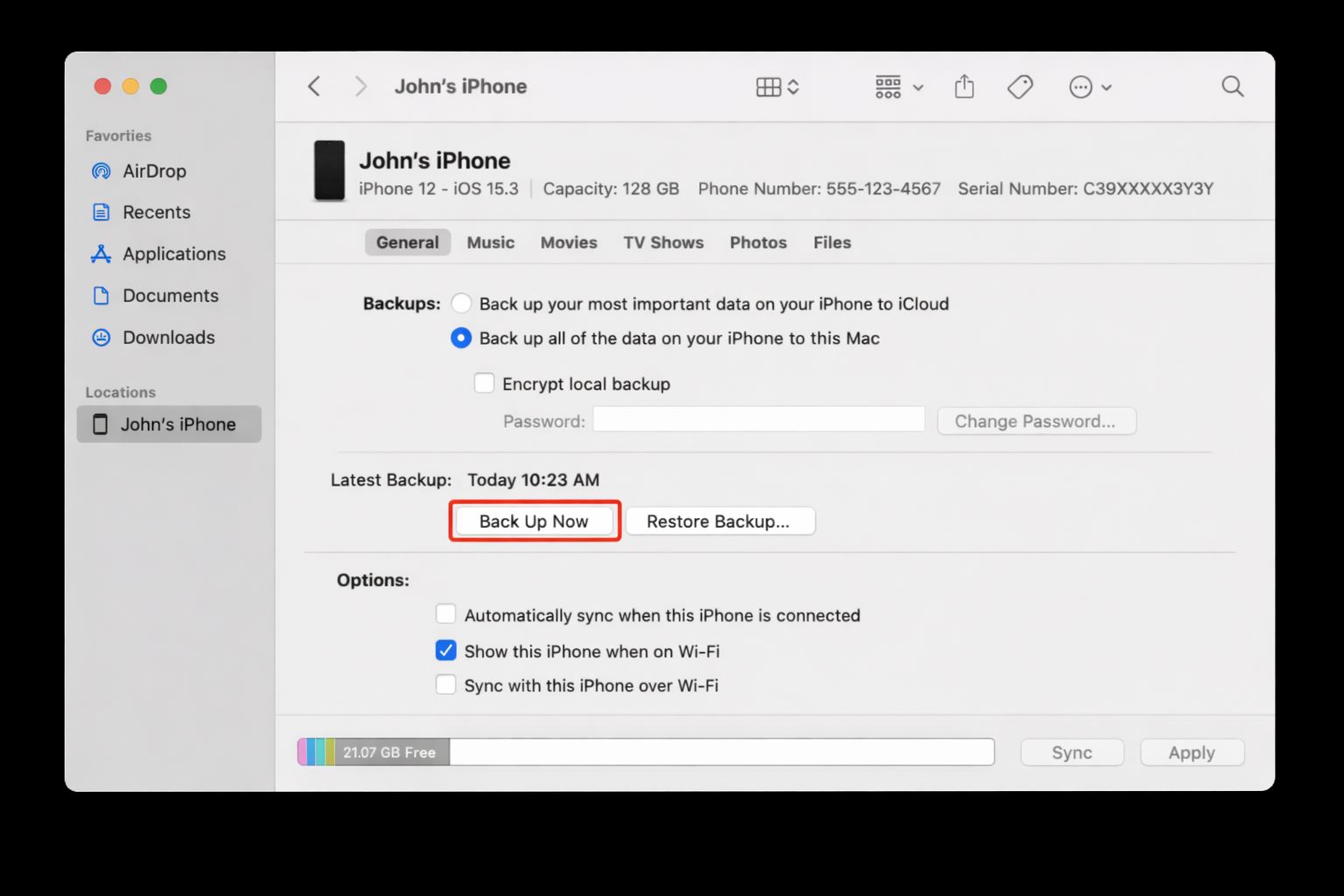
Recently, Apple replaced iTunes with Finder on all the latest macOS versions.
What Steps To Follow?
- Firstly, connect your iPhone device to your Mac
- Then, open Finder on the Mac
- Choose your iPhone name from the sidebar option
- Under the Backup option, select Backup all data on your iPhone to this Mac
- Select Backup Now
Method 2: Backup Your iPhone to an External Drive
One of the most significant things to remember is that iPhones cannot backup directly to an external hard drive. However, there is a simple way to do that. First, transfer the data from your iPhone to your computer, then to the hard drive.
What Steps To Follow?
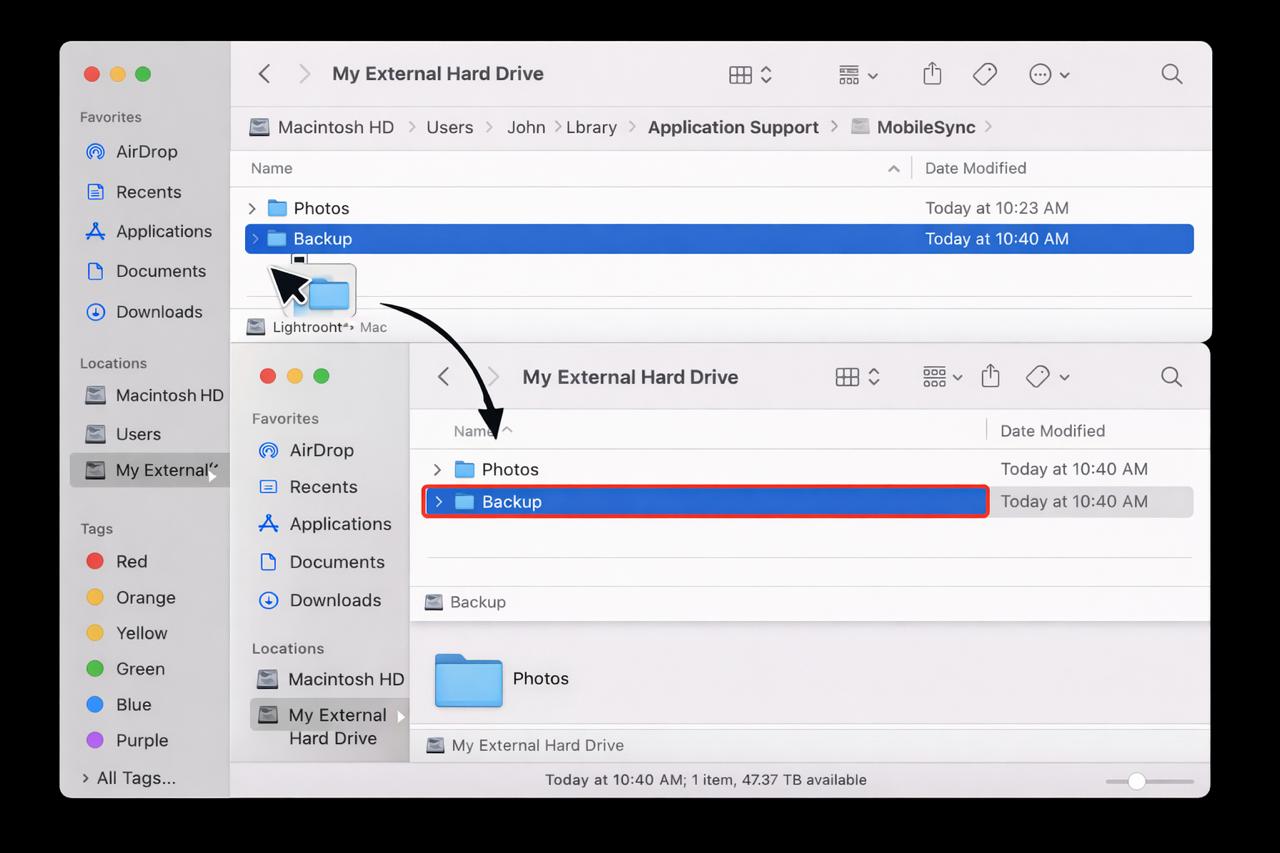
- You have to first create a backup through Finder or iTunes, depending on which version of macOS you are using.
- Then search for the backup folder:
- In Windows, locate it: C:\Users\YourName\AppData\Roaming\Apple Computer\MobileSync\Backup
- In Mac, locate it: ~/Library/Application Support/MobileSync/Backup
- Now, copy the entire Backup folder
- Then paste it to any external hard drive
This method is most suitable if your computer has limited storage or if you need an extra offline backup.
Method 3: Backup Only Photos and Videos
If you just want to backup photos and videos, you can manually back them up without iCloud.
How To Do It On Windows?
- Connect your iPhone to a PC
- Click on the Photos app
- Select Import and then select iPhone
- Now save photos to the system or any external drive
How To Do It On Mac?
- Connect the iPhone device
- Then open the Photos app
- Select Import All New Items
You do not require iCloud to keep the data safe and secure. With the help of a computer and a USB cable, you can create secure offline backups that provide you with full control over your data.
Related Posts

Ananya Dixit is a seasoned content writer and editor with over seven years of experience in tech, finance, and media. She has written extensively about Microsoft technologies, covering multiple versions of Windows—from Windows 7 and 10 to the latest Windows 11 releases. Her work includes in-depth troubleshooting guides, feature breakdowns, how-to tutorials, optimization tips, and coverage of new system updates.Ananya is also passionate about trending topics in the tech world, including AI tools as her personal favorite, digital privacy, productivity apps, and the newest features rolling out across Android and iOS. Read Ananya’s Full Bio

