 Ananya Dixit · February 10, 2026 · 4 min read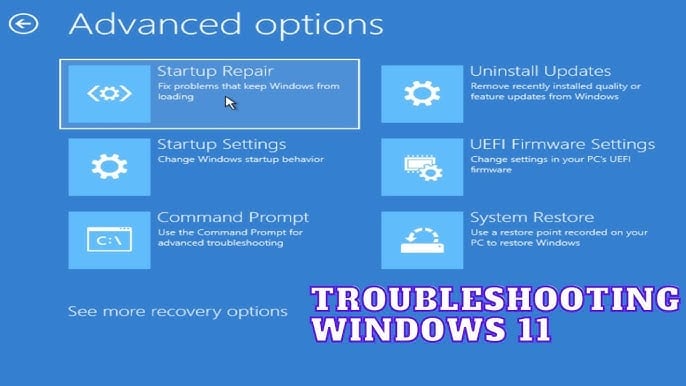
Windows 11 is a modern, sleek, and powerful operating system, but like any other OS, it can run into problems occasionally. Issues like startup errors, slow performance, app crashes, and driver conflicts can pop up when you do not even expect them. That is when the role of troubleshooting mode begins.
In Microsoft Windows 11, Troubleshooting mode allows users to diagnose issues and fix them with the help of limited drivers and startup programs. Consequently, this mode makes it very easy to look for problems and then take corrective action. In this guide, we will walk you through the uses of Troubleshooting mode and how to enable it in Windows 11.
When Should You Use Troubleshooting Mode?
Troubleshooting mode is not a single option; it is a collection of various diagnostic tools like Safe Mode, Clean Boot, Advanced Startup Options, and Startup Repair. So, you should use this while you are facing issues like:
- Windows 11 is stuck in a boot loop or startup
- Slow PC performance after you installed an update
- Conflicts between the driver and hardware
- Suspicious activity, system behavior, or malware
Thus, when this mode is turned on, it only allows Windows to load crucial files and drivers, further preventing any faulty drivers or third-party applications from interfering.
Method 1: Enable the Mode Using Advanced Startup
Though this is one of the most commonly used methods, through this, you can easily access multiple troubleshooting tools.
What Steps to Follow?
- Press Windows + I and click on Settings
- Navigate to System and then go to Recovery
- Under the Recovery options, you have to tap on Restart now, which is right beside Advanced Startup
- Your computer will restart automatically, and the Choose an option screen will appear
- From there, select Troubleshoot
- Then click on Advanced options
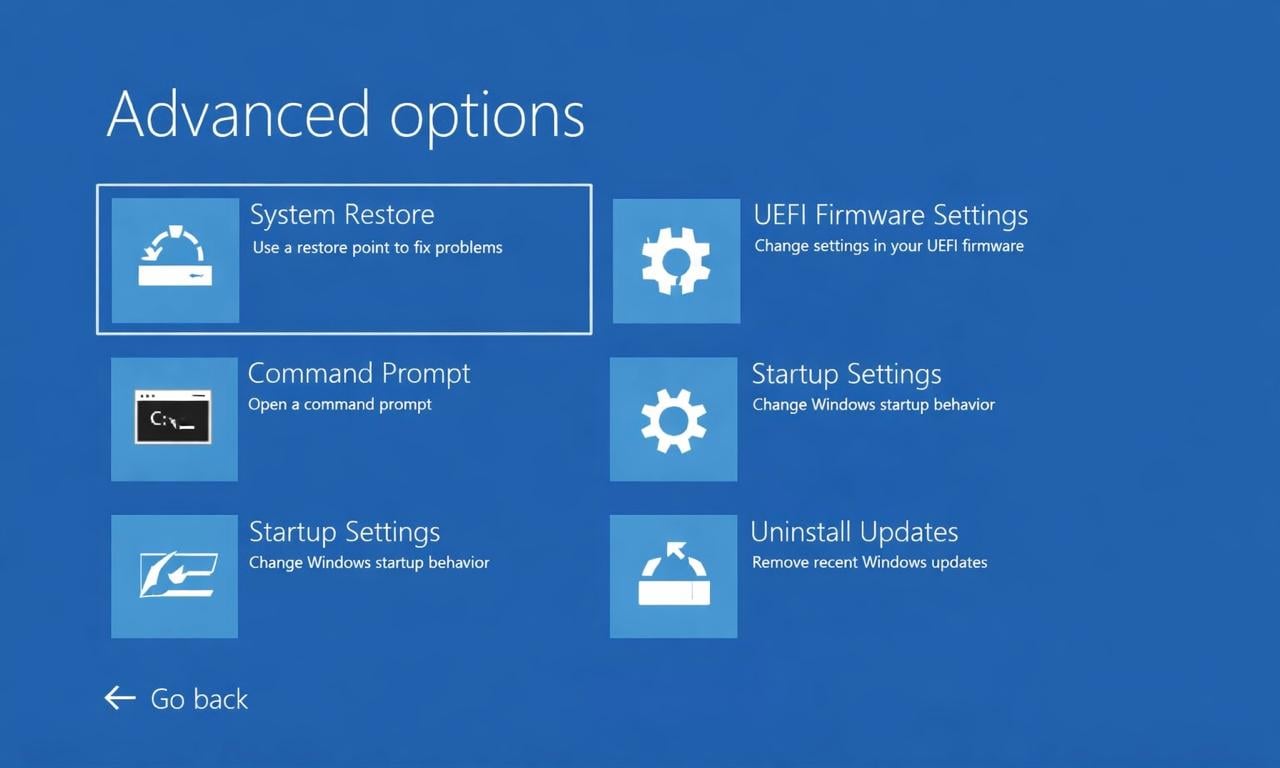
After following the above steps, you will be able to access Safe Mode, Startup Repair, and Command Prompt.
Method 2: Turn On Safe Mode
In Windows 11, Safe Mode is the core troubleshooting environment.
What Steps to Follow?
- Click on Advanced options and then go to Startup Repair
- Tap on Restart
- When your computer restarts, click:
- F4, which will turn on the Safe Mode
- F5, which will enable Safe Mode along with Networking
- F6, which will enable the mode with Command Prompt
Safe Mode is significant because it loads or boots Windows with minimal drivers, further making it perfect for diagnosing driver and software problems.
Method 3: Turn On Troubleshooting Mode by Using Clean Boot
A clean boot, or system configuration method, helps identify issues caused by third-party services.
What Steps to Follow?
- Press Windows + R, and enter msconfig
- Navigate to the Services option
- After that, click on Hide all Microsoft services
- Select Disable all
- Then go to the Startup tab
- Select Open Task Manager
- Turn off all startup applications
- After doing all this, restart your computer
If the issue disappears after following the above steps, you can turn on services to find the real culprit.
Method 4: Turn On Troubleshooting Mode When Windows Does Not Start
In case you are having problems while loading Windows 11 or facing a long boot time, you can use this method.
What Steps to Follow?
- Turn on your computer
- Stop the boot process or loading by pressing the power button
- Repeat the same two or three times
- After that, Windows will open the Recovery Mode
- Now, select Troubleshoot and then Advanced options

By following these steps, you can easily gain access to Safe Mode or System Restore.
Once you identify the real culprit causing the issues, restart your computer and turn on the disabled services in case of Clean Boot.
Related Posts

Ananya Dixit is a seasoned content writer and editor with over seven years of experience in tech, finance, and media. She has written extensively about Microsoft technologies, covering multiple versions of Windows—from Windows 7 and 10 to the latest Windows 11 releases. Her work includes in-depth troubleshooting guides, feature breakdowns, how-to tutorials, optimization tips, and coverage of new system updates.Ananya is also passionate about trending topics in the tech world, including AI tools as her personal favorite, digital privacy, productivity apps, and the newest features rolling out across Android and iOS. Read Ananya’s Full Bio

