 Ananya Dixit · February 11, 2026 · 4 min read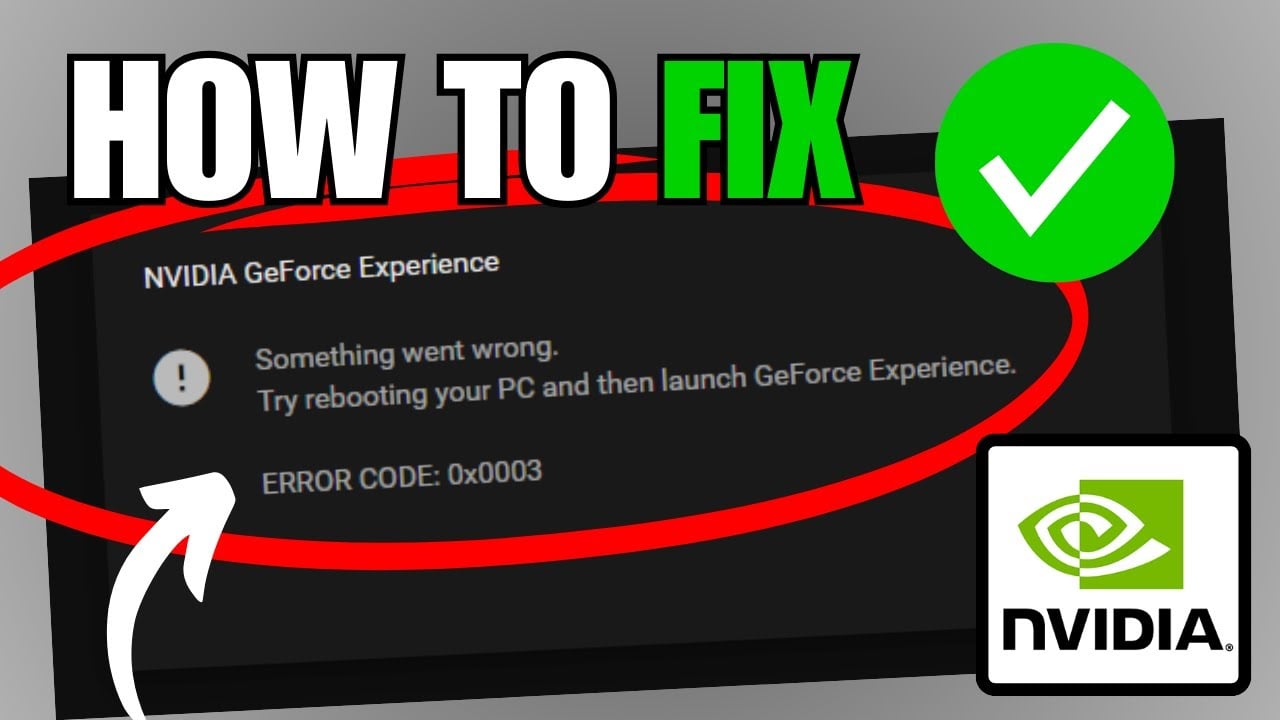
NVIDIA GeForce is a prominent application that works with NVIDIA graphics cards. This companion application helps keep drivers up to date, further providing features like game streaming and screen recording. However, if you are using Windows 11, you might face Error Code 0x0003, which says:
“Something went wrong. Try rebooting your PC, then launch GeForce Experience. Error Code: 0x0003.”
This error simply means the application could not launch due to issues with NVIDIA drivers, services, or Windows system components. But you can fix the error with many proven hacks.
What Causes Error Code 0x0003?
Before we move ahead and look for the solutions, it is important to understand the causes.
- To run properly, NVIDIA GeForce Experience relies on multiple services in Windows, like NVIDIA Display Container and LocalSystem Container. Consequently, if these services are incorrectly configured, the application will fail.
- This error is also caused by network or adapter issues. The app integrates with NVIDIA servers for account authentication and driver updates. So, if the network stack is corrupted, it can interrupt the app launch and throw a 0x0003 error.
Step-by-Step Fixes for Error Code 0x0003
Below are the most important fixes you can follow to prevent this error. Ensure that you follow them in an order as many users find that one of the previous methods resolves the problem without the need for going further.
Step 1: Restart NVIDIA Services
Of course, restarting all NVIDIA-related services is one of the most common fixes, yet it is necessary.
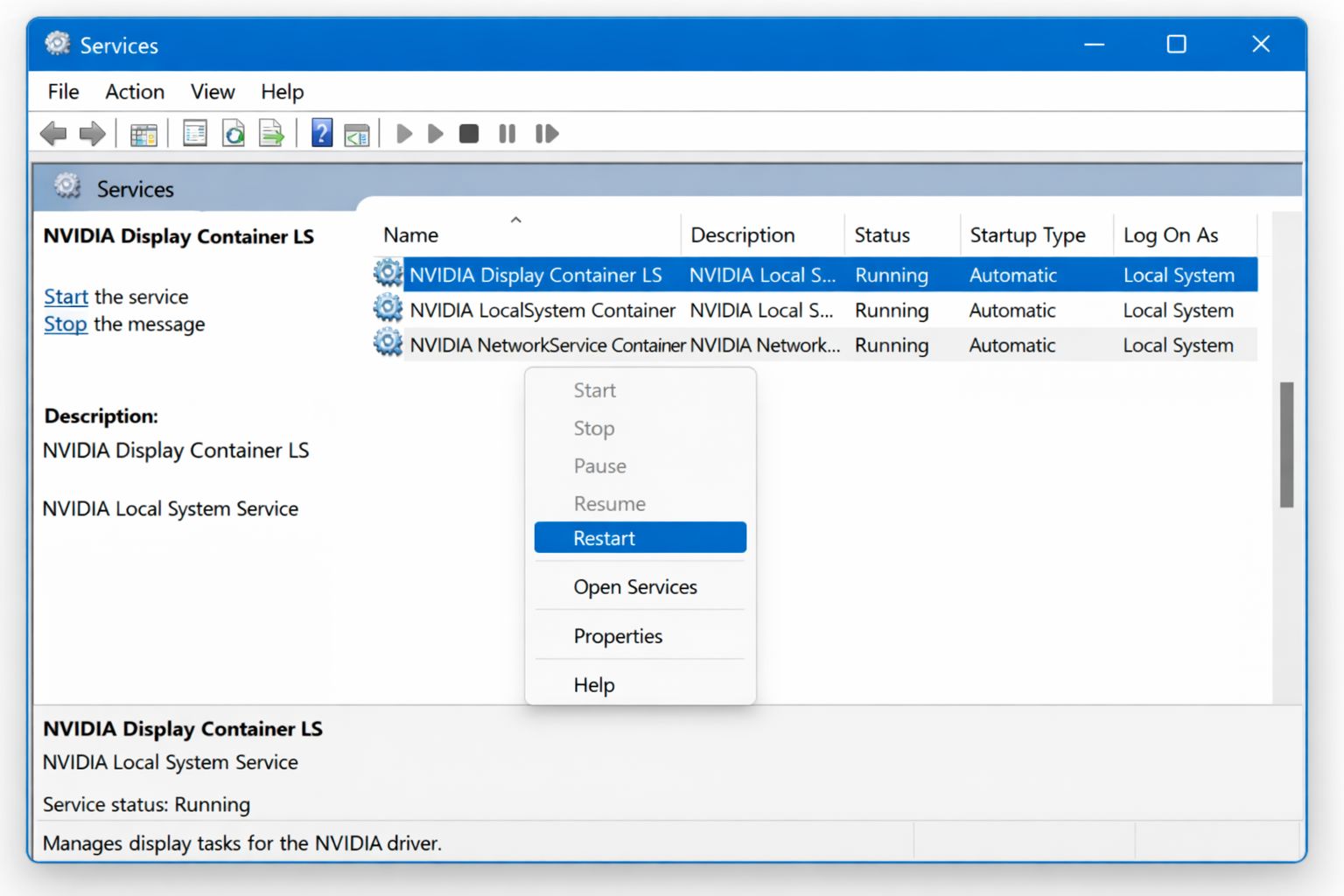
- Press Windows + R, then enter services.msc
- Open the Services window and look for any service that begins with NVIDIA. For example:
- NVIDIA LocalSystem Container
- NVIDIA Display Container
- NVIDIA Network Service Container
- Then, right-click on each service and select Restart
- Ensure that you set the Startup type to Automatic if it is not already done
Step 2: Reset Winsock Network Adapter
If the network settings get corrupted, it can block NVIDIA GeForce from connecting correctly. In that case, follow the steps below.
- Search for Command Prompt and click it
- Look for cmd, right-click, and run it as administrator
- Type the command netsh winsock reset and press Enter
- Quickly restart your computer and check if GeForce is opening properly
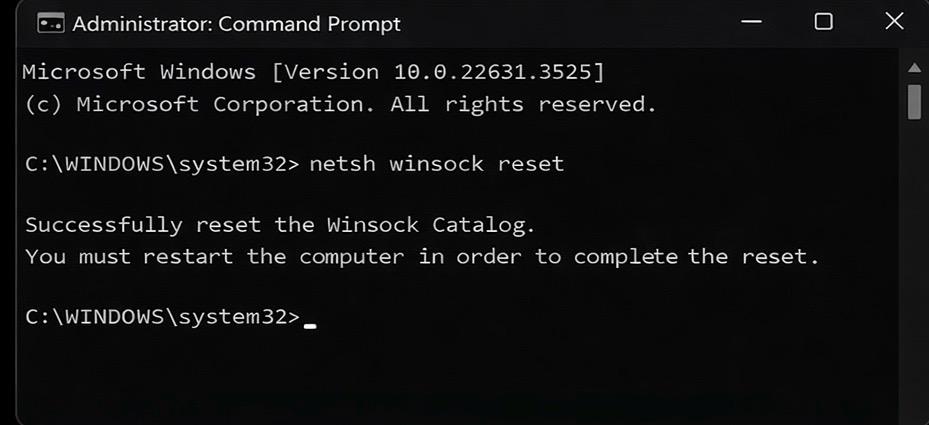
Thus, resetting the network adapter can solve many problems that are related to authentication errors.
Step 3: Update NVIDIA Drivers
As mentioned above, corrupt network drivers can lead to the 0x0003 error. Solve the issue in two ways.
1. Use Device Manager
- Click on Windows+X and go to Device Manager
- Then, expand Display adapters
- Right-click your NVIDIA GPU and select Update driver
- After that, click on Search automatically
- Wait for Windows to install the recent update
- Reboot your PC
2. Clean Install Using NVIDIA Official Website
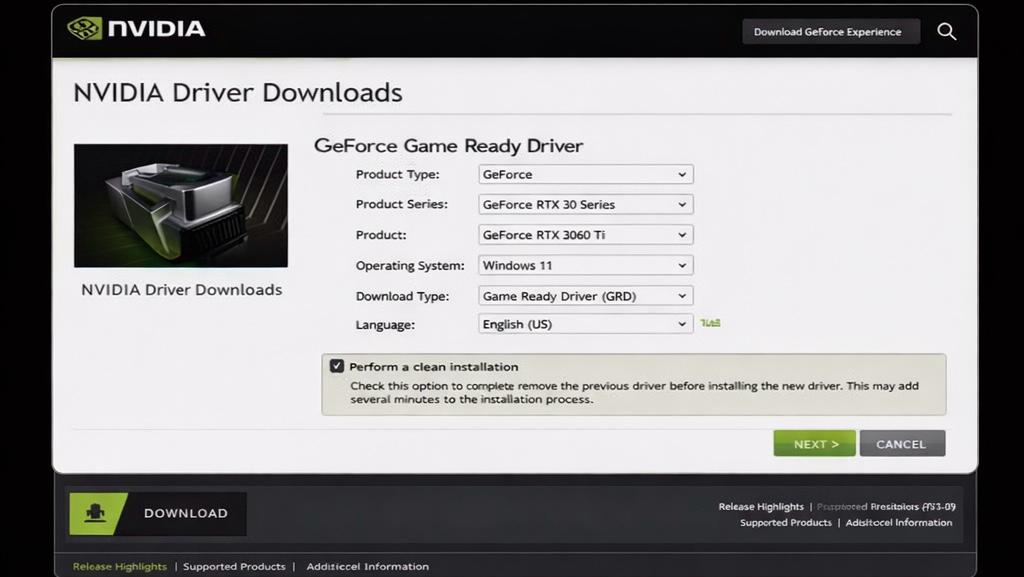
- Navigate to NVIDIA’s driver install page on its official website
- Type your Windows version and the model of your GPU
- Download the most recent driver
- While installing, select Custom Installation
- Then choose Perform a clean installation
By following the instructions, you can replace the old drivers with fresh files.
Step 4: Temporarily Turn Off VPN or Firewall
Most of the time, third-party applications block crucial NVIDIA services and communication.
- Temporarily disable VPN software
- Turn off the firewall and antivirus software
- After doing this, try launching NVIDIA GeForce again
In case this method works, ensure you configure NVIDIA exceptions in your security software.
Advanced Fixes and Tips
If by any chance you still face the error even after trying the above steps, try some of the common fixes.
- You can try modifying the port settings because some users report that adjusting specific configuration ports solves communication issues.
- Moreover, you can also try to use third-party cleanup utilities, which eliminate software and drivers before the installation process. Community members recommend doing this if uninstallation does not work.
Related Posts

Ananya Dixit is a seasoned content writer and editor with over seven years of experience in tech, finance, and media. She has written extensively about Microsoft technologies, covering multiple versions of Windows—from Windows 7 and 10 to the latest Windows 11 releases. Her work includes in-depth troubleshooting guides, feature breakdowns, how-to tutorials, optimization tips, and coverage of new system updates.Ananya is also passionate about trending topics in the tech world, including AI tools as her personal favorite, digital privacy, productivity apps, and the newest features rolling out across Android and iOS. Read Ananya’s Full Bio

