 Ananya Dixit · January 21, 2026 · 3 min read
Microsoft Copilot, the AI assistant embedded into Windows 11 is now a significant part of the operational experience. Most of the people enjoy the help of AI-powered agents, while some of the users want a more classic setup without any automatic AI features. Consequently, after understanding the user’s demand, Microsoft has offered many ways through which you can disable or even remove Copilot. These features especially work in the latest Insider Preview builds of Windows 11.
Here is a breakdown of all the methods through which you can disable, or remove Copilot AI.
Understanding Copilot and Its Presence in Windows 11
Before we look into ways to remove it, let’s have a basic understanding of what Microsoft Copilot is. It is a built-in AI assistant or agent like the Google assistant or Apple’s Siri. Microsoft Copilot’s tasks are generating text, answering questions, suggesting actions, and so on. You can find Copilot in the Windows 11 taskbar or search it using shortcuts like Win + C.
Moreover, Copilot is not an optional app, instead it is integrating into the operating system. Thus, the ways to remove, hide, or disable it may vary as per your Windows edition.
Hide or Turn Off Copilot
If you simply just want to hide Copilot on your system, instead of completely removing it, you can go to the Taskbar. After that you can click on the Taskbar settings, and scroll to the items. Once you find the Copilot in the Taskbar items, you just have to toggle it off.
Hence, through this method you can remove the taskbar button, but it does not completely uninstall Copilot. You can search for it using shortcuts keys like Win+C.
Disable Copilot Completely via Group Policy
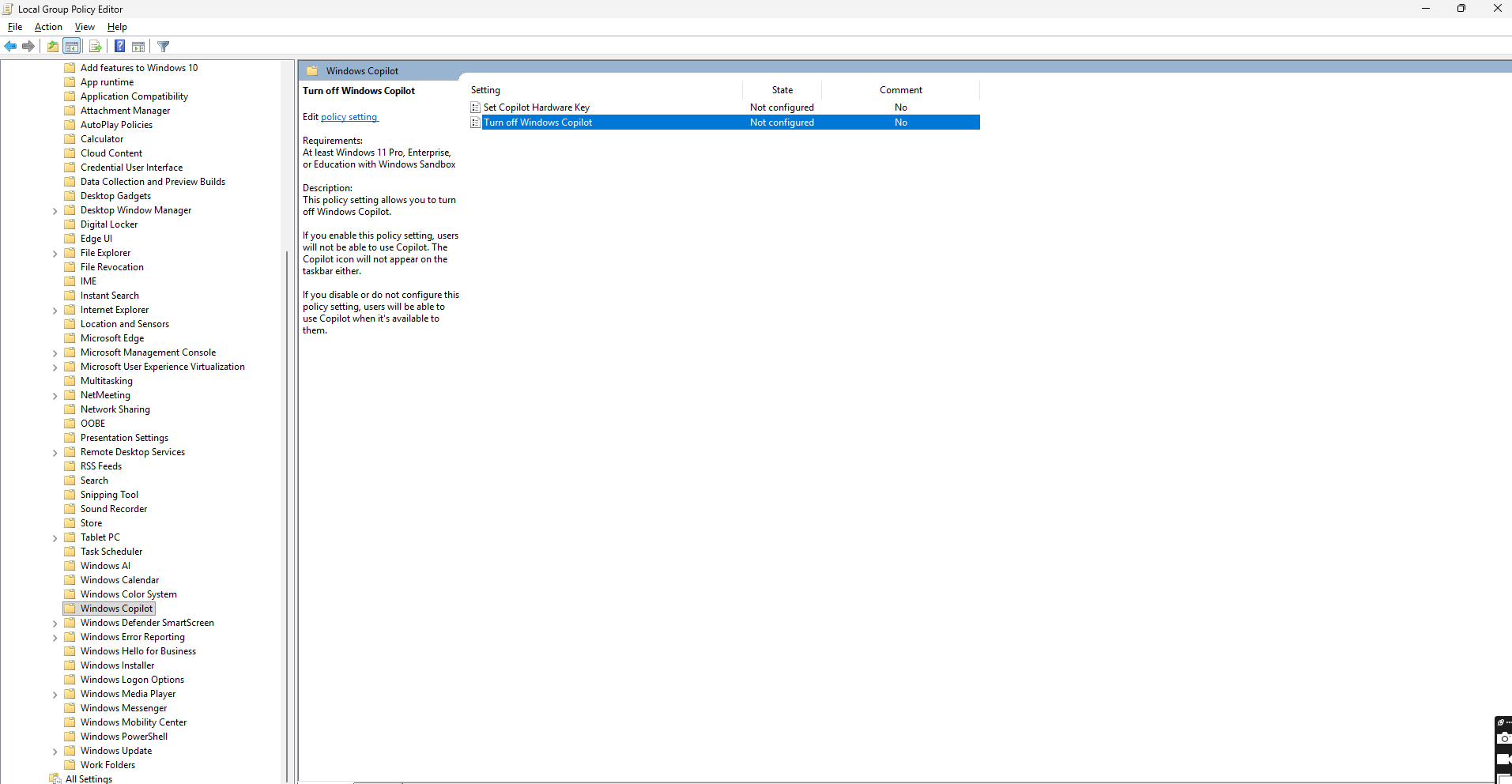
Screenshot: HelpDeskGeek Team
For Windows 11 users who have Enterprise, Education, or Pro versions, the Group Editor offers a more thorough option to disable Copilot.
Steps:
- Press Win + R and type gpedit.msc, then press Enter.
- Navigate to user configuration, select administrative templates, then Windows Components, and go to Windows Copilot.
- Then search for the policy named Turn Off Windows Copilot.
- Double click on it and Enable
- Click Apply and then press OK
- After doing that, restart your PC.
Thus, setting the turn off policy to Enabled means disabling Copilot’s launch across the system and not just from the taskbar.
Disable Copilot Using the Registry
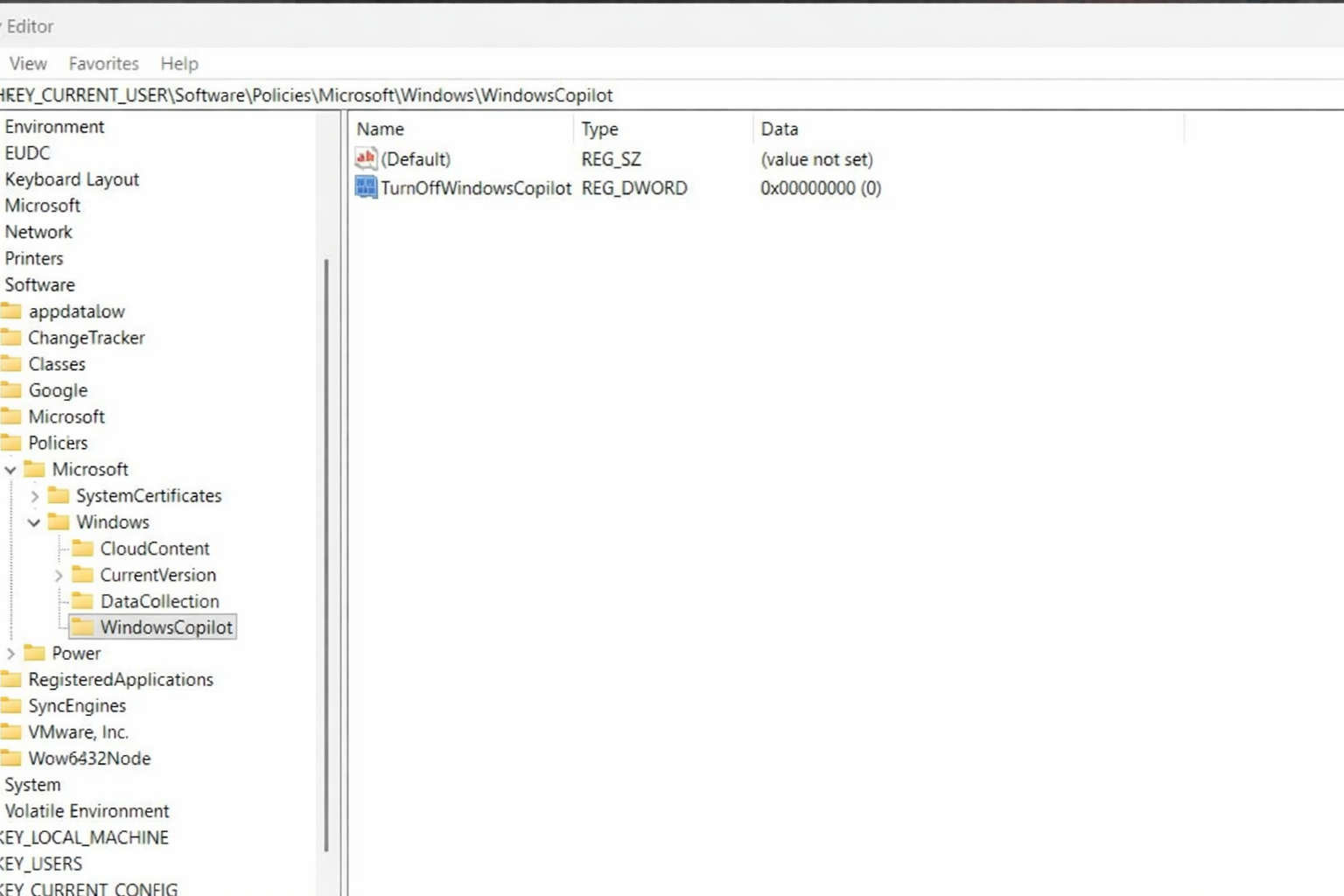
Screenshot: HelpDeskGeek Team
Also, if you do not have the Group Policy Editor, you can use the Registry Editor, while you are at Windows 11 Home. It stops Copilot from running but it should be done carefully. Before you do that, back up your registry before proceeding.
Steps:
- Press the shortcut key Win + R and type regedit, then press Enter.
- Search for HKEY_CURRENT_USER\Software\Policies\Microsoft\Windows
- Then click on Windows, select new then key, and name it WindowsCopilot
- On that key, select New and then DWORD value (32 bit)
- Then name it: TurnOffWindowsCopilot
- After that double click on it and set its value to 1
- Then restart your computer.
Once applied, Copilot should stop loading system-wide.
Related Posts

Ananya Dixit is a seasoned content writer and editor with over seven years of experience in tech, finance, and media. She has written extensively about Microsoft technologies, covering multiple versions of Windows—from Windows 7 and 10 to the latest Windows 11 releases. Her work includes in-depth troubleshooting guides, feature breakdowns, how-to tutorials, optimization tips, and coverage of new system updates.Ananya is also passionate about trending topics in the tech world, including AI tools as her personal favorite, digital privacy, productivity apps, and the newest features rolling out across Android and iOS. Read Ananya’s Full Bio

