 Ananya Dixit · February 17, 2026 · 3 min read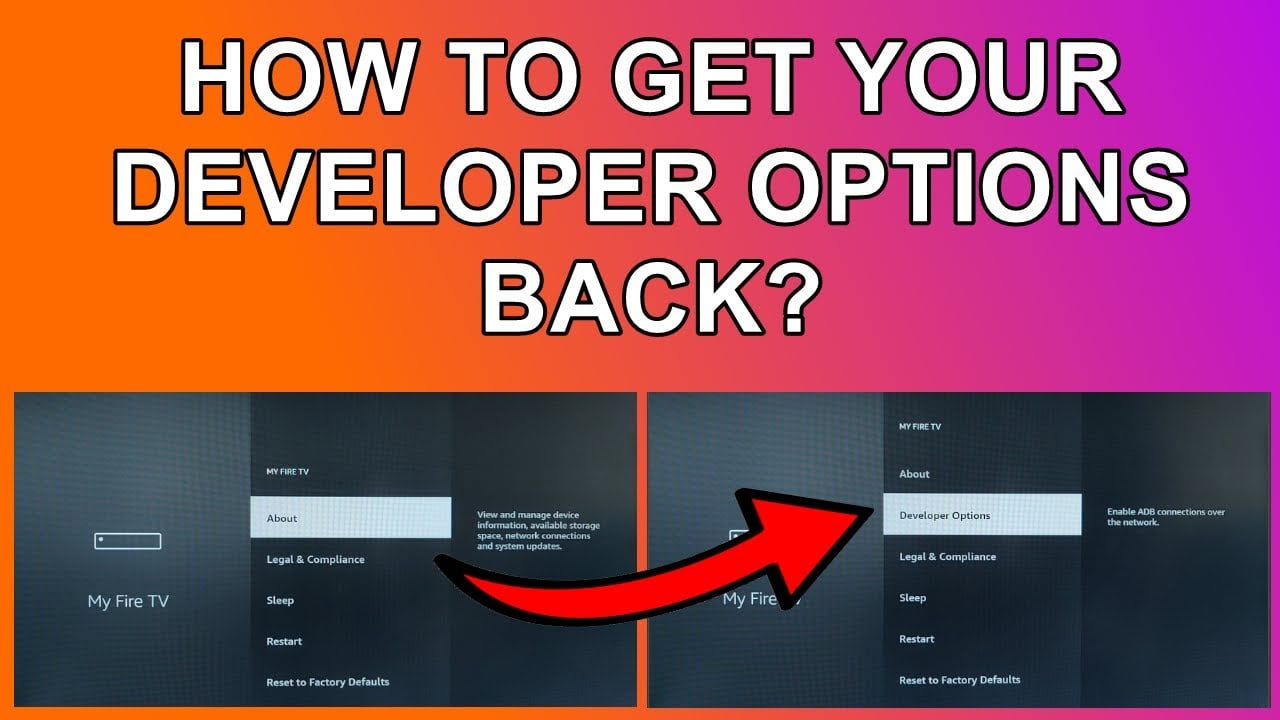
Amazon Firestick is one of the most popular streaming devices across the globe. It can make any TV smart by allowing you to watch Netflix, Prime Video, YouTube, and hundreds of other applications on your television. However, you are required to enable Developer Options in case you want to unlock advanced features such as third-party APK files.
Moreover, the process of enabling this option has changed in recent Fire OS updates. This is the reason why many people are unable to find it. In this guide, we will walk you through the steps to turn on Developer Options on your Firestick easily.
What is Developer Options?
Developer Options is a menu that is hidden inside the Firestick settings. It allows you to turn on ADB debugging, test applications, install applications from unknown sources, and use advanced customization tools.
Though this feature is primarily designed for developers, regular users use it to install apps that are not normally available in the Amazon App Store.
How to Turn On Developer Options on Amazon Firestick?
To enable the Developer Options, follow the below-mentioned steps in chronological order.
Step 1: Turn on Your Firestick
Firstly, ensure that your Firestick is connected to WiFi and it is turned on. Now, from the Home Screen, go to Settings, represented by a gear icon on the right-hand side.
Step 2: Open My Fire TV
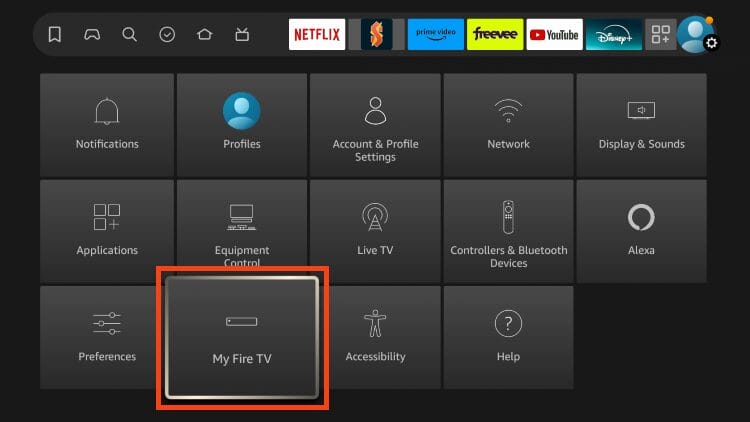
After opening the Settings, you have to scroll right and choose My Fire TV. This is the place where system-based settings are located.
Step 3: Click on About
To see your device information inside My Fire TV, select About.
Step 4: Highlight Device Name
Once you click on About, you will be able to see your device name at the top of the screen. For example, the Firestick 4K. At this point, you have to highlight the device without clicking on it normally.
Rather, you must press the Select button seven times in a row, which is the center button on the remote. After a few seconds, you will see:
- You are now a developer
- No need, you are already a developer
This is how you unlock the option.
Step 5: Go Back
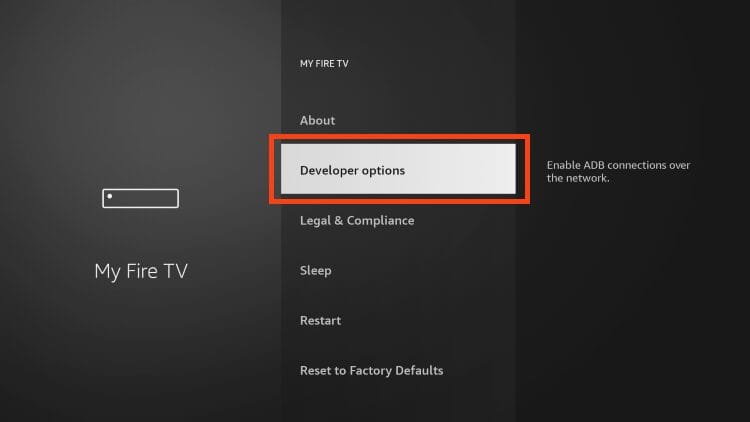
After following the above steps, click on the back button on your remote. Now, go back to My Fire TV, and you will be able to see Developer Options. It will appear below the About option.
Is it Safe to Enable Developer Options?
Yes, it is completely safe to enable the Developer Options. However, installing applications from unknown sources will expose your device to a potential malware attack.
Consequently, to stay safe, download APK files only from known and trusted sources or websites. Also, keep it updated, and avoid modified applications. You must make use of a VPN while accessing restricted applications.
Related Posts
- How to Fix App Notifications in Windows?
- Using an Old Device? 5 Account Security Settings You Should Enable
- How to Find Features Moved from Control Panel to Settings in Windows 11?
- How to Back Up Your Android Downloads Automatically?
- Camera Not Working in Zoom or Teams? Quick Fixes for Windows and macOS

Ananya Dixit is a seasoned content writer and editor with over seven years of experience in tech, finance, and media. She has written extensively about Microsoft technologies, covering multiple versions of Windows—from Windows 7 and 10 to the latest Windows 11 releases. Her work includes in-depth troubleshooting guides, feature breakdowns, how-to tutorials, optimization tips, and coverage of new system updates.Ananya is also passionate about trending topics in the tech world, including AI tools as her personal favorite, digital privacy, productivity apps, and the newest features rolling out across Android and iOS. Read Ananya’s Full Bio

