 Ananya Dixit · February 23, 2026 · 3 min read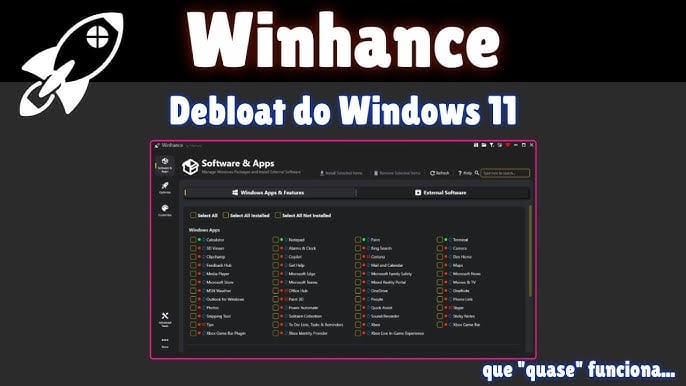
Windows 11 is packed with modern features, but to be honest, it comes with background services and applications that most users never asked for. From redundant system tools and promotional applications to pre-installed games, the bloatware can affect your PC’s performance. Also, it can clutter the Start Menu, consuming more system resources.
Consequently, if you are one of the frustrated users who is looking for a way to clean up your system, then Winhance is best suited to meet your needs.
What is Winhance?
Winhance is available on the GitHub platform, and it’s a free, open-source optimization and debloating tool for Windows. It is made to remove unnecessary applications from Windows 11 and further configure system settings. Winhance simplifies the process of removal nearly as easily as customizing a Linux distribution.
Unlike risky registry edits and PowerShell scripts, Winhance offers a clear and user-friendly interface. Thus, it can be used to turn off telemetry, adjust privacy settings, manage startup items, and change the performance.
Users can also review the code to determine whether it is secure or not because it is open source.
How to Uninstall Windows 11 Bloatware Using Winhance?
Let’s walk through the step-by-step guide.
Step 1: Download Winhance
- Navigate to GitHub
- Look for Winhance Windows debloat tool
- Download and install the latest version
- Now, extract the zip file
- Run the executable file as an Admin
Running the program as Administrator is especially important to remove the applications, as it requires advanced permissions.
Step 2: Review Installed Applications
Once it is launched, Winhance will show a list of installed applications, optional features, system elements, telemetry, and background services.
Moreover, you will be able to see the checkboxes right next to the removable applications. The common bloatware includes Xbox apps, Mixed Reality Portal, Feedback Hub, and Clipchamp.
Step 3: Now Choose What to Remove
One of the most exciting features of Winhance is that it simplifies the commands, instead of typing long PowerShell commands. You just need to tick the apps, leave crucial system components untouched, and review safe removals.
This tool often categorizes the items into Advanced, Optional, and Safe to Remove.
Step 4: Apply the Changes
After you select the applications, select the Apply or Start Debloat tab. You must wait while the tool executes the removal scripts. After doing that, allow the process to complete fully.
Step 5: Reboot Your System
You can restart your computer to finalize the changes. After rebooting, you should notice a clean Start Menu, reduced RAM, faster boot time, and fewer background services.
As Winhance is hosted on GitHub, users can verify what the software does before running it. So, ensure that you download it from the official GitHub repository, create a restore point, and avoid removing essential files.
Related Posts

Ananya Dixit is a seasoned content writer and editor with over seven years of experience in tech, finance, and media. She has written extensively about Microsoft technologies, covering multiple versions of Windows—from Windows 7 and 10 to the latest Windows 11 releases. Her work includes in-depth troubleshooting guides, feature breakdowns, how-to tutorials, optimization tips, and coverage of new system updates.Ananya is also passionate about trending topics in the tech world, including AI tools as her personal favorite, digital privacy, productivity apps, and the newest features rolling out across Android and iOS. Read Ananya’s Full Bio

