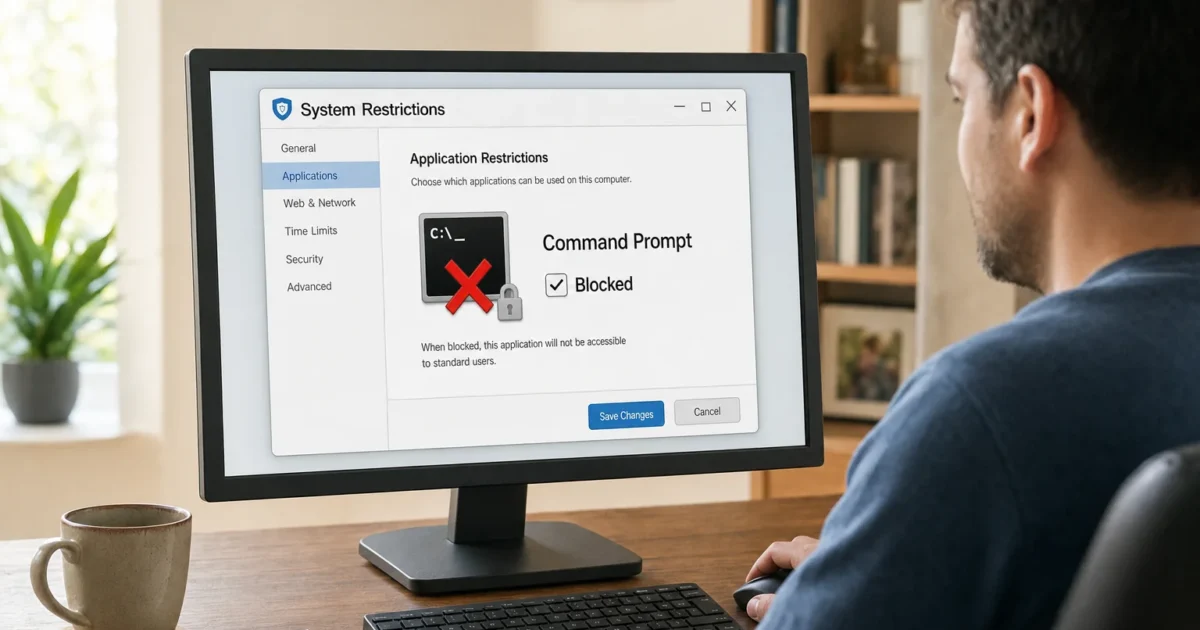
Blocking Command Prompt in Windows 10 and 11 takes less than two minutes, and you don’t need third-party software to do it. Two built-in methods cover every Windows edition, including Home, and a third gives you finer control over which users are affected.
Note: These methods apply to Windows 10 (22H2) and Windows 11 (24H2 and later, including 25H2). If you’re on Windows Home, skip to Method 2. Group Policy isn’t available on Home editions.
Why block Command Prompt at all?
Command Prompt still lets users run system commands, delete files, change network settings, and execute batch scripts, even on accounts that look restricted. Blocking it is a reasonable first step for shared PCs, kiosk setups, or managed workstations where standard users shouldn’t be poking around at the OS level.
One caveat worth knowing upfront: blocking cmd.exe alone won’t stop a determined user from reaching a shell. Windows 11 ships with Windows Terminal and PowerShell as default shells, and those stay open unless you address them separately. The methods below block Command Prompt specifically; the advanced section covers locking down the rest.
Method 1: Block Command Prompt via Group Policy (Pro, Enterprise, Education)
Local Group Policy Editor is the cleanest way to block cmd on Windows 10/11 Pro and above. The setting applies per user, survives reboots, and can be reversed in seconds.
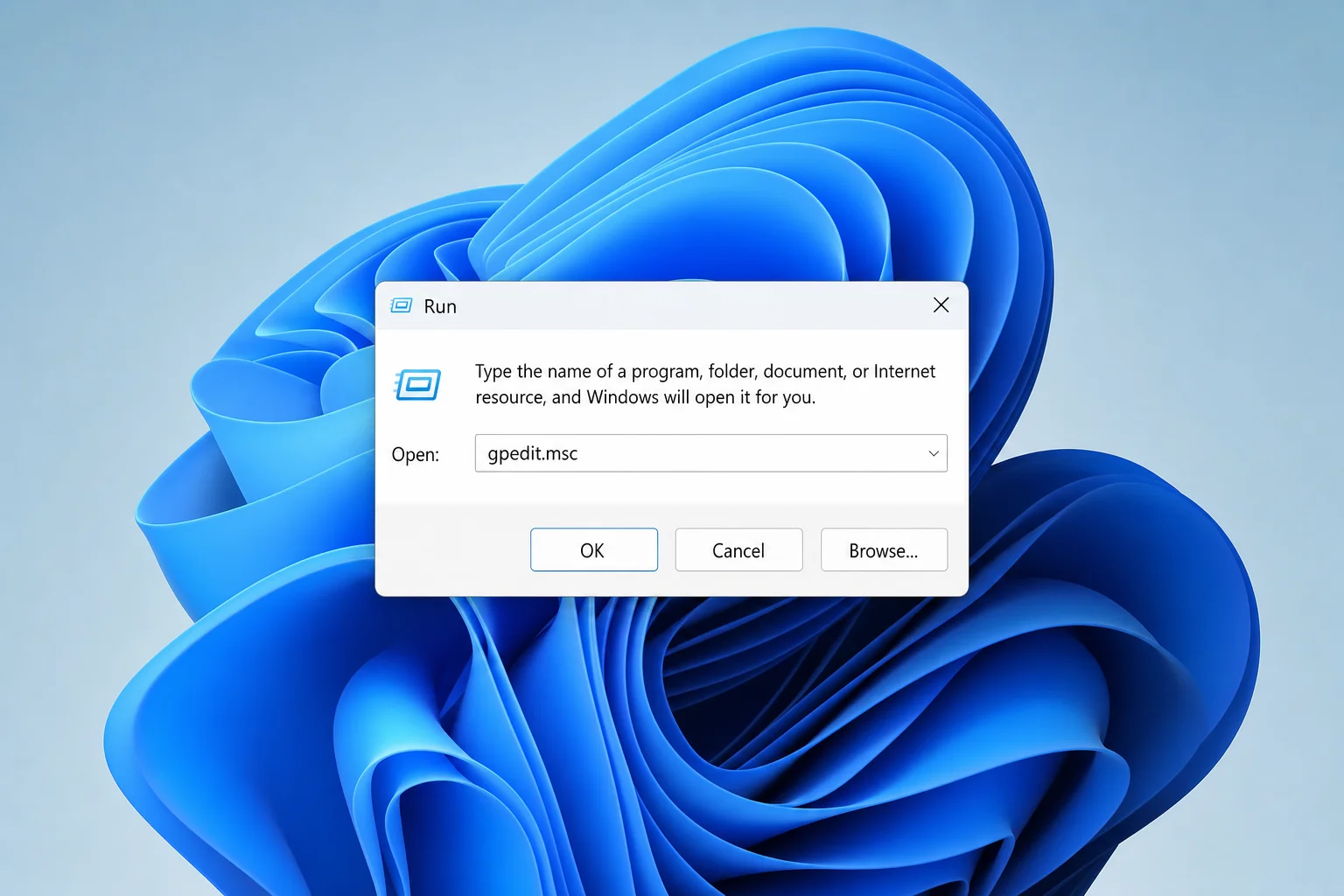
- Press
Windows + R, typegpedit.msc, and press Enter. Accept the UAC prompt if it appears.
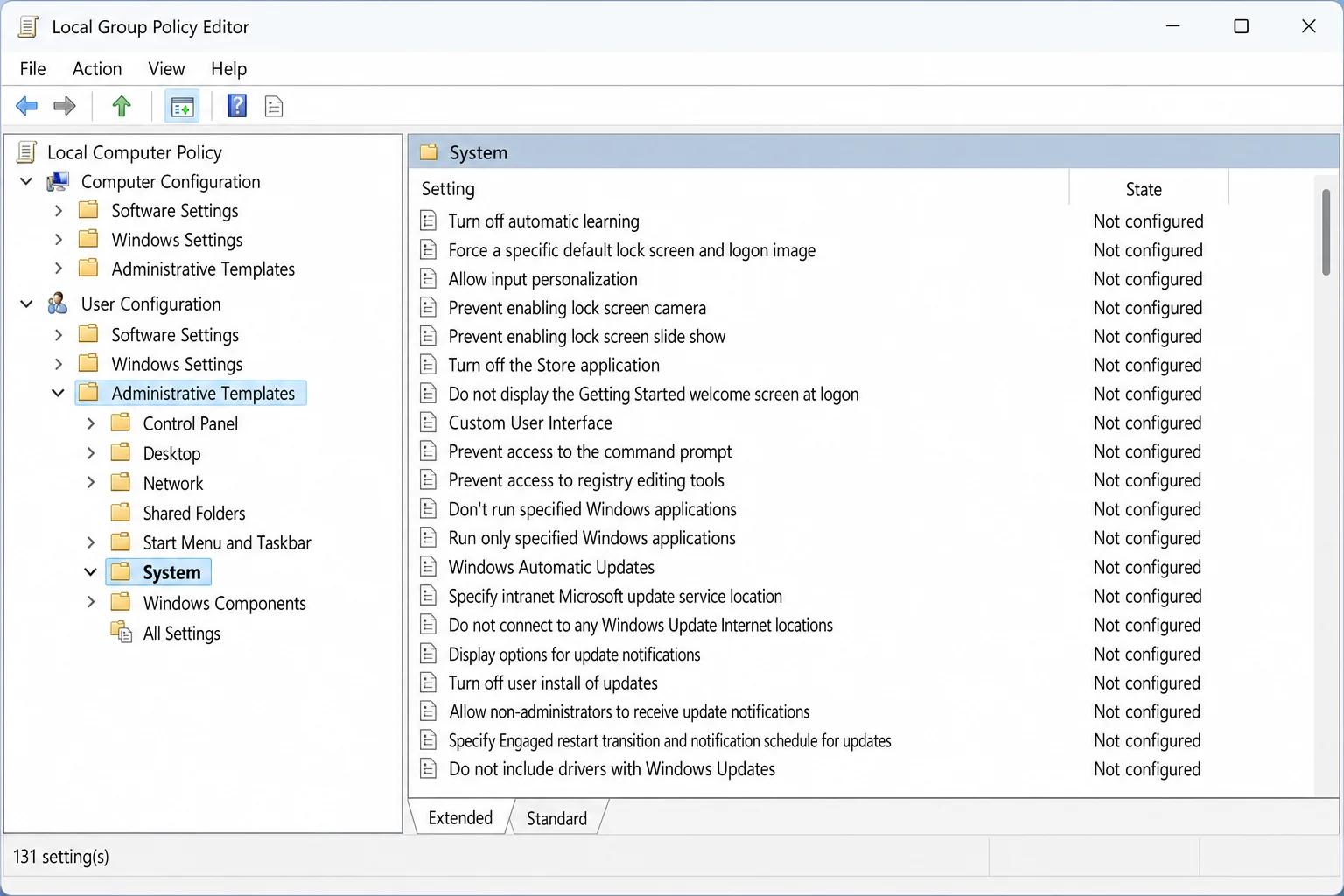
- In the left pane, navigate to User Configuration > Administrative Templates > System. Click System to select it, but don’t expand it.
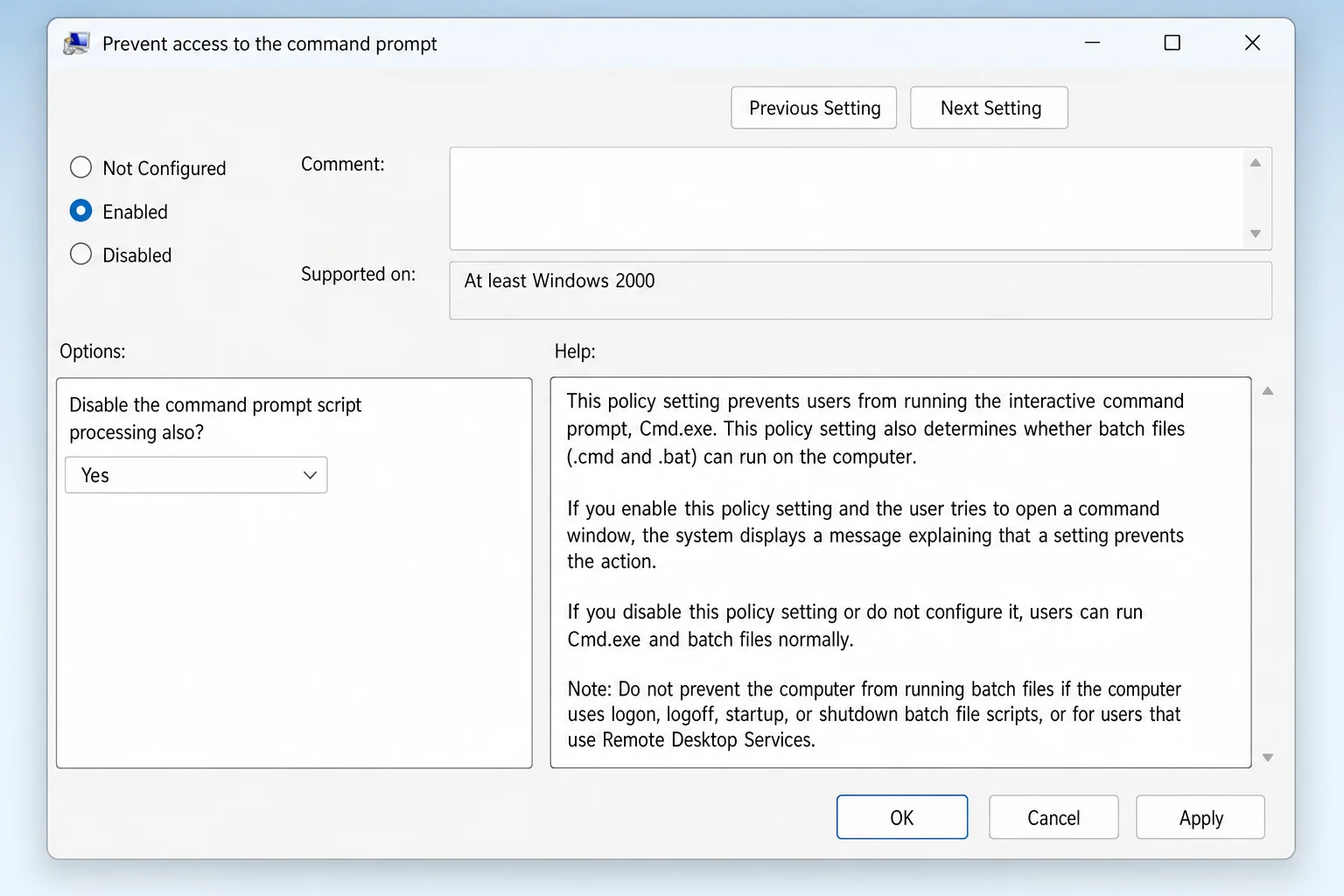
- In the right pane, double-click Prevent access to the command prompt.
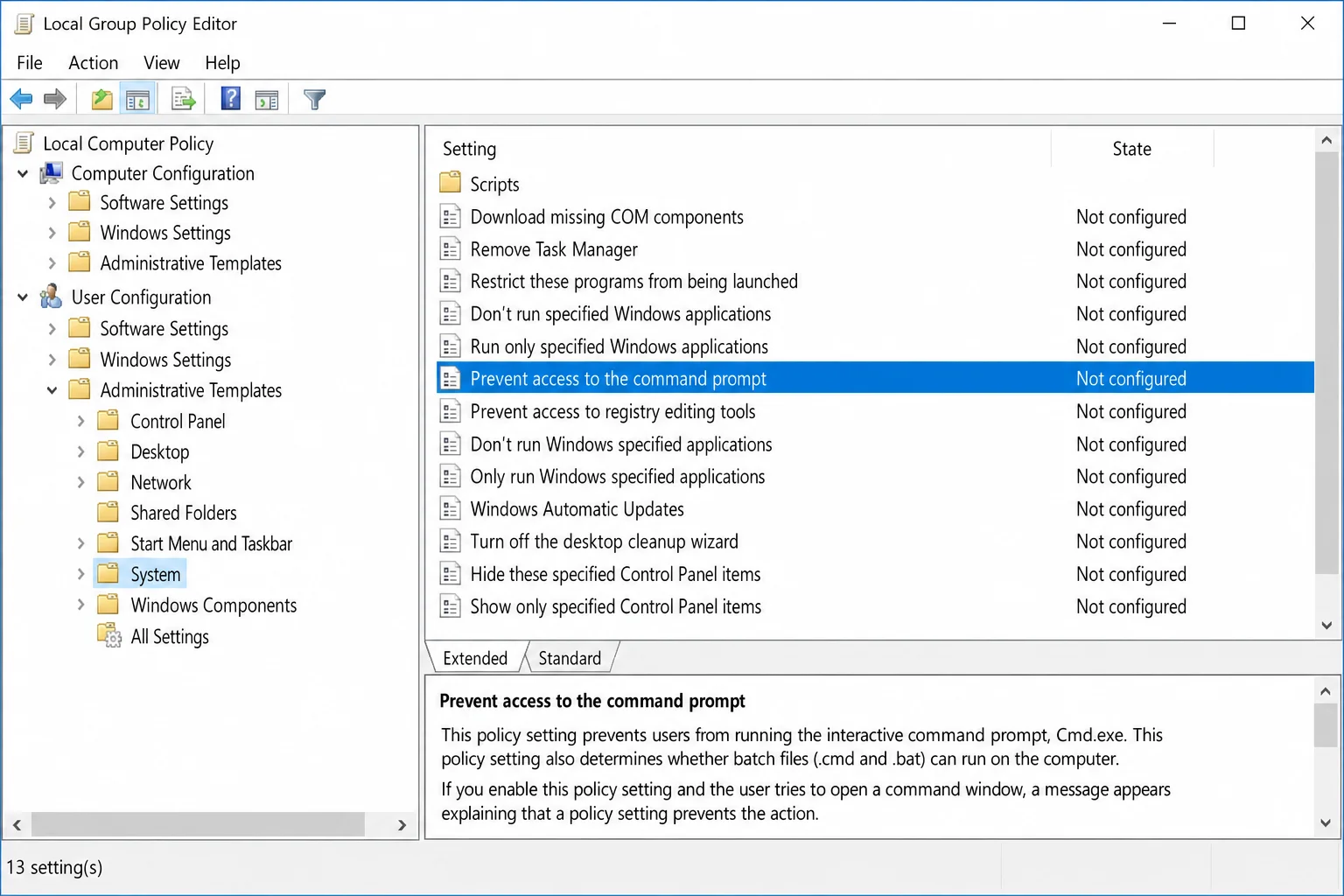
- Set the policy to Enabled.
5. In the Disable the command prompt script processing also? dropdown, choose: – Yes, blocks both interactive cmd and batch files (.bat, .cmd). – No, blocks interactive cmd only; batch scripts still run.
6. Click Apply, then OK.
- To apply the change immediately without a reboot, press
Windows + R, typecmd, right-click Command Prompt, choose Run as administrator, and run:gpupdate /force
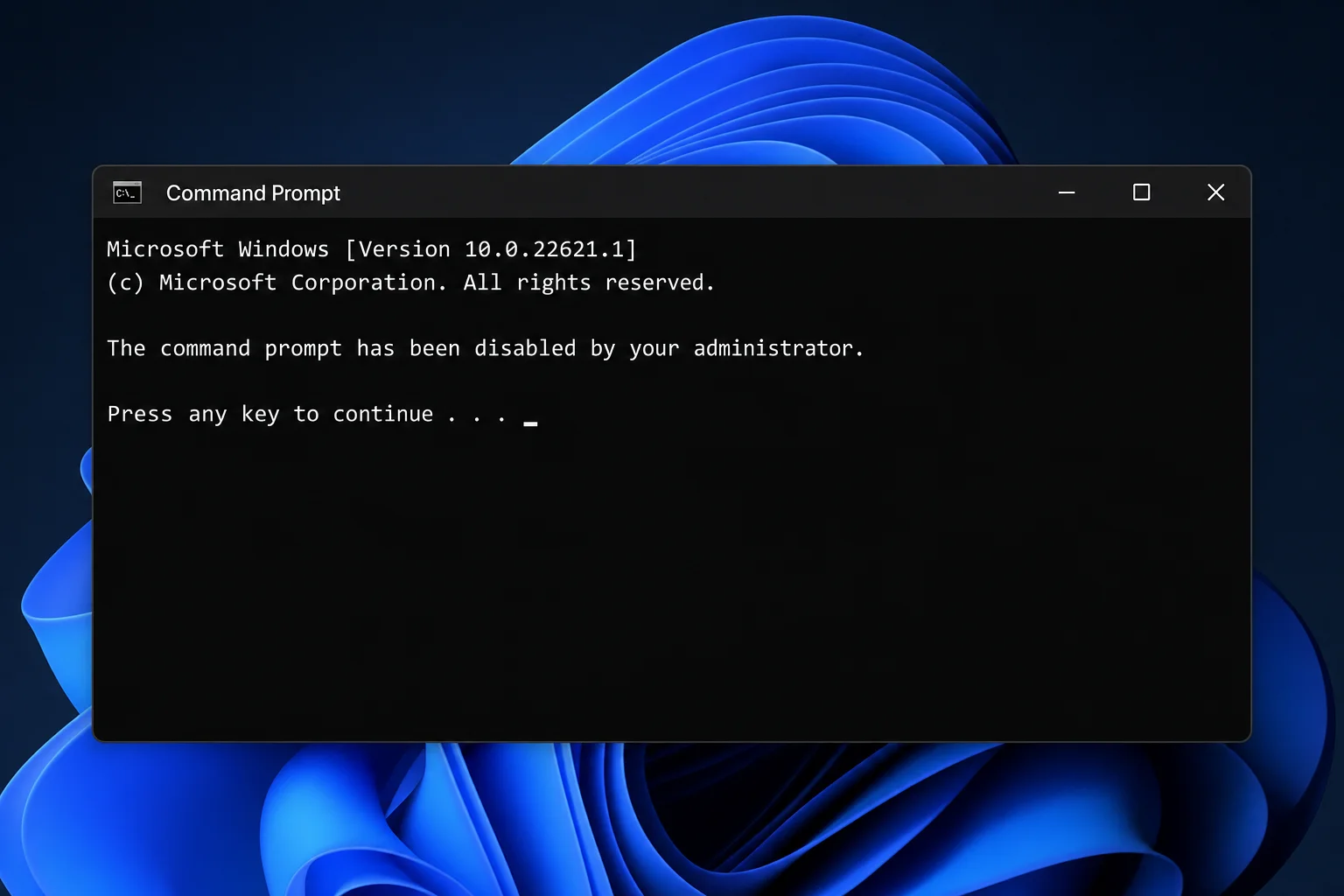
After the policy applies, any user in scope who tries to open Command Prompt will see: “The command prompt has been disabled by your administrator.” To reverse it, go back to the same policy and set it to Not Configured.
Method 2: Block Command Prompt via the Registry (all editions, including Home)
The registry method sets the same restriction as Group Policy and works on every Windows edition. Back up your registry before making changes. Press Windows + R, type regedit, then go to File > Export to save a backup.
- Press
Windows + R, typeregedit, and press Enter. Accept the UAC prompt.
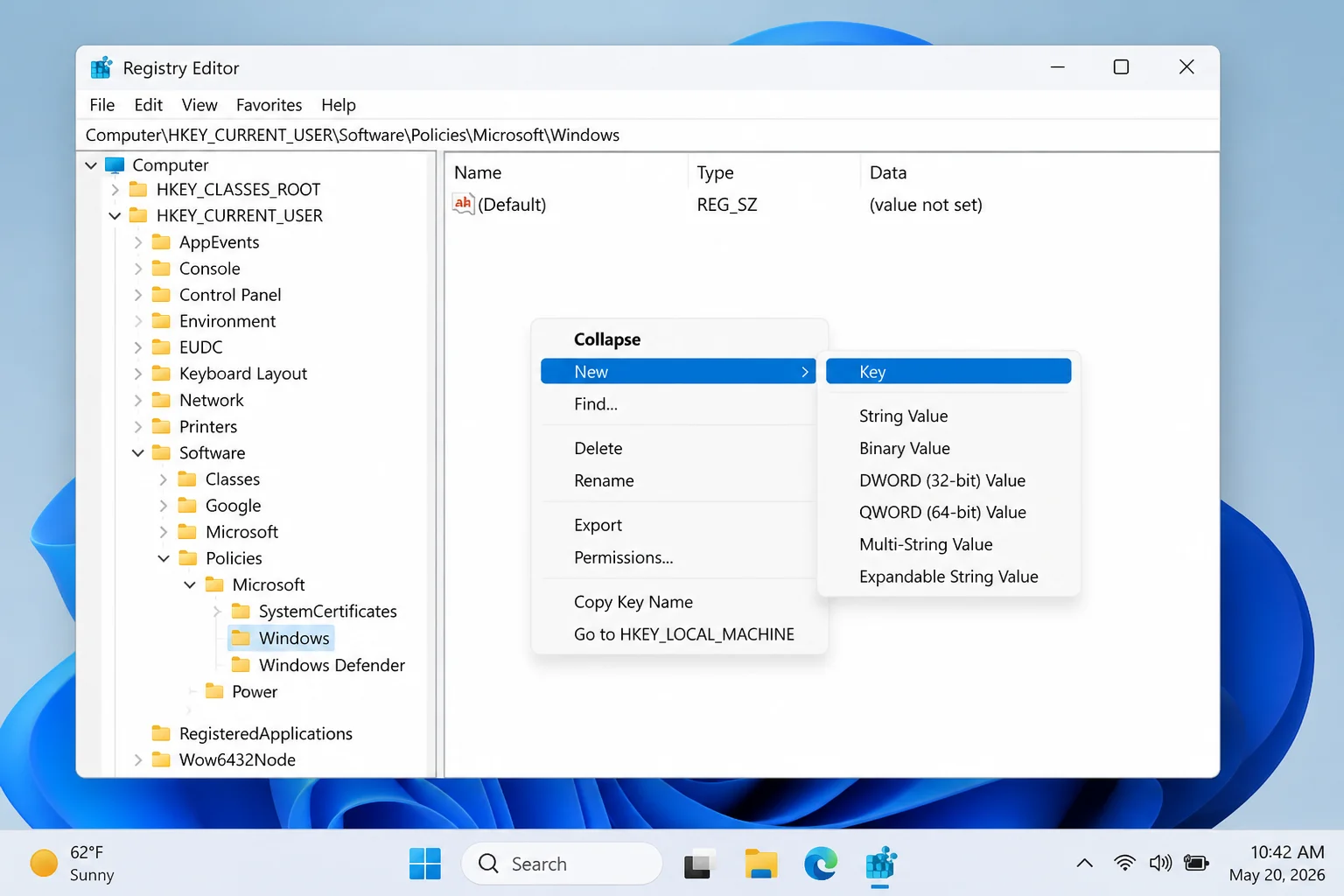
2. To restrict Command Prompt for the current user only, navigate to: HKEY_CURRENT_USER\Software\Policies\Microsoft\Windows\System To restrict it for all users on the PC, navigate to: HKEY_LOCAL_MACHINE\Software\Policies\Microsoft\Windows\System
3. If the System key doesn’t exist, create it: right-click Windows in the left pane, choose New > Key, and name it System.
- Select the System key. Right-click in the right pane and choose New > DWORD (32-bit) Value.
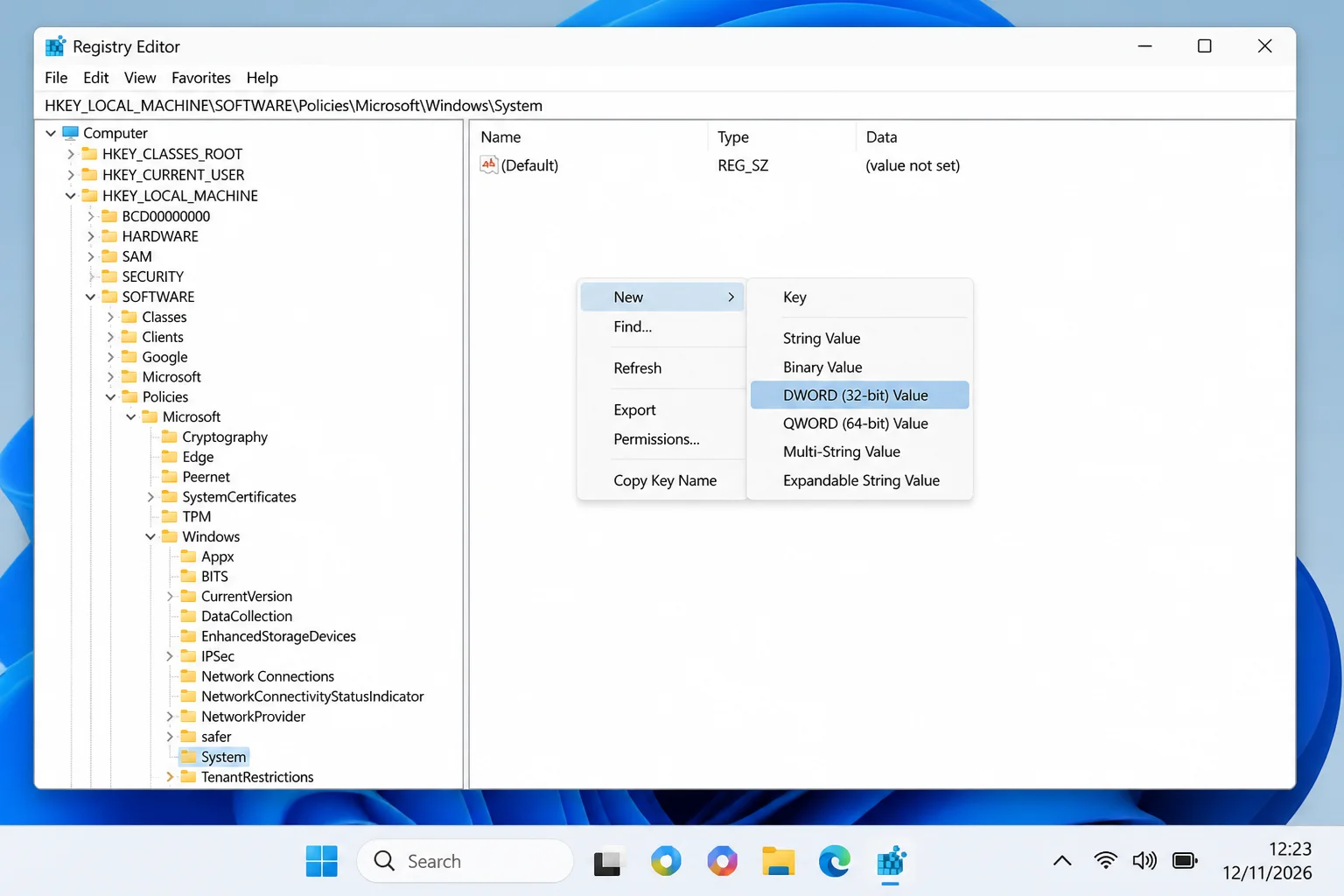
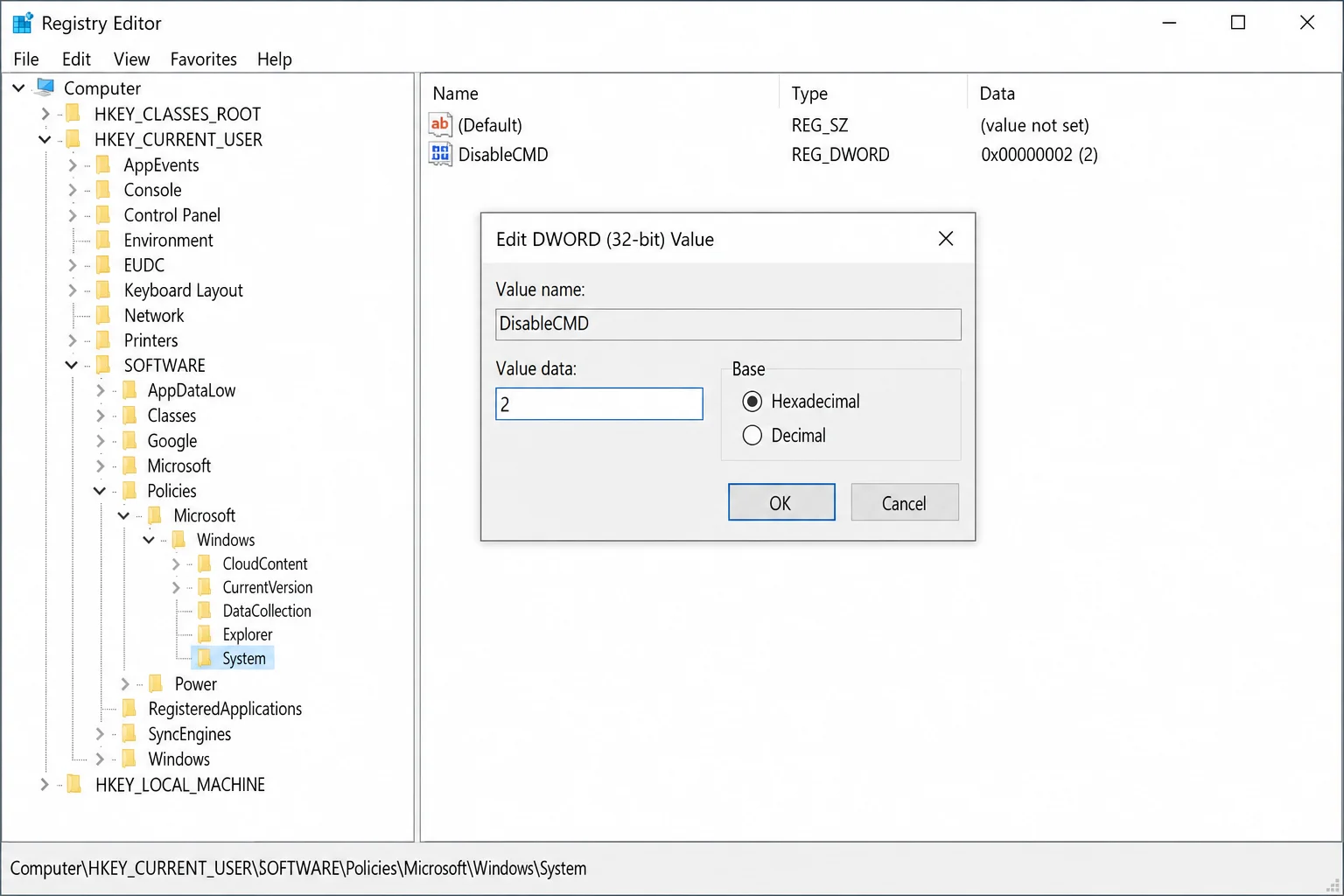
- Name the new value
DisableCMDand press Enter.
6. Double-click DisableCMD and set the value data: – 1 disables interactive Command Prompt; batch scripts (.bat, .cmd) still run. – 2 disables Command Prompt and prevents batch scripts from running. – 0 (or delete the value), re-enables Command Prompt.
7. Click OK and close Registry Editor.
- Sign out and back in (or reboot) for the restriction to take effect.
When the restriction is active, opening Command Prompt shows the message: “The command prompt has been disabled by your administrator.”
If you prefer to apply this via a .reg file, paste the following into Notepad, save it as disable-cmd.reg, and double-click it to import:
Windows Registry Editor Version 5.00

[HKEY_CURRENT_USER\Software\Policies\Microsoft\Windows\System]
"DisableCMD"=dword:00000002
Method 3: Apply via Group Policy Management (domain environments)
If you’re managing AD-joined PCs, the process mirrors Method 1 but runs through a domain GPO instead of Local Group Policy.
- On a domain controller, open Group Policy Management.
2. Create a new GPO or edit an existing one linked to the OU containing your target users.
3. Navigate to User Configuration > Administrative Templates > System > Prevent access to the command prompt and configure it as in Method 1.
4. Run gpupdate /force on affected machines, or wait for the next policy refresh cycle.
Scope the GPO to the relevant user or computer OU to avoid accidentally blocking cmd for IT staff or admins.
Blocking cmd isn’t enough on its own
On Windows 11, Windows Terminal is the default terminal host and PowerShell is the default shell. Both stay accessible even after you block cmd.exe. If your goal is to genuinely limit command-line access, you need to address those too.
Restrict PowerShell and Windows Terminal
The most reliable way to block additional shells on Windows 10/11 Pro and Enterprise is AppLocker. You can create Executable rules to deny access to:
powershell.exeandpwsh.exe(PowerShell 5 and 7)
– powershell_ise.exe
– wt.exe (Windows Terminal)
AppLocker rules can be scoped to specific users or groups, so IT staff keep access while standard users are blocked. Configure AppLocker via Group Policy under Computer Configuration > Windows Settings > Security Settings > Application Control Policies > AppLocker.
The most important control: least privilege
Standard user accounts without local admin rights can’t install new shells, bypass most AppLocker rules, or run many dangerous commands even if they reach a prompt. Blocking cmd on an account that already lacks admin rights is a solid deterrent. Blocking cmd on a local admin account is mostly cosmetic, as they can work around it.
Troubleshooting
The policy doesn’t seem to apply
- Windows Home?
gpedit.mscdoesn’t exist, use the registry method instead.
– Domain environment? Check that the user falls within the GPO’s scope and run gpupdate /force from an elevated PowerShell window.
– Still not working? Confirm the DisableCMD DWORD is under the correct hive (HKCU for per-user, HKLM for all users) and that the value is 1 or 2, not 0.
Users can still run PowerShell or Windows Terminal
Expected. DisableCMD and the Group Policy setting affect cmd.exe only. Block the other shells via AppLocker or Application Control if you need broader coverage.
Need to allow batch scripts but block interactive cmd?
Set DisableCMD to 1, or in Group Policy set Disable the command prompt script processing also? to No. That blocks the interactive shell while letting .bat and .cmd files run normally, which is useful when apps or login scripts depend on batch files.
Conclusion
For most scenarios, Method 1 (Group Policy) is the cleanest option. It’s reversible, scoped to users rather than the whole machine, and takes effect immediately after a gpupdate /force. If you’re on Windows Home or need a quick per-user tweak, the registry method gets the same result. Just remember that blocking cmd.exe is a deterrent, not a security boundary. Pair it with standard user accounts and AppLocker if you need real lockdown.