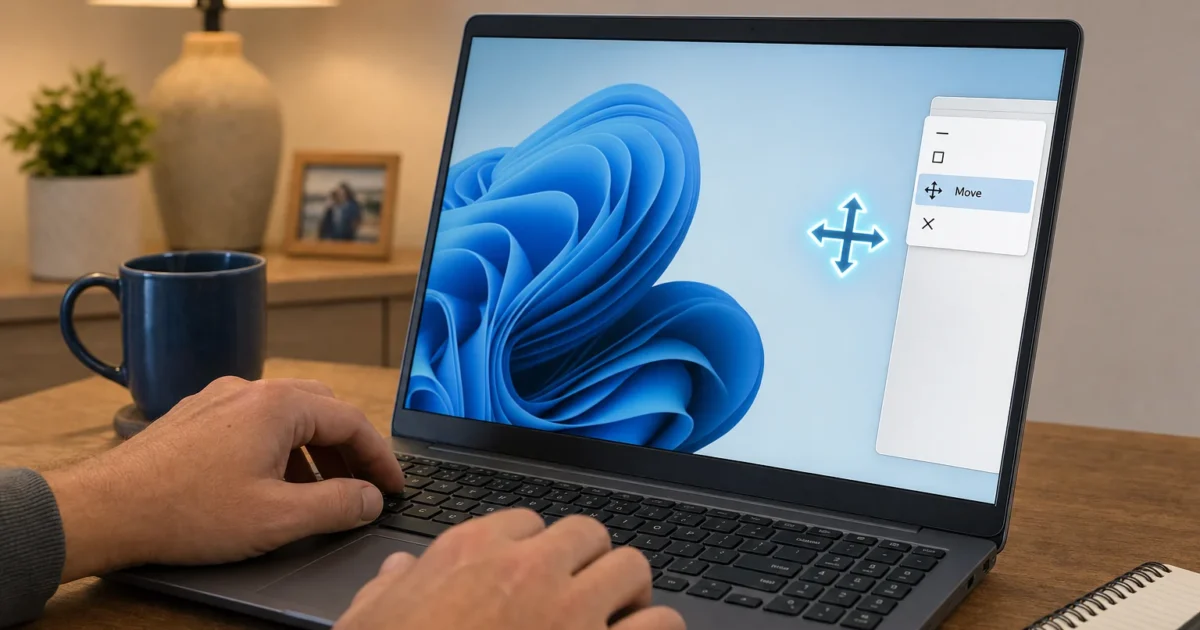
Your window is stuck off-screen, or you just need to reposition it precisely without touching the mouse, keyboard shortcuts can handle all of it in Windows 7, 10, and 11. Here are three methods, from exact pixel-level moves to snapping and multi-monitor juggling.
Method 1: Move a Window in Small Increments (Alt + Space)
This is the method you need when a window is partially or fully off-screen, or when you want to position it exactly. It works on Windows 7, 8, 10, and 11, as long as the window isn’t maximized.
Fix #1: Move a non-maximized window with Alt + Space
- Press
Alt + Tabto make the window you want to move the active window. - Press
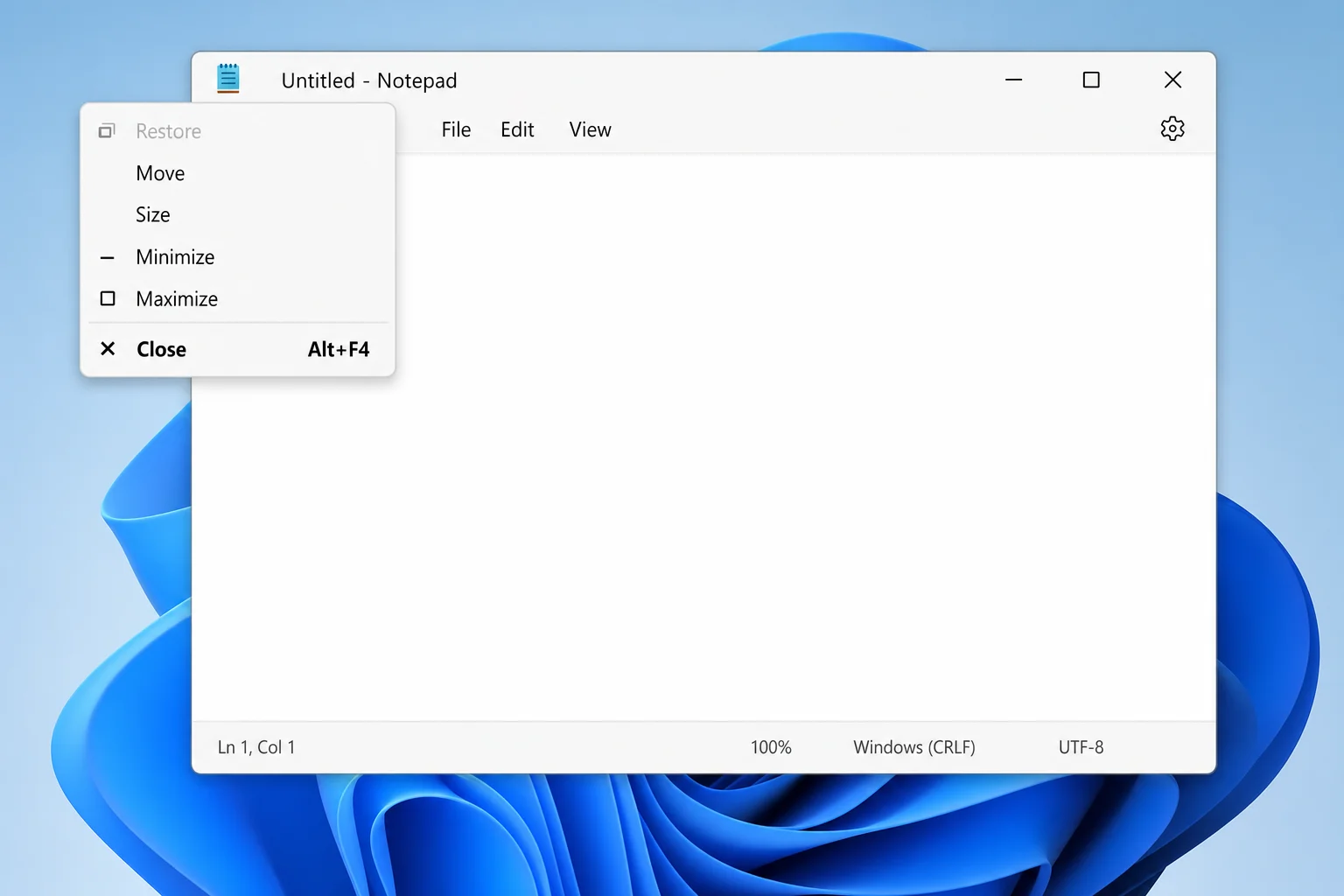
Alt + Spacebar. A small system menu appears in the top-left corner of the window, even if the title bar is off-screen.
- Press
Mto select Move. Your cursor changes to a four-arrow move icon and the window enters move mode. - Use the arrow keys (Up, Down, Left, Right) to nudge the window to where you want it.
- Press
Enterto lock in the new position, or pressEscto cancel and snap the window back to where it started.
If Move is greyed out: The window is maximized. Press Alt + Spacebar, then R to Restore it first, then repeat the steps above.
Fix #2: Recover an off-screen (hidden) window
If a window is running but invisible, usually because a second monitor was disconnected, this sequence brings it back.
- Click the app’s taskbar button or press
Alt + Tabto make the hidden window active. - Press
Alt + Spacebar, thenM. - Press any arrow key once. This “attaches” the window to your cursor even though you can’t see it yet.
- Move the mouse toward the center of your screen, or keep pressing arrow keys, until the window slides back into view.
- Press
Enterto confirm.
Alternatively, Win + Shift + Left/Right Arrow (covered in Method 3 below) can yank a window off a ghost monitor in one keystroke.
Method 2: Snap Windows Left, Right, or Fullscreen (Win + Arrow)
Windows Snap lets you tile windows to the sides or corners of your screen without dragging. The keyboard shortcuts work on Windows 7 through 11.
Fix #3: Snap a window to the left or right half
- Make the window active.
- Press
Win + Left Arrowto snap it to the left half of the screen, orWin + Right Arrowto snap it to the right half.
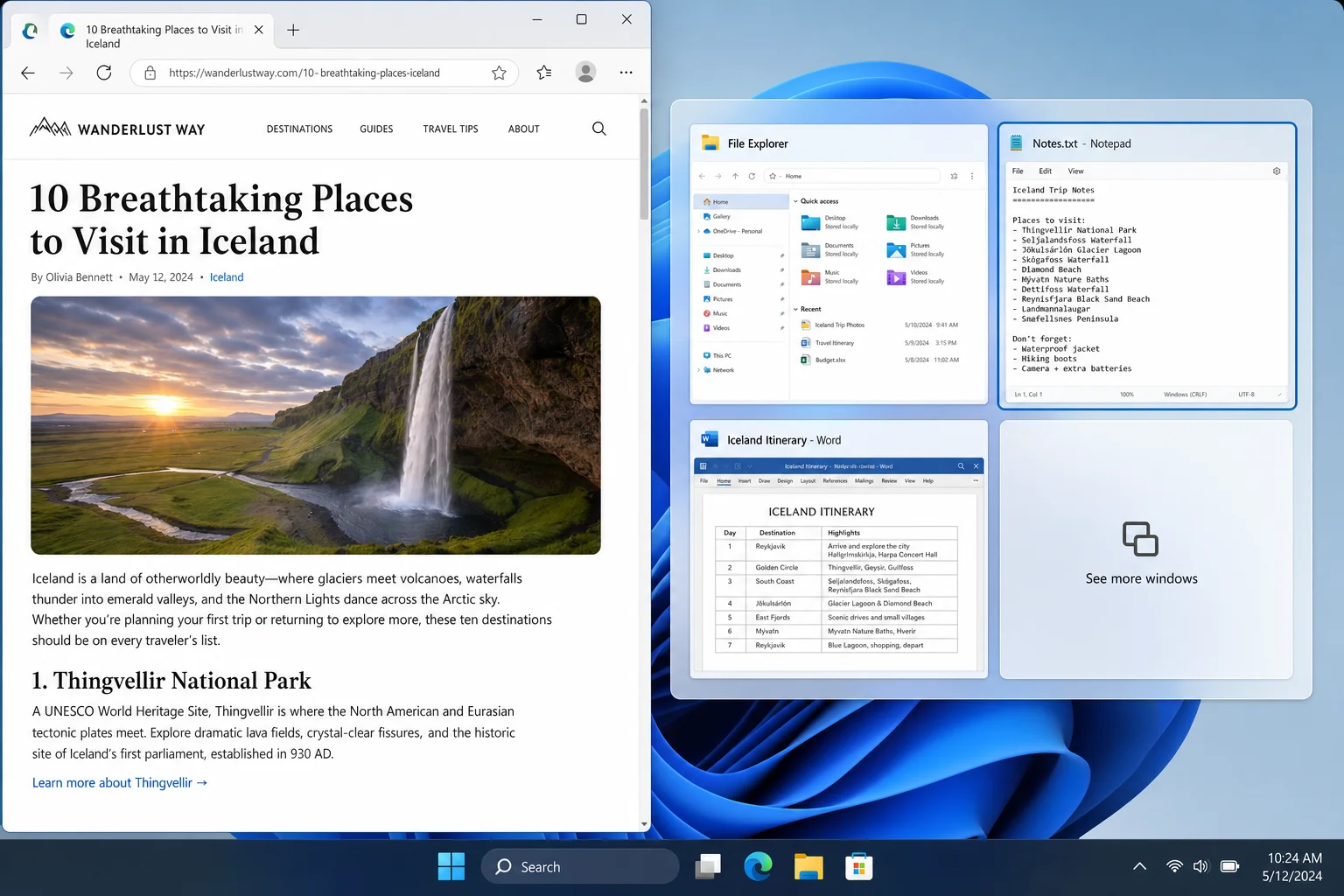
On Windows 10 and 11, pressing the same shortcut again cycles the window between the snapped position, other monitors, and its original unsnapped size.
Fix #4: Maximize, restore, or snap to corners
Win + Up ArrowMaximize the active window.Win + Down ArrowRestore a maximized window; press again to minimize it.- Corner snapping (Windows 10/11 only): Snap left or right first with
Win + Left/Right, then pressWin + UporWin + Downto move it into a quarter-screen corner.
Windows 11 bonus: Hover over the maximize button or press Win + Z to open Snap Layouts, a visual picker for common tiling arrangements. The Win + Arrow shortcuts still work underneath it.
Method 3: Move a Window Between Monitors (Win + Shift + Arrow)
Fix #5: Send a window to another monitor
- Make the window active.
- Press
Win + Shift + Left Arrowto move it to the monitor on the left, orWin + Shift + Right Arrowto move it to the monitor on the right.
The window keeps its relative size and position on the new screen. This is also the fastest fix for a window that’s stuck on a monitor you’ve unplugged.
If the shortcut does nothing: A third-party display utility (common with USB display adapters) may have hijacked the hotkey. Check the adapter’s software settings and disable or remap its custom shortcuts.
Bonus: More Keyboard Shortcuts for Windowless Mice
If you’re working keyboard-only, these additional shortcuts round out your toolkit:
| Shortcut | What it does | Windows version |
|---|---|---|
Win + Shift + Up Arrow | Stretch the window to fill the full vertical height of the screen | 7, 8, 10, 11 |
Win + Ctrl + Left/Right Arrow | Switch between virtual desktops | 10, 11 |
F11 | Toggle fullscreen in most apps and browsers | All |
Ctrl + Tab | Move forward through tabs in a tabbed window | All |
Ctrl + Shift + Tab | Move backward through tabs | All |
Home / End | Jump to the top or bottom of the active window’s content | All |
When the Built-In Shortcuts Aren’t Enough
If you need more control, such as custom snap zones, ultra-wide monitor layouts, or per-app window rules, Microsoft PowerToys FancyZones is the go-to free tool. It layers on top of Windows Snap without replacing any of the shortcuts above.
Conclusion
For most situations, Win + Left/Right Arrow to snap and Win + Shift + Left/Right Arrow to jump between monitors will cover 90% of what you need. If a window has gone completely off-screen, Alt + Space → M → any arrow key is the reliable rescue sequence that’s worked since Windows 7 and still works perfectly in Windows 11 in 2026.