A clean desktop is easier to pull off than you’d think. Windows lets you “remove” the text label under any icon without deleting the icon itself. The method differs slightly depending on whether the icon is a system icon (like Recycle Bin or This PC) or a regular shortcut.
Shortcuts vs. System Icons: Know Which You Have
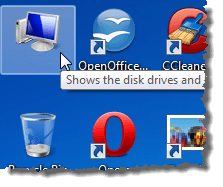
Before picking a method, identify what type of icon you’re working with. If you see a small arrow in the lower-left corner of the icon, it’s a shortcut, a .lnk file that points to an app or file elsewhere on your drive. Deleting a shortcut only removes the pointer, not the program itself.
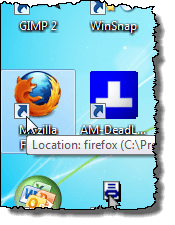
Icons without that arrow, such as This PC, Recycle Bin, Network, and Control Panel, are system desktop icons managed separately through Desktop Icon Settings. Each type needs its own rename trick.
Method 1: Remove the Label from a System Icon (Recycle Bin, This PC, etc.)
System icons accept a plain space as a valid name, which makes the label disappear visually.
- Right-click the system icon on your desktop (e.g., Recycle Bin or This PC).
2. Click Rename.
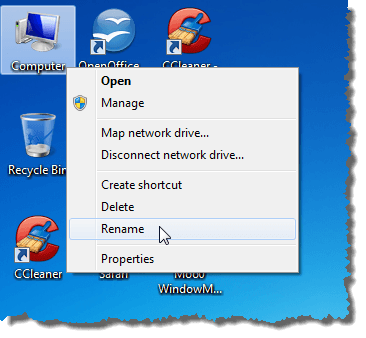
3. Press the Spacebar once to replace the name with a single space.
4. Press Enter.
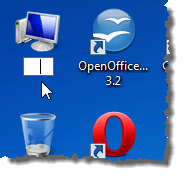
The icon now appears without any label underneath it.
This works in Windows 7, 8, 10, and 11. On Windows 11, Rename is directly visible in the right-click menu, so you don’t need to click Show more options to find it.
How to Add or Remove System Icons
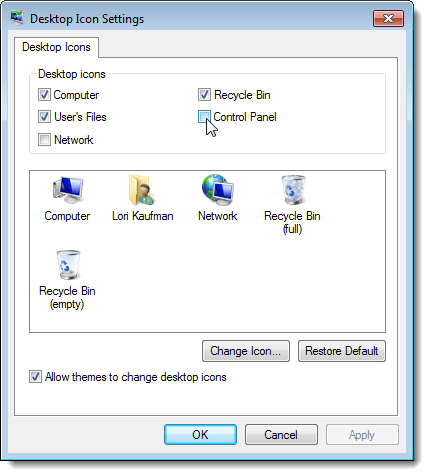
If you don’t see This PC, Recycle Bin, or other system icons on your desktop, you can turn them on (or off) through Desktop Icon Settings.
Windows 10 and 11:
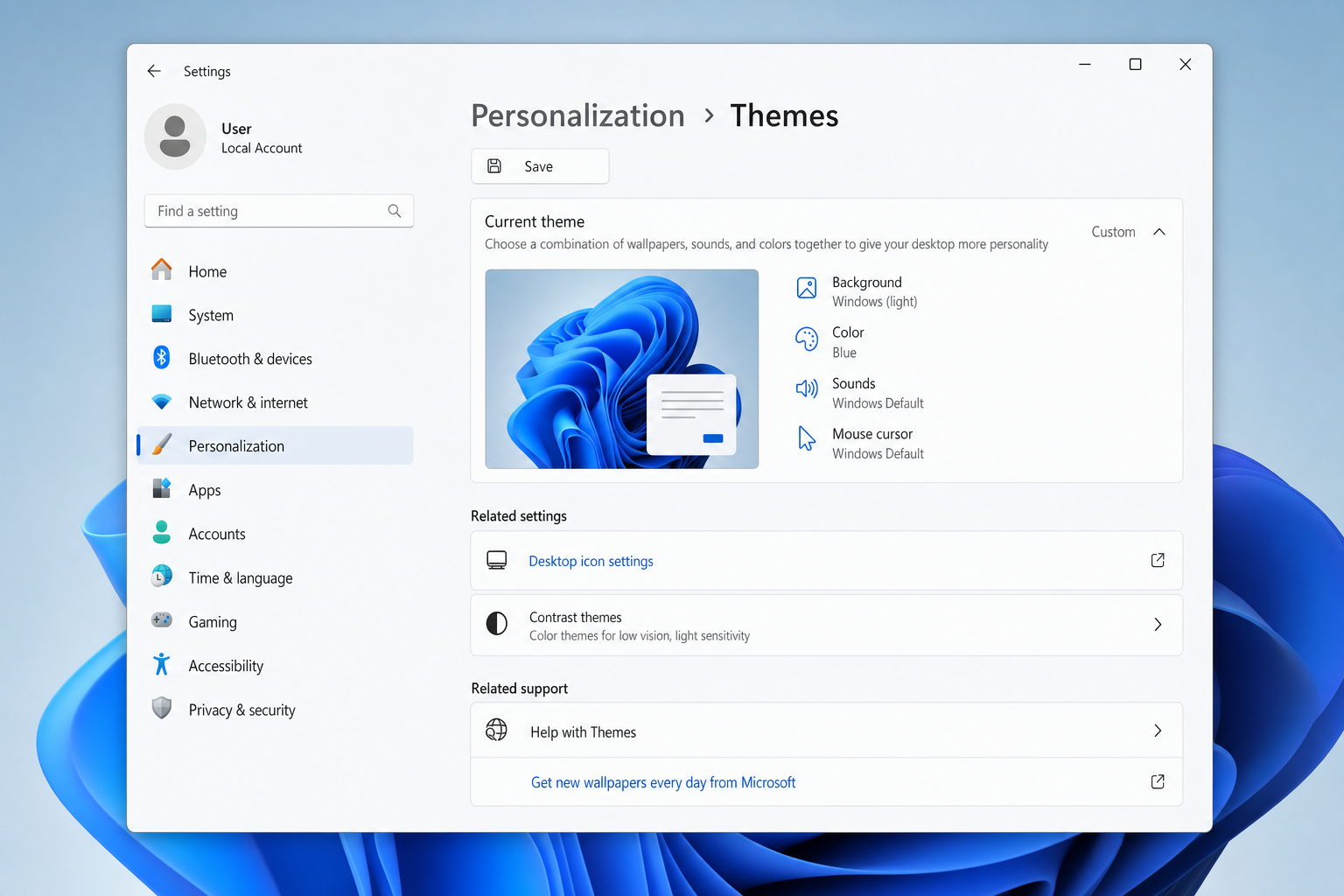
- Right-click an empty area of the desktop and select Personalize.
2. In the left navigation panel, click Themes.
3. Scroll down to Related settings and click Desktop icon settings.
4. Check or uncheck the icons you want, then click OK.
Windows 7 and 8:
- Right-click the desktop and select Personalize.
2. In the left pane, click Change desktop icons.
3. Check or uncheck the icons you want, then click OK.
Method 2: Remove the Label from a Shortcut Icon (Alt+255 Trick)
Shortcut icons reject a plain space as a name, as Windows won’t allow it. Instead, you use a non-breaking space character generated by holding Alt and typing 255 on the numeric keypad. This character is invisible but counts as a valid, unique name.
Important: This only works with the numeric keypad on the right side of your keyboard, with Num Lock on. Typing 255 on the number row above the letter keys won’t work.
- Right-click the shortcut icon on your desktop.
2. Click Rename.
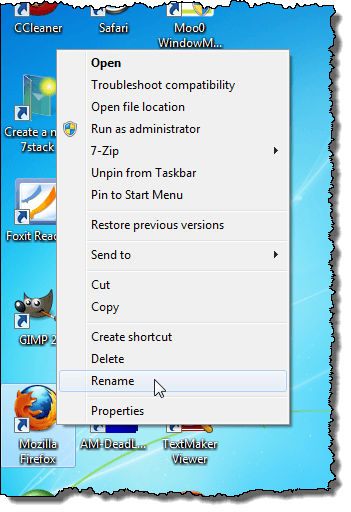
3. Hold Alt and type 255 on the numeric keypad (not the number row). Release Alt.
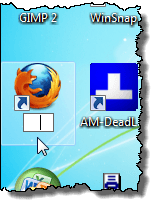
4. Press Enter.
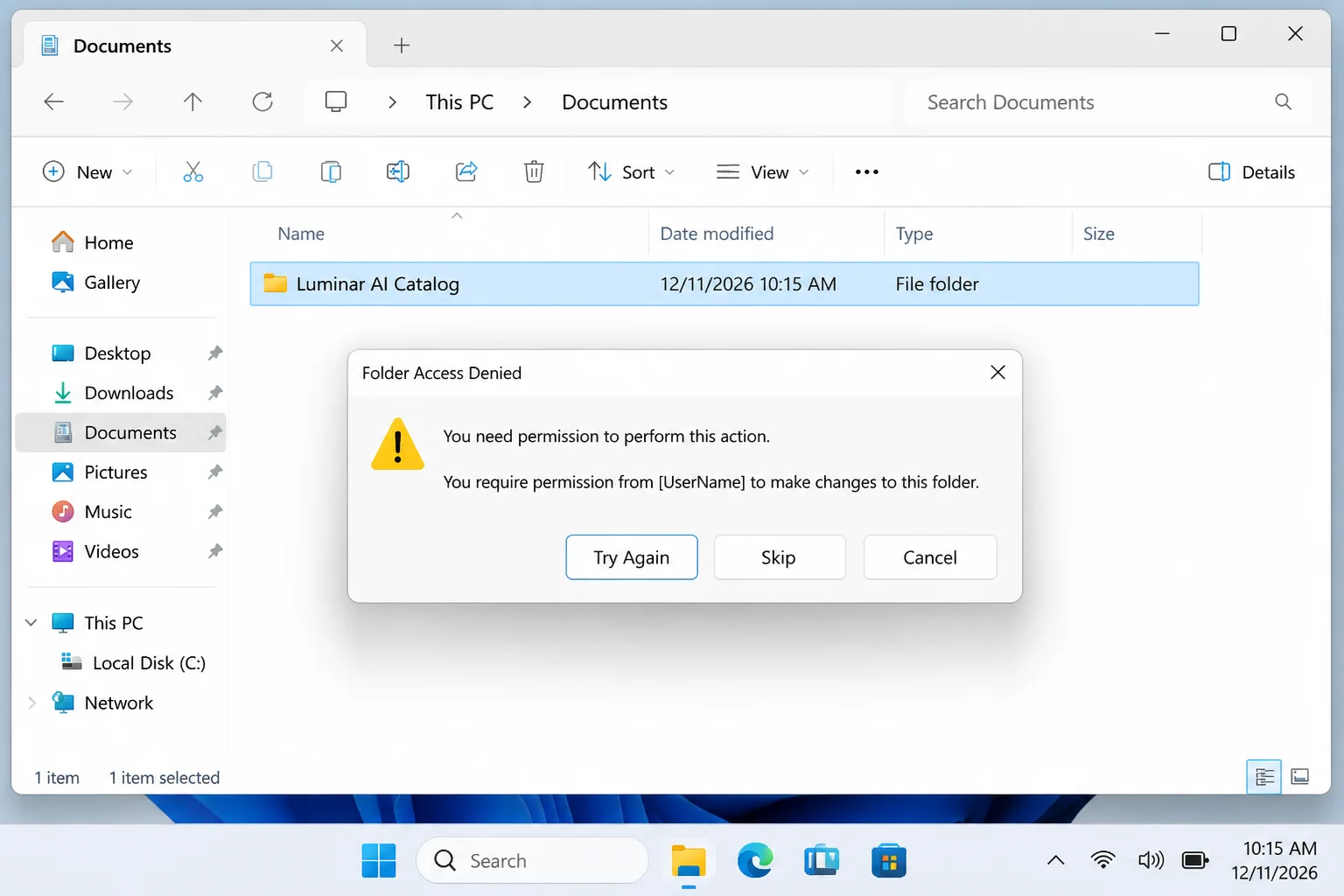
If a File Access Denied dialog appears, click Continue to confirm the rename with admin rights.
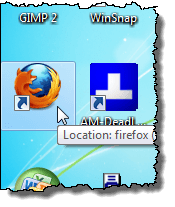
The shortcut now appears on your desktop without any visible label.
Making Multiple Shortcuts Appear Label-Free
Windows requires every icon to have a unique name, even if that name is invisible. If you try to apply Alt+255 to a second shortcut, you’ll get an error saying the name already exists. The fix is to use the keystroke multiple times to create a slightly longer (but still invisible) name:
- First blank shortcut: Press
Alt+255once, then Enter.
– Second blank shortcut: Press Alt+255 twice, then Enter.
– Third blank shortcut: Press Alt+255 three times, then Enter.
Each icon gets a name made of a different number of invisible characters, so Windows treats them as distinct, but none of them show any visible text.
Alternative: Hide All Desktop Icons at Once
If you want a completely clean desktop without going icon-by-icon, Windows has a built-in toggle that hides everything at once without deleting anything.
- Right-click an empty area of the desktop.
2. Go to View.
3. Click Show desktop icons to uncheck it.
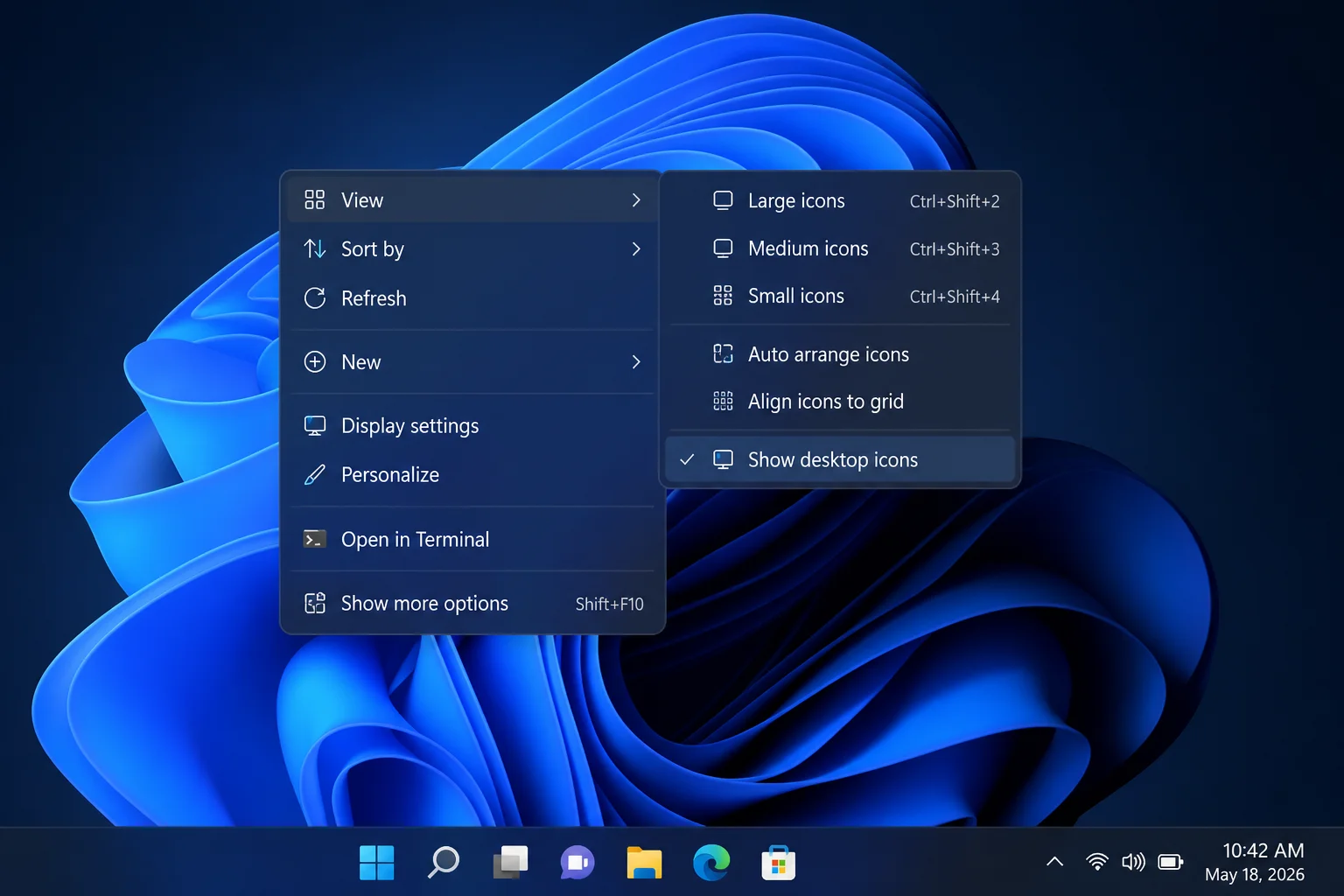
All icons disappear from the desktop immediately. To bring them back, repeat the steps and re-check Show desktop icons. Nothing is deleted; they’re just hidden.
Wrapping Up
The space-bar rename works instantly for system icons like Recycle Bin and This PC, and the Alt+255 trick solves it for shortcuts. Both methods still work in Windows 11 with no extra steps. If you just want a minimal desktop without going one icon at a time, the Show desktop icons toggle is the fastest path to a clean look. If you’d like to go further with personalizing your workspace, check out our guide on how to customize icons in Windows 10, or learn how to add shortcuts to the Windows desktop to keep things organized. You can also explore Windows 11 vs Windows 10 to see what other desktop changes come with upgrading. For official guidance on personalizing your desktop, visit Microsoft’s support page on desktop personalization.