 Ananya Dixit · February 6, 2026 · 3 min read
Apple has always positioned itself as a privacy-first brand. macOS Tahoe continues to support that legacy with its transparent control and features. However, there is a catch that most essential privacy protections are buried deep inside the settings or are not enabled by default.
This guide walks you through the must-check privacy settings to keep your browsing habits and personal information secure.
Review App Permissions
While reviewing your privacy settings, one of the first things you should do is go to System Settings and then click on Privacy & Security settings.
Under these sections, you can see multiple categories like location services, microphone, and camera settings, contacts, and files & folders.
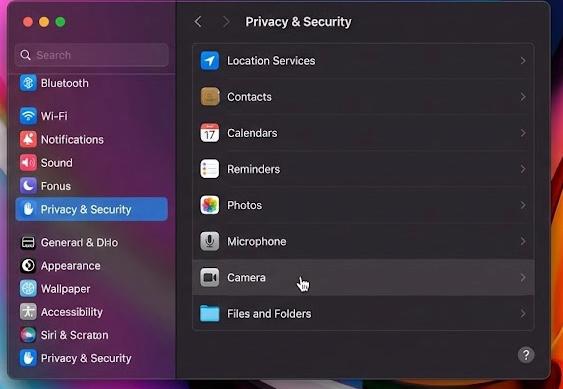
macOS Tahoe provides granular access, but over time, we often forget what we allowed.
Lock Down Location Services
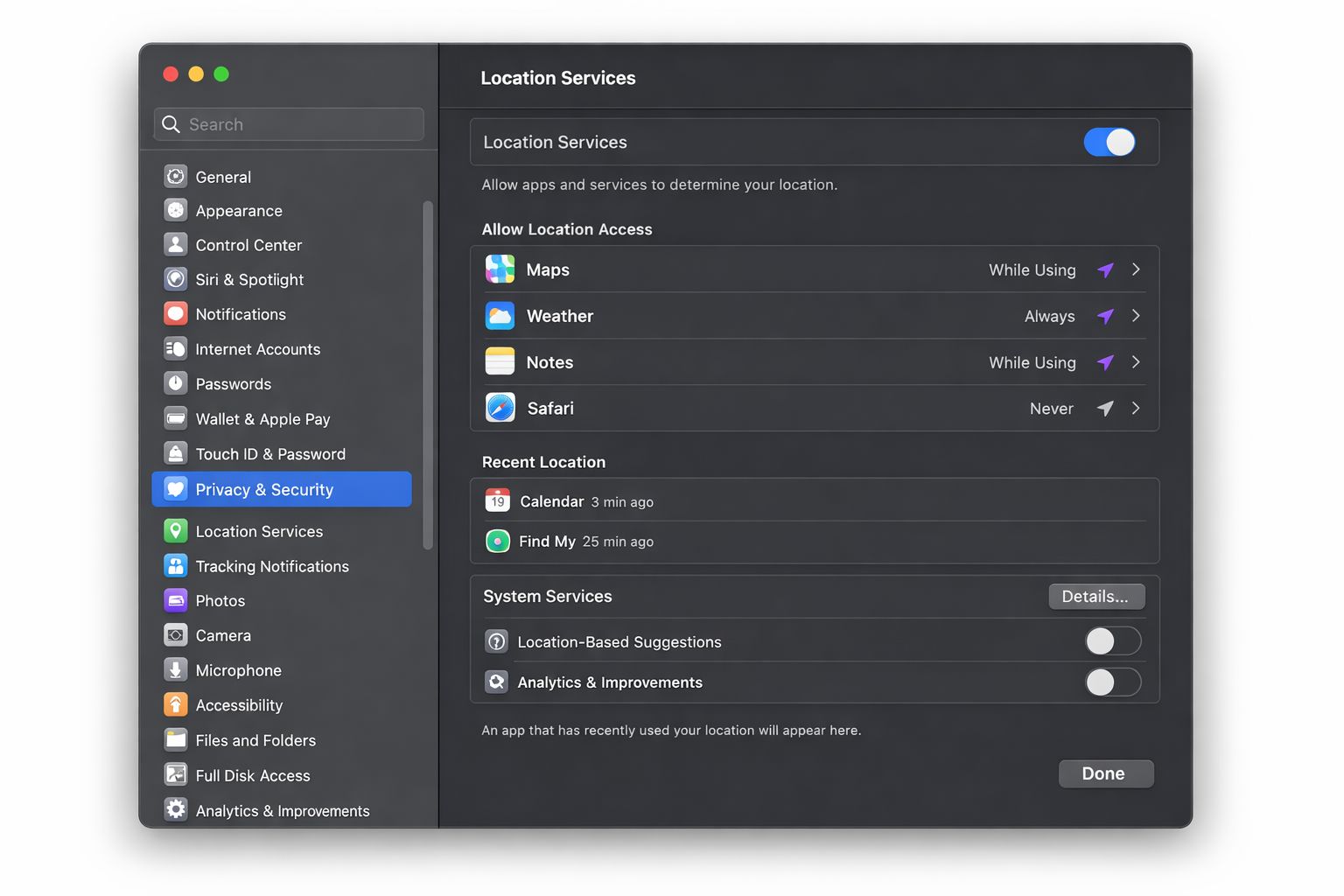
Many apps request access to location data, which is very sensitive. In this case, go to System Settings, click Privacy & Security, then select Location Services.
Recommended Changes
- Ensure to turn off the location access for any unnecessary apps.
- Always switch the access to “while using the app,” instead of “always.”
- Turn off the services you do not require, like Analytics & Improvements and location-based suggestions.
macOS Tahoe displays recent location access, further making it easier to spot any suspicious activity.
Disable Excessive Analytics and Data Sharing
Apple does ask for diagnostic data, but users are not allowed to share everything. Moreover, go to privacy & security settings and click on analytics & improvements. Now, disable the options “Share Mac Analytics” and “Share iCloud Analytics,” and improve Siri and dictation.
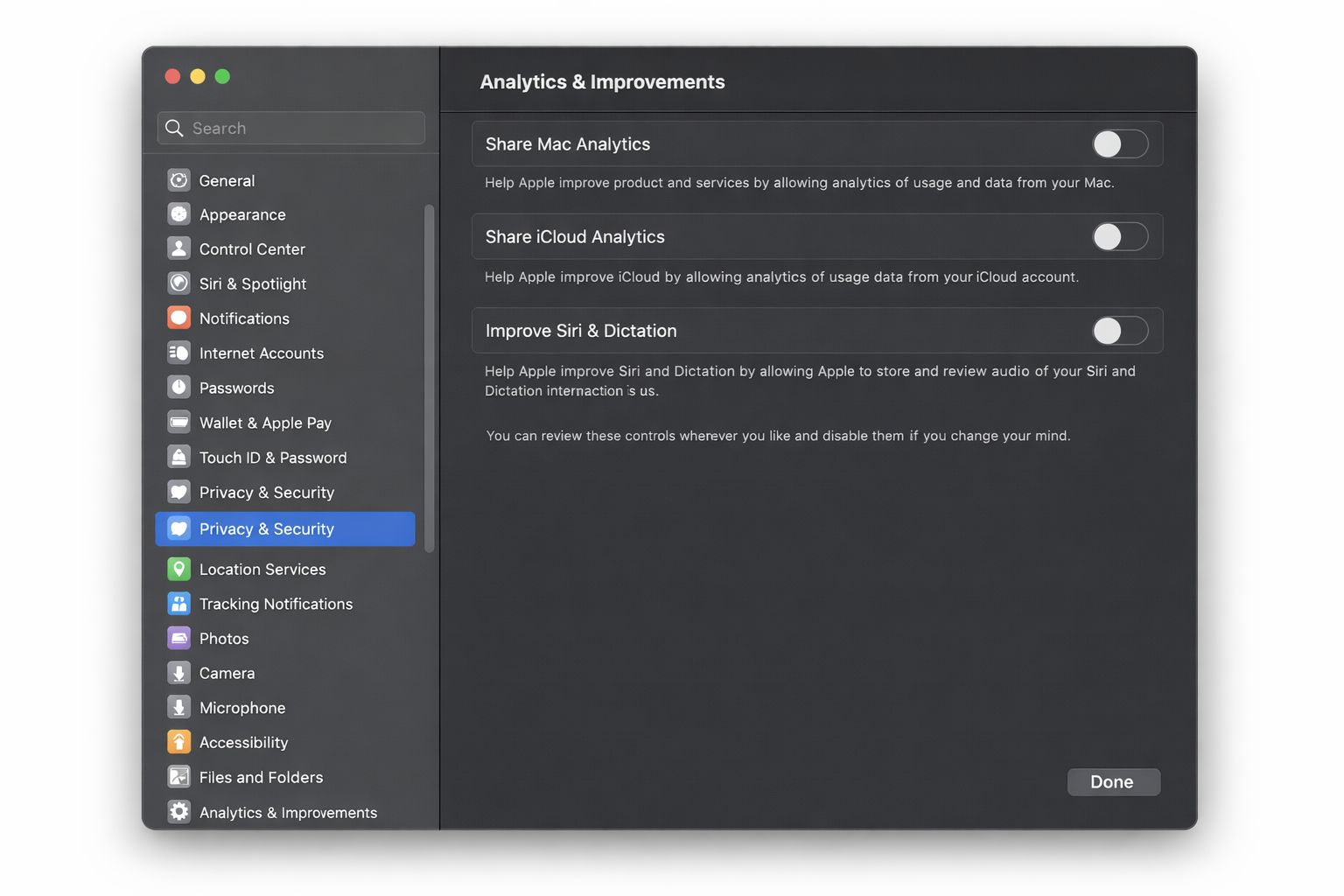
Consequently, this prevents the usage patterns from being sent to the Apple servers. It also improves privacy without affecting the performance of the operating system.
Safari Privacy Settings
Safari is one application in macOS Tahoe that is packed with strong privacy tools, but only if you enable it. Select Safari, go to Settings, and then click on Privacy settings.
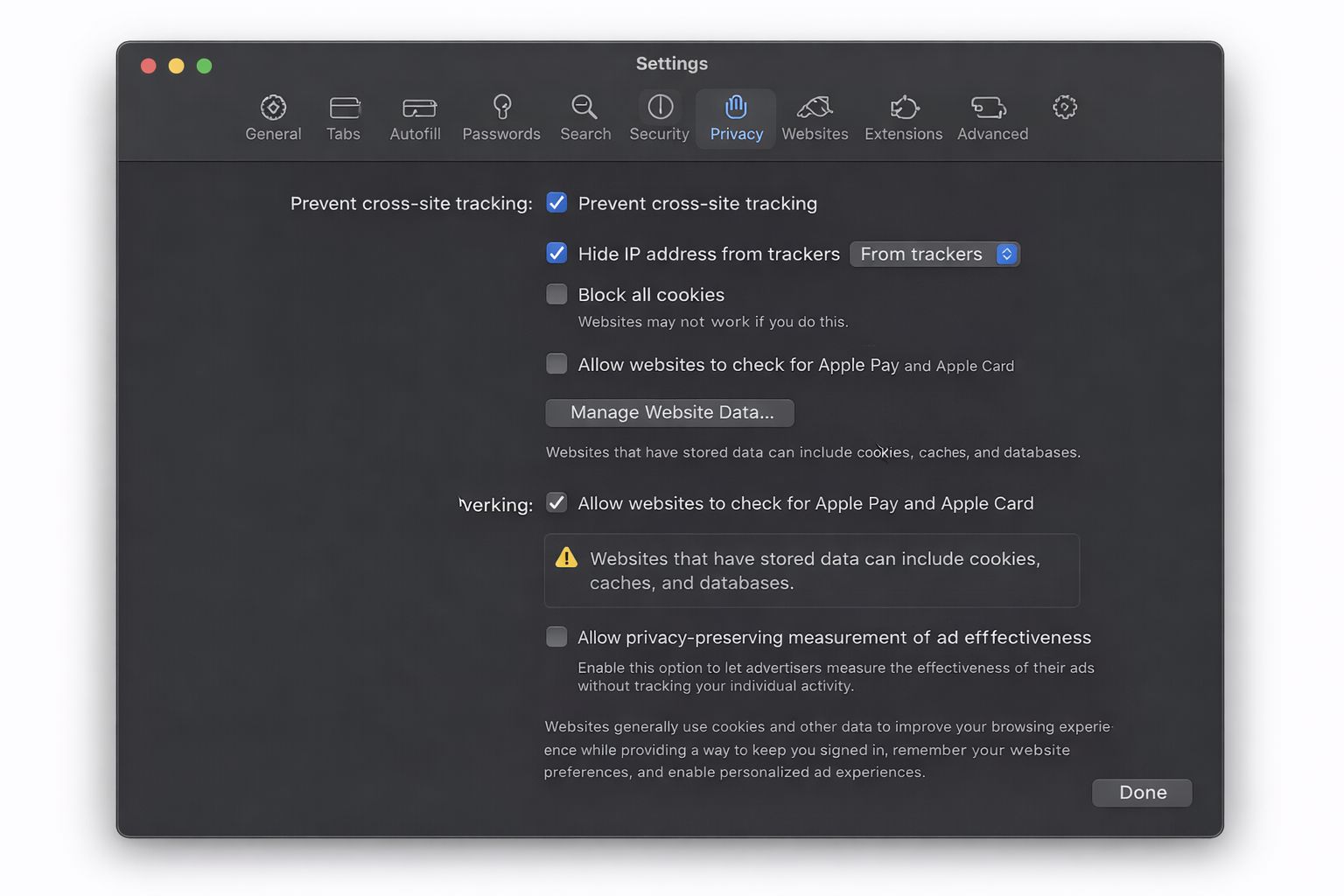
Enable options to restrict cross-site tracking, hide your IP address from hackers, and block all cookies, though blocking cookies is optional.
After that, go to the Extensions tab, and then completely remove any extensions that you do not trust. Browser extensions are the biggest privacy risk as of today.
Limit Siri and Spotlight Data Usage
Siri and Spotlight are the digital assistants that can use emails, messages, and app usage. Click on Siri & Spotlight, and then go to Siri Suggestions. Find the option Privacy & Security, and select Siri & Dictation.
Thus, you must turn off options like:
- Learn from this app
- Siri Suggestions on the lock screen
- Share voice recordings.
Furthermore, this decreases how much context your operating system can process.
Review the Login Items and Background Processes
There are many applications that run in the background to collect sensitive data. Click on General and then go to Login Items.
What To Look For?
- Remove the applications that you do not recognize
- Turn off the background helpers
- Pay close attention to applications for which “Allow in the Background” is enabled
Hence, macOS Tahoe labels which applications are running silently and uses this knowledge to your advantage.
One of the most important things to remember is that macOS Tahoe provides brilliant privacy settings, but Apple does not force its users to enable those settings. Furthermore, this means that your privacy relies on how carefully you integrate your settings.
Related Posts
- Camera Not Working in Zoom or Teams? Quick Fixes for Windows and macOS
- How to Stop Mac Malware Before It Steals Your Private Data
- How to Add Custom Fonts to PowerPoint: A Quick Windows & Mac Guide
- How to Install the Latest Large Language Models (LLMs) Locally on Your Mac
- How to Connect Samsung Galaxy Buds to Your Windows or Mac Computer

Ananya Dixit is a seasoned content writer and editor with over seven years of experience in tech, finance, and media. She has written extensively about Microsoft technologies, covering multiple versions of Windows—from Windows 7 and 10 to the latest Windows 11 releases. Her work includes in-depth troubleshooting guides, feature breakdowns, how-to tutorials, optimization tips, and coverage of new system updates.Ananya is also passionate about trending topics in the tech world, including AI tools as her personal favorite, digital privacy, productivity apps, and the newest features rolling out across Android and iOS. Read Ananya’s Full Bio

