 Ananya Dixit · February 2, 2026 · 3 min read
Recently, on Jan 26, 2026, Microsoft rushed out a high-severity out-of-band update for a zero-day in Microsoft Office that allows threat actors to bypass security features. This is addressed at CVE-2026-21509. Microsoft Office components remain a juicy target for zero-day vulnerabilities.
As Microsoft Office is the backbone of organizations, from email to spreadsheets and presentations to documents, this discovery has sent shockwaves through the cybersecurity community.
What is the good news? You no longer have to wait for the full patch rollout; instead, there are practical steps that you can take to protect your system.
Here is a breakdown of those steps.
The Threat
Exploiting CVE-2026-21509 allows attackers to bypass security features that isolate vulnerabilities within the Office environment. Consequently, the threat extends to:
- Microsoft Office 2016
- Microsoft Office 2019
- LTSC 2021 and 2024
- Microsoft 365 enterprise applications
Additionally, the root cause of this threat was the dependency on untrustworthy inputs in CWE-807 security decisions.
Step 1: Restart The Office Apps
Microsoft has rolled out a mitigation strategy that activates automatically in case you are using Microsoft 365 or Office 2021. But it only works when you restart the applications.
What Can Be Done?
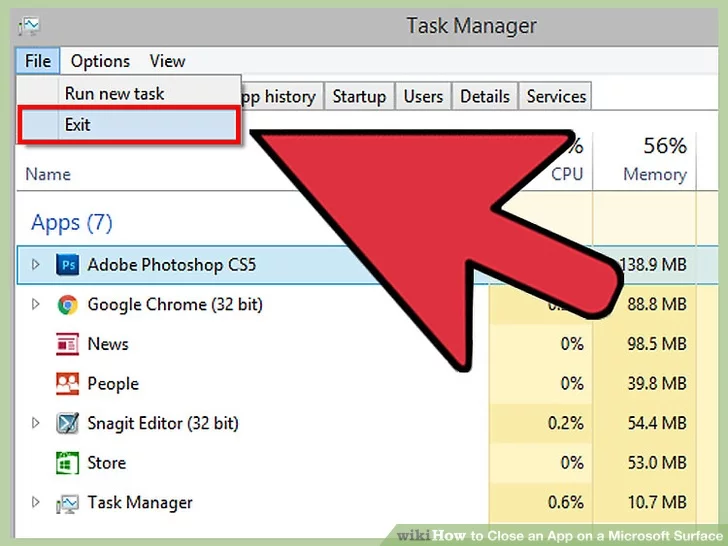
- Select and close PowerPoint, Word, Excel, and Outlook completely.
- After doing that, reopen them.
- Repeat the same step on all organizational devices.
This method forces Microsoft Office to reload updated security configurations, further blocking the most common attack vectors.
Step 2: Registry Fix For Microsoft Office 2019 and 2016
If your company already runs Office 2019 or 2016, you must follow the manual fix below in the Windows Registry.
Before you make any changes:
- Click on Win+R, write regedit, and then press Enter
- In the Registry Editor, choose File and then Export
- Additionally, save the file name as “Registry_Backup.reg” in your system.
Apply Fixes:
Navigate and find
HKEY_LOCAL_MACHINE\SOFTWARE\Microsoft\Office\16.0\Common
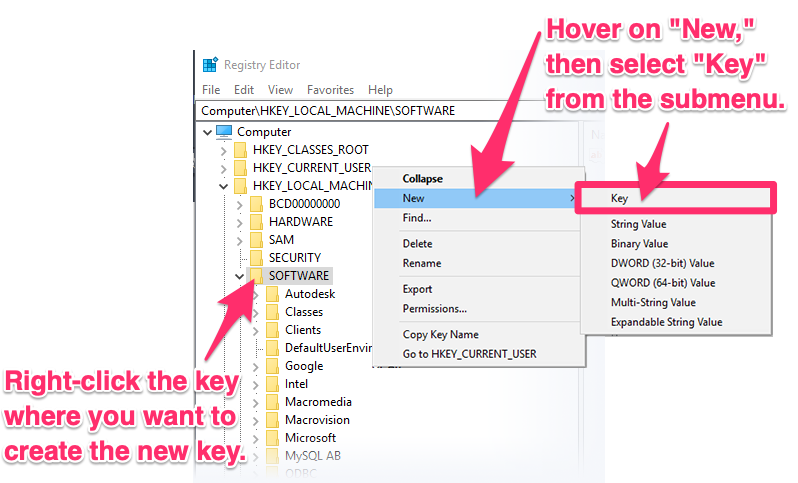
- Press and right-click on Common, choose New, and then select Key
- Now, you must name the key as {EAB22AC3-30C1-11CF-A7EB-0000C05BAE0B}.
Then select this new key:
- Press right-click, go to NEW, then choose DWORD value (32-bit)
- Name this as: Compatibility Flags
- After doing that, press double-click and fix the value to: 400
- Press OK, then close the Registry Editor.
- At last, restart your PC.
This tweak in the registry blocks a vulnerable object that attackers might abuse.
Step 3: Solidify the Outlook Against Attachments
The most significant thing to note is that most attacks tied to CVE-2026-21509 begin with phishing emails. Subsequently, you must harden your defenses through Outlook settings:
Recommended Options:
- Turn off the automatic preview.
- Disable the automatic loading of any external content.
- Also, ensure you use only Protected View.
Click on File, select Options, go to Trust Center, and then Settings, and choose Attachment Handling.
Phishing Avoidance Tips:
Train your employees because technology alone is not enough to avoid these attacks.
Consider Red Flags:
- Emails stating urgency, such as ‘open immediately’ or ‘account blocked.’
- Sender addresses that might seem strange. For example, support@microsoft.com.
- Receiving invoices and delivery notices that are unexpected.
- Moreover, getting zip files with unusual types like .img, .iso, and .hta.
- Links that are not synced with the sender’s domain.
Safe Habits:
- Ensure you verify requests through phone or chat.
- Hover over any link before clicking on it.
- Report suspicious emails immediately to the IT department.
- Do not enable macros in the documents.
Related Posts

Ananya Dixit is a seasoned content writer and editor with over seven years of experience in tech, finance, and media. She has written extensively about Microsoft technologies, covering multiple versions of Windows—from Windows 7 and 10 to the latest Windows 11 releases. Her work includes in-depth troubleshooting guides, feature breakdowns, how-to tutorials, optimization tips, and coverage of new system updates.Ananya is also passionate about trending topics in the tech world, including AI tools as her personal favorite, digital privacy, productivity apps, and the newest features rolling out across Android and iOS. Read Ananya’s Full Bio

