 Aseem Kishore · February 17, 2009 · 2 min read
 As an IT administrator for the last several years, there are some occasions where I go a little overboard with security and do things to lock myself out of a computer. One example is to set a BIOS or CMOS password that I will never remember.
If you can’t remember a BIOS or CMOS password, you’re pretty screwed because you won’t be able to even boot up Windows. Earlier, I had written about a way to reset a BIOS password using a couple of different techniques, which is the first thing to try in this situation.
I recently ran across another program that you can use to recover a CMOS or BIOS password. CMOSPwd works under Dos, Windows 98, Windows NT, Windows 2000, Windows XP, Windows 2003, Linux, FreeBSD, and NetBSD.
The program basically decrypts the password that is stored in CMOS, which is used to access the BIOS setup. Now this program won’t work with all BIOS out there, but here are the ones it will work with:
- ACER/IBM BIOS
- AMI BIOS
- AMI WinBIOS 2.5
- Award 4.5x/4.6x/6.0
- Compaq (1992)
- Compaq (New version)
- IBM (PS/2, Activa, Thinkpad)
- Packard Bell
- Phoenix 1.00.09.AC0 (1994), a486 1.03, 1.04, 1.10 A03, 4.05 rev 1.02.943, 4.06 rev 1.13.1107
- Phoenix 4 release 6 (User)
- Gateway Solo – Phoenix 4.0 release 6
- Toshiba
- Zenith AMI
If you are lucky enough to have one of these, you may be able to recover the password easily. Using the program requires a little bit of the command prompt, so make sure you are familiar with that before using it.
Basically, to run it, go to the command prompt and CD into the directory where you stored the file. At the command prompt, type in CMOSPWD and press Enter.
You’ll get a list of possibilities which you can compare against your BIOS manufacturer.
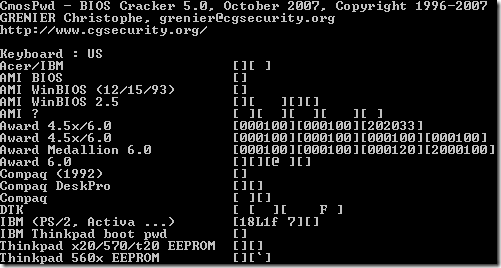
To recover the password, you need to note the value to the right of the BIOS you have installed and then you have to type in cmospwd /m[xxx] to execute the module. If that doesn’t work, you can kill the BIOS using the /k switch.
However, DO NOT kill the CMOS if you are recovering the password for a laptop. On laptops the CMOS password is usually stored in an eeprom on the motherboard, so you need a eeprom programmer to retrieve it.
Since using the program is a bit complicated, make sure to read the instructions provided beforehand. Enjoy!
Related Posts

Founder of Help Desk Geek and managing editor. He began blogging in 2007 and quit his job in 2010 to blog full-time. He has over 15 years of industry experience in IT and holds several technical certifications. Read Aseem’s Full Bio

