Word won’t open, Excel crashes on startup, or Outlook keeps misbehaving. Microsoft 365’s built-in repair tool is worth a look before you reach for a full reinstall. Quick Repair fixes most issues in minutes; Online Repair downloads a fresh copy of your Office files from Microsoft’s servers when Quick Repair isn’t enough.
Quick Repair vs Online Repair: Know Before You Start
Microsoft 365, along with perpetual versions like Office 2016, 2019, and 2021, offers two repair modes. Picking the right one upfront saves you a second trip through these steps.
| Repair Type | What It Does | When to Use It | Needs Internet? |
|---|---|---|---|
| Quick Repair | Scans and replaces corrupted local Office files | First attempt: crashes, missing features, odd behavior | No |
| Online Repair | Fully reinstalls Office from Microsoft’s servers | Quick Repair didn’t fix it, or the issue is persistent | Yes |
Fix #1: Run Quick Repair
Start here. Quick Repair is the fastest fix and runs entirely offline. It actually works for the majority of Office issues, including crashes, missing ribbon buttons, and corrupted templates.
On Windows 11
- Close all Office apps: Word, Excel, Outlook, PowerPoint, etc.
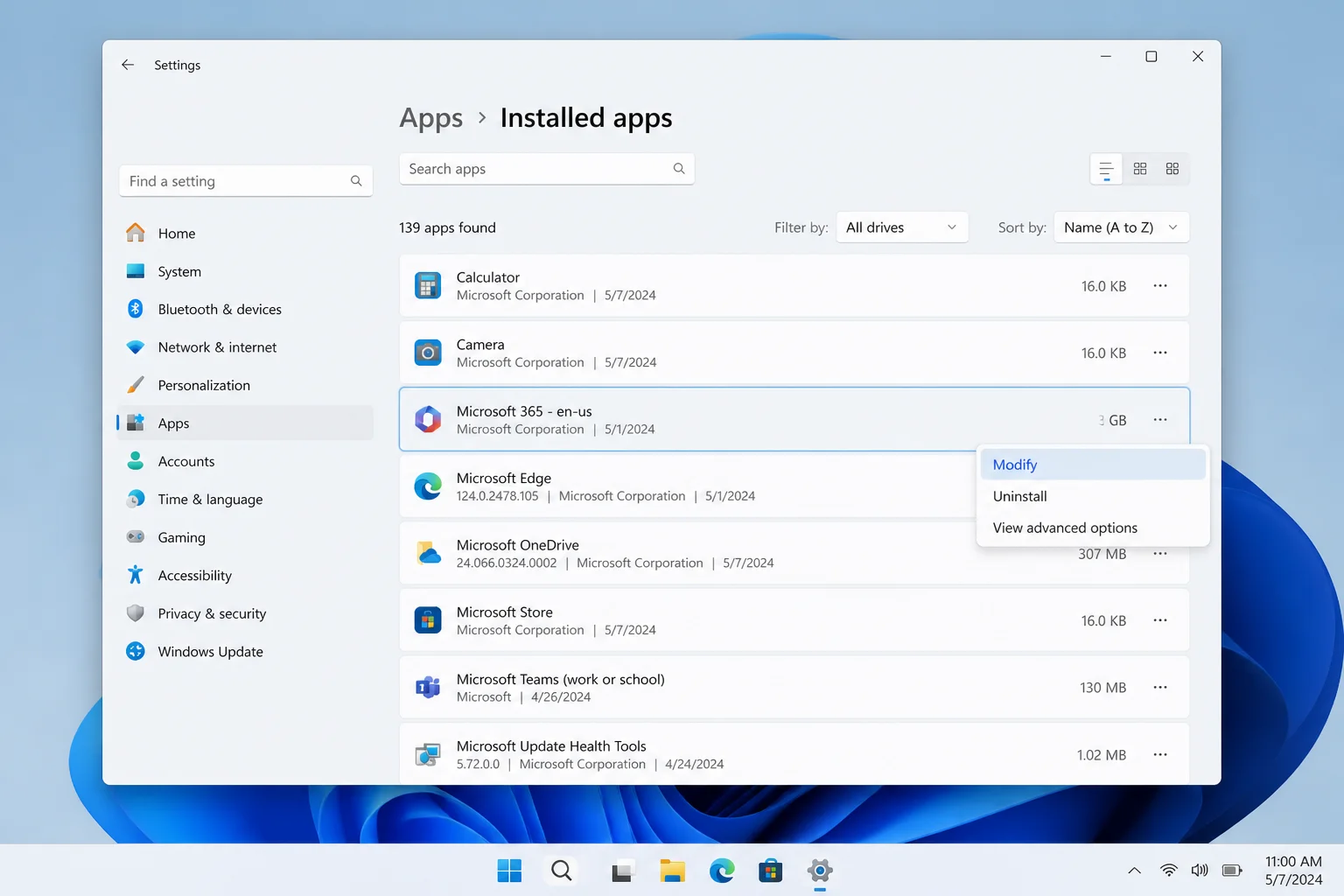
- Right-click Start and select Installed apps.
- Scroll to find Microsoft 365 or Microsoft Office in the list.
- Click the three-dot menu (…) next to it and choose Modify.
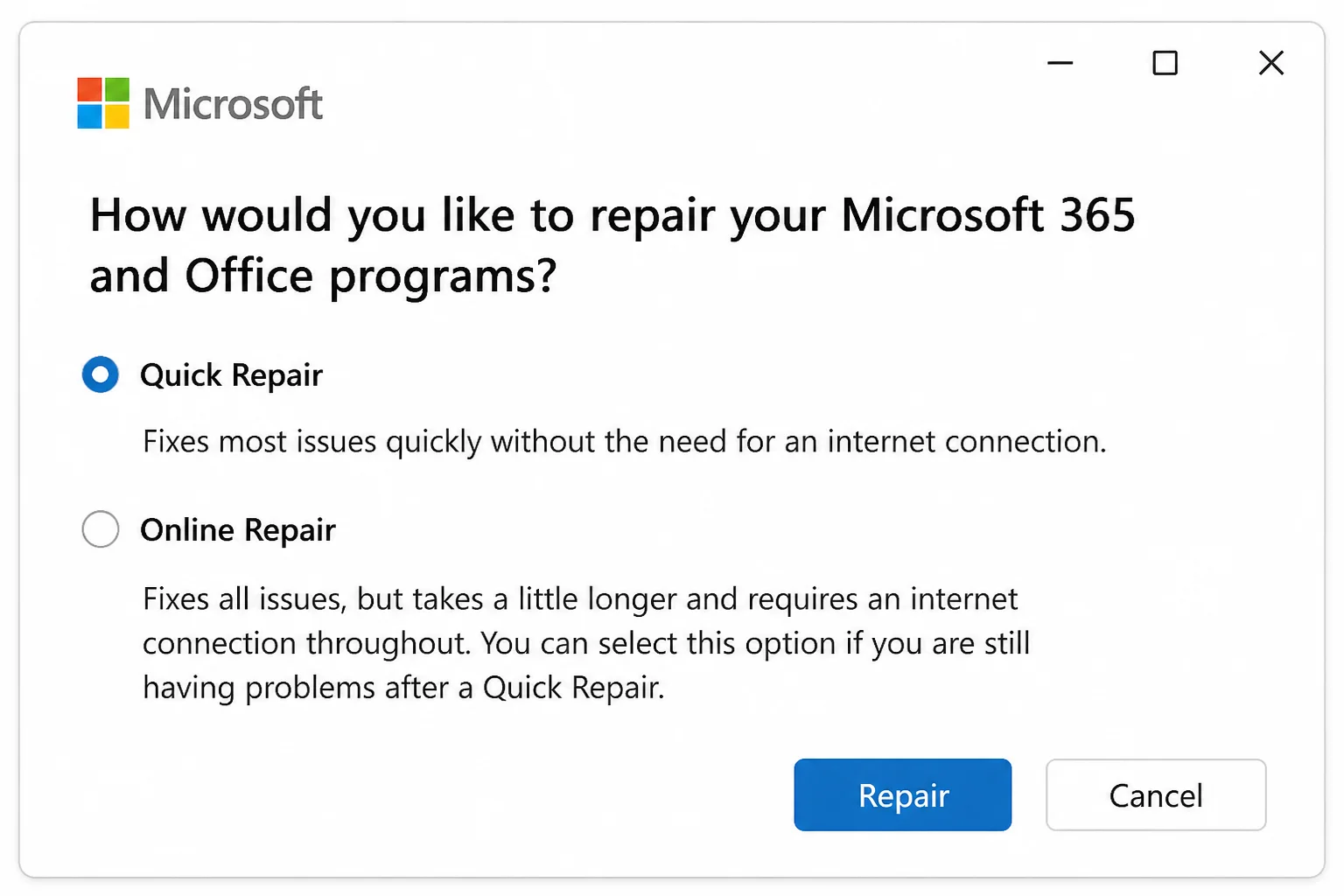
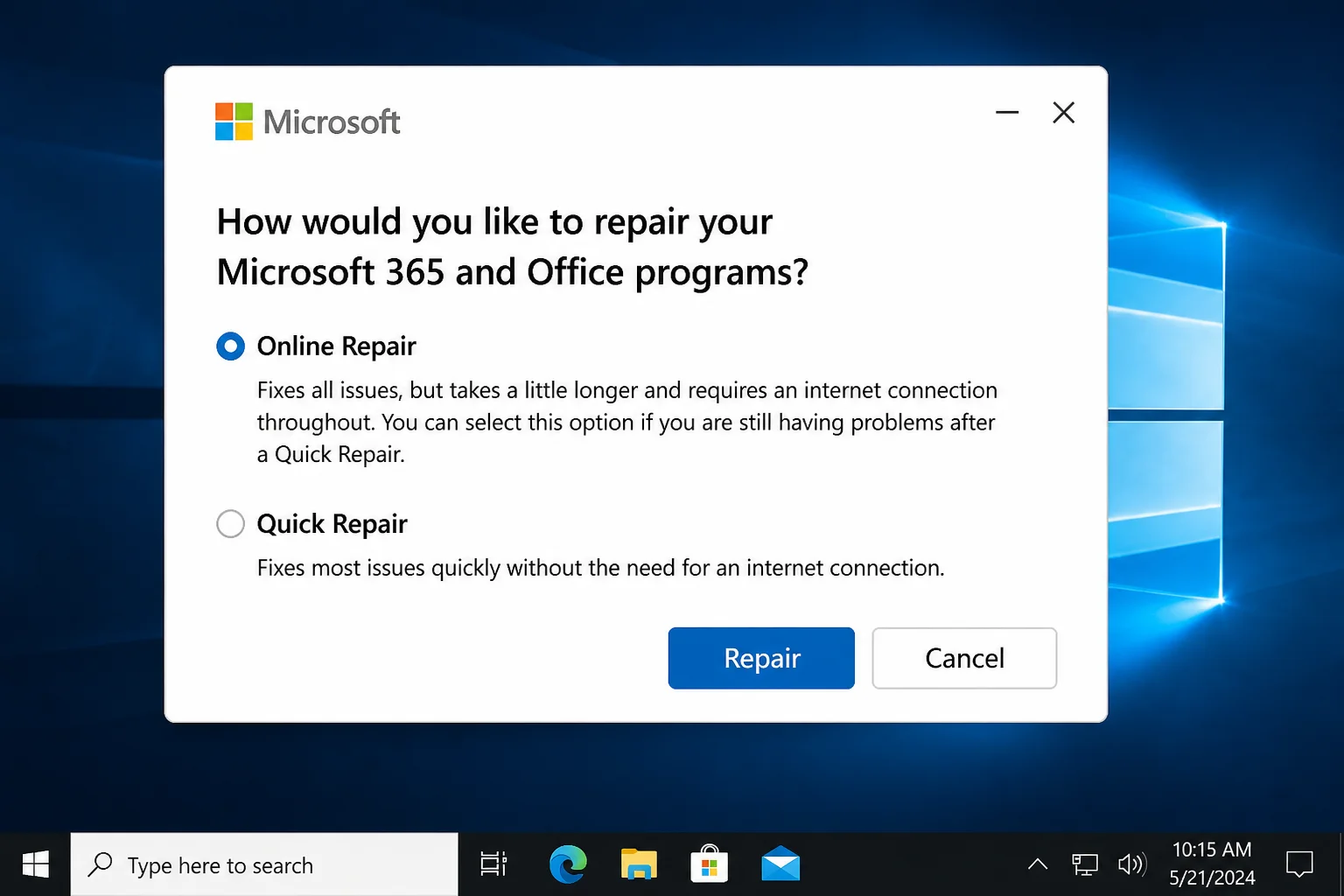
- Select Quick Repair and click Repair.
- Follow the on-screen prompts. Don’t open any Office apps while the repair runs.
- When it finishes, restart Windows and test the problem app.
On Windows 10
The steps are nearly identical; only the Settings label differs.
- Close all Office apps.
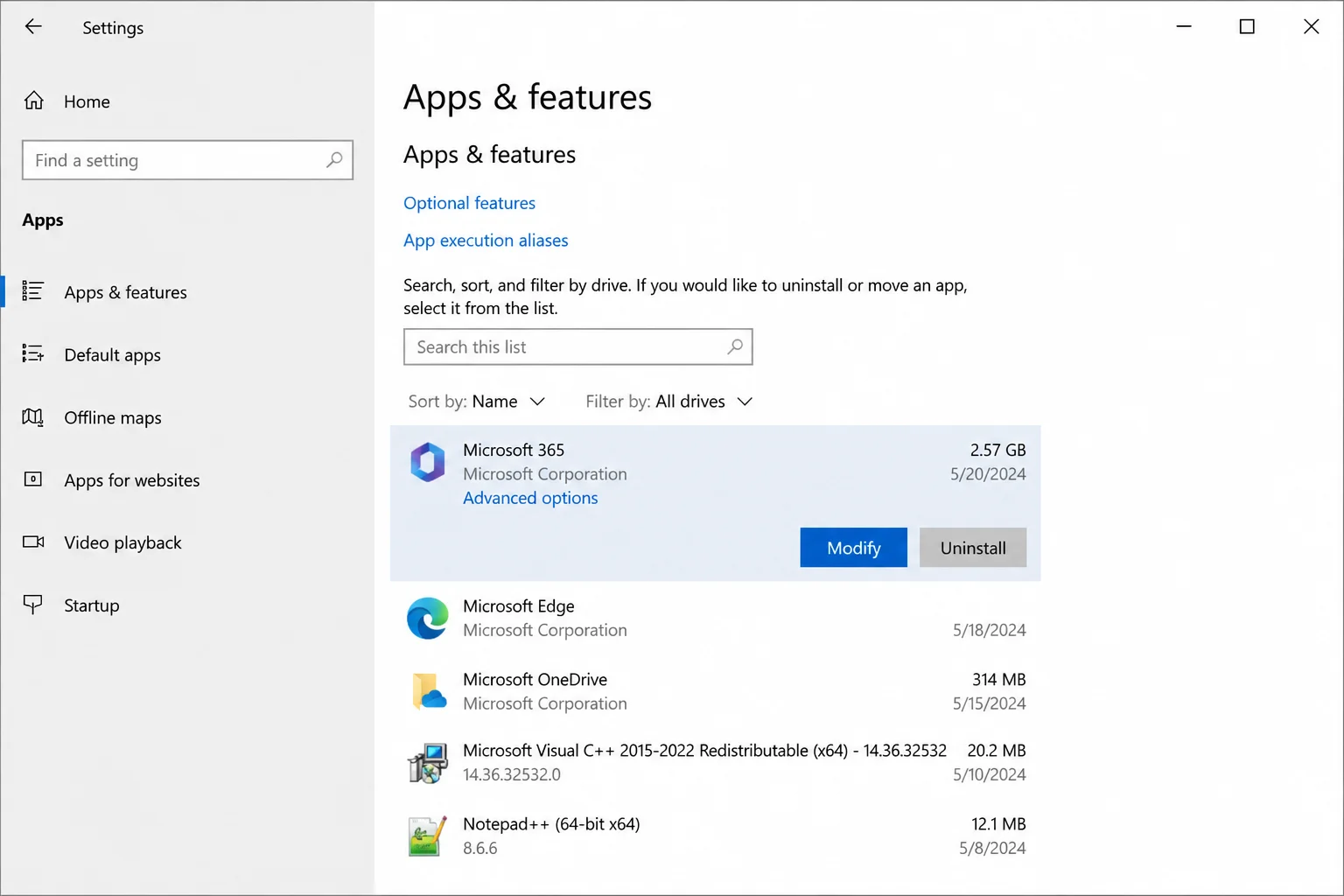
- Right-click Start and select Apps and Features.
- Find Microsoft 365 or Microsoft Office in the list and click it.
- Click Modify.
- Select Quick Repair → Repair.
- Let the process complete, then restart Windows and retest.
Fix #2: Run Online Repair
If Quick Repair didn’t solve it, Online Repair is the clever escalation. It reinstalls Office entirely from Microsoft’s servers, replacing every file that could be corrupted. It takes 20–40 minutes depending on your connection speed, but it’s the fix that actually works for stubborn issues like repeated crashes, activation failures, and broken Outlook profiles.
- Close all Office apps.
- Open Settings → Apps → Installed apps (Windows 11) or Apps and Features (Windows 10).
- Find Microsoft 365 or Microsoft Office → click … → Modify.
- Select Online Repair and click Repair.
- Click Repair again in the confirmation prompt.
- Keep your internet connection active throughout; do not open any Office apps during the process.
- Restart Windows when prompted, then test the app.
Fix #3: Repair via Control Panel
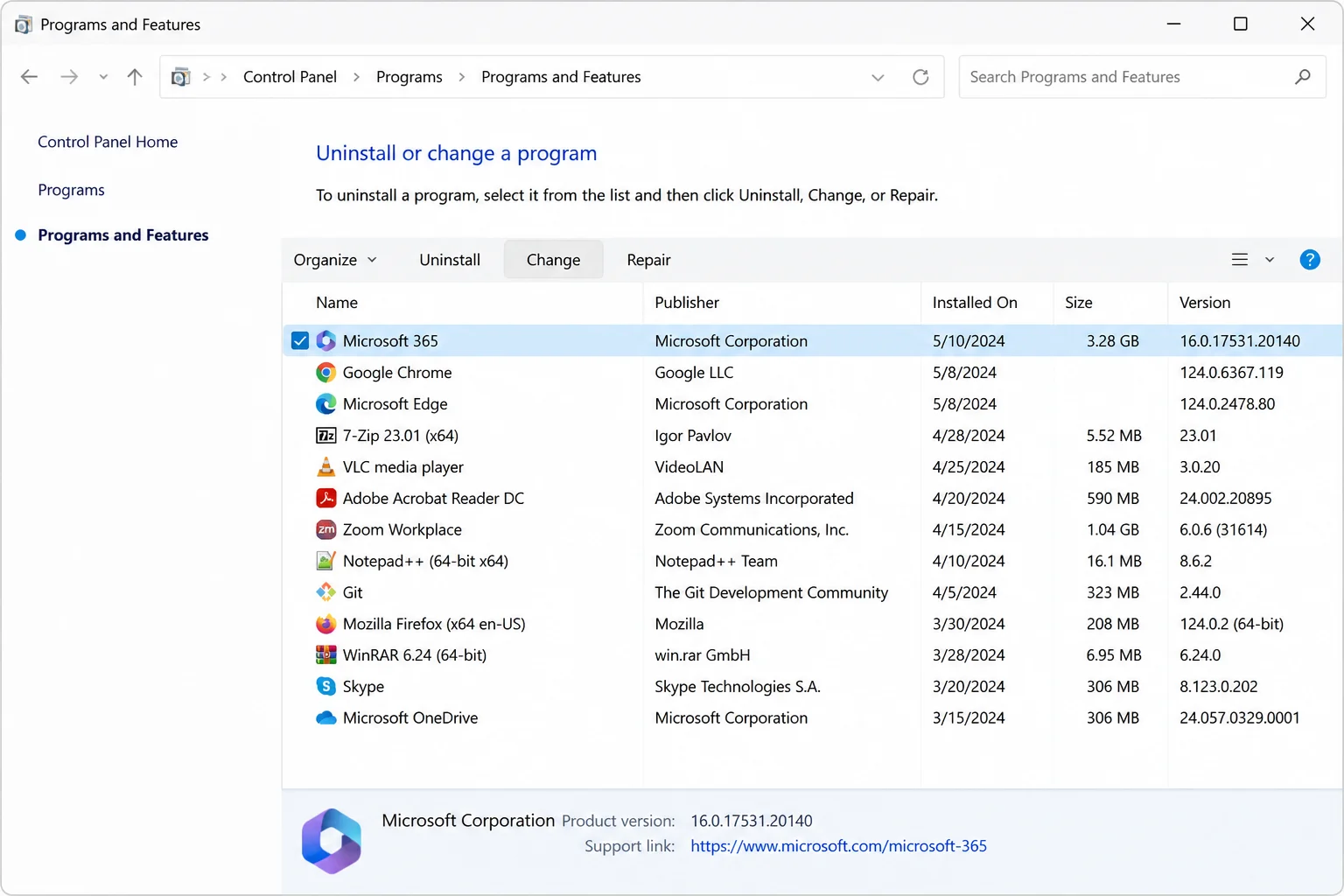
Prefer the older interface? The Control Panel route still works smoothly and leads to the same Quick/Online Repair dialog.
- Press
Windows + R, typecontrol, and press Enter. - Go to Programs → Programs and Features.
- Select Microsoft 365 or Microsoft Office in the list.
- Click Change in the toolbar at the top of the window.
- Choose Quick Repair or Online Repair and follow the wizard.
- Restart Windows when the repair completes.
Fix #4: Reset Microsoft 365 via Advanced Options
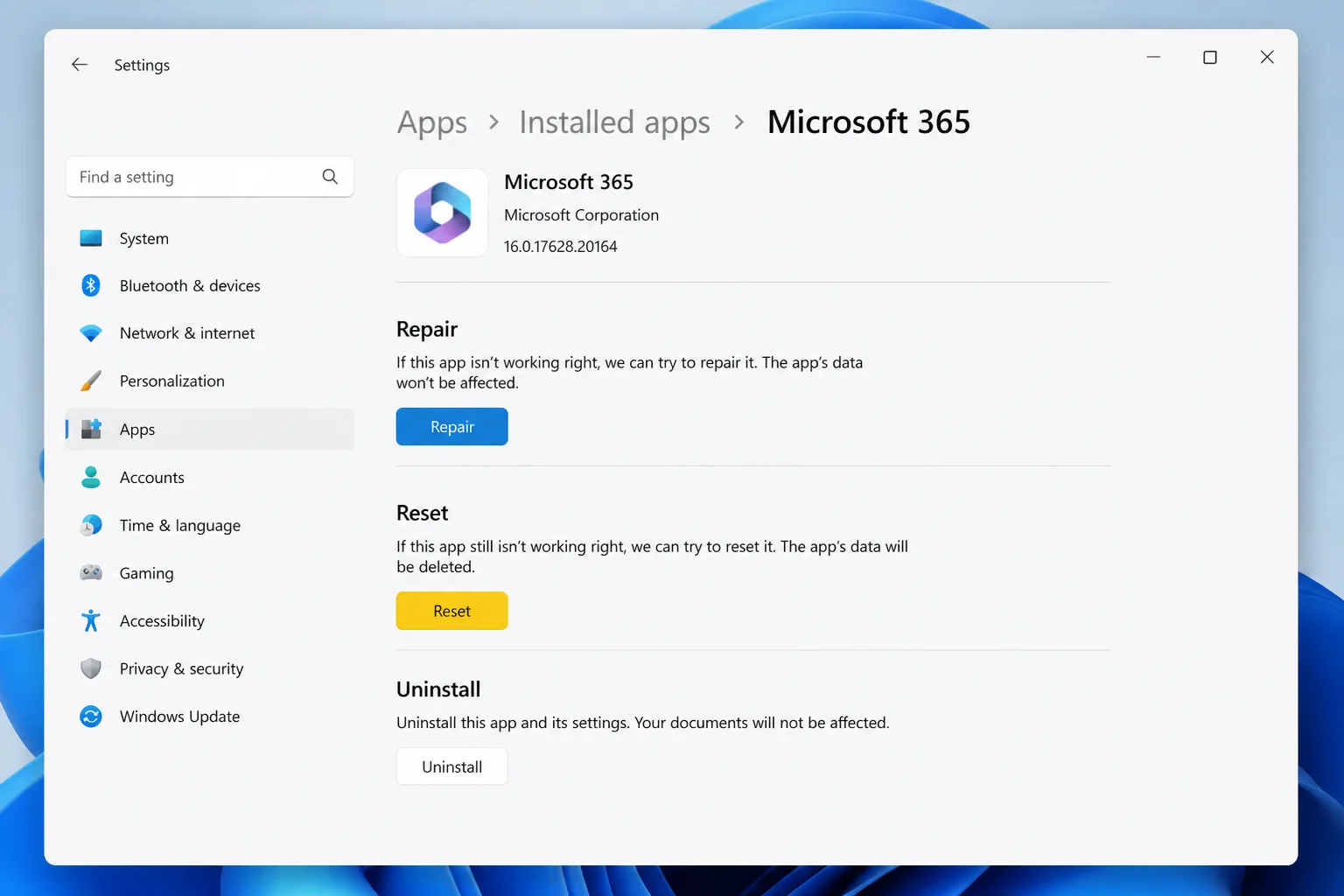
Some Microsoft 365 installations expose a lighter-weight Repair and a heavier Reset option under Advanced Options in Settings. Reset is worth trying if the app opens but keeps losing your configuration, as it nicely clears corrupted settings without triggering a full reinstall.
- Open Settings → Apps → Installed apps.
- Find Microsoft 365 (Office), click …, and select Advanced options.
- Scroll down to the Reset section.
- Click Repair first. If the problem persists, return here and click Reset.
Note: Reset may clear saved preferences and account configurations inside the Microsoft 365 app shell. You’ll likely need to sign back in afterward.
Fix #5: Start Office in Safe Mode to Isolate Add-In Problems
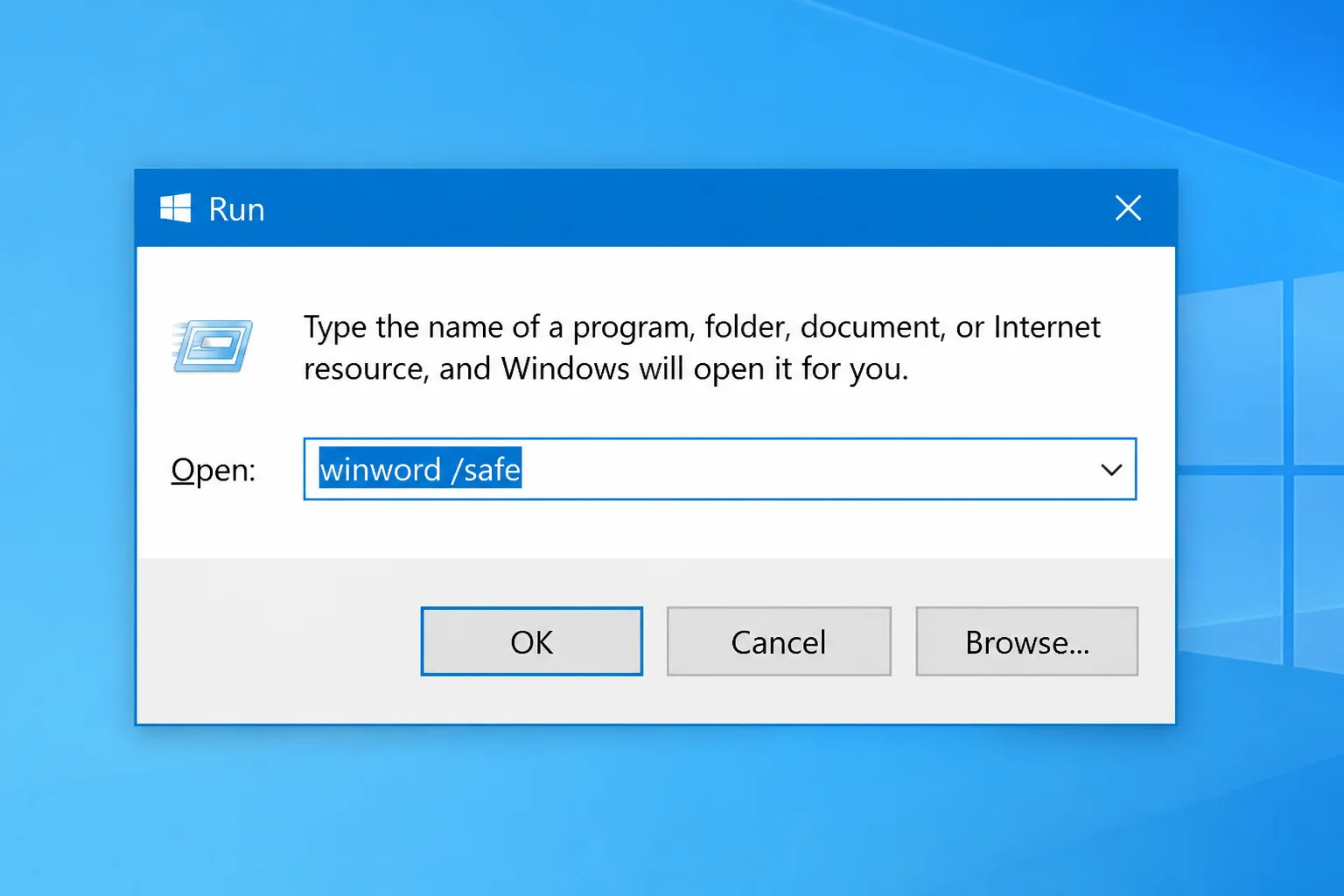
If repair didn’t help, a faulty add-in might be the real culprit. Safe Mode launches the app without any add-ins loaded. It’s a smooth way to confirm the cause before going further.
- Press
Windows + Rto open the Run dialog. - Type the command for your app and press Enter:
winword /safeto open Wordexcel /safeto open Exceloutlook /safeto open Outlook
- If the app opens and works normally in Safe Mode, an add-in is causing the problem.
- Inside the app, go to File → Options → Add-ins.
- Change the Manage dropdown to COM Add-ins and click Go.
- Uncheck add-ins one at a time, restarting the app between each, until the problem stops.
Fix #6: Uninstall and Reinstall Microsoft 365
If Online Repair didn’t fix it, a clean reinstall is your last card, and for Microsoft 365 subscribers, it’s simpler than it sounds.
- Close all Office apps.
- Open Settings → Apps → Installed apps.
- Find Microsoft 365, click …, and select Uninstall. Confirm when prompted.
- Restart your PC.
- Go to account.microsoft.com (personal subscription) or your organization’s Microsoft 365 portal.
- Navigate to Office apps → Install Office and download the installer.
- Run the installer and sign in with your Microsoft account when prompted.
When the Fixes Don’t Work
If a clean reinstall still doesn’t resolve the problem, something outside of Office is likely at fault: a corrupted Windows user profile, antivirus software blocking Office components, or a licensing issue tied to your Microsoft account. Contact Microsoft Support at support.microsoft.com and have your account details and the exact error message ready before you call.
Conclusion
Online Repair is the real gem here. It fixes the vast majority of broken Word, Excel, and Outlook installations by rebuilding Office from scratch. Start with Quick Repair if you’re in a hurry or offline; escalate to Online Repair if Quick Repair doesn’t do it. Bookmark this page and spread the word: there’s rarely a reason to panic-reinstall Windows just because an Office app has gone sideways.