 Ananya Dixit · February 18, 2026 · 4 min read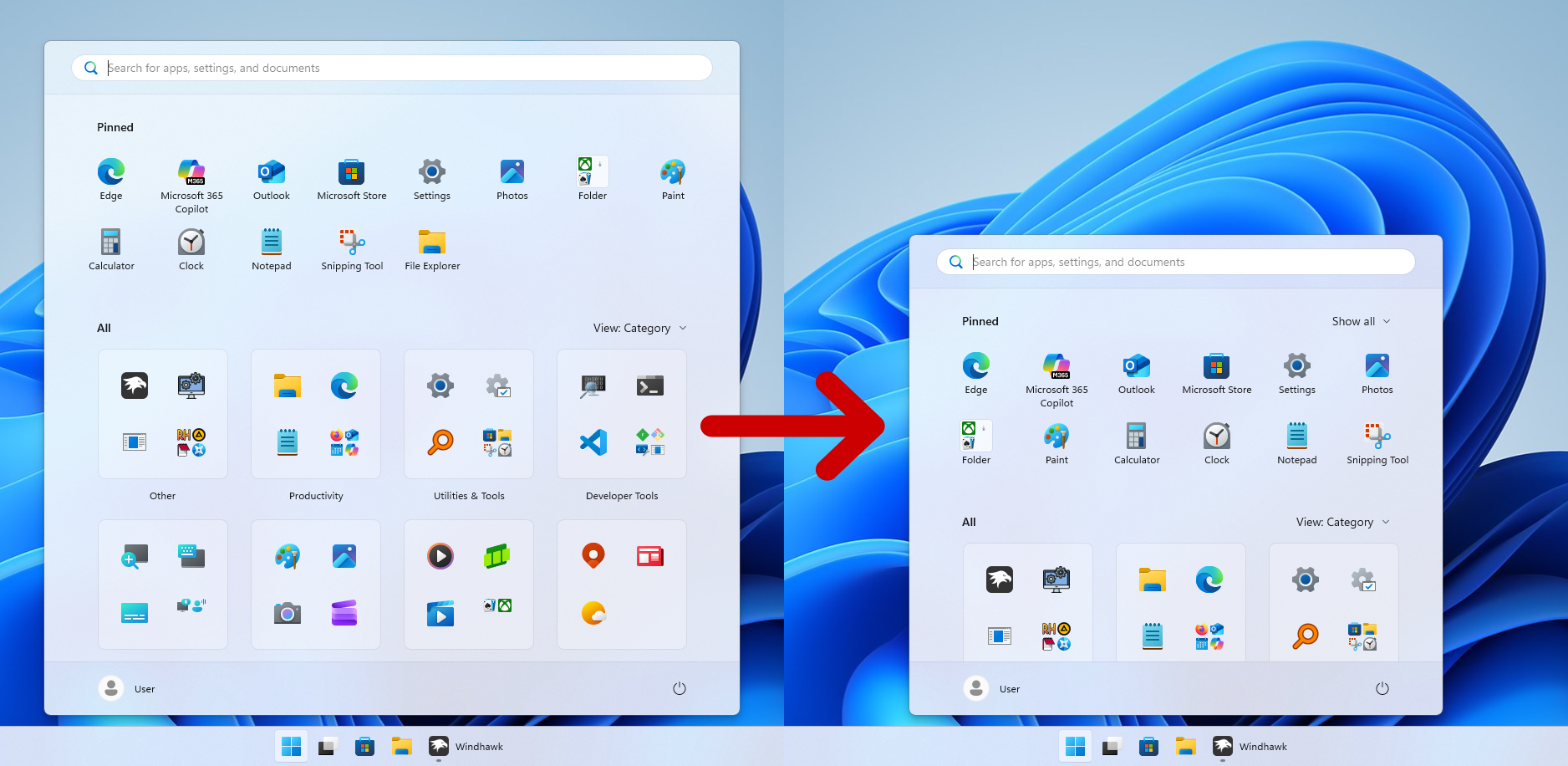
After a long wait, Microsoft redesigned the Start Menu in Windows 11, adding a few much-needed enhancements, such as the ability to switch between alternative layouts and disable the Recommended section. But one thing remains unchanged: users cannot resize the Start Menu.
Thankfully, we have a strong customization tool known as Windhawk mod, which allows users tweak the Windows 11 Start Menu. In this guide, we will walk you through six steps to resize the Windows 11 Start Menu through Windhawk.
What is Windhawk?
Windhawk is an open-source customization marketplace that permits users to install Start Menu themes with its lightweight mod. Consequently, you do not need to make risky registry changes or third-party themes that modify the system files.
Windhawk mod works in a modular way, as you only install the tweaks that you require. Its most popular mod is the Start Menu Styler, which allows users to make layout adjustments and resize it.
Resize the Windows 11 Start Menu
You can resize the Windows 11 PC’s Start Menu by using the Windhawk mod. Here is a breakdown of 6 quick steps to do so.
Step 1: Download and Install Windhawk
- Click and open your browser.
- Navigate to the official Windhawk website.
- Now, download its latest version.
- After downloading, run the installer.
- Then follow the instructions to set up.
Ensure that you always download it via its official website to prevent unsafe versions. Moreover, the process of installation only takes two minutes.
Step 2: Launch Windhawk
In this step, you must launch the Windhawk customization tool as Administrator.
- Right-click on Windhawk.
- Choose Run as Administrator.
- Now, accept any security prompts.
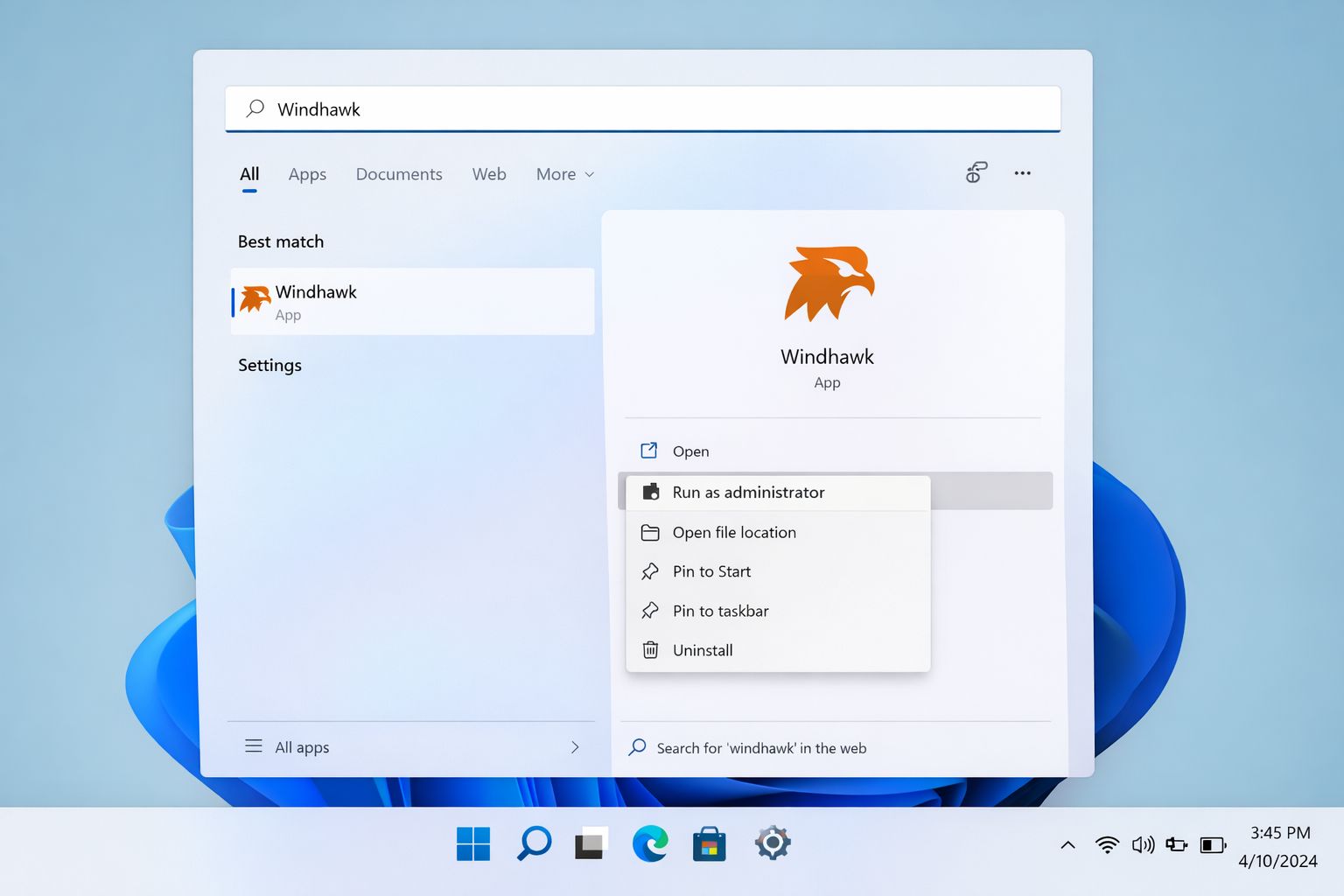
Additionally, by running as an Administrator, you make sure that system-level user interface modifications are applied properly. Once you open it, you will be able to see the Windhawk dashboard. It is a clean interface with a library.
Step 3: Search for the Start Menu Styler
- Press the Explore button.
- Use the search bar.
- Now, enter Start Menu Styler.
- Select the mod from the results.
This mod permits you to customize the height and width of the Start Menu, pin app layout, change the visibility of the recommended section, and transform grid spacing. Thus, it is the most widely used Windhawk tweak.
Step 4: Install the Mod
- Select Install.
- Wait for it to complete.
- Once it gets installed, select Settings.
You will now be able to see editable configuration fields. You do not require any coding expertise; you just have to modify the layout values.
Step 5: Adjust the Size of the Start Menu
Inside the Windhawk mod settings, you need to search for options like width, height, MaxHeight, and application grid columns. Moreover, you can raise the width value to increase the size of the Start Menu. For example, the default width size might feel narrow; you have to increase the value and select save after making changes.
After that, select the Windows key. You can make the changes until it fits your screen perfectly. Note that you have to increase the grid columns in case you need to pin more applications.
Step 6: Restart Explorer
This step is optional, as you only have to restart if needed. At times, changes apply at that point only. In case you cannot see the changes:
- Click on Ctrl + Shift+ Esc.
- Open the Task Manager.
- Search for Windows Explorer.
- Select Restart.
After you follow the above-mentioned steps, press the Windows key.
Is Windhawk Safe?
Yes, in fact, Windhawk is one of the most prominent customization tools among the Windows community. Also, it does not replace your system files, and mods can be uninstalled, updated, and disabled. Hence, if anything breaks after a Windows update, you just have to disable the mod unless compatibility is restored.
Related Posts

Ananya Dixit is a seasoned content writer and editor with over seven years of experience in tech, finance, and media. She has written extensively about Microsoft technologies, covering multiple versions of Windows—from Windows 7 and 10 to the latest Windows 11 releases. Her work includes in-depth troubleshooting guides, feature breakdowns, how-to tutorials, optimization tips, and coverage of new system updates.Ananya is also passionate about trending topics in the tech world, including AI tools as her personal favorite, digital privacy, productivity apps, and the newest features rolling out across Android and iOS. Read Ananya’s Full Bio

