 Aseem Kishore · August 31, 2012 · 2 min read
 If you have a PC running Windows 8 or Windows 10, you definitely want to make sure your machine is booting as fast as possible. By default, Windows 8/10 enables a feature called Fast Startup or Hybrid Shutdown that can load Windows 8/10 as quickly as 5 seconds on certain hardware. Basically, it performs a partial hibernation of kernel files and device drivers.
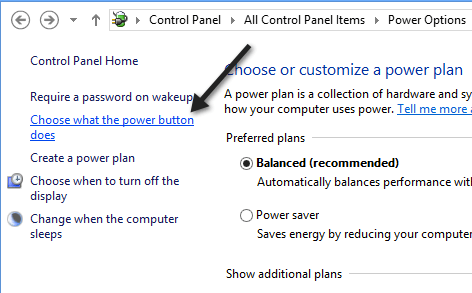
You can check to see whether your Windows 8/10 system is using fast startup by going to the Control Panel, opening Power Options and clicking on Choose what the power button does.
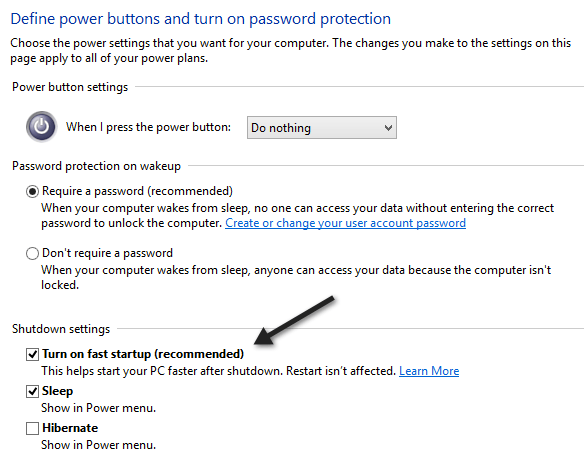
Then scroll down and you should see the Turn on fast startup box checked. If the options are grayed out, first try clicking on the Change settings that are currently unavailable link at the top.
That should work if the option is listed. However, there may be certain cases where you don’t see the Turn on fast startup option at all like shown below:
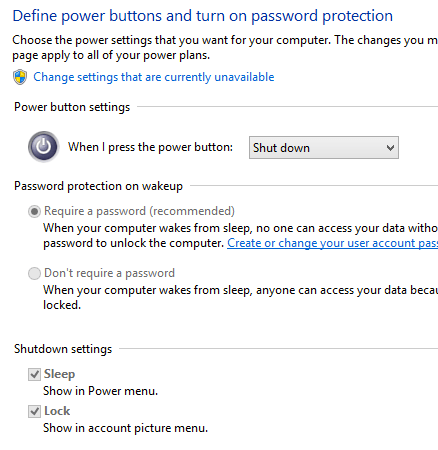
In this case, it means that hibernation is not enabled on your Windows 8/10 machine. In order to get the option back, you have to enable hibernation. You can do this by opening an elevated command prompt (click on Start, type in cmd, then right-click on Command Prompt and click on Run as Administrator) and typing in the following command:
powercfg /hibernate on
That’s about it. Now you should be able to enjoy the benefits of the speedier startup in Windows 8/10. Enjoy!
Related Posts

Founder of Help Desk Geek and managing editor. He began blogging in 2007 and quit his job in 2010 to blog full-time. He has over 15 years of industry experience in IT and holds several technical certifications. Read Aseem’s Full Bio

