 Ananya Dixit · February 26, 2026 · 3 min read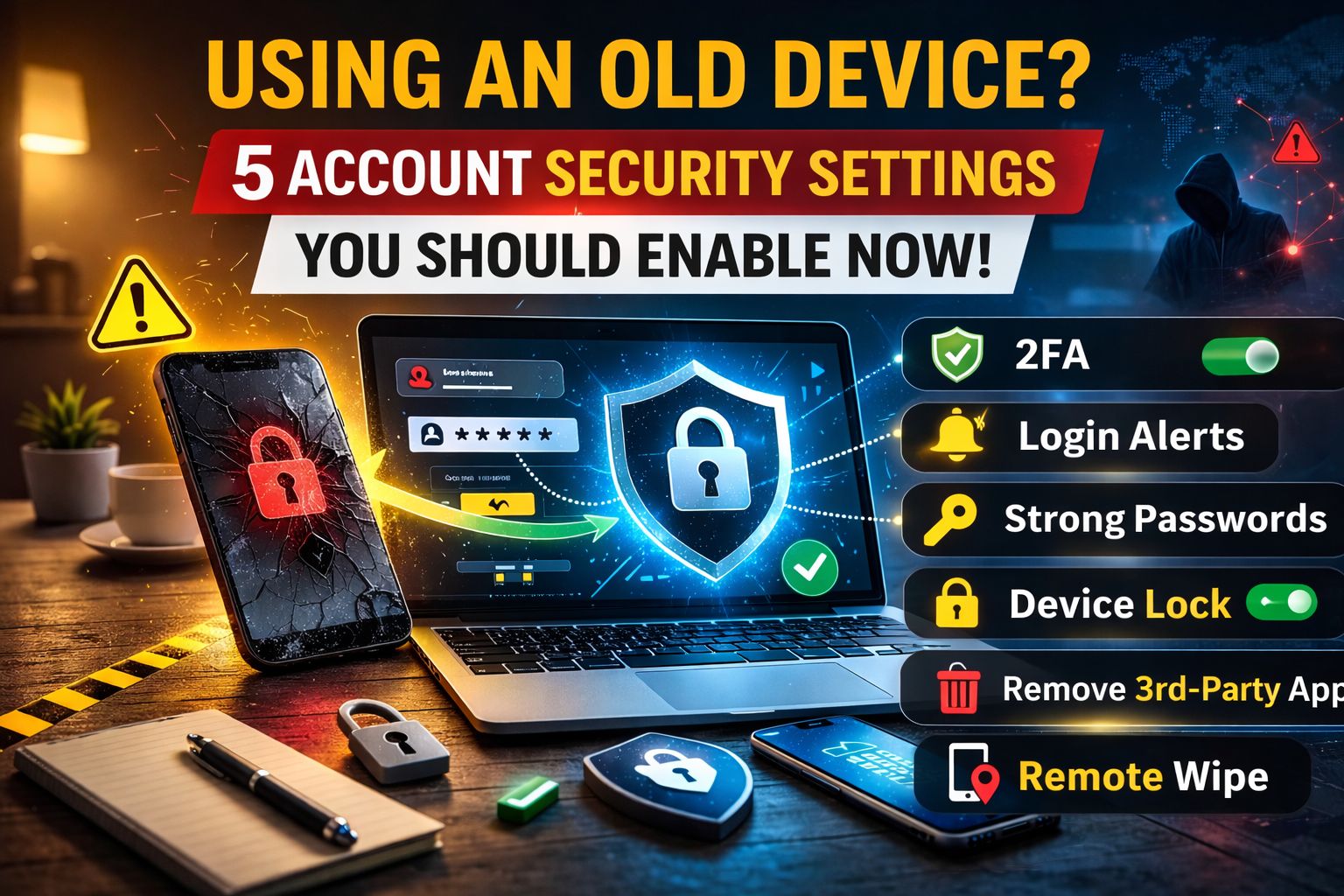
Are you one of those who are still using their old smartphone and laptop? Well, I guess you are not alone because globally millions of individuals rely on 3-7 year old devices. Though older devices can perform routine tasks, they lack the security protections and updates, which further make their email and social media accounts more vulnerable.
This guide will walk you through 5 smart account security settings that you can enable immediately if upgrading the device is not an option.
Turn On Two-Factor Authentication (2FA)
Just in case you can only enable one setting, use two-factor authentication. It adds an additional layer of security so that if someone gets your Gmail password, they still cannot log in without a second authentication factor.
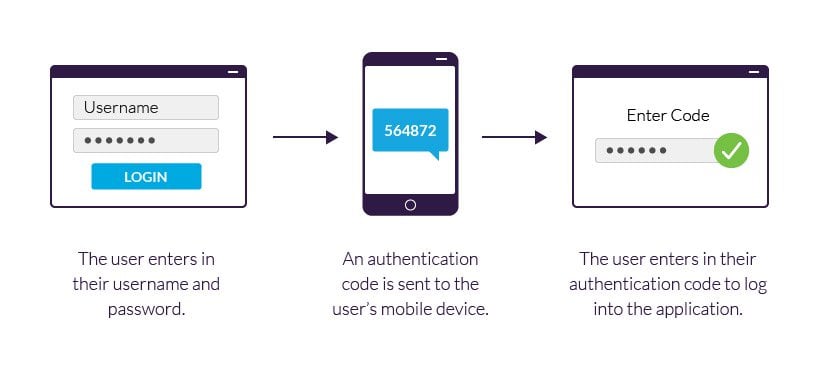
Moreover, turn on 2FA on applications like Google, Microsoft, Facebook, banking applications, and Instagram. Ensure that you use an authenticator app, rather than SMS.
Enable Account Login Alerts
Advanced threat detection updates might not be added to older devices. Consequently, turning on login alerts can act as an early warning system. Enable email alerts for new logins, alerts for password changes, and alerts for device sign-ins.
For instance, both Google and Microsoft allow their users to view their recent online activity. So, in case you witness a login from an unknown city or country, change your password then and there.
Enable Device Lock & Auto Lock
In case your device is old, there are high chances that it does not have the upgraded biometric protections. Therefore, make sure that you use a strong pin number, turn on auto-lock, and turn off the Smart Unlock feature. These settings are specifically crucial in cases when you are traveling by public transport.
Disable Auto-Login on Browsers
Older browsers can store your passwords without any proper encryption. So, check browser-saved passwords, remember me options, and auto-login settings. In case you are using Google Chrome or Firefox, navigate to Settings and review your previously saved credentials.
Review Connected Applications
Over the years, you might have used third-party applications via Sign in with Google or Sign in with Facebook. These applications can access your profile information, email, cloud storage, and contacts. Navigate to Account Settings, review, then go to app permissions or unused services and eliminate anything you do not use.
Using an old device does not mean that you are unsafe. But ignoring the security settings can put your data and information at risk. Hence, if you turn on the settings mentioned above, you drastically reduce the risk, without even upgrading the hardware.
Related Posts

Ananya Dixit is a seasoned content writer and editor with over seven years of experience in tech, finance, and media. She has written extensively about Microsoft technologies, covering multiple versions of Windows—from Windows 7 and 10 to the latest Windows 11 releases. Her work includes in-depth troubleshooting guides, feature breakdowns, how-to tutorials, optimization tips, and coverage of new system updates.Ananya is also passionate about trending topics in the tech world, including AI tools as her personal favorite, digital privacy, productivity apps, and the newest features rolling out across Android and iOS. Read Ananya’s Full Bio

