 Aseem Kishore · October 6, 2008 · 2 min read
 Simple File Sharing is a feature built into Windows that makes it very easy to share files and folders with other computers on your local network. It’s so simple that it’s pretty unsafe too. If you share a folder, everyone can access it, and there are no permissions and no passwords to restrict access to the shared folder.
If you are running Windows XP Home Edition, this is the only option you have for sharing files. Windows XP Professional users can share files and folders with much more security. To share a folder using Simple File Sharing, right-click on a folder and choose Sharing and Security.

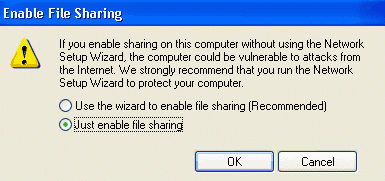
If it’s the first time you are setting up sharing on your computer, you will be asked to either use the wizard or just Enable File Sharing. I would only use the wizard if you are not running Service Pack 2 or above because the wizard will just enable the Firewall to protect your computer from being accessed via the Internet.
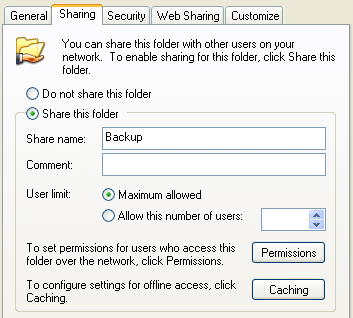
Finally, you’ll be able to choose Share this folder on the network and give your share a name.
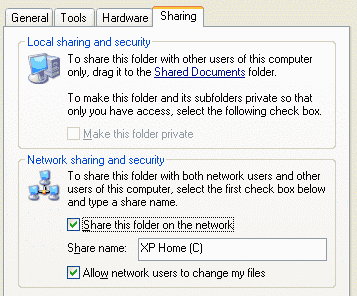
By default, users can read, write, and delete the files you are sharing. If you only want them to be able to read the files, uncheck Allow network users to change my files.
How to turn off Simple File Sharing
If you have a Windows XP Professional computer that is not joined to a domain, then Simple File Sharing will be turned on. You can turn it off and use the advanced file sharing features, such as NTFS file permissions.
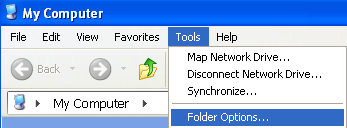
Go to My Computer and click on Tools and then Folder Options.
Click on the View tab and then scroll all the way to the bottom of the list until you see the checkbox Use Simple File Sharing (recommended).
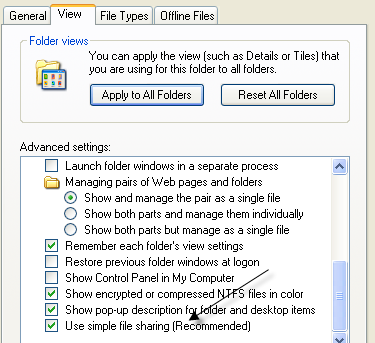
Go ahead and un-check the box and now when you go to the Sharing and Security tab for a folder, you will see advanced share options and the Security tab, which lets you configure NTFS permissions.
Related Posts
- How to Fix App Notifications in Windows?
- Using an Old Device? 5 Account Security Settings You Should Enable
- How to Find Features Moved from Control Panel to Settings in Windows 11?
- How to Back Up Your Android Downloads Automatically?
- Camera Not Working in Zoom or Teams? Quick Fixes for Windows and macOS

Founder of Help Desk Geek and managing editor. He began blogging in 2007 and quit his job in 2010 to blog full-time. He has over 15 years of industry experience in IT and holds several technical certifications. Read Aseem’s Full Bio

