

To add a program to PATH in Windows 11 or 10, open the environment-variable editor, select Path under User variables for your own account, and add the folder containing the program’s executable without deleting existing entries. Use System variables only when the change must apply across accounts and you have administrator access. Open a new terminal before testing the command; Microsoft’s environment-variable guidance explains scope and how running processes inherit their environment.
“‘python’ is not recognized as an internal or external command, operable program or batch file” means Windows can’t find the program’s executable. Adding its folder to the Windows PATH environment variable usually fixes this on Windows 11 and 10.
Fix #1: Add the folder to PATH through Settings
The graphical PATH editor is the safest option for a permanent change. Each entry is shown separately, so you can add a folder without overwriting the existing list.
- Press
Windows + Ito open Settings.
- Select System > About.

- Click Advanced system settings under the related settings section. Its position can vary slightly by Windows version.
- Select the Advanced tab in the System Properties window.
- Click Environment Variables.
- Choose which Path variable you want to edit:
– User variables affects only your Windows account. Use this for personal tools such as Python, Git, or Node.js. – System variables affects every account and requires administrator access. Use it when a program or service must work system-wide.
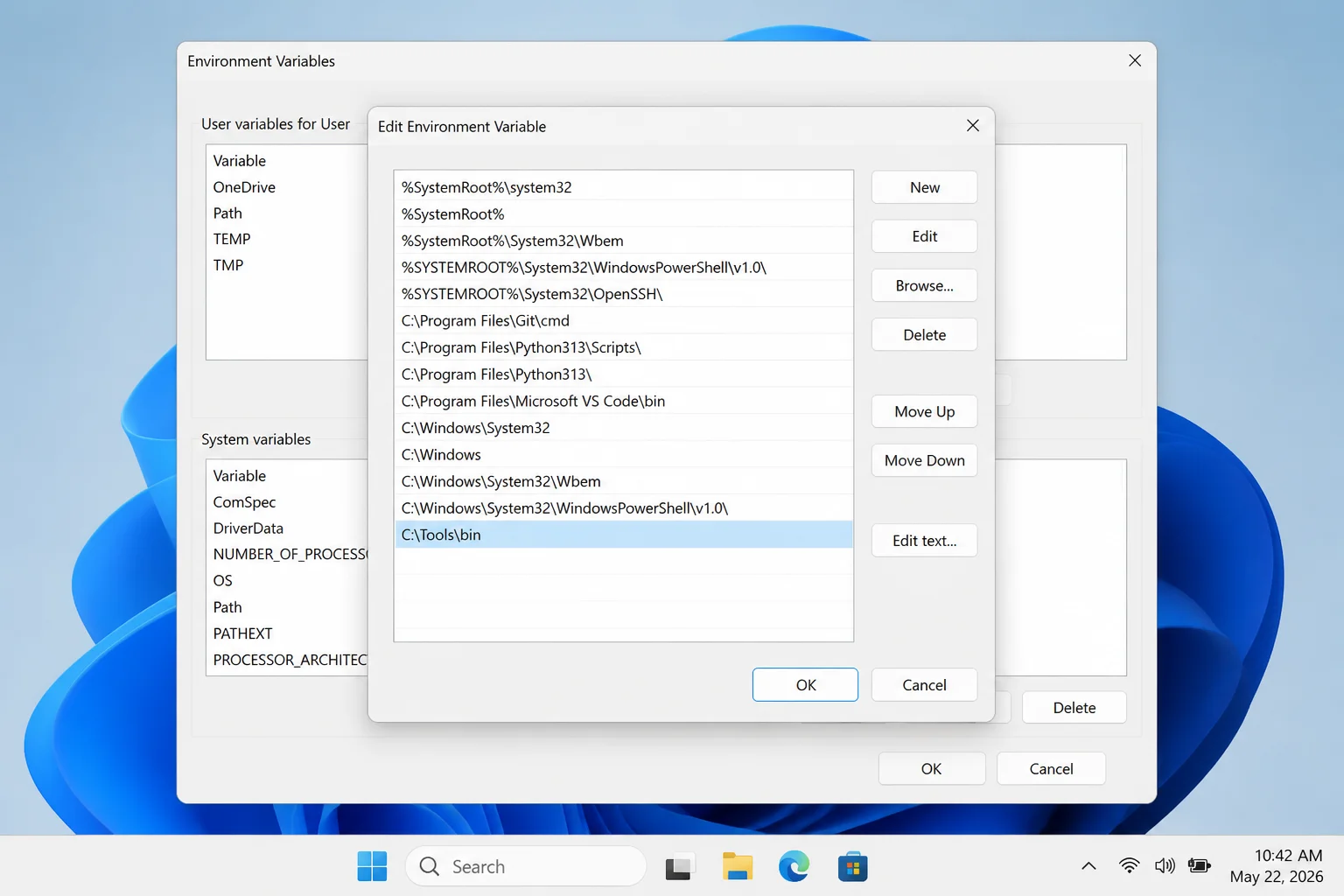
- Select Path, then click Edit.
- Click New in the Edit environment variable window.
- Enter the folder containing the executable, such as
C:\Tools\bin. You can copy the folder path from File Explorer’s address bar to avoid a typo.
- Click OK in each open dialog to save the change.
- Close any open Command Prompt, PowerShell, or Windows Terminal windows.
- Open a new terminal and run the program’s command.
Windows should now find the executable without its full path. This method makes a permanent change, and so far it remains the cleanest option for a typical Windows PC.
Fix #2: Open the PATH editor from Start
Start search provides a quicker route to the same editor.
- Press the
Windowskey.
- Type
environment variables.
- Select Edit the system environment variables from the search results.
- Click Environment Variables on the Advanced tab.
- Select the user or system Path, then click Edit.
- Click New, enter the program’s folder, and click OK in every dialog.
- Open a new terminal and test the command.
You should see the same result as Fix #1. The new PATH entry applies to programs opened after you saved it.
Fix #3: Add to PATH temporarily in Command Prompt
A temporary entry is useful when you’re testing a tool or don’t want to change Windows permanently.
- Open Command Prompt.
- Run
echo %PATH%to display the PATH available in that window.
- Run
set PATH=%PATH%;C:\Tools\bin, replacingC:\Tools\binwith the folder you need.
- Run the program’s command in the same Command Prompt window.
The command should work immediately. Closing that window removes the temporary entry, so use Fix #1 when you want Windows to remember it.
Avoid using setx PATH "%PATH%;C:\Tools\bin" as a general shortcut. It overwrites the stored user PATH with an expanded value, doesn’t update the current terminal, and can truncate a long PATH.
Fix #4: Add to PATH temporarily in PowerShell
PowerShell can update PATH for its current session without changing the permanent user or system variables.
- Open PowerShell or a PowerShell tab in Windows Terminal.
- Run
$env:PATHto view the current value.
- Run
$env:PATH += ";C:\Tools\bin", replacing the example folder with yours.
- Test the program in that PowerShell window.
PowerShell should find the executable immediately. The addition disappears when you close the session.
For a permanent PowerShell change, you’d need to modify the user or system environment data stored by Windows. I’d use the graphical editor unless a managed script specifically requires that approach.
Fix Common PATH Problems
Fix #5: Reopen your terminal
Windows passes environment variables to a program when that program starts. A terminal that was already open won’t automatically receive your new PATH.
- Close every Command Prompt, PowerShell, and Windows Terminal window.
- Open a fresh terminal.
- Run the command again.
- Sign out and back in if a desktop app still can’t see the change.
The command should now use the updated PATH. A restart is rarely needed, but it can refresh applications that keep running in the background.
Fix #6: Check the folder you added
PATH entries must point to directories, not directly to executable files.
- Open File Explorer.
- Paste the PATH entry into the address bar.
- Confirm that the folder exists.
- Check that the expected
.exefile is inside it.
- Run
dir "C:\Tools\bin"in Command Prompt if you want to verify the folder from the terminal.
You should see the executable in the directory listing. If it isn’t there, correct the PATH entry or find the actual installation folder.
A Python installer, Node.js version manager, or Java development kit may maintain its own PATH entries. Let that installer or manager handle them when it offers the option.
Fix #7: Move the correct program higher in PATH
Windows searches PATH from top to bottom. If two folders contain the same executable name, Windows uses the first match.
- Open the Environment Variables dialog.
- Check Path under both User variables and System variables.
- Select the folder containing the version you want.
- Click Move Up until it appears above conflicting entries.
- Click OK in every dialog.
- Open a new Command Prompt window.
- Run
where python,where node, orwhere java, depending on the program.
The first result should be the executable Windows runs. If an old version remains first, remove its obsolete entry or move it lower.
Fix #8: Remove broken and duplicate entries
A crowded PATH is harder to troubleshoot and more vulnerable to damage from unsafe setx commands.
- Open the Environment Variables dialog.
- Edit the relevant Path variable.
- Look for duplicate entries.
- Check whether each unfamiliar folder still exists before removing it.
- Select a confirmed duplicate or obsolete entry, then click Delete.
- Click OK to save the cleaned list.
- Open a new terminal and test your usual commands.
Your commands should still work, and the list should contain one valid entry for each required folder. Don’t delete Windows directories or entries you can’t identify.
Advanced scripted deployments can use pathman.exe, which is included with some Windows SDK and developer-tool installations. Its availability isn’t guaranteed, so it isn’t a practical replacement for the built-in editor on every computer.
User PATH or System PATH?
Use User Path for tools needed only by your account. This is the better choice for personal developer tools and doesn’t require administrator approval.
Use System Path when every account, scheduled task, or Windows service needs the executable. Keep system-wide additions limited because a misplaced or untrusted executable earlier in PATH can affect every user.
You can also create your own custom environment variables when a program expects a named variable instead of a PATH entry.
Conclusion
Fix #1, adding the directory through the graphical PATH editor, usually works and protects the existing entries. It’s a solid choice for permanent changes, but repeated missing commands or disappearing entries point to an incorrect installation folder, a version conflict, or PATH damage caused by an earlier command.