
Are you feeling a little bored with your PC’s display? When it comes to Windows, you actually have a lot of freedom with customization. You can change your background, themes, and even program icons.
Especially if you’re trying to install a Windows theme, you may want to customize your desktop icons in order to fit a certain look. There are lots of icons available on the internet you can use for free, or to purchase.
Changing your Windows 10 icons is incredibly easy, and you can always change them again if you ever wish to. Here’s how to customize icons in Windows 10.
Download Your Icons
The first thing you’ll need to do is download icons to use. You can find them on websites like Icon-Icons. You can either download single icons, or find a set of icons if you want a consistent look. Make sure the icons are in the ICO format in order to use them on Windows 10.
Once you’ve found icons and downloaded them, you’ll want to locate the file where they were saved. To do this, go into ile explorer. Files downloaded from browsers usually end up in the Downloads folder unless you set it to save somewhere else.
If you’re having trouble finding it, you can go into your browser and locate your downloads location. There’s usually an option to open a download’s file location.
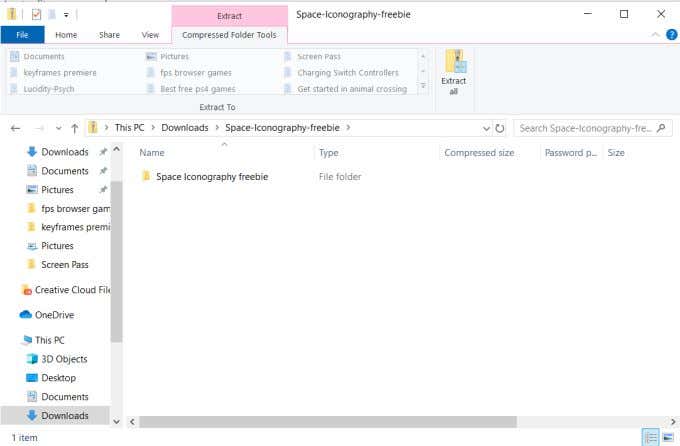
If you’ve downloaded a set of icons, you’ll likely have to extract them from a zipped file. To do this, double-click the zipped file and select Extract All near the top right. Choose where to extract the files to, and make sure it’s saved in a place that’s easy for you to find, where you won’t want to move it while in use.
Create Program Shortcuts
Your next task is to create shortcuts for the programs that you wish to change the icons of. You can’t change the icon of an original application file, but you can do it with any shortcut. To do this, locate the original application file of the program. Then, right-click on it and choose Create Shortcut.
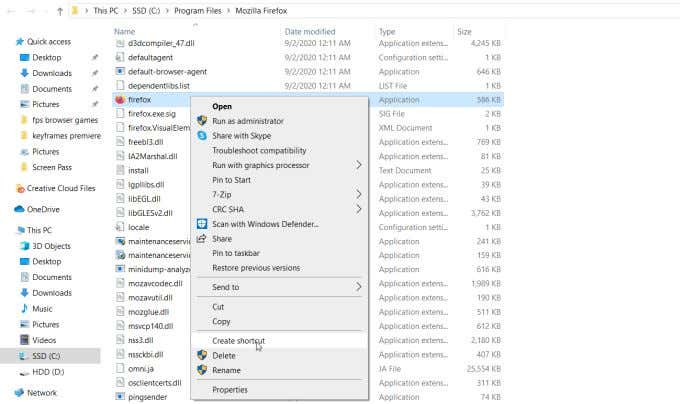
The shortcut will be placed in the same file folder as the original application file. You can then move the shortcut wherever you want it to be. This includes your desktop, if you want to create a unique environment. Once you have your shortcuts the way you want them, you can use your downloaded icons to customize them.
Change Your Icons
Right-click on a shortcut and select Properties.
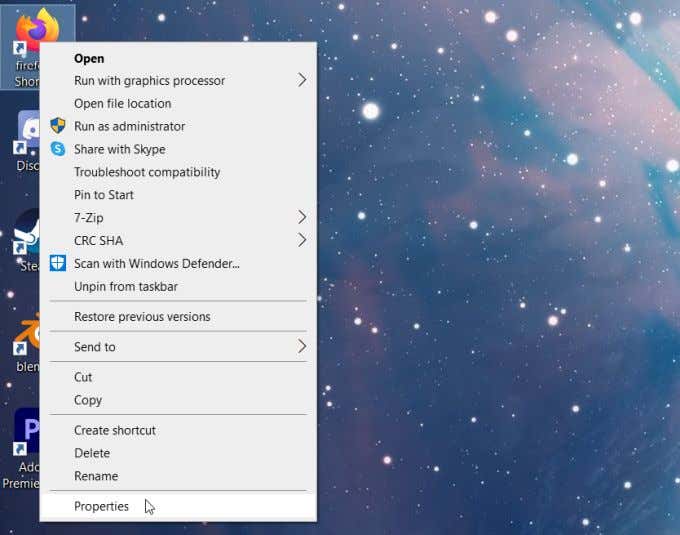
At the bottom of all the options, you’ll see the Change Icon button. Select this and a Change Icon window will open. To use your downloaded icons, click on Browse to open the file explorer.
Locate the file that your icons are in. Depending on the file you downloaded, you may need to look through some folders to find where the icon images were saved. Once you find this file or single icon, select it and click Open.
The icons in the file will appear in the Change Icon window. Select the one you wish to use for this application, then select OK.
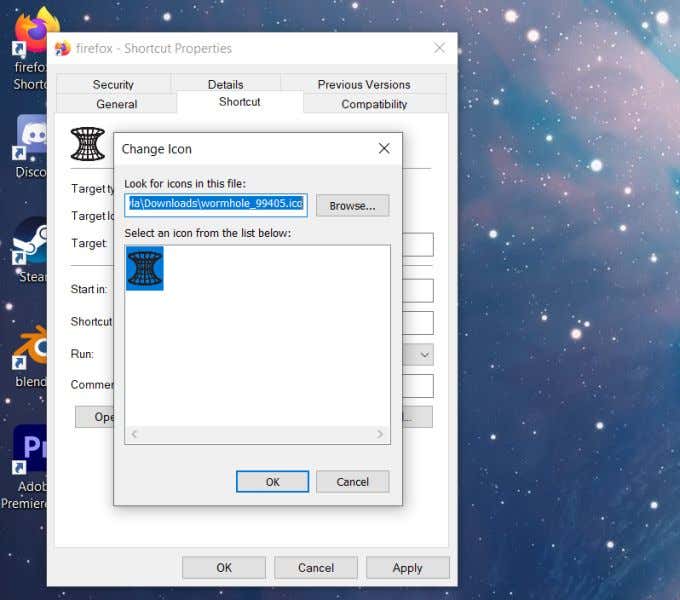
Next, in the properties window, select Apply and then OK. Your shortcut icon should now be replaced by the icon you chose.
Tips For Customizing Icons In Windows 10
If you’re having trouble getting your icons changed, there are a few things you’ll want to make sure you’re doing.
First of all, when you’re looking for icons to download, make sure you’re getting them from a reputable source. Some icons might not be the greatest quality, or the site itself might be trying to trick you into buying something. The files could also be infected with malware.
Besides the site listed above, you can also look on the site DeviantArt to directly find artists who are creating icons. You’ll want to search specifically for “Windows 10 icons”.
Also be sure you’re downloading ICO formatted files. The download page of your icons should tell you or allow you to choose what format you’re downloading. Also make sure you’re saving them to a place that’s easy to find. The best thing to do is download all your icons, then create a folder with them all inside before using them.
If you move your icon file, your computer will not be able to locate it to use on the shortcut and you’ll have to redirect it to the new file location before it’ll work again.
You also will still see the shortcut icon with the arrows at the bottom left corner of the application. If you want to get rid of these to have a cleaner look, this is possible to do through editing the registry.
If you ever want to change your icons back, you can always delete the shortcut and create a new one from the original application. Or you can use the same method above to switch out icons.
