Previously, I had written about how you can use Assigned Access to put Windows 8.1 into kiosk mode, which basically only allows one app to be run on the system and that’s it. It’s great for any public computer that you want to have a high degree of control over.
With Windows 10, the procedure has changed quite a bit and this article will show you how to do the same thing, just with the new steps. Basically, you create a new local user account on your Windows 10 machine and set which app you want the user to be able to run. The apps can only be Universal Windows Store apps, which is a bit limiting. There is a way to add more than one app and to use traditional Windows apps (EXE programs), but you have to use the far more advanced and complicated Windows Configuration Designer.
Configure Kiosk Mode in Windows 10
The easy way is to click on Start, then Settings, then Accounts and then Family & other people.
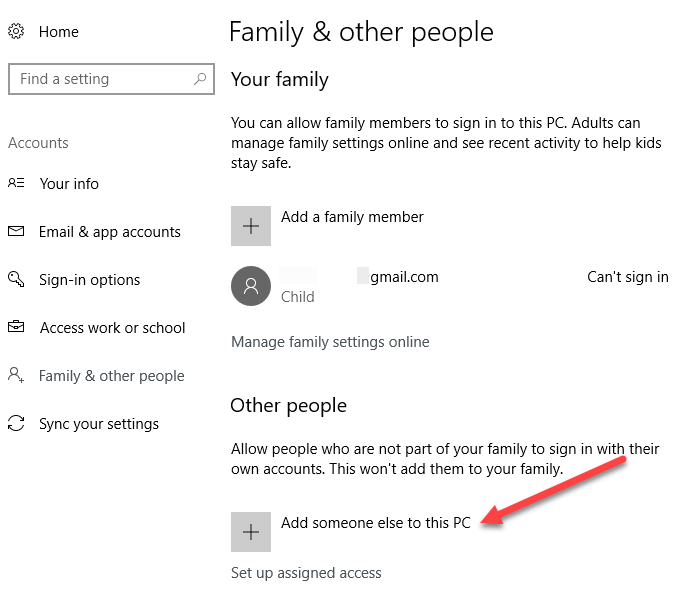
At the bottom, you’ll see a section called Other people and a link to Set up assigned access. If you don’t already have a second account setup on your machine, you’ll need to click the Add someone else to this PC link.
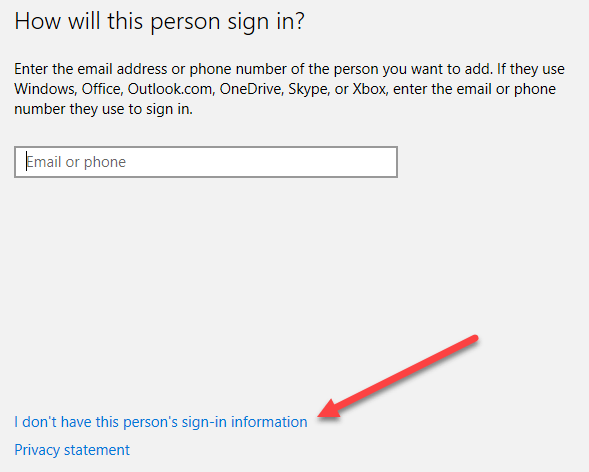
If your current account is using a Microsoft account, it’ll try to push you to setup another Microsoft account, which won’t work for the assigned access. Instead, click on the link that says I don’t have this person’s sign-in information.
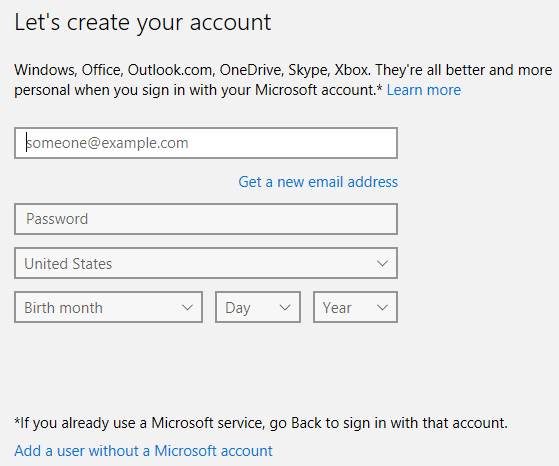
It’ll try to get you to create a new Microsoft account, but again, we don’t want to do that. Instead, click on Add a user without a Microsoft account at the bottom.
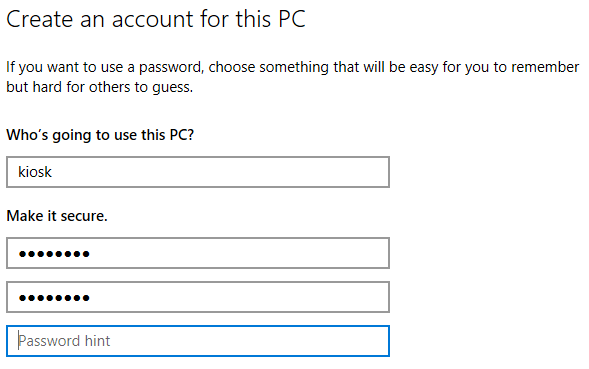
Give the kiosk account a name and a password. You’ll also have to type in a password hint.
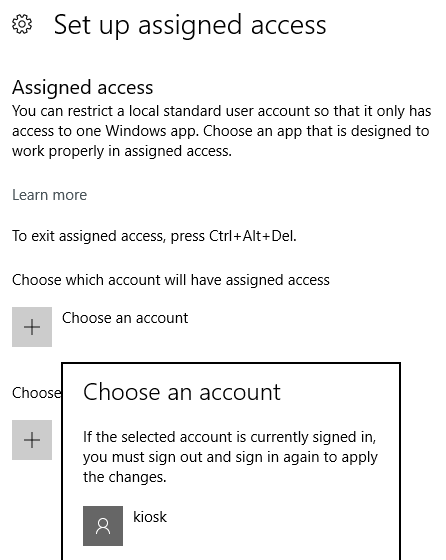
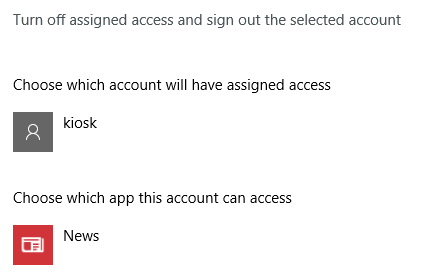
Now click on the Set up assigned access link and click on Choose an account. Pick the account that you just created and then click on Choose an app.
That’s pretty much it. Restart the computer and sign into the new account. The user will only be able to view that one app is full screen mode and nothing else. The only way they can even exit is to press CTRL + ALT + DELETE, which will take them to the login page. Here they will be able to see the other user accounts, so make sure those are all secured.
The app list is missing Microsoft Edge and Internet Explorer, so that’s a bit frustrating. You would think they would allow at least Edge since it’s a Microsoft product. As I mentioned above, if you want to be able to choose your own custom program and more than one program, you’ll have to use the Windows Configuration Designer, which is more complicated, but definitely doable. If you have questions, post a comment. Enjoy!