
Looking to play around with Ubuntu to see whether or not you can handle Linux? Well, it’s completely free, so there’s no reason to not give it a shot. However, you either need a spare computer or a spare hard drive on your current machine to run it.
If you don’t have those options or don’t want to mess up your existing systems, you can install Ubuntu into a virtual machine on your main PC. The free tool that I use is called VirtualBox. It’s very similar to VMware Workstation, except it’s free.
In this article, I’ll show you how to quickly get a copy of Ubuntu running as a virtual machine inside your current OS, which could be Windows, Mac or Linux.
Install Ubuntu in VirtualBox
First, go ahead and download VirtualBox using the link above and install it. It’s a fairly small program, so it shouldn’t take long to get it setup. Once you have it running, go ahead and download the version of Ubuntu you want to run. I downloaded the Desktop version, which was a 1.4GB ISO file.
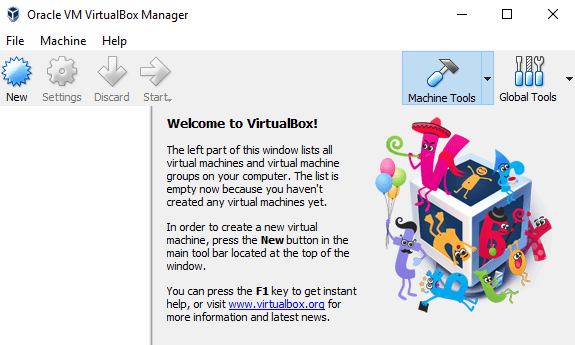
Now click on the New button at the top left to create a new virtual machine.
Note that once you are familiar with the process of setting up a virtual machine in VirtualBox, you can click on the Expert Mode button to get through all the settings much faster. The first time you should use the guided wizard. On the following screen, we have to choose the operating system.
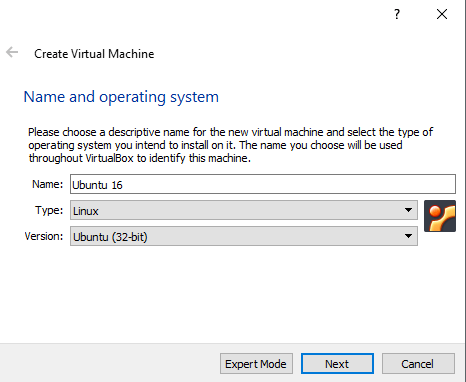
You can install a lot of different operating systems using this tool, but we are just working with Ubuntu Linux here. In my case, I chose Linux for Type and then chose Ubuntu. The program only gave me options for 32-bit because I used older hardware. Ideally, you should install the 64-bit versions of operating systems. If VirtualBox is showing you only 32-bit options and no 64-bit options, check out this post for the remedy.
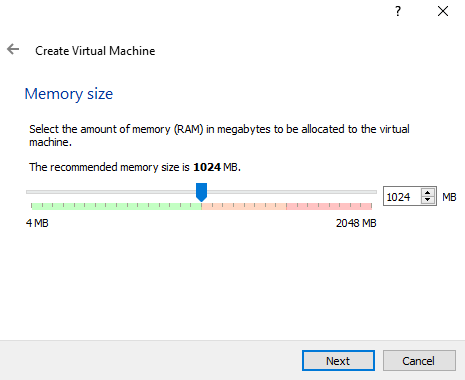
Next, choose the amount of memory you would like to assign to your virtual machine. It’ll give you a recommended amount, but you can always manually adjust this by using the slider.
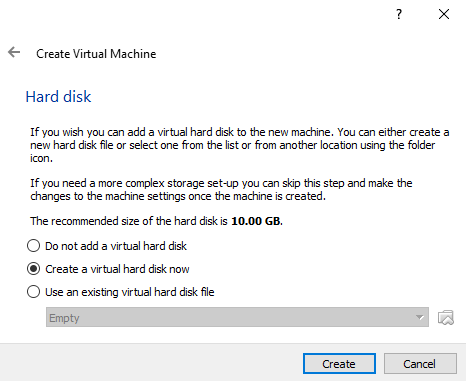
Next, you have the option of adding a virtual hard disk to the virtual machine or not. A VM without a hard drive is pretty useless, so go ahead and choose Create a virtual hard disk now, unless you already have one created.
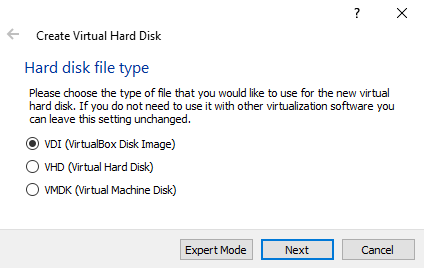
Click Create and the next screen will give you three options for the hard disk file type. You can choose from VDI, VHD or VMDK. VDI is the format used by VirtualBox, VHD is used by Microsoft’s Hyper-V and VMDK is used by VMware. If you plan to move this virtual machine to another platform in the future, then make sure to choose the appropriate file type.
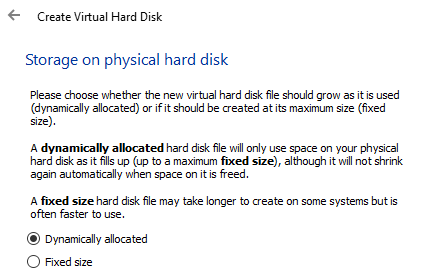
On the next screen, you have to choose whether you want the new virtual disk to grow dynamically or whether you want to use a fixed size disk. The only advantage to a fixed size disk is that it is usually faster to use. This means your virtual machine will run faster overall.
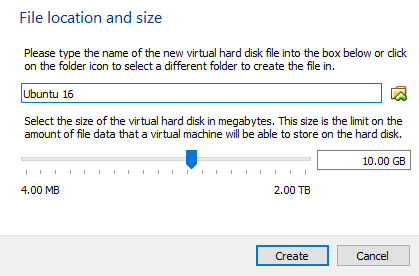
Next, you can adjust the size of the virtual hard disk. You will get this screen regardless of which option you chose previously. If you chose dynamically allocated, the disk size you choose here will be the max size the disk can grow. If you chose Fixed size, then the size here will be the actual size of the virtual hard disk to start with.

After this, the Ubuntu virtual machine should be created. Note that we have not actually installed Ubuntu yet! We still have to point the virtual machine to the ISO file and then boot up using that ISO to install Ubuntu. To do this, you need to click Ubuntu in the list and then click on Settings.

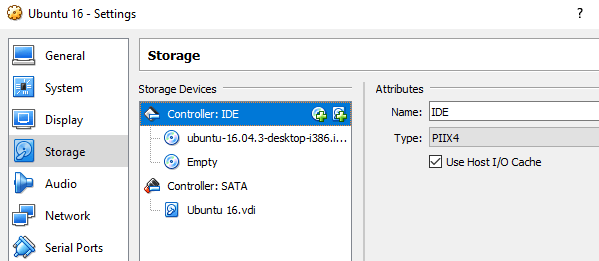
Click on Storage on the left-hand side and then click on Controller: IDE. You should see Ubuntu.vdi under Controller: SATA. Click on the left icon with the small green plus icon on it. This will add an optical drive to the IDE controller.
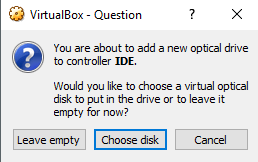
In the popup window, click on Choose disk and then browse to the location of the ISO image. Select it and make sure it has been added to the list under IDE.
Now go back to the main interface and click on the Start button. This will start up the virtual machine and it should automatically detect the ISO image and start loading the Ubuntu installer.
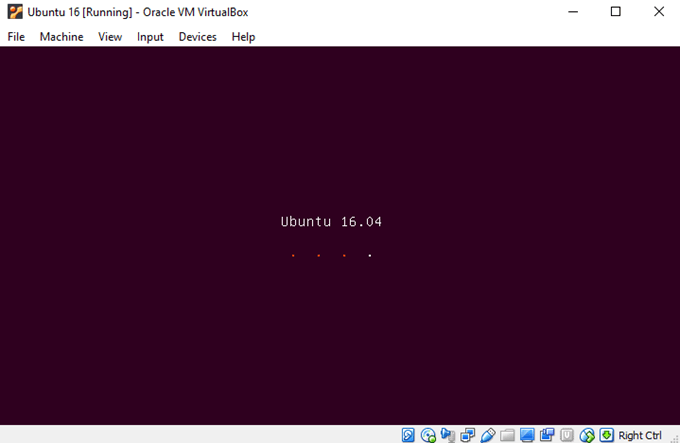
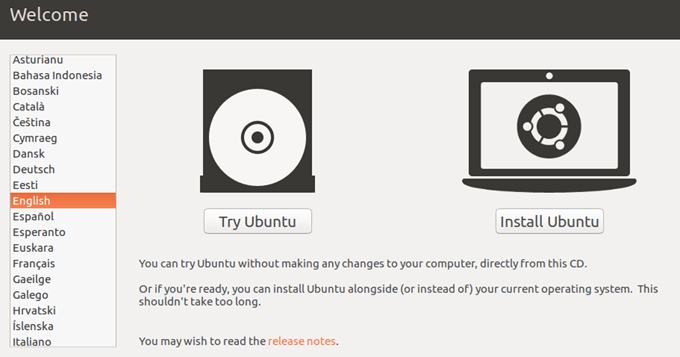
If all went well, you should see the dialog where you can choose to Try Ubuntu or to Install Ubuntu if you are ready.
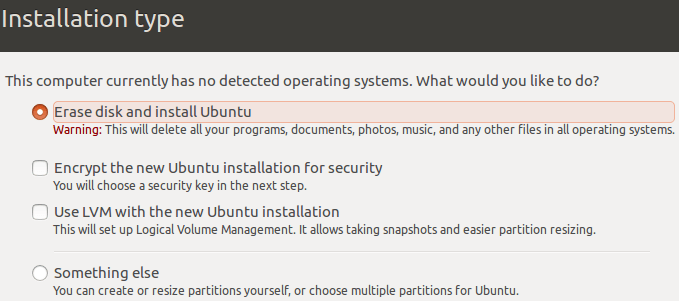
The Ubuntu install process is pretty straight-forward, so I won’t go through each step there. The only place where you can customize settings is when choosing the hard drive to install it on. Since it’s in a virtual machine, just choose Erase disk and install Ubuntu.
That’s about it! In my next post, I’ll write about how you can install VirtualBox Guest Additions to the Ubuntu virtual machine. Enjoy!
