Related Posts

21 Comments Already

commenter
ThePenguin Said,
July 2nd, 2008 @1:32 am  

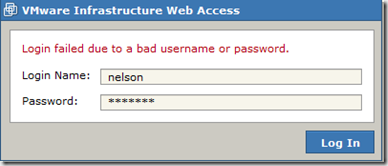
Similar problem, but I have Ubuntu 7.10 only installed, and can not get past the login for VMWare Server beta 2.0 Infrastructure Web Access. Am asked for Login Name and Password, but nothing seems to work. Any ideas?

ThePenguin

commenter
ja-thailand Said,
July 18th, 2008 @11:19 pm  

Thank you.
ขอบคุณมากมายเลยครับ

commenter
kalelmzr Said,
August 11th, 2008 @7:02 pm  

i am having a similar problem, but when i try to log in is says: Your Session has expired, please log in.

any ideas?

commenter
keltik Said,
October 2nd, 2008 @1:34 pm  

thank you! worked on vista home premium

commenter
Stormy Said,
October 20th, 2008 @4:16 pm  

Had the same problem. On XP the only account that can log on to VM IWA is the administrator account and not another with administrator priviliges. On Vista I could log on with an account created with administrator priviliges. As a footnote, the VMware Host Agent startup type (from services.msc) was set to “deactivated”. Jesus, that gave me some problems. It is now to set to Automatic. Why on earth was it set as default to deactivated? Answers on a postcard please……..

commenter
Deadkota Said,
November 2nd, 2008 @8:54 am  

Thx for the solution using admin account… but theres one more problem for me… Following is the error message:

The server was unable to process your log in request. Please check with your server administrator.

I recon it is some problem wth Tomcat server… I am using Vista ….Any ideas would be highly appreciated..

Thx

commenter
xhen Said,
December 30th, 2008 @8:02 am  

thanks for the help ;)

commenter
June 19th, 2009 @10:52 pm  

Vista 32 & Vista 64 required finding the actual name of the logon account. Gave two security warnings for bad certificate, but otherwise worked nicely.

When it asked for a FQDN, since I don’t have one for this system, I created a bogus DNS entry on my dns server with 127.0.0.1 and used that DNS entry for the FQDN and it worked very well.

Otherwise, just knowing that I didn’t use my first name for my windows account, I used my Full Name, so I had to use that for my VMWare logon as well resolved the “can’t log in” issue quite nicely.

commenter
punkrock Said,
July 12th, 2009 @11:35 pm  

Thanks a bunch, it worked on vista home prem. sp1.

commenter
dc123 Said,
September 4th, 2009 @7:43 pm  

I followed the steps as suggested was able to login… but after I log in I get this error …
“The VMware Infrastructure Web Service at “http://localhost:8222/sdk” is not responding (Connection Refused).”

and details part includes “ConnectException : Operation failed”

Any help is appreciated…

commenter
sandrar Said,
September 10th, 2009 @6:26 pm  

Hi! I was surfing and found your blog post… nice! I love your blog. :) Cheers! Sandra. R.

commenter
schoudari Said,
October 2nd, 2009 @11:55 pm  

I have Vista Home Premium SP1 and had a similar problem.
I tried to give the system administrator’s username and password and it started to work.

commenter
G8EMY Said,
October 5th, 2009 @9:31 pm  

Aseem, thanks.
I used the Admin login to get access initially and then adding to your blog about this;
Once the user logs in, if they select the Permissions tab, and then New Permissions, All users registered on the local machine will be listed. Select the Username you wish to log in as and grant them the required permission.

Next time you will be able to login without needing the Admin details again.

commenter
alalata Said,
October 14th, 2009 @11:42 am  

Thanks so much, I followed the steps and it works fine on windows 7 ultimate x64.

commenter
andreagosto Said,
November 17th, 2009 @4:21 am  

thanks a lot, very clear instructions!

commenter
ArthurB Said,
January 13th, 2010 @5:16 pm  

When I click on the VMWare Server Home page I get directed to a page that says Unable to connect Firefox can’t establish a connection to the server at arthurborbor-pc:8333. I am wanting to know if anyone knows how to fix the problem so I can get a connection to the web server page and also before this issue I was having problems with the login and password to access the infrastructure web page. Thanks

commenter
Pipeline2112 Said,
January 16th, 2010 @8:54 pm  

I was also getting the same error as ArthurB. I’m using Windows 7 64-bit as a host OS. I went into the Services applet to deactivate Windows Firewall and Windows Defender – then rebooted.

I verified with a telnet application (because telnet is no longer bundled with Win7) that my https port (in my case 8333) was open and listening.

Once that was verified, I was able to access the VMWare Server intranet page. I still get security warnings in the browser, but I can run my VMs now.

Hope this helps.

commenter
Serin Said,
February 4th, 2010 @2:45 pm  

the post was of great help..its working now. thanks

commenter
Omar Said,
February 7th, 2010 @11:20 am  

Thanks, you fixed for me my problem after long troubleshooting.

commenter
cygcomtel Said,
May 4th, 2010 @10:07 am  

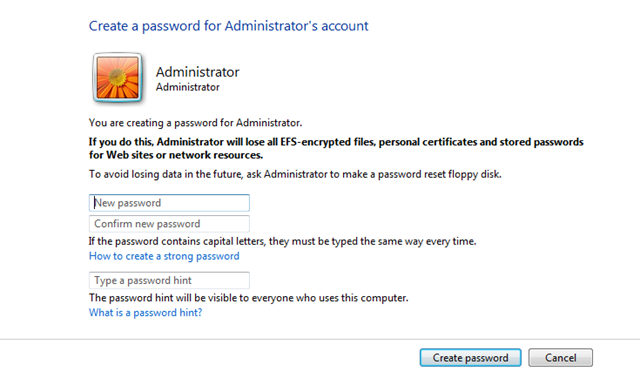
Having the same trouble as DEADKOTA – when loggin in to webapp I get the error “The server was unable to process your log in request.” I have adjusted UAC to off on Windows 7 hoast OS and enabled the Administrator account and assigned it a password. Still the same error.
HELP!

commenter
andreae Said,
May 26th, 2010 @1:31 pm  

This worked for me wonderfully! Thank you!

Please Leave Your Comments Below

Please Note: All comments will be moderated