
The Windows 7 AppCrash iexplore.exe error is a serious pain in the neck. It is an error message that randomly occurs at different times that forces you to restart Windows explorer.
In turn, any programs that you have open must also restart, meaning loss of data (unless you have an autosave feature enabled). Unfortunately, Microsoft has not yet released an official patch or fix for this problem. Fortunately, there are a couple of things that you can do which will more than likely fix the error.
The easiest and simplest way to stop Internet Explorer Appcrash errors is to use a different browser. Internet Explorer does not have the best reputation for reliability and security.
If you don’t have a problem using a different browser, then give this solution a go. Mozilla Firefox, Apple’s Safari, and Google Chrome are three highly popular browser choices that you may be interested in.

You should also set your new browser as the default browser. This step is very important as it also adjusts the way Windows treats Internet links. By setting a browser such as Firefox as your default browser, rather than Internet Explorer, Windows 7 will react differently when performing certain tasks.
Each browser has a somewhat different method of setting itself as default browser. Most of the time, it’ll just ask you when you first open the browser. If not, the option will be located in the settings for that specific browser. For example, to set Firefox as your default browser, simply use the path Tools > Options > Advanced > Check Now.
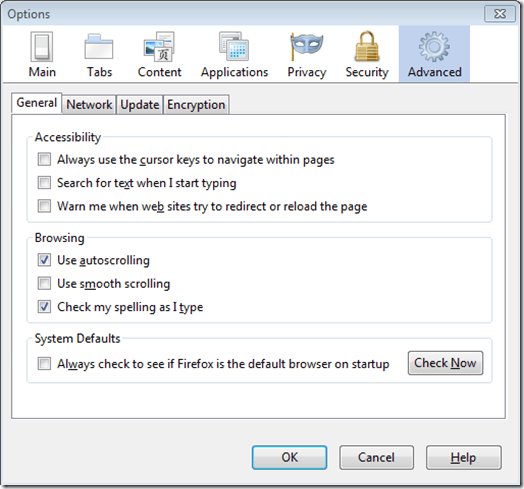
Fix AppCrash for IE
If you still want to use Internet Explorer, you can still use this fix, just be sure that you have a different browser set as your default. From there, just launch Internet Explorer as you normally would when you want to use the Internet.
The next option you have is to reset your Internet settings. Sometimes, Internet settings get changed by applications or by accident. This can cause problems with Internet Explorer. To reset your Internet settings, start by opening up the Control Panel (Start – Control Panel).
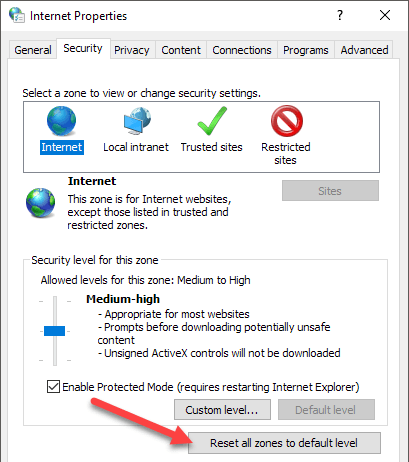
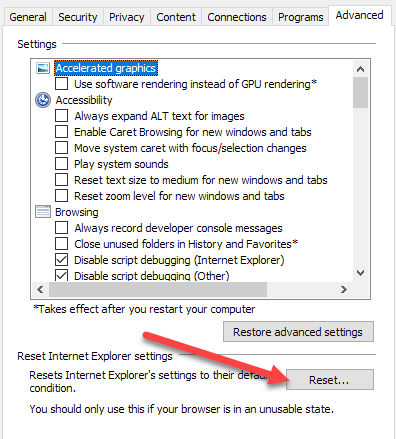
From the Control Panel, click the icon labeled Internet Options. Under the Security tab of Internet Options, click the Reset all zones to default level button. Under the Privacy tab, click the Default button. If that doesn’t work, you may have to do a full reset of IE.
Click on the Advanced tab and then click on the Reset button at the bottom.
When you are done, click the OK button in the Internet Options box to close it.
Next, you need to ensure that Internet Explorer is running the latest version. From Internet Explorer, click the Tools menu options and select Windows Update. If you don’t see the Tools menu, press the ALT key on your keyboard.

Online videos are one of the top causes of browser crashing. This is due to several reasons which involve online videos and browser rendering and capabilities. Make sure that you are up-to-date on all of your browser add-ons, particularly your video add-ons.
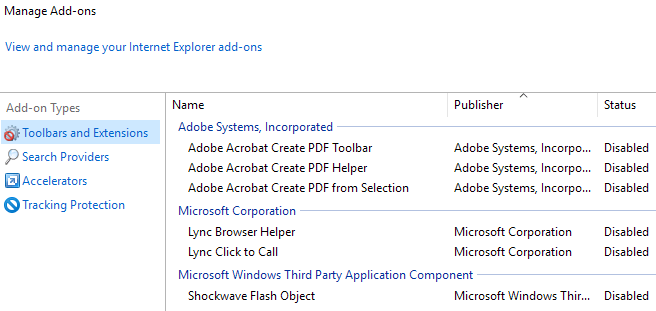
If you use Adobe Flash Player, Shockwave, etc, be sure that you are running the latest version. If not, make sure it is disabled. You can get the latest version of Adobe Flash Player here. You should also try adjusting all of your browser add-ons. It could be just one simple add-on that is causing Internet Explorer to crash. Just click on Manage add-ons under the Tools menu.
More than likely, one of the above solutions will stop the Appcrash iexplore.exe error from happening. However, because Microsoft has not officially released a patch or fix for the problem, there is still a chance that you will receive iexplorer.exe errors from time to time. Be sure to always stay up to date with your software as new fixes are always being released. Enjoy!
