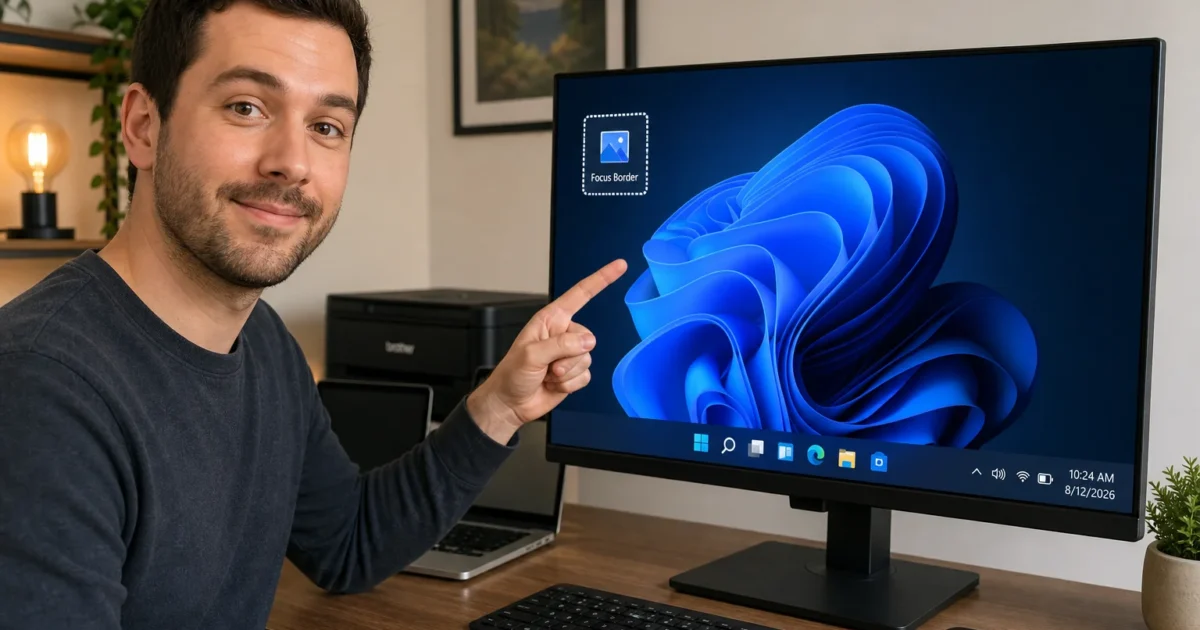
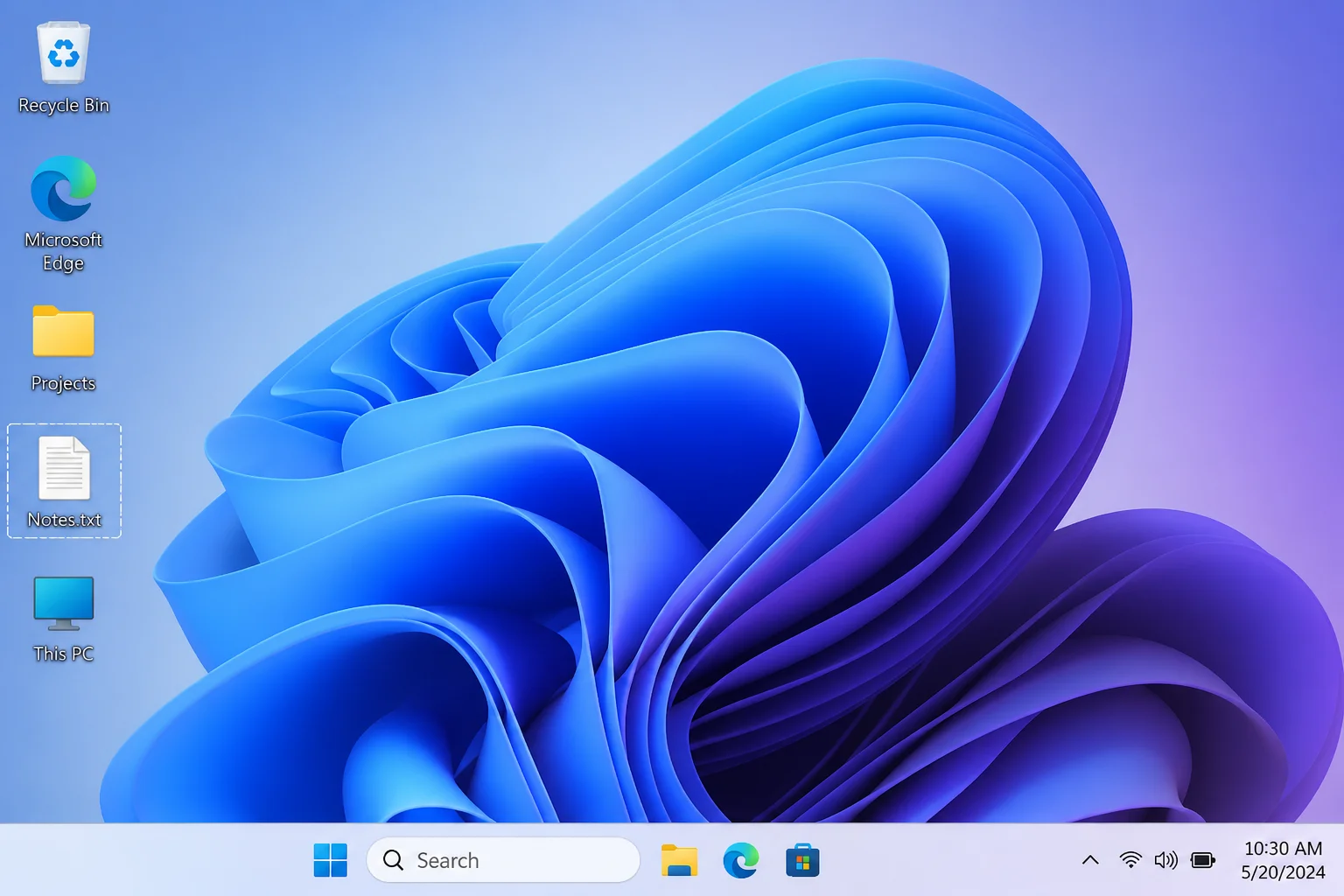
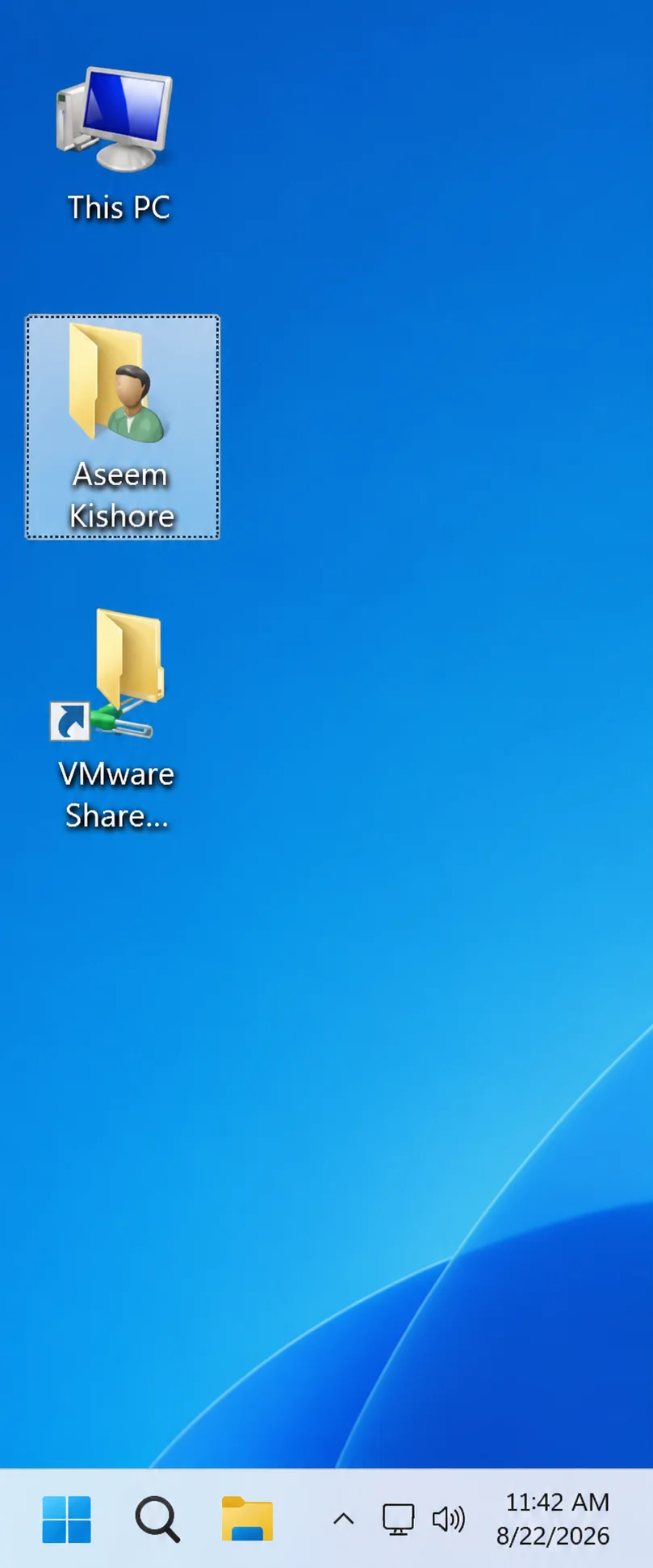
That dotted or white border around your desktop icons is Windows’ keyboard focus indicator. It marks which icon has keyboard focus when you navigate with Tab, arrow keys, or Win+D. There’s no built-in setting to permanently disable it, but the methods below clear it right away, from a simple Tab press to an advanced option for Windows 11 users where the border tends to be most persistent.
Fix #1: Press Tab to clear keyboard focus
Pressing Tab shifts keyboard focus off the desktop icon, and the dotted border disappears immediately. This works on every version of Windows.
- Click anywhere on the desktop to ensure it has focus.
- Press
Tabonce or twice.
- The dotted border disappears. You can now click icons with your mouse without the border reappearing.
The border comes back if you use keyboard navigation again. That’s by design.
Fix #2: Click an empty area of the desktop or the taskbar
Clicking anywhere that isn’t an icon moves focus away from the desktop and clears the border instantly, often faster than pressing Tab.
- Click any blank space on the desktop, not on an icon.
- Alternatively, click the taskbar or the Start button once. The border clears immediately.
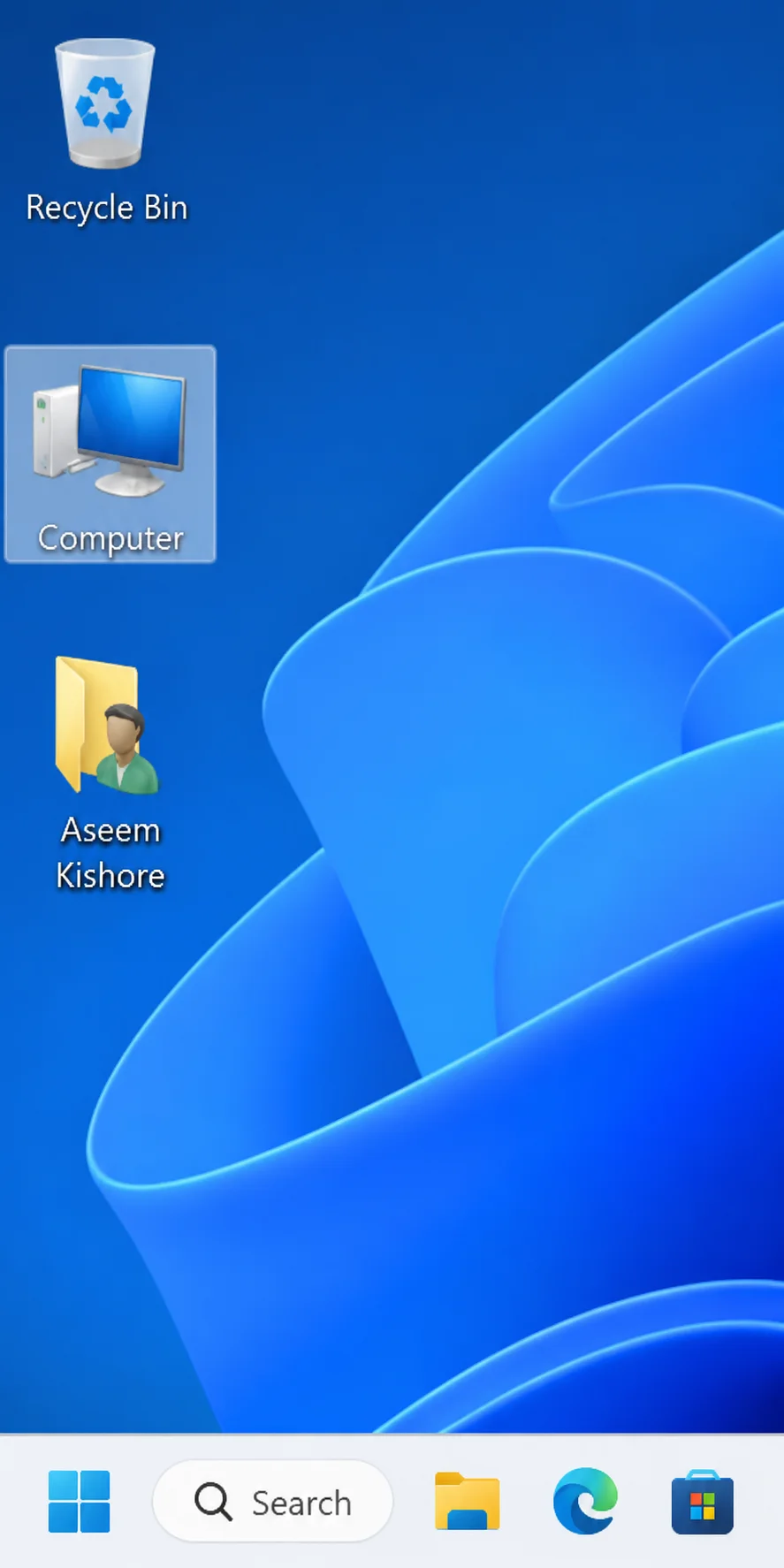
When you select an icon with the mouse, it shows the normal solid colored highlight instead of the dotted border:
Fix #3: Right-click the desktop and select Refresh
Refreshing the desktop resets its visual state and reliably clears the focus rectangle, especially useful on Windows 11 where the border can persist even after Tab or clicking elsewhere.
- Right-click on a blank area of your desktop.
- Select Refresh from the context menu.
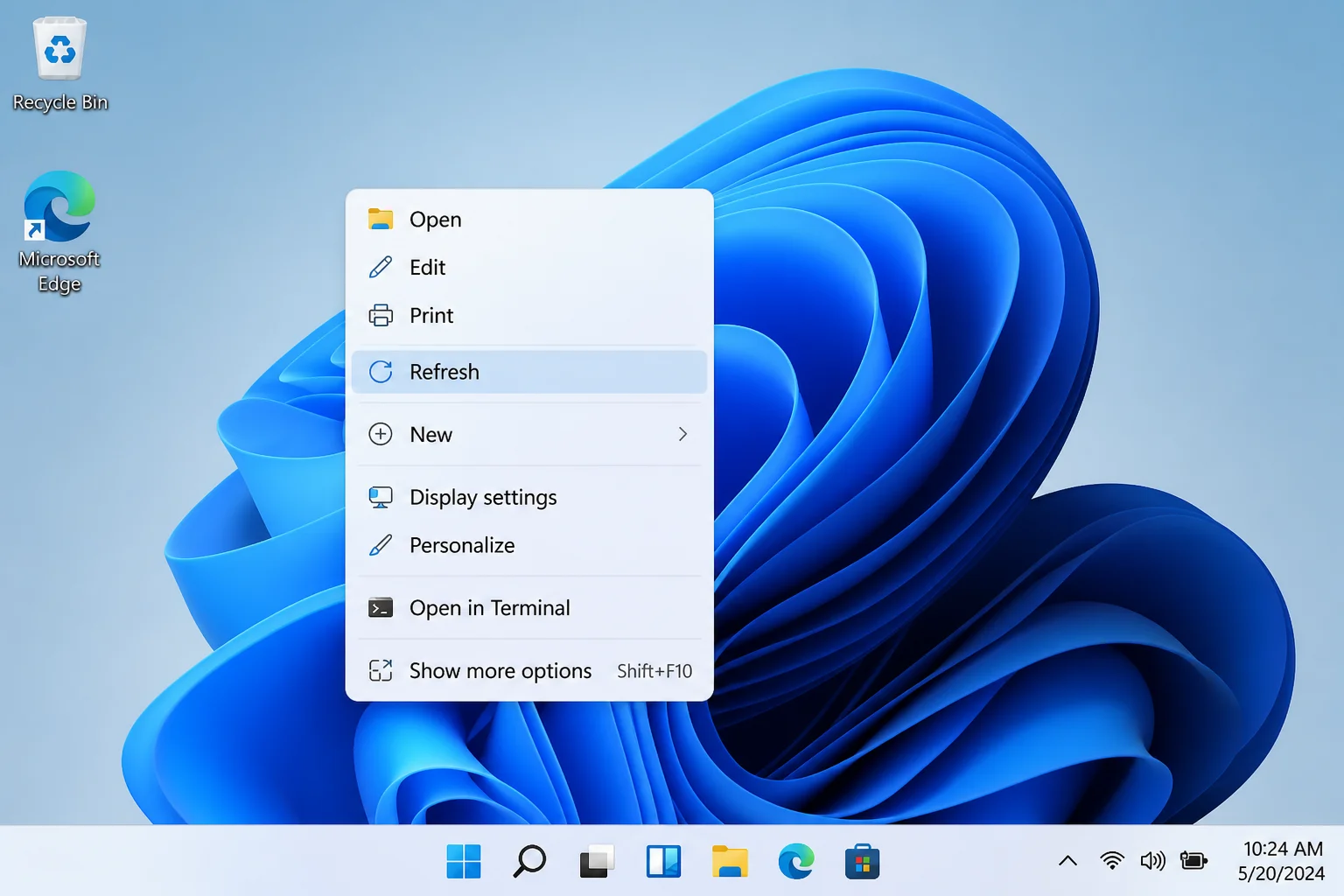
The dotted border disappears as soon as the desktop refreshes.
Fix #4: Open the icon, then return to the desktop
Launching the app or file the icon points to resets the desktop focus state. When you return to the desktop, the icon shows the normal mouse-selection highlight instead of the dotted border.
- Double-click the icon showing the dotted border to open it.
- Minimize or close the window that opens.
- The icon now shows the normal solid highlight when selected with the mouse.
Fix #5: Change the desktop icon size
If your selected icon size is larger than the actual image inside the icon file, Windows pads the empty space with a visible border. Toggling the icon size forces Windows to redraw the icons and removes it.
- Right-click on a blank area of the desktop.
- Hover over View.
- Select Large icons to switch to that size.
- Right-click again, hover over View, and switch back to Medium icons (or your preferred size).
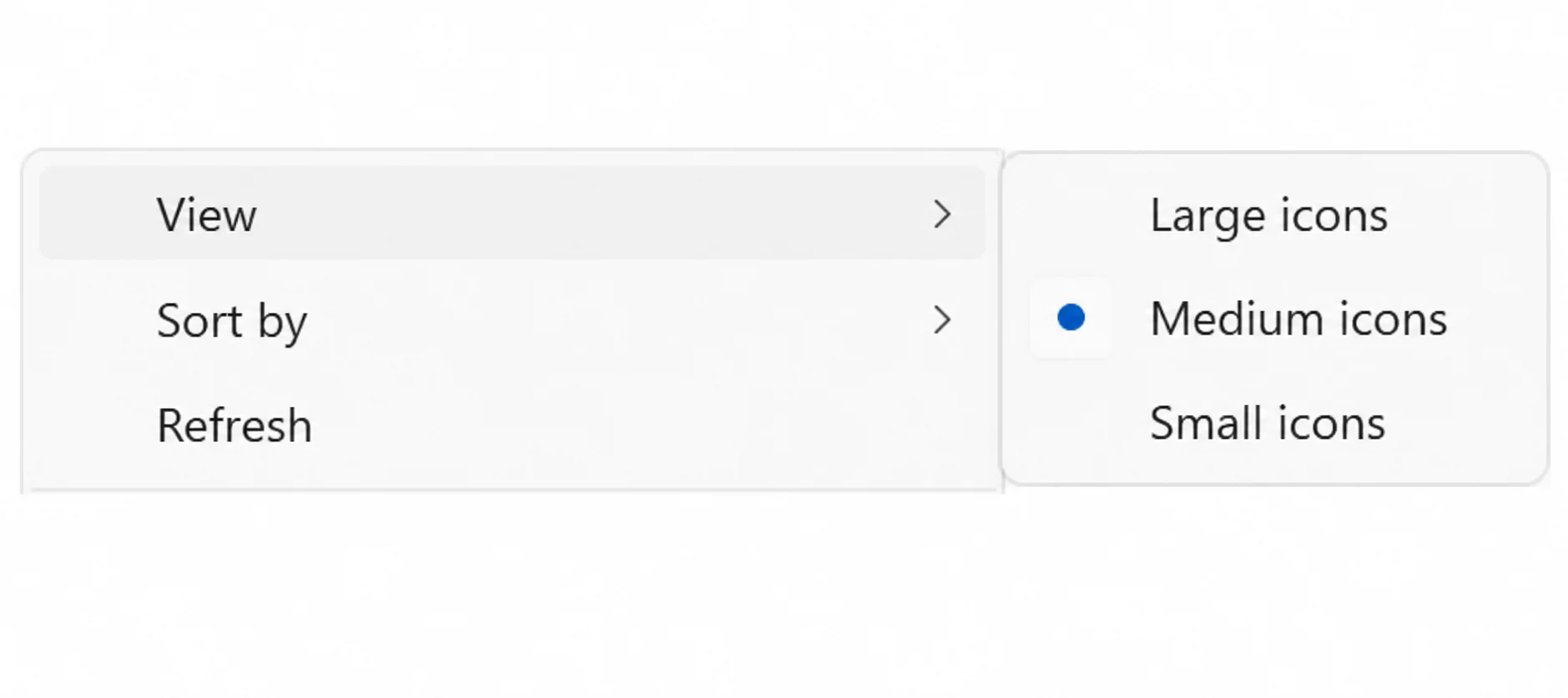
If the border was caused by an icon-bitmap size mismatch, it will be gone after toggling sizes. This fix works on Windows 7, 10, and 11.
Fix #6: Restart Windows Explorer
Restarting the Windows Explorer process resets the entire desktop shell. It’s the most reliable software-level fix short of a full reboot. Use this when the border keeps reappearing and the quicker methods aren’t holding.
- Press
Ctrl+Shift+Escto open Task Manager.
- Click the Processes tab and scroll down to find Windows Explorer.
- Right-click Windows Explorer and select Restart.
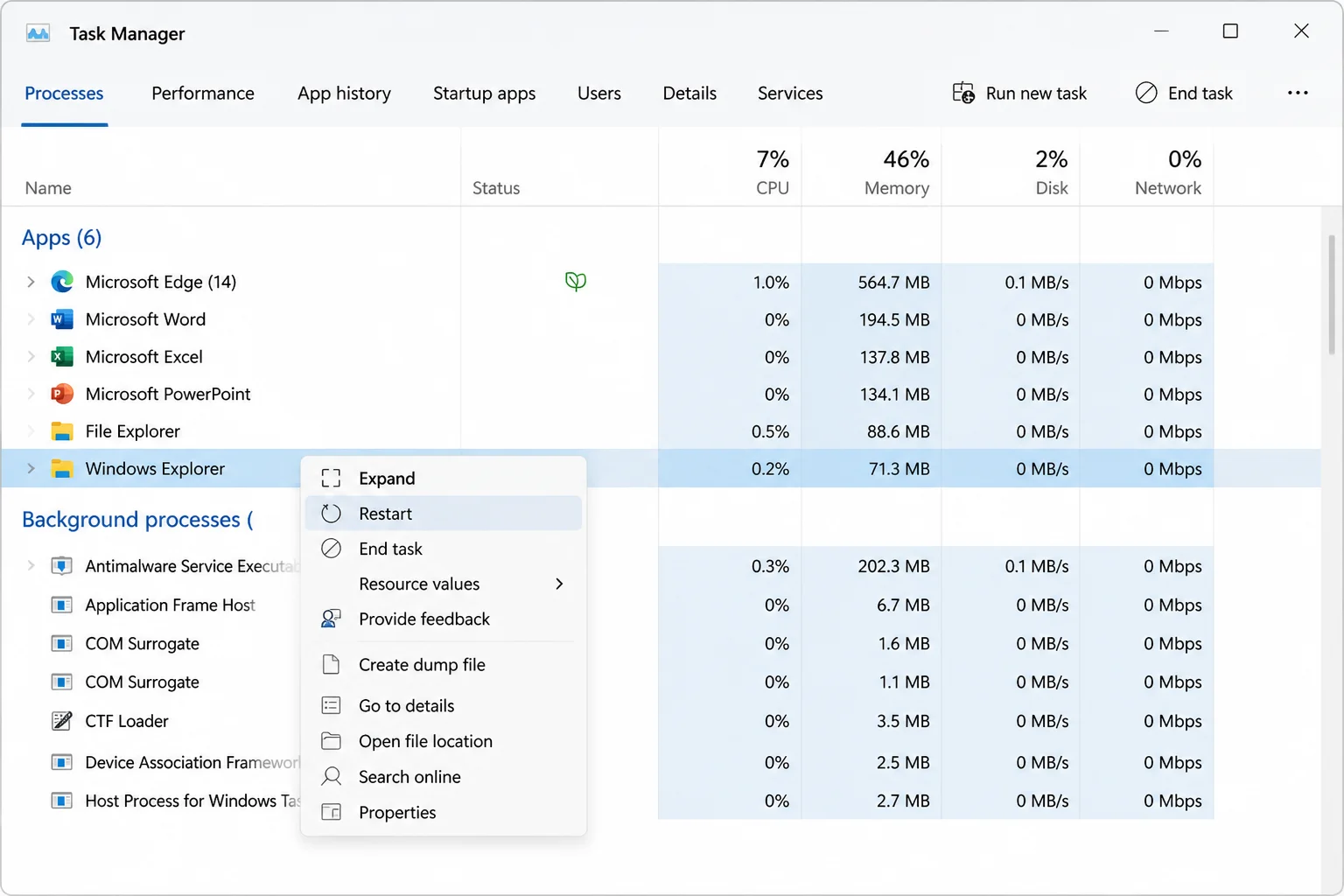
The taskbar and desktop briefly disappear and come back. The dotted border should be gone after the shell restarts.
Fix #7: Adjust Ease of Access settings (Windows 10 and 11)
On Windows 10 and 11, certain Ease of Access settings can make focus indicators more prominent. Disabling keyboard shortcut underlining may reduce how aggressively Windows renders the focus rectangle around icons.
- Press
Windows + R, typecontrol, and press Enter to open Control Panel.
- Click Ease of Access > Ease of Access Center.
- Click Make the keyboard easier to use.
- Uncheck Underline keyboard shortcuts and access keys.
- Click Apply.
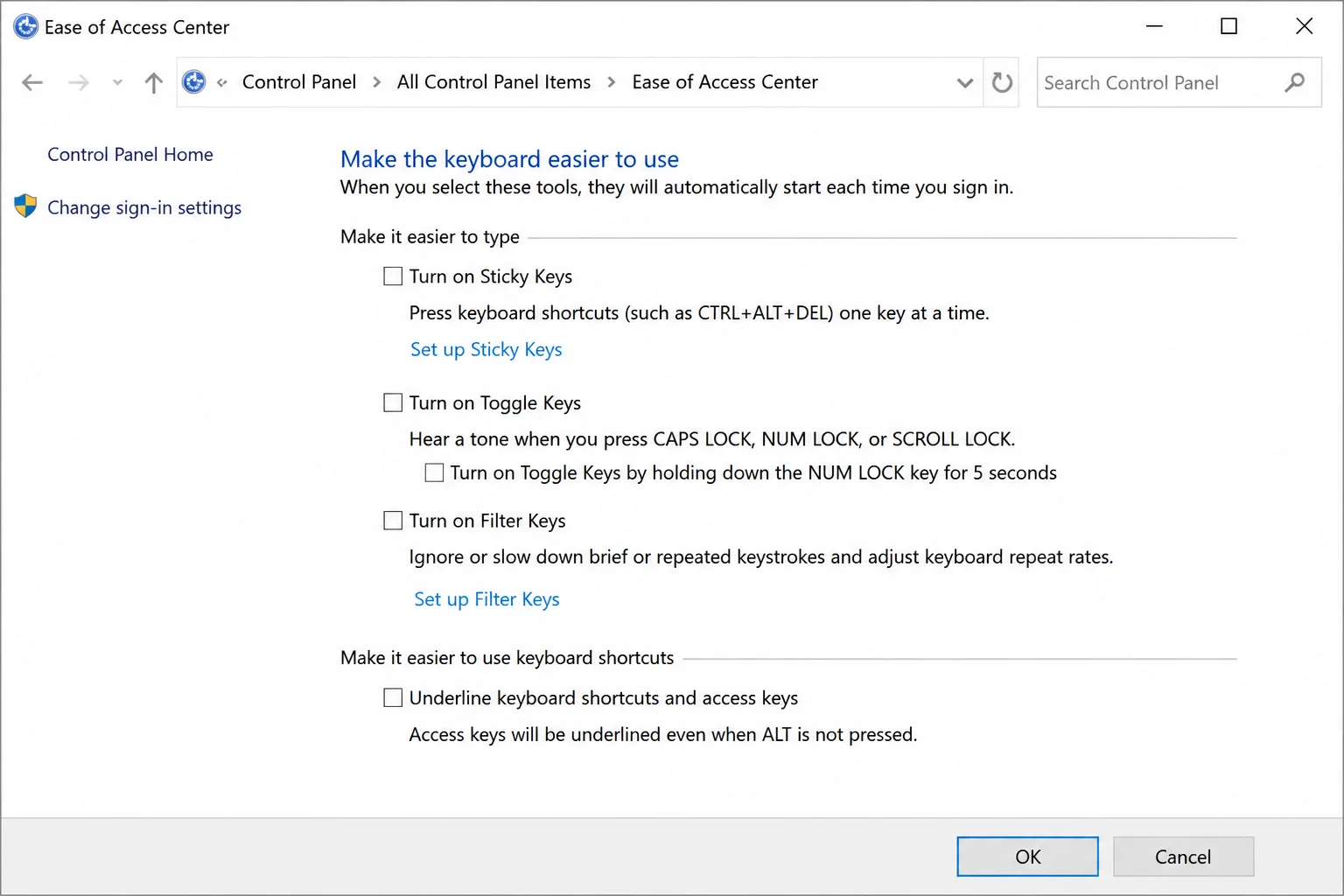
This is an optional tweak that may help on Windows 11 in particular. It changes how keyboard cues display across the system, so results can vary; it won’t permanently eliminate the focus rectangle, but it can make it less intrusive.
Fix #8: Use Universal Focus Rectangle Remover (advanced)
If you’re on Windows 11 and the dotted or white border keeps coming back no matter what you try, Universal Focus Rectangle Remover suppresses focus rectangles system-wide by registering a DLL. This is an unsupported, advanced method, so use it only after exhausting the simpler fixes above, and only if you have admin rights.
- Download RemoveFocusRect.dll from The Windows Club.
- Copy the file to
C:\Windows\System32.
- Press
Windows + R, typeregsvr32 RemoveFocusRect.dll, and press Enter.
- Click OK on the confirmation prompt.
- Restart your computer. Focus rectangles should no longer appear on desktop icons after the restart.
To undo this change:
- Press
Windows + R, typeregsvr32 /u RemoveFocusRect.dll, and press Enter.
- Restart your computer.
- Delete
RemoveFocusRect.dllfromC:\Windows\System32.
A Windows 11–specific alternative is NoDrawFocusRect, which uses a similar DLL plus an install script. Both tools suppress focus visuals across all apps and windows, not just the desktop, so keyboard navigation cues everywhere will be affected.
Conclusion
Fix #1 (Tab) and Fix #3 (Refresh) clear the border for most people in under a second, solid first choices on any Windows version. If you’re on Windows 11 and the white border keeps appearing even without touching the keyboard, Fix #5 (toggling icon size) is worth trying next, since the icon-bitmap mismatch is a common hidden cause on Windows 11. Only reach for Fix #8 if you’ve tried everything else and the border is genuinely disrupting your workflow. It works, but it modifies system-wide focus behavior with no Microsoft support behind it. For more information on Windows 11, you can visit the official Microsoft Learn website or check out How to Enable or Disable the AI Agent in the Windows 11 Taskbar for more Windows 11 tips.