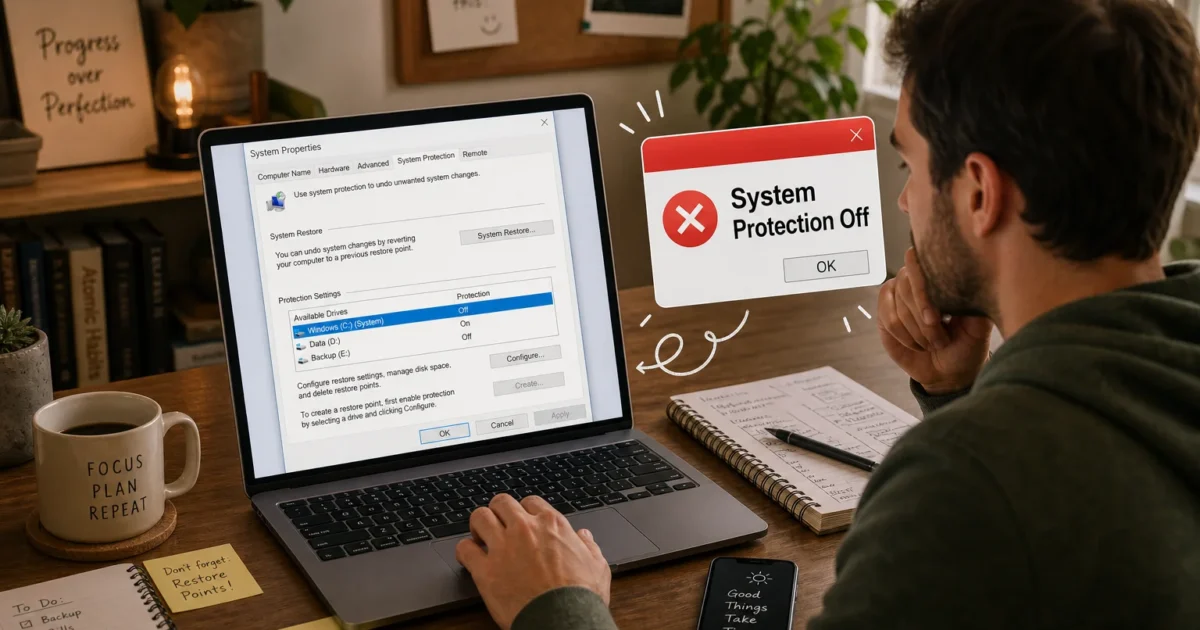
Your System Restore points are disappearing. You create one, restart the PC, and it’s gone. The most common culprit on Windows 10 and 11 is System Protection being turned off or misconfigured, but low disk space, aggressive cleanup utilities, and a stalled Volume Shadow Copy service can all cause the same thing.
Fix #1: Verify and re-enable System Protection
System Protection ships disabled by default on many OEM Windows 10 and 11 installs. If it’s off, Windows never saves restore points. If it was already on but points keep vanishing, toggling it off and back on clears the System Volume Information folder, which fixes corruption that silently blocks new saves.
- Press Windows + S, type Create a restore point, and click the matching result. This opens System Properties on the System Protection tab.
- Under Protection Settings, check the C: drive row.
– If it says Off, select the drive and click Configure. – If it already says On but restore points keep disappearing, select the drive, click Configure, choose Turn off system protection, click Apply, restart your PC, then return here to re-enable it.
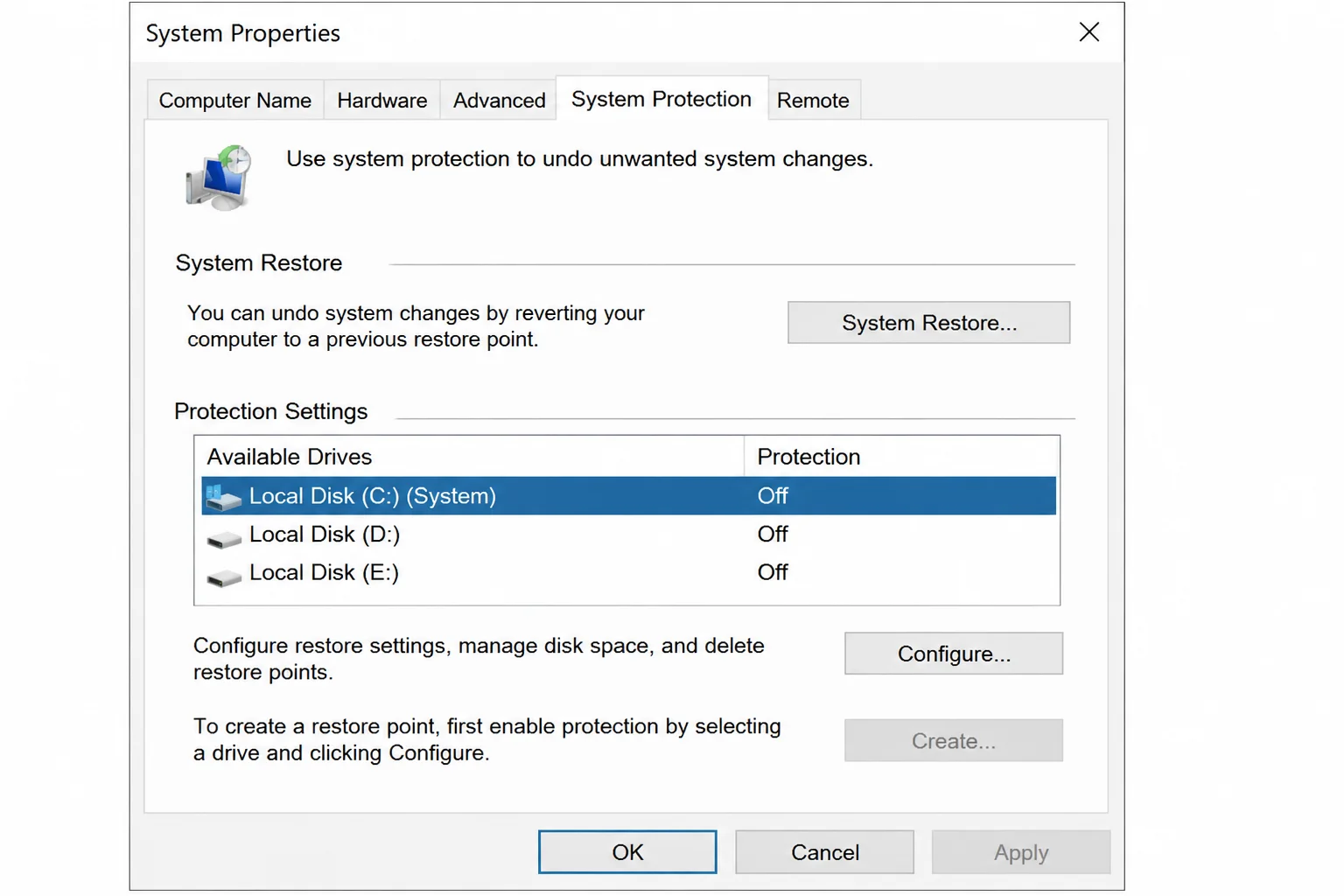
- Select Turn on system protection.
- Set Max Usage to 5–10% of the drive (around 5 GB on a 100 GB drive is a reasonable minimum).
- Click Apply, then OK.
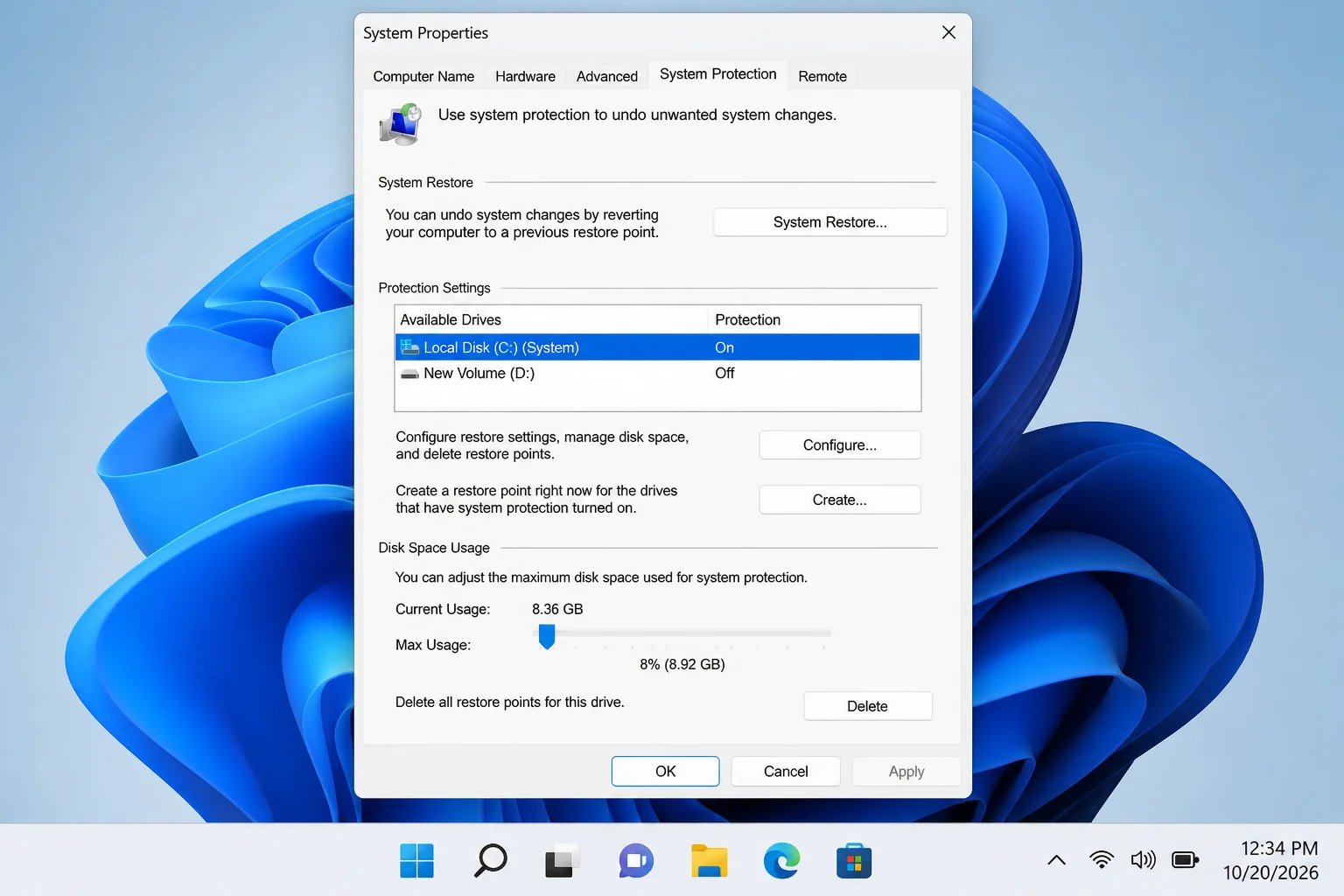
- Back on the System Protection tab, click Create, type a name like Test, and click Create again.
- Restart your PC, return to System Properties > System Protection, and confirm the test restore point is still listed.
If it’s gone again after the restart, move to the next fix.
Fix #2: Free up disk space and raise the Max Usage limit
If your C: drive is nearly full, or the Max Usage allocation is set too low, Windows silently prunes older restore points to stay under the limit. Sometimes it prunes so aggressively you end up with none at all.
- Open File Explorer, click This PC, and check the free space on your C: drive. You need at least several gigabytes free.
- If space is tight, go to Settings > System > Storage and click Temporary files to clean up junk.
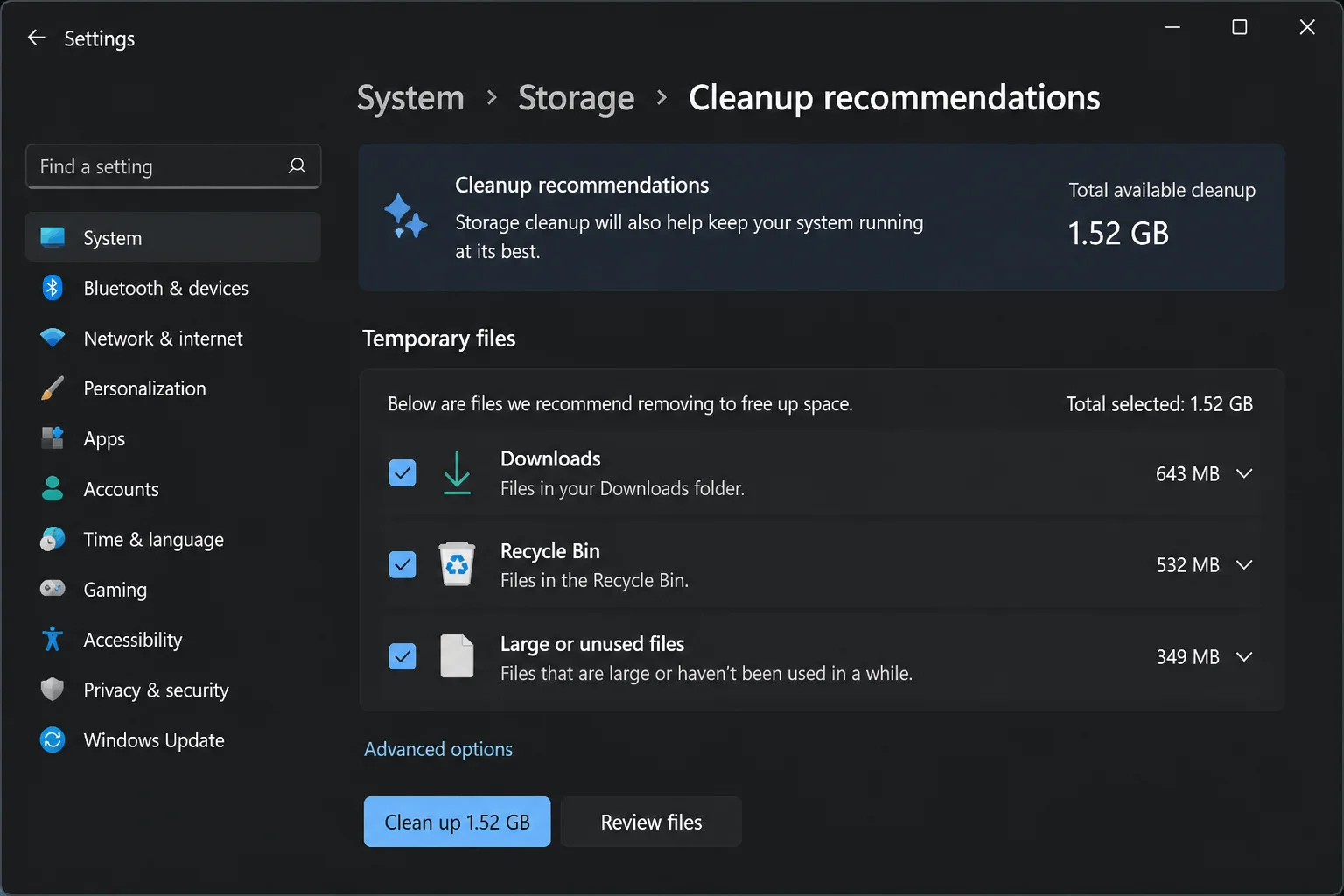
- Open Storage Sense in the same menu and verify it isn’t scheduled to run more aggressively than you’d like.
- Go back to System Properties > System Protection, select the C: drive, click Configure, and confirm Max Usage is set to at least 5%.
Fix #3: Restart the Volume Shadow Copy service
System Restore uses Volume Shadow Copy (VSS) to take snapshots of your drive. If that service is stopped or disabled, restore points either fail to save or vanish shortly after creation.
- Press Windows + R, type
services.msc, and press Enter. - Scroll down to Volume Shadow Copy.
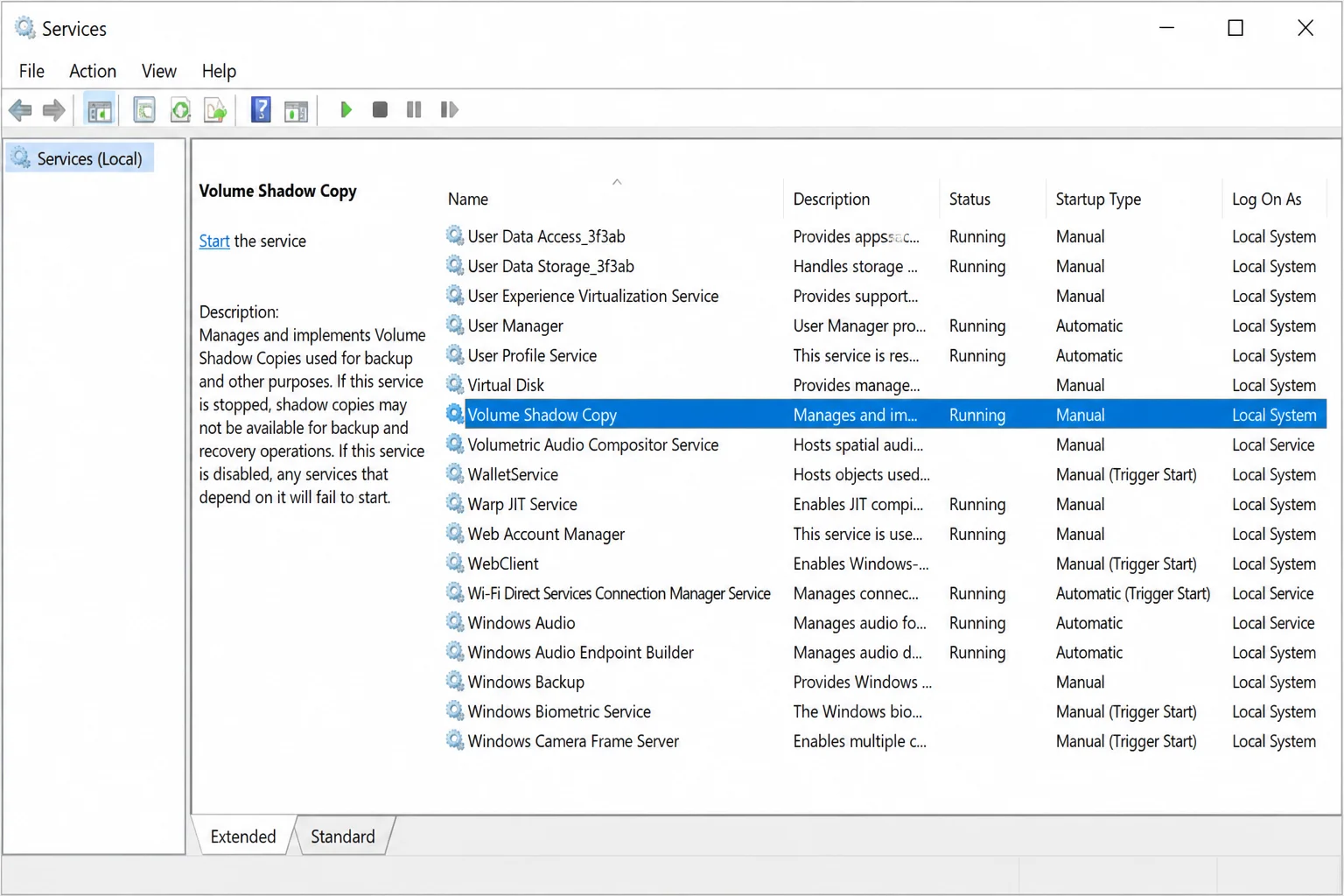
- Check the Startup Type column; it should be Manual, not Disabled.
- If it’s set to Disabled, double-click the service, change Startup type to Manual, and click OK.
- Right-click Volume Shadow Copy and select Start.
- Create a test restore point via System Properties, restart, and check if it persists.
Fix #4: Check for third-party cleanup and optimizer tools
This is the fix that catches a lot of people off guard. Modern disk cleaners and “PC optimizer” utilities often include a System Restore Point Cleaner feature that quietly deletes your restore points every time they run. Tools like CCleaner, Glary Utilities, and Advanced SystemCare all have settings that can wipe VSS snapshots on a schedule. If your restore points disappear at regular intervals, not just after restarts, a scheduled cleanup tool is almost certainly why.
- Open the settings of any cleanup or optimization tool installed on your PC.
- Look for options labeled System Restore cleaning, Shadow copies, Windows old files, or similar, and disable them.
- If you’re not sure which tool is responsible, temporarily disable each one’s automatic scheduler, create a test restore point, wait a day, and see if it survives.
- If your antivirus includes a built-in “system cleaner” module, check its settings and exclude
C:\System Volume Informationfrom its scope.
Fix #5: Run SFC, DISM, and CHKDSK
Corrupted system files or disk errors can prevent restore points from being created or retained. Run these three commands in order; each targets a different layer of potential corruption.
- Press Windows + S, type cmd, right-click Command Prompt, and choose Run as administrator.
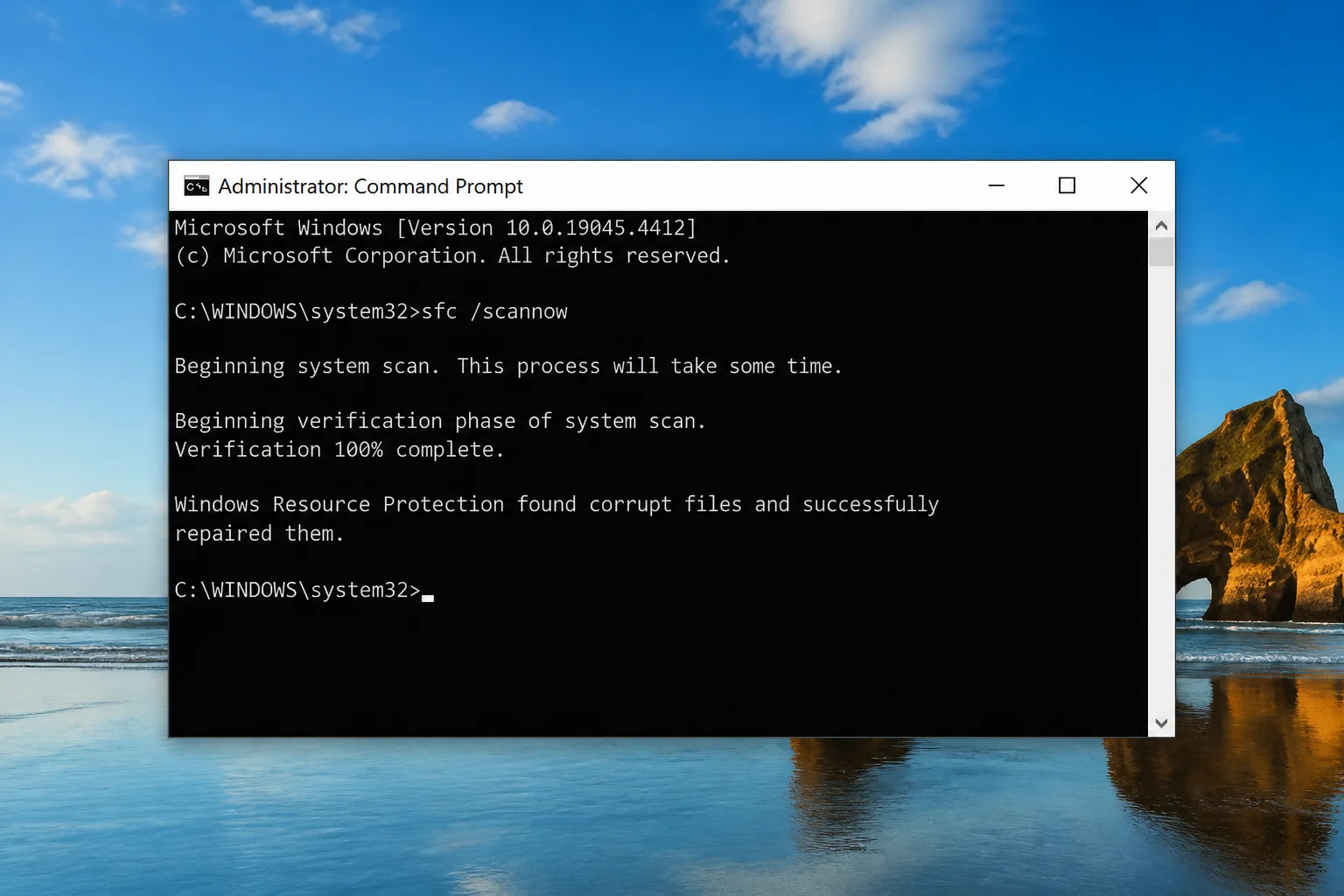
- Run System File Checker: type
sfc /scannowand press Enter. Wait for it to complete. If it reports repaired files, restart before continuing.
- Run DISM to repair the Windows component store: type
DISM /Online /Cleanup-Image /RestoreHealthand press Enter. This can take 10–20 minutes. Restart when it’s done. - Schedule a disk check: type
chkdsk C: /fand press Enter. TypeYwhen prompted to schedule it for the next startup, then restart. CHKDSK runs before Windows loads. - After rebooting, create a test restore point and restart once more to confirm it sticks.
Fix #6: Create a restore point in Safe Mode
If a startup program or background service is interfering with System Restore, Safe Mode disables those processes and may let you create a restore point that survives the switch back to normal Windows.
- Press Windows + R, type
msconfig, and press Enter. - Click the Boot tab, check Safe boot, select Minimal, click OK, and restart.
- In Safe Mode, press Windows + S, search for Create a restore point, and create one manually.
- Go back to
msconfig, uncheck Safe boot, click OK, and restart normally. - After booting back into normal Windows, open System Properties > System Protection and verify the restore point is still listed.
Fix #7: Run an offline malware scan
Malware routinely deletes restore points to prevent you from rolling back an infection. If you’ve tried everything else and restore points keep vanishing, running a scan before Windows fully loads is the way to catch it; malware that hides from a normal scan can’t hide from an offline one.
- Open Windows Security (search for it from the Start menu).
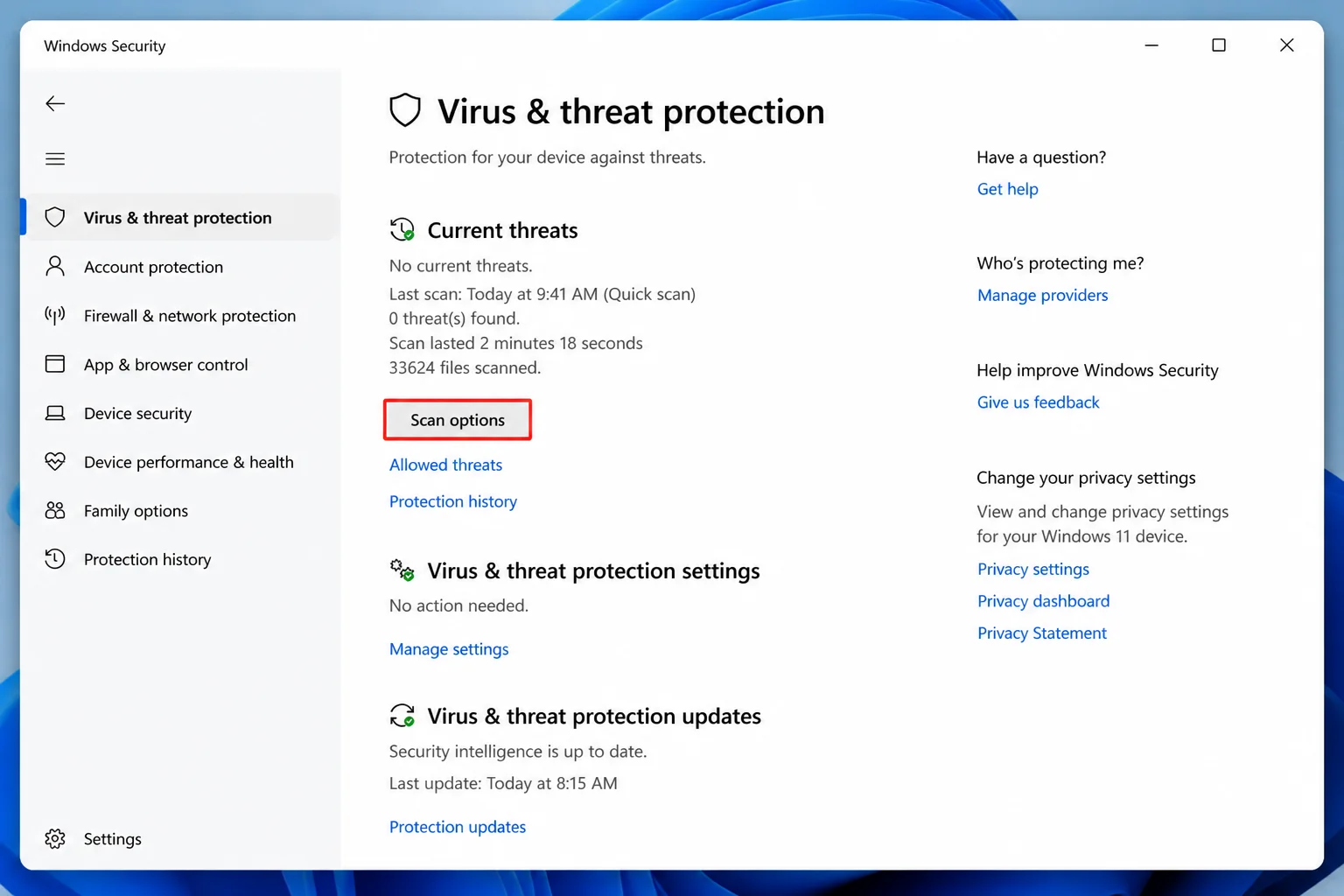
- Go to Virus & threat protection > Scan options.
- Select Microsoft Defender Offline scan and click Scan now.
- Your PC restarts and runs the scan before Windows loads. After it finishes, Windows boots normally.
- Create a test restore point and restart to see if it persists.
When the Fixes Don’t Work
If restore points continue vanishing after all of the above, the issue is likely deep system corruption, a failing drive, or persistent malware. Check Event Viewer under Windows Logs > Application for VSS errors; those logs often point to the exact source. At this stage, a full system image backup with a tool like Veeam Agent for Windows (free for personal use) is a far more reliable safety net than System Restore alone, and worth setting up regardless of whether you solve this. Macrium Reflect is another well-regarded option, though its free edition was discontinued for new downloads in 2024 – it now requires a paid license.
Conclusion
Fix #1, which verifies that System Protection is actually enabled and allocated enough disk space, resolves this for most people, especially on OEM machines where it was never turned on to begin with. Fix #4 (disabling cleanup utilities) is the next most common winner if restore points started disappearing after you installed a new “optimizer.” Finally getting restore points to stick is worth the effort, and once they’re working reliably, pair them with a full image backup tool for protection against anything System Restore can’t undo. For more information on System Restore and Windows Update, visit our guides.