
Although Windows XP did have a 64-bit version, it wasn’t until Microsoft released Windows Vista that consumers really had to make a decision of whether to buy the 32 or 64-bit version.
Windows 7/8/10 also comes in 32 and 64-bit versions and if you opted for the 64-bit, you may have noticed that there are two Program Files folders on your hard drive. Read on to explore the difference between 32 and 64-bit Windows and why the operating system needs two separate folders in which to store program data.
Windows 32 and 64-bit
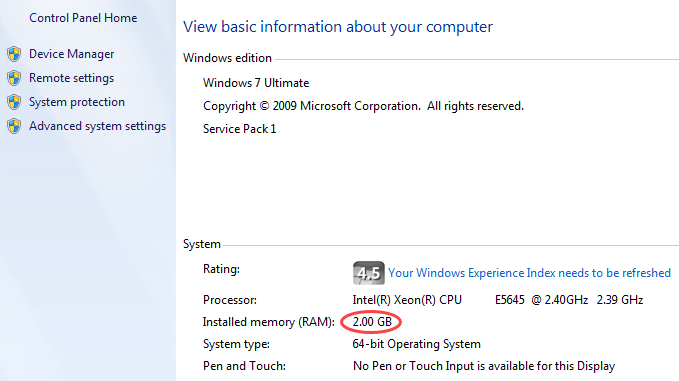
The real difference between Windows 32 and 64-bit has to do with how much memory the operating system can address. To “address” simply means to “keep track of.”
Windows 7/8/10 32-bit (like previous 32-bit versions of Windows) can address up to 4,294,967,296 bytes of information. That’s 4GB of memory. Theoretically, a 64-bit operating system can address up to 1,8446,744,073,709,551,616 bytes of information.
That’s 16.3 billion gigabytes. However, the memory limit on the consumer versions of Windows 7 is 192 GB which is still beyond the physical limits of 8GB to 16GB for most motherboards. For Windows 8, it’s 512GB and for Windows 10, it’s a whopping 2 TB for the memory limit!
Moving from a 32-bit to a 64-bit operating system is more than just a jump in addressable memory. It is a change to a completely different method of keeping track of data. This is why hardware (such as a sound card) needs a completely different driver to work in 64-bit Windows.
Two Program Files Folders in Windows
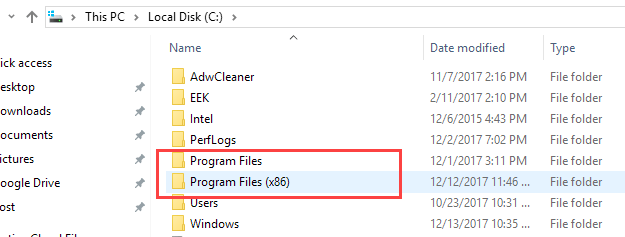
If you have the 64-bit version of Windows, you may have noticed that there are two Program Files folders on your hard drive.
One is simply labeled Program Files and the other is labeled Program Files (x86). The first folder is the default location for all of your 64-bit programs. It does not have an extra label at the end because as a 64-bit operating system, it is assumed that the 64-bit applications will go into this folder.
The second folder labeled Program Files (x86) is the default location for all of your 32-bit applications. In a sense, it is a folder designed for legacy software that is left over from the days of 32-bit operating systems. The x86 portion of the folder name refers to the x86 32-bit architecture upon which the first 32-bit processors were developed such as the 386, 486, and Pentium CPUs.
Unfortunately, switching from 32-bit to 64-bit applications and operating systems is not as simple as Microsoft would like. To make the switch, every software vendor, hardware manufacturer, and user would suddenly have to stop making and using anything built on a 32-bit architecture and begin using 64-bit. This is entirely impractical because most people are not willing to just junk their investment in hardware and software and buy everything new again.
Microsoft’s solution to this transition from 32-bit to 64-bit has been to add legacy support for most 32-bit applications. In other words, most 32-bit applications will function in the 64-bit operating environment.
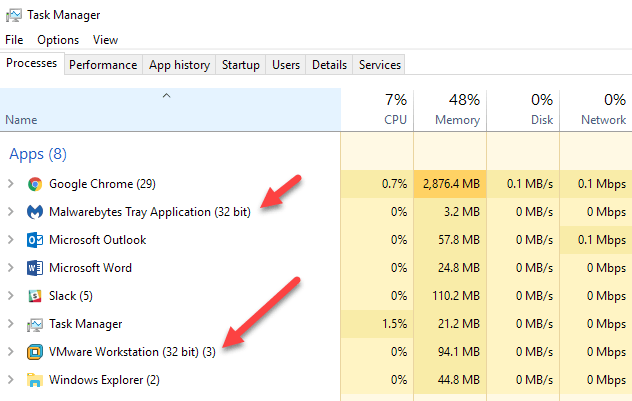
To help make the transition easier, Microsoft has designated that all 32-bit application should, by default, be loaded into the Program Files (x86) folder rather than getting mixed in with true 64-bit applications in the regular Program Files folder.
Windows uses an emulator of sorts to run 32-bit applications in 64-bit Windows. You may have seen some folders on your system that have the term WOW64. WOW64 stands for Windows 32-bit on Windows 64-bit. Whenever you run a 32-bit program and it needs to access the program files directory, it is seamlessly redirected to C:\Program Files (x86)\ using WOW64.
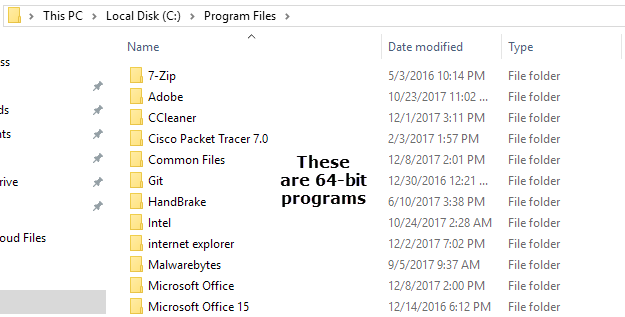
You can quickly see which programs on your computer are 32-bit and which are 64-bit by simply browsing into the two folders.
Every couple of months, I normally check the software developer’s website to see if they have released a 64-bit version of the program. Sometimes you have to dig a little to find the 64-bit version of a program. Most vendors even today still push the 32-bit versions as the main download. For example, you can install the 64-bit version of Office 365, but it’s not the default download.
Soon, however, most applications will be 64-bit, making the need for multiple Program Files folders unnecessary. Still, even Microsoft when it released Windows Vista 64-bit, failed to develop and release a 64-bit version of Office 2007 that was released at the same time. Also, a lot of the default Windows Store apps from Microsoft in Windows 10 are still 32-bit apps.
Keep in mind that by the time we all make the switch to 64-bit applications, it is likely that talk of 128-bit architectures will force us to go through the whole process again. Enjoy!
