
Has your CPU been at 100% utilization lately? If you went to the Task Manager in Windows and looked at your processes tab, you may have noticed a process called msmpeng.exe eating up all your available CPU.
So what is msmpeng.exe and how can you prevent it from slowing your system down? Well, unlike what you may have read elsewhere, it is not spyware or malware. It’s actually quite ironic because it’s associated with Windows Defender, the anti-virus product from Microsoft.
Windows Defender is an important anti-malware and antivirus program for Windows, which you really shouldn’t turn off unless you have a third-party program installed, in which case, it turns off automatically.
In this article, I’ll go through the different reasons why it could be using up your CPU and what you can do to fix it.
Performing a Scan
If you happened to look at task manager while Windows Defender was performing a scan, it obviously will be taking up a lot of the CPU cycles. Wait until the scan is finished and check your CPU utilization again. Hopefully, it should be back to normal.
Unfortunately, there isn’t any way to change the scheduled scan time for Windows Defender. It should only perform a scan when the computer is idle and outside of active hours. However, if you turn off your computer, then it might perform the scan while you are using it.
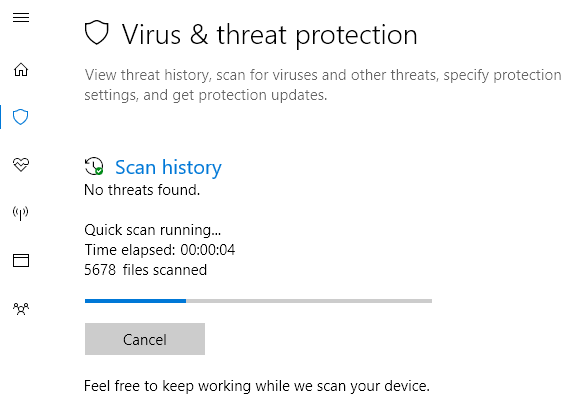
Most automatic scans shouldn’t take that long, so if you’re seeing that your computer is running slow for long periods, it could be that Windows Defender is spending a lot of time scanning a directory or a process that doesn’t need to be checked. This brings us to the next possible solution.
Exclusions from Scanning
The best way to figure out what to exclude is to perform a full scan and watch as it goes through all the items on your computer. When you see that it is taking a long time in a particular directory or when scanning a specific process, you can then add that to the exclusions list.
You can do this by going to Virus & Threat Protection, then Virus & Threat Protection settings and finally clicking on Add or remove exclusions.
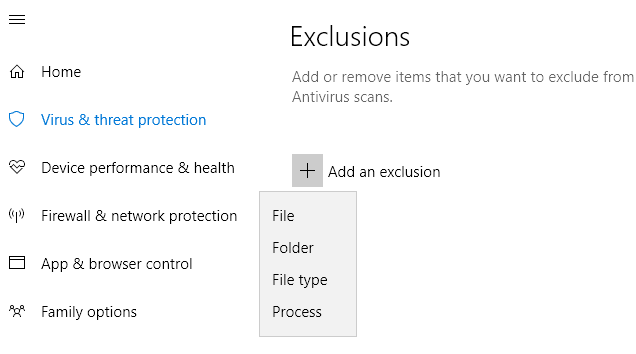
You can add a File, Folder, File Type or Process to the exclusion list. Once you add the offending items to the list, the amount of time it takes to complete the scan should be cut down significantly.
Turn off Windows Defender
The other option is to simply turn off Windows Defender, which I don’t recommend unless you really must. Another option before permanently disabling Windows Defender is to install a third-party anti-virus program. When you install another anti-virus product, Windows Defender automatically disables itself so that the two programs don’t interfere with each other.
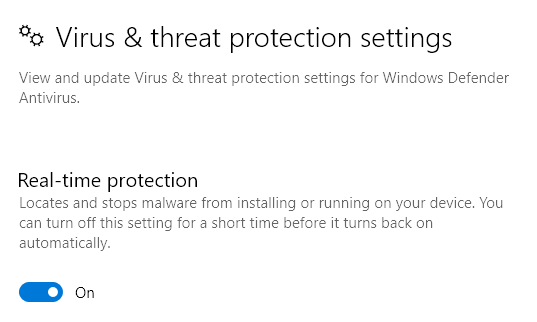
There are a couple of ways you can disable Windows Defender on your PC. In Windows 10, Microsoft really don’t want you to do this, so the only option you have in the Security Center is to disable real-time protection temporarily.
The other way is to edit a registry setting. Open regedit on your PC (Click on Start and type in regedit) and navigate to the following directory:
HKEY_LOCAL_MACHINE\SOFTWARE\Policies\Microsoft\Windows Defender
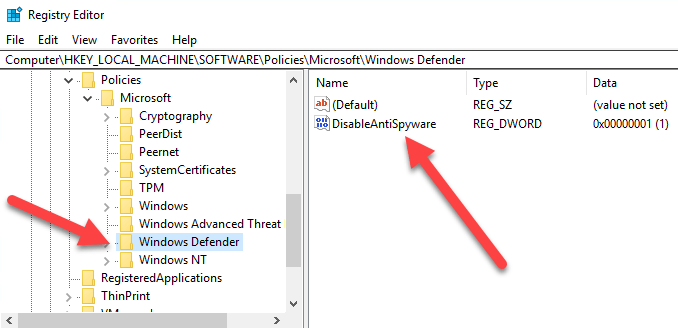
Create a new DWORD (32-bit) Value called DisableAntiSpyware and give it a decimal value of 1. Go ahead and restart your computer and Windows Defender should be disabled now. You can delete this key or change the value to 0 later on to re-enable Windows Defender.
The second way to permanently disable Windows Defender is to use Group Policy, which will only work on Windows 10 Pro or higher versions. Click on start and type in gpedit.msc and press enter. Navigate to the following folder:
Computer Configuration - Administrative Templates - Windows Components - Windows Defender Antivirus

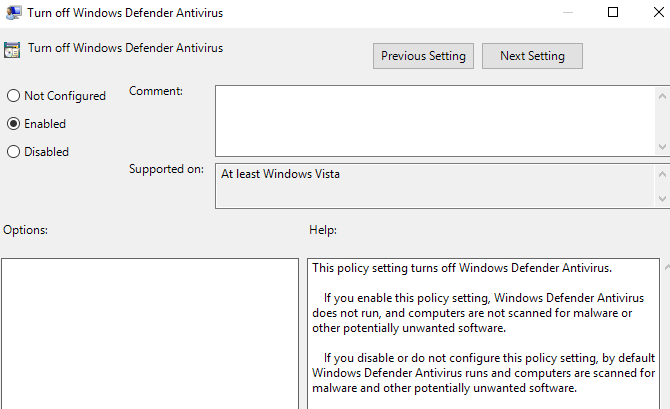
You’ll see an option in the right-hand pane called Turn off Windows Defender Antivirus. Double-click on that and select the Enabled radio button.
Hopefully, you don’t need to disable Windows Defender as it normally does an excellent job of keeping your computer safe from malware and viruses. If you have any issues or nothing above worked for you, let us know in the comments and we’ll try to help. Enjoy!
