 selma citakovic · October 29, 2025 · 4 min read
DISM Error 87 is a fairly common problem on Windows 10 and Windows 11. It usually happens after running the /restorehealth command. Luckily, you can resolve it in just a few steps.
Read on as we explain why this issue occurs and show you how to fix it with ease.
What Is DISM Error 87?
Error 87 “The cleanup-image option is unknown” is a Windows error code that indicates issues with preparing Windows image files (.wim). It will show up in the command-line interface for Deployment Image Servicing and Management (DISM.exe).

DISM is a command-line tool for servicing Windows images and virtual hard disks. You can find it in the C:\Windows\System32 folder, but you can run it from anywhere via Command Prompt.
What Causes DISM Error 87?
Error 87 in DISM is usually caused by:
- Incorrect command spelling and spacing
- Running the tool without elevated privileges (as an administrator)
- Using an outdated or incompatible DISM version for your Windows image
- Not updating Windows
- Corrupted system files.
Many users reported this issue right after executing the DISM /Online /Cleanup-Image /RestoreHealth command.
How to Fix DISM Error 87 on Windows 10 and Windows 11
Now, let’s address the causes one by one, starting with the most common ones:
Check if You Typed in the Command Correctly
A simple misspelling or wrong spacing can lead to DISM not working properly. So, make sure the repair commands you’re typing look exactly like this:
- DISM /Online /Cleanup-Image /CheckHealth
- DISM /Online /Cleanup-Image /ScanHealth
- DISM /Online /Cleanup-Image /RestoreHealth.
Check if You’re Running As Administrator
DISM requires administrator privileges to work. To launch Command Prompt with elevated privileges, do the following:
- Type “cmd” in Windows Search and select Run as administrator on the right.

- Select “Yes” in the User Account Control window that appears.
Update Windows
An outdated Windows version can lead to errors with DISM. You should keep your system up-to-date to prevent bugs like that.
Here’s how:
- Press Windows + I together to bring up Windows Settings.
- In Windows 11, select Windows Update on the left side. In Windows 10, go to Update & Security > Windows Update.

- Select Check for updates and download and install them if available. You may have to restart your system to apply them.

Check the Windows Modules Installer Service
The Windows Modules Installer service is a core component that needs to be running in the background for updates and drivers to install.
Here’s how to access it and see if it’s active:
- Type “Services” in Windows Search and select it.

- Find Windows Modules Installer in the list and double-click it.

- In the Properties window, select Automatic as the startup type and then Start.

- Finally, select OK.
Run the System File Checker (SFC) Scan
SFC is a command-line tool that can repair corrupted system files. It will first check for violations and then resolve them if any are found.
To use it:
- Run Command Prompt with administrator privileges (as shown in the previous steps).
- Type sfc /scannow and press Enter.

- Wait for the scan to complete and restart your device. Check if the DISM Error 87 is resolved now.
Install the Windows Assessment and Deployment Kit (Windows ADK)
You should install Windows ADK if you’re running an older version of Windows or you need a different DISM version.
So, if you suspect there might be incompatibility issues, follow these steps:
- Download Windows ADK from the official source.
- Double-click the .exe file to run it.
- Choose the install path and select Next. Follow the prompts to install it.

Reinstall Windows
If all else fails, you should reinstall Windows to resolve DISM Error 87. The most straightforward way to do so is to factory reset your system:
- Press Windows + I together to open up Settings.
- In Windows 11, go to System > Recovery > Reset this PC. In Windows 10, go to Update & Security > Recovery. Select Get started under Reset this PC.
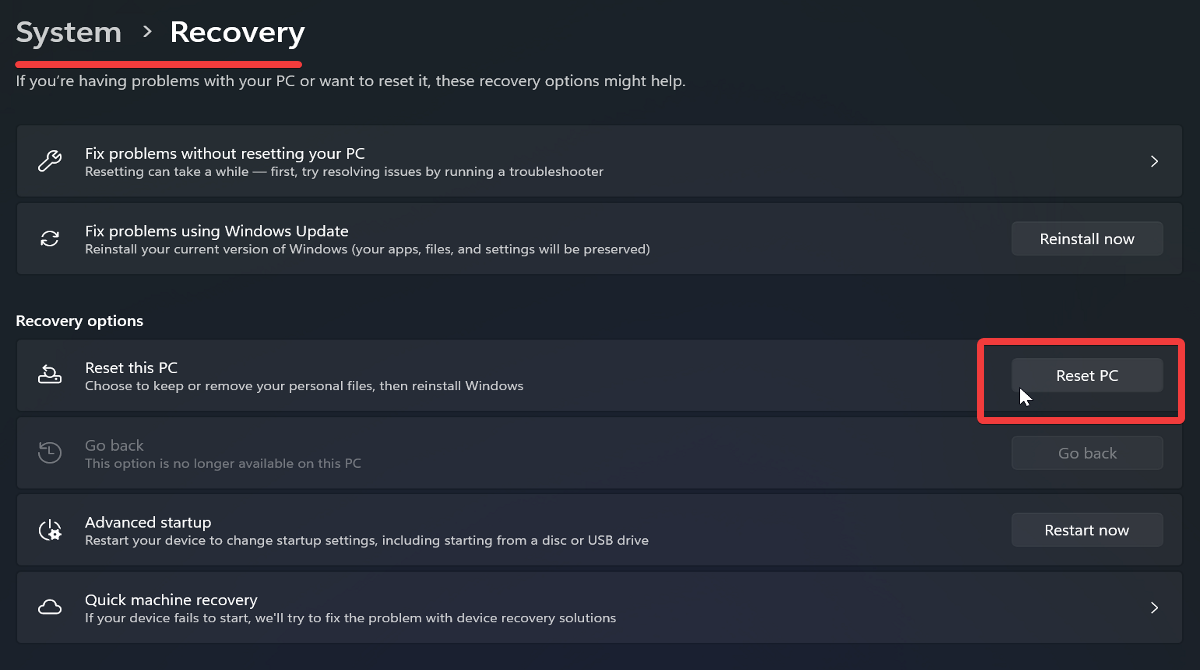
- You can choose between Keep my files or Remove everything. Keep my files only deletes apps and settings, while Remove everything wipes all files and apps.

- Follow the prompts to complete the reset.
Alternatively, you can clean install your operating system with a Windows 10 or 11 ISO file. This is a more lengthy process where you’ll also need a bootable USB drive.
Conclusion
In short, DISM Error 87 can be caused by command typos, incompatibility issues, corrupted system files, and other problems. Try following these steps in the order they appear for a smoother troubleshooting process.
You can start by double-checking whether you’ve typed in the commands correctly or you’re running DISM as administrator. These should do the trick in most cases!
If that doesn’t help, try updating Windows and move on to the more complex steps. You’ll soon resolve the issue, and DISM will function normally again.
Related Posts
- How to Fix App Notifications in Windows?
- Using an Old Device? 5 Account Security Settings You Should Enable
- How to Find Features Moved from Control Panel to Settings in Windows 11?
- How to Back Up Your Android Downloads Automatically?
- Camera Not Working in Zoom or Teams? Quick Fixes for Windows and macOS

Selma is a tech fan and writer at Help Desk Geek with a focus on cybersecurity, gaming, and all things Windows. She’s certified by IBM in hardware and operating systems, and cybersecurity essentials. She also has keen troubleshooting instincts – if you have a problem, she’ll help you solve it. Read selma’s Full Bio

