

Command Prompt looks like a relic: bare black window, blinking cursor, no icons in sight. But it’s worth a second look. It still handles plenty of Windows jobs the GUI simply won’t touch.
What Is Command Prompt?
Command Prompt (cmd.exe) is a text-based shell built into every version of Windows. You type commands, press Enter, and Windows executes them directly, no mouse required.
On Windows 11, Command Prompt often runs inside Windows Terminal, a modern tabbed app that can host Command Prompt, PowerShell, and WSL shells in the same window. The commands work identically either way; Windows Terminal is just the container.
PowerShell is a separate shell with its own scripting language. Familiar commands like cd and dir work in PowerShell too via aliases, but for scripting and system administration its syntax goes well beyond what Command Prompt offers. For the file operations, network diagnostics, and batch scripts covered here, Command Prompt is the right tool.
How to Open Command Prompt in Windows 10 and 11
Method 1: Start menu search (easiest)
- Press the Windows key or click Start.
- Type
cmdor Command Prompt. - Click Command Prompt to open it normally, or click Run as administrator when you need elevated access.

Method 2: Run dialog
- Press
Win + R. - Type
cmd. - Press Enter to open normally, or
Ctrl + Shift + Enterto open as administrator.
Method 3: Windows Terminal (Windows 11)
On Windows 11, the Win + X menu opens Windows Terminal rather than a standalone Command Prompt window.
- Right-click Start or press
Win + X. - Choose Terminal or Terminal (Admin).
- Click the down-arrow next to the + tab button.
- Select Command Prompt.
Method 4: From File Explorer
Useful when you want Command Prompt to open directly inside a specific folder.
- Press
Win + Eto open File Explorer. - Navigate to the folder you want to work in.
- Click the address bar, type
cmd, and press Enter.
A Command Prompt opens with the current directory already set to that folder, a smooth shortcut for targeted file work.
Method 5: Windows Recovery Environment (WinRE)
When Windows won’t boot properly, Command Prompt is still reachable.
- Hold Shift and click Restart from the Start menu or sign-in screen, or let Windows fail to boot twice in a row.
- From the blue recovery screen, choose Troubleshoot.
- Choose Advanced options.
- Click Command Prompt.
When running from recovery, drives often appear under different letters than normal. Use dir to confirm the right path before running any destructive commands.
Navigating the Command Prompt
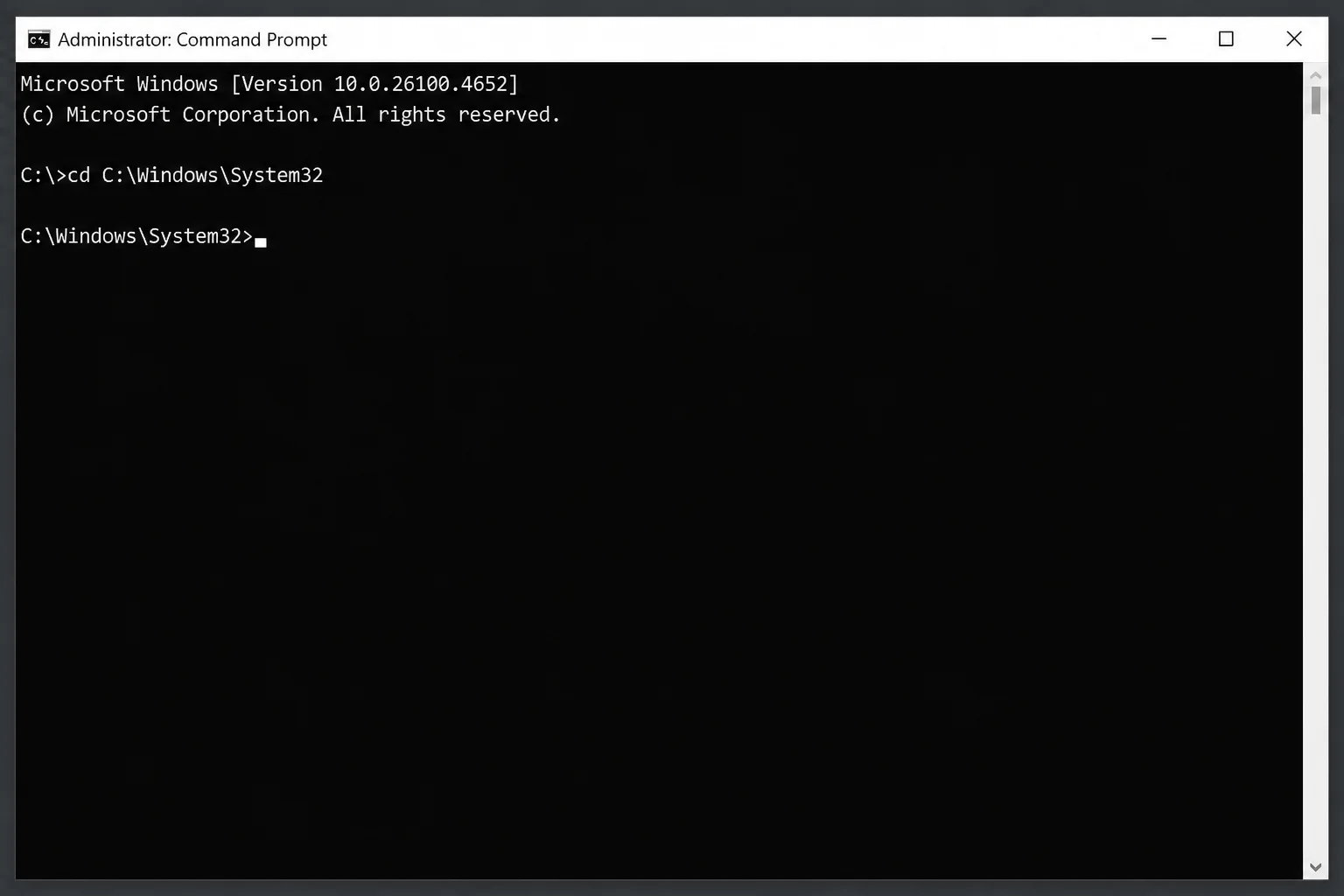
Changing directories: CD
cd moves you between folders. It’s the command you’ll use most.
cd C:\Windows\System32: jumps directly to that pathcd ..: moves up one directory levelcd \: jumps to the root of the current drive
Type cd /? and press Enter for a built-in syntax reference any time you need a reminder.
Listing files: DIR
dir lists every file and folder in the current directory.
dir /p: pauses output page by page, useful in large foldersdir /w: wide format, more entries per linedir /p /w: combines both; much easier to scan than the default single-column output
Type dir /? to see every available flag.
Getting help
Type help and press Enter for a list of every available command with short descriptions. For detail on any specific command, add /?:
dir /?
sfc /?
Clearing the screen: CLS
clsWipes the display clean. Nothing is deleted; it just resets the visible output.
Working with Files and Folders
Deleting files: DEL
del deletes a file immediately. No recycle bin, no confirmation by default.
del report.txt: deletes that file from the current directorydel "my report.txt": quotes required for filenames with spacesdel *.log: deletes every .log file in the current directory
Always include the file extension: del report won’t find report.txt.
Copying files: COPY, XCOPY, ROBOCOPY
copy source.txt C:\Backup\: copies a single filexcopy C:\Source C:\Dest /s: copies a folder tree including subfoldersrobocopy C:\Source C:\Dest /mir: mirrors folders, handles errors gracefully; the better pick for large or ongoing backup jobs
Creating and removing folders: MKDIR and RMDIR
mkdir NewFolder: creates a folder in the current directoryrmdir EmptyFolder: removes an empty folder; returns an error if it contains filesrmdir /s FolderWithStuff: removes a folder and everything inside it; no undo
Other useful file commands
move file.txt C:\NewLocation\: moves a file, or renames it if you change the filename in the destinationren oldname.txt newname.txt: renames a file in placetype file.txt: prints a text file’s contents directly to the windowattrib: views or changes file attributes (hidden, read-only, system)
Running Command Prompt as Administrator
Commands that touch system files, such as sfc /scannow, chkdsk, diskpart, require administrator rights. Without them, you’ll see “Access is denied.”
To confirm you’re elevated, check the title bar: it should read Administrator: Command Prompt (or Administrator: Windows Terminal when running inside Terminal).
If you hit access errors, close the current window, search for Command Prompt in Start, right-click the result, and choose Run as administrator.
Key Troubleshooting Commands
IPCONFIG
ipconfig /allPrints the full picture for every network adapter: IP address, MAC address, default gateway (your router’s address), DHCP server, DNS servers, and whether you’re actually getting an assigned address. When a PC “can’t connect” despite being plugged in, this is step one.
SFC (System File Checker)
sfc /scannowScans every protected Windows system file and replaces any corrupted ones automatically. Run it as administrator. The scan takes 10–20 minutes and is worth running whenever Windows is behaving strangely without an obvious cause.
CHKDSK
chkdsk C: /f /rChecks a drive for file system errors and bad sectors. /f fixes errors; /r locates bad sectors and recovers readable data. Run as administrator. On the system drive (C:), Windows schedules the scan for the next restart since it can’t check a drive that’s actively in use.
DISKPART
diskpart opens a sub-prompt for managing drives and partitions: assigning drive letters, setting active partitions, shrinking or extending volumes.
- Type
diskpartand press Enter (as administrator). - Type
list diskto see your connected drives. - Type
helpinside diskpart for the full command list.
Mistakes here can destroy data. Confirm every target before pressing Enter.
Other commands worth knowing
| Command | What it does |
|---|---|
ping hostname | Tests whether a host is reachable on the network |
tracert hostname | Shows the route packets take to a destination |
netstat | Lists all active network connections from your PC |
fc file1 file2 | Compares two files and shows differences |
attrib | Views or changes file attributes |
Batch Files: Automate Repetitive Commands
Any commands you’d type manually can be saved into a .bat file and run with a double-click, or scheduled via Task Scheduler.
To create one:
- Open Notepad.
- Type your commands, one per line. For example:
@echo off
copy C:\Work\*.docx C:\Backup\
echo Backup complete.- Click File > Save As.
- Set Save as type to All Files.
- Name the file with a
.batextension, for example,backup.bat, and click Save.
Double-clicking the saved file runs every command in sequence. It works for anything from simple file backups to scheduled maintenance tasks.
Command Prompt, PowerShell, and Windows Terminal
On Windows 11, the Win + X menu shows Terminal rather than a standalone Command Prompt entry. Each tool plays a different role.
Command Prompt (cmd.exe) runs .bat scripts, classic Windows commands, and legacy tools. It’s what this guide covers.
PowerShell is a more capable shell with its own scripting language. Familiar commands like cd and dir work in PowerShell via aliases, but scripting and system administration belong to PowerShell once you move past the basics.
Windows Terminal is the tabbed container that hosts both. On Windows 11 22H2 and later, it’s the default console app, so command line sessions typically open as tabs inside Windows Terminal. All commands here work the same whether Command Prompt is running inside Windows Terminal or as a standalone window.
Common Problems
“I can’t find Command Prompt. I only see Terminal or PowerShell”
Search for cmd in the Start menu. That always works. Or open Windows Terminal, click the down-arrow next to the + tab button, and choose Command Prompt from the profile list.
“‘[command]’ is not recognized as an internal or external command”
Usually a typo, or the program isn’t on Windows’s PATH, the list of folders Windows searches when you type a command name. Double-check spelling. If the command belongs to an installed app, try running it from that app’s installation folder, or type the full path in quotes: "C:\Program Files\App\tool.exe".
“Access is denied”
Close the current window, search for Command Prompt in Start, right-click the result, and choose Run as administrator.
Wrap-Up
ipconfig /all and sfc /scannow are the two commands most people reach for again and again; between them, they cover the majority of everyday network and system troubleshooting. Navigation commands like cd, dir, and cls become second nature quickly with a little practice. Bookmark the full command reference at ss64.com for anything beyond the basics; it documents every CMD command with examples and every available switch, well beyond what the built-in /? prompt gives you. For more information on disabling Windows 11 lock screen ads or fixing Microsoft Word printing issues, visit our website. You can also learn how to redact sensitive information in Word and PDF documents or stop Windows 11 from reopening apps after restart. Additionally, you can pause, defer, or disable Windows updates and fix Windows 11 File Explorer search issues. For more advanced topics, you can explore Windows commands and Command Prompt on external resources.